Each floating IP has its own page in Lighthouse. It shows what the address points at, its reverse DNS name, the router it goes through and what it costs. You also point it at a server, move it or release it from here. To allocate a floating IP, see Assign a floating IP.
Open a floating IP’s page
- In the side menu, open Infrastructure, then select Floating IPs under Networking.
- Select the address in the list, for example 203.0.113.25.
You can also open it from a router’s page, under Floating IPs. Select All Floating IPs at the top to go back to the list.
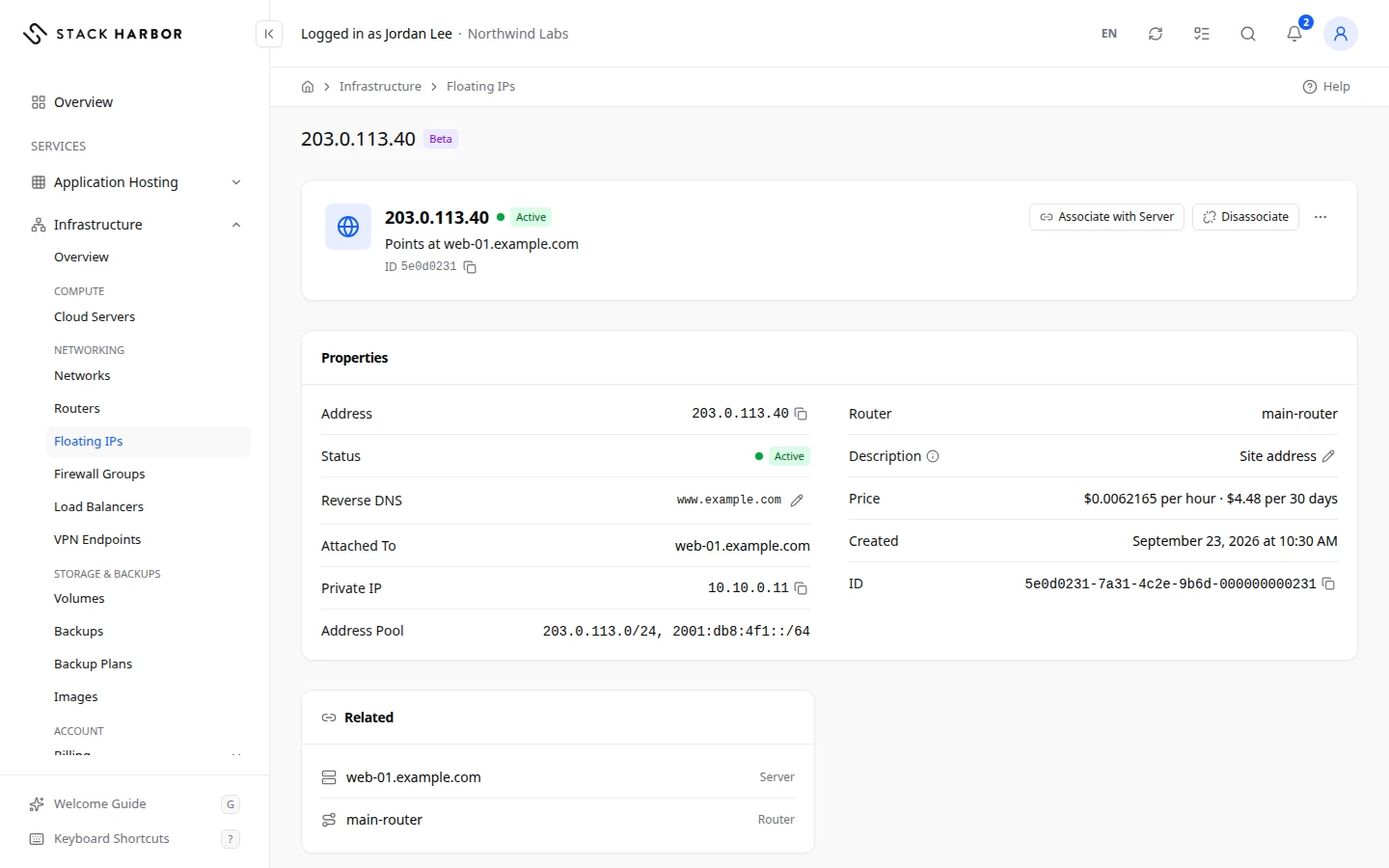
Read the header
- The address itself, as the page’s name.
- Its status: Active when it points at something, Not In Use when it points at nothing.
- A summary line: Points at web-01 (the server or load balancer it points at), or Not Attached.
- Its ID, with a button to copy it.
- Associate with Server, and Disassociate while it points at a server.
- A menu with Edit Reverse DNS and Release Floating IP. While the address points at a server, the release item reads Disassociate and Release.
Read the properties
Properties lists:
- Address: the public IPv4 address, with a button to copy it.
- Status: as in the header.
- Reverse DNS: the name returned when someone looks the address up, also called a PTR record. No PTR Record Set means it has none.
- Attached To: the server or load balancer it points at, or Not Attached.
- Private IP: the private address of the server it points at, with a button to copy it.
- Address Pool: the public range the address comes from.
- Router: the router its traffic goes through, when it has one. Select it to open the router’s page.
- Description: a note for your team. A dash means it has none.
- Price: what the address costs per hour, and for 30 days at that rate. It is billed by the hour from the moment you allocate it until you release it.
- Created and ID.
Related links to the server, load balancer and router the address uses.
Point it at a server or move it
- Select Associate with Server.
- In Server, choose the server. Only servers on a network connected to the address’s public network are listed.
- Confirm. You see Floating IP associated, and the status turns Active.
To move the address, select Disassociate, confirm, then associate it with the new server. You see Floating IP disassociated. You keep the address, and keep paying for it, between the two steps.
Change its reverse DNS
- Open the menu and select Edit Reverse DNS, or select the pencil next to Reverse DNS.
- In PTR Value, type a full host name, such as
mail.example.com, or select Use Server Hostname or Use Default Name. - Select Save Changes. You see PTR record saved.
The name should also resolve forward to the address. If it doesn’t, you see Reverse DNS Not Confirmed. If the change isn’t live in DNS yet, you see Saved, Not Live Yet.
Describe it
- Select the pencil on the Description row (Edit Description).
- Type a note for your team, up to 211 characters, then select Save Description. You see Description saved.
Leave it empty to clear it. The description also shows under the address in the Floating IPs list. Nothing about the address changes.
Release it
- Open the menu and select Release Floating IP, or Disassociate and Release.
- Confirm.
You see Floating IP released. Billing stops at once, and the address may go to someone else. You can’t get the same address back.
If something goes wrong
- Floating IP Not Found means the address was released, or you don’t have access to it. Select All Floating IPs and check the list.
- No server of yours can take it yet. Connect a network to a public network, and put the server on that network. See Manage a network.
- Your servers couldn’t be read just now. Close this and try again.
- If Associate with Server and the menu are missing, you don’t have permission to manage IP addresses. Ask your account owner.
Fields and statuses
What each item on this page means, what it does and how to read it.
- Attached To Field
-
What it is. The server or load balancer the address points at.
- Router Field
-
What it is. The router the address reaches the internet through.
- Associate with Server Field
-
What it is. The button that points the address at a server.
What it does. Traffic to the address then reaches that server.
How to read it. The server needs an interface on a network connected to the address’s public network.
- Disassociate Field
-
What it is. The button that stops pointing the address at its server.
What it does. You keep the address, and keep paying for it, until you release it.
- Edit Reverse DNS Field
-
What it is. The action that sets the name returned when someone looks the address up.
How to read it. The name should also resolve forward to the address.
- Release Floating IP Field
-
What it is. The action that gives the address back.
What it does. Billing stops at once, and the address may go to someone else.
How to read it. You can’t get the same address back.
- Disassociate and Release Field
-
What it is. The release action while the address still points at a server.
What it does. It stops pointing the address at the server, then gives it back. Billing stops at once.
- Not Attached Status
-
What it is. The address points at nothing.
How to read it. It is still billed. Point it at a server, or release it if you don’t need it.
- Price Field
-
What it is. What the address costs.
How to read it. Per hour, and for 30 days at that rate. It is billed by the hour from the moment you allocate it until you release it.
- Floating IP Not Found Status
-
What it is. The floating IP wasn’t found.
How to read it. It may have been released, or it belongs to a project you can’t see. Go back to All Floating IPs.
- Description Field
-
What it is. A note for your team about this address, up to 211 characters.
What it does. It is shown on the address's page and in the Floating IPs list. Nothing about the address changes.