Each Stack Harbor service is off until the account owner turns it on. You enable a service once. After that, its pages open and you can create resources in it.
Enabling a service costs nothing by itself. You pay for what you create, billed monthly for what you use.
Before you start
- You must be the account owner. A team member sees Ask your account owner to activate this service. in place of the button.
- Your email address must be confirmed. See Verify your email.
- A payment card must be saved on the account. See Add a payment card.
- Your billing profile must have your name and billing address. See Update your account details.
Enable a service
- In the side menu, open the service you want: Infrastructure, Application Hosting or WordPress Hosting.
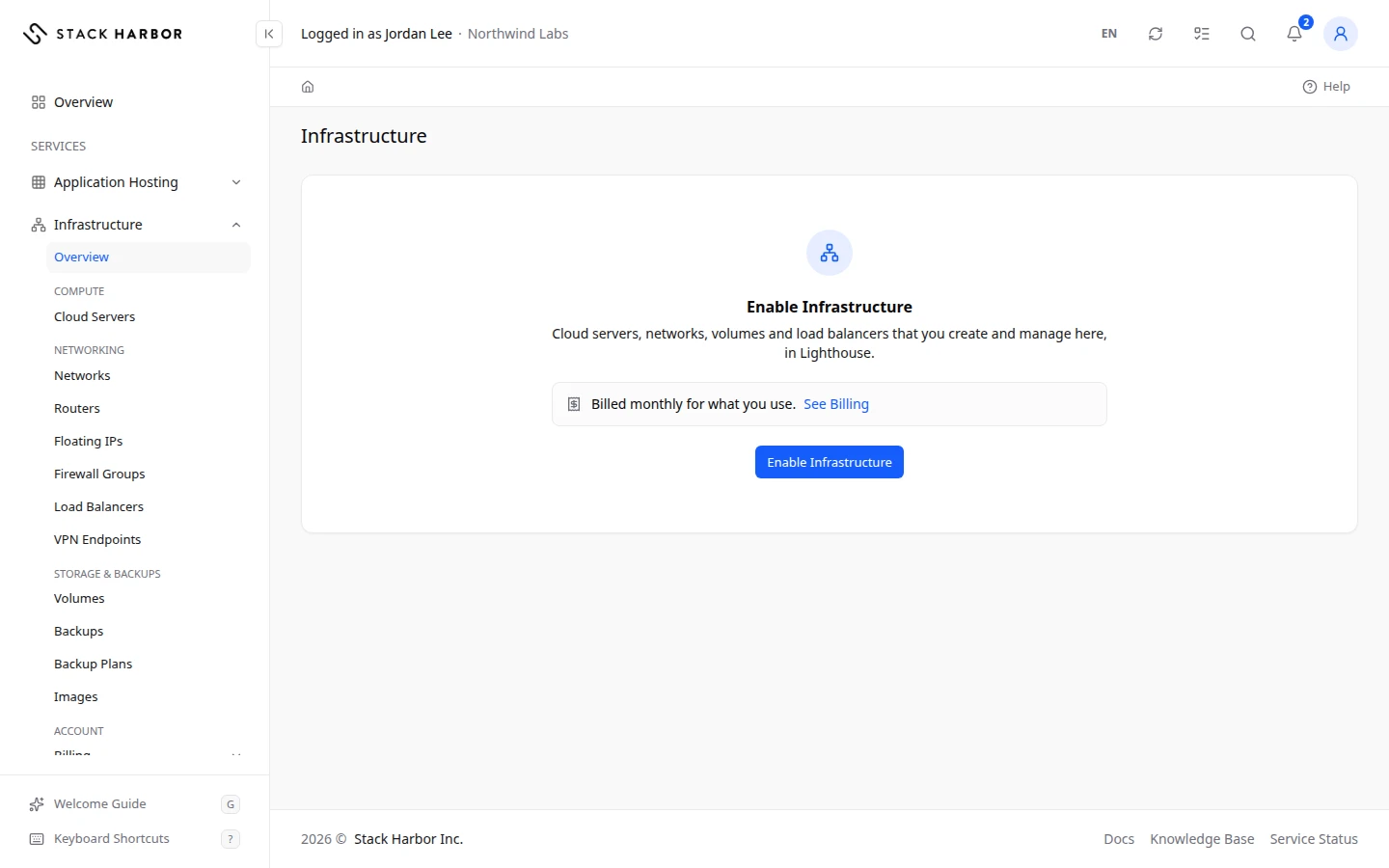
- The service’s page shows a panel titled Enable Infrastructure, Enable Application Hosting or Enable WordPress Hosting. It says what the service is, and Billed monthly for what you use. with a See Billing link.
- If a box titled Before You Enable appears, finish each step it lists. Each step has a button that takes you to the place where you do it, such as Add Payment Method or Complete Profile.
- Select the Enable button for the service, for example Enable Infrastructure. The button shows Enabling… while it works.
- Wait on the page. You see Setting Up Your Infrastructure… (or the name of the service you chose). Setup usually takes under a minute, and the page opens by itself when the service is ready.
WordPress Hosting runs on Application Hosting. Enabling WordPress Hosting also enables Application Hosting, and the panel says so.
What you see afterwards
The service’s own pages replace the panel. You can now create resources there, for example Deploy a server, Create an environment or Launch a WordPress site.
If something goes wrong
- If the button is greyed out, hold the pointer over it, or read the line under it, to see why. The most common reason is Finish the steps above to enable Infrastructure.: one of the steps in Before You Enable is still open.
- This Is Taking Longer Than Usual means setup is still running. You can leave the page. Come back in a few minutes and select Check Again.
- Setup Didn’t Finish means the last attempt stopped. We try again automatically. You can also select Try Again now.
- We’re Looking Into It means our team has to finish the setup by hand. They already know, and you don’t need to do anything.
- Account Under Review or Account On Hold means services can’t be enabled until the review or hold is cleared. Select Contact Support to open a ticket.
- If the panel says the service can’t be enabled just yet, we are still preparing it. You don’t need to do anything. Check back soon.
Fields and statuses
What each item on this page means, what it does and how to read it.
- Enable a Service Field
-
What it is. The setup step that switches on your first service.
What it does. It lists the services you can enable, each with its own button.
How to read it. It shows Done once one service is on. You can enable more at any time.
- Setting Up Your Infrastructure… Status
-
What it is. We are setting up the service you enabled.
How to read it. This usually takes under a minute. The page opens by itself when the service is ready.
- This Is Taking Longer Than Usual Status
-
What it is. Setup is still running after 3 minutes.
How to read it. You can leave the page. Setup carries on. Select Check Again in a few minutes.
- Setup Didn't Finish Status
-
What it is. The last attempt to set up the service stopped before the end.
How to read it. We try again automatically. You can also select Try Again.
- We're Looking Into It Status
-
What it is. Our team has to finish setting up the service by hand.
How to read it. They already know. There is nothing you need to do.
- Account Under Review Status
-
What it is. We are reviewing your account.
How to read it. There is nothing you need to do. You can enable services once the review is done. Contact support if you have a question.
- Account On Hold Status
-
What it is. Your account is on hold, so services can’t be enabled right now.
How to read it. Select Contact Support and we will sort it out with you.