The Activity Log records sign-ins and changes on your account. Use it to check who signed in, spot a failed sign-in attempt, or confirm when a setting changed.
The account owner sees it in the account menu. You can also reach it with the arrow beside Login Activity in the Security card of Account Settings.
Open the activity log
- Open the account menu at the top right.
- Under History, select Activity Log.
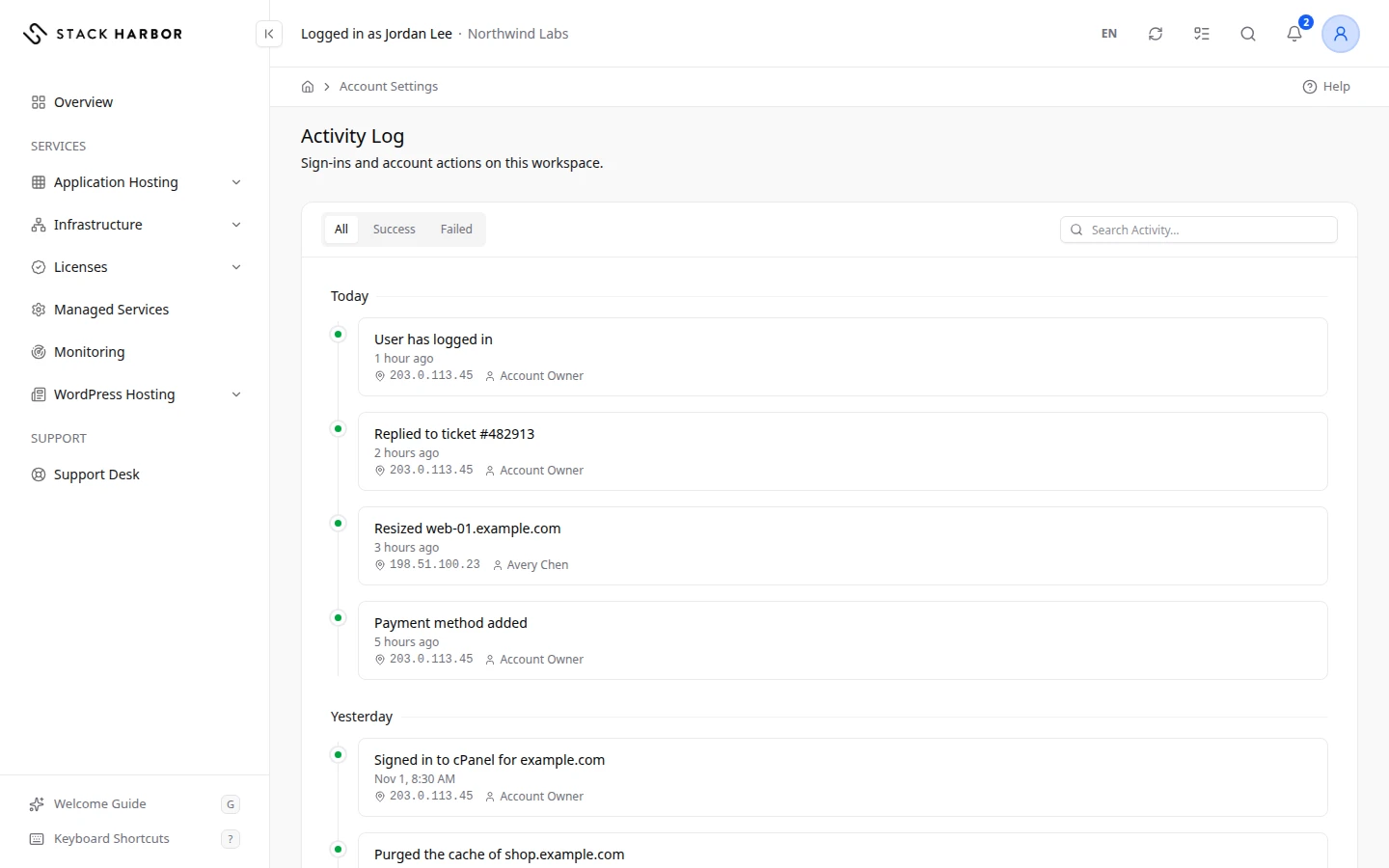
Read the log
Events are listed newest first, grouped under Today, Yesterday, This Week and Older. Each event shows:
- What happened, for example “User has logged in” or “Payment method added”.
- When it happened.
- The IP address it came from, when one was recorded, for example 203.0.113.24.
- The name of the person who did it, when one was recorded.
- A Failed badge when the action didn’t succeed, for example a failed sign-in attempt.
- The name of what the event is about, in its first line, links to that item’s page while it still exists. Once the item is deleted, the name is plain text. Invoices are not linked.
- An arrow at the end, named View Action, opens the background action the event came from, with its progress, or its error if it failed. Only events written by a background action from 2026-11-04 on have it.
Filter and search
- Select All, Success or Failed to show only those events.
- Type in Search Activity… to find an event by its words, an IP address or a name.
If something looks wrong
- A failed sign-in attempt from an IP address you don’t know may mean someone is guessing your password. Change your password and turn on two-factor authentication. See Change your password and Turn on two-factor authentication.
- If you see No Events Match This Filter, select All to see every event.
- If you see No Activity Recorded Yet, nothing has happened on the account yet.
To see one team member’s actions only, open their page and select Activity. See Manage a team member.
Fields and statuses
What each item on this page means, what it does and how to read it.
- All Option
-
What it is. Shows every event.
- Success Option
-
What it is. Shows only events that succeeded.
- Failed Option
-
What it is. Shows only events that failed, such as failed sign-in attempts.
- Failed Status
-
What it is. The action didn’t succeed.
How to read it. A failed sign-in from an IP address you don’t know may mean someone is guessing your password. Change it and turn on two-factor authentication.
- View Action Field
-
What it is. The arrow at the end of an event.
What it does. Opens the background action the event came from, with its progress, or its error if it failed.
How to read it. Only events written by a background action from 2026-11-04 on have the arrow. The item the event is about is linked by its name in the first line while it exists; invoices are not linked. The same arrow appears in Recent Activity on the Overview and on a member’s Activity tab.