You reach a cloud server in two ways. SSH is a secure command-line connection from your own computer, signed in with an SSH key. The browser console shows the server’s screen and keyboard in Lighthouse, which helps when SSH doesn’t answer.
Connect over SSH
- Open the server’s page. See Manage a cloud server.
- On the Overview tab, find Server Access.
- Under Connect Via SSH, select Copy SSH command. The line under it shows the image’s default user, for example Default user: ubuntu.
- Paste the command in a terminal on your computer and press Enter. Your SSH client uses your private key.
Installed SSH Keys lists the keys put on the server, for example laptop-2026 for ubuntu. Keys pasted at deploy show as a count of pasted keys.
If the card says the address is private, the server has no public address. Connect from another server on the same network, or give it a floating IP. See Assign a floating IP. New servers also block inbound traffic: if SSH times out, check your address is allowed in Firewall Groups.
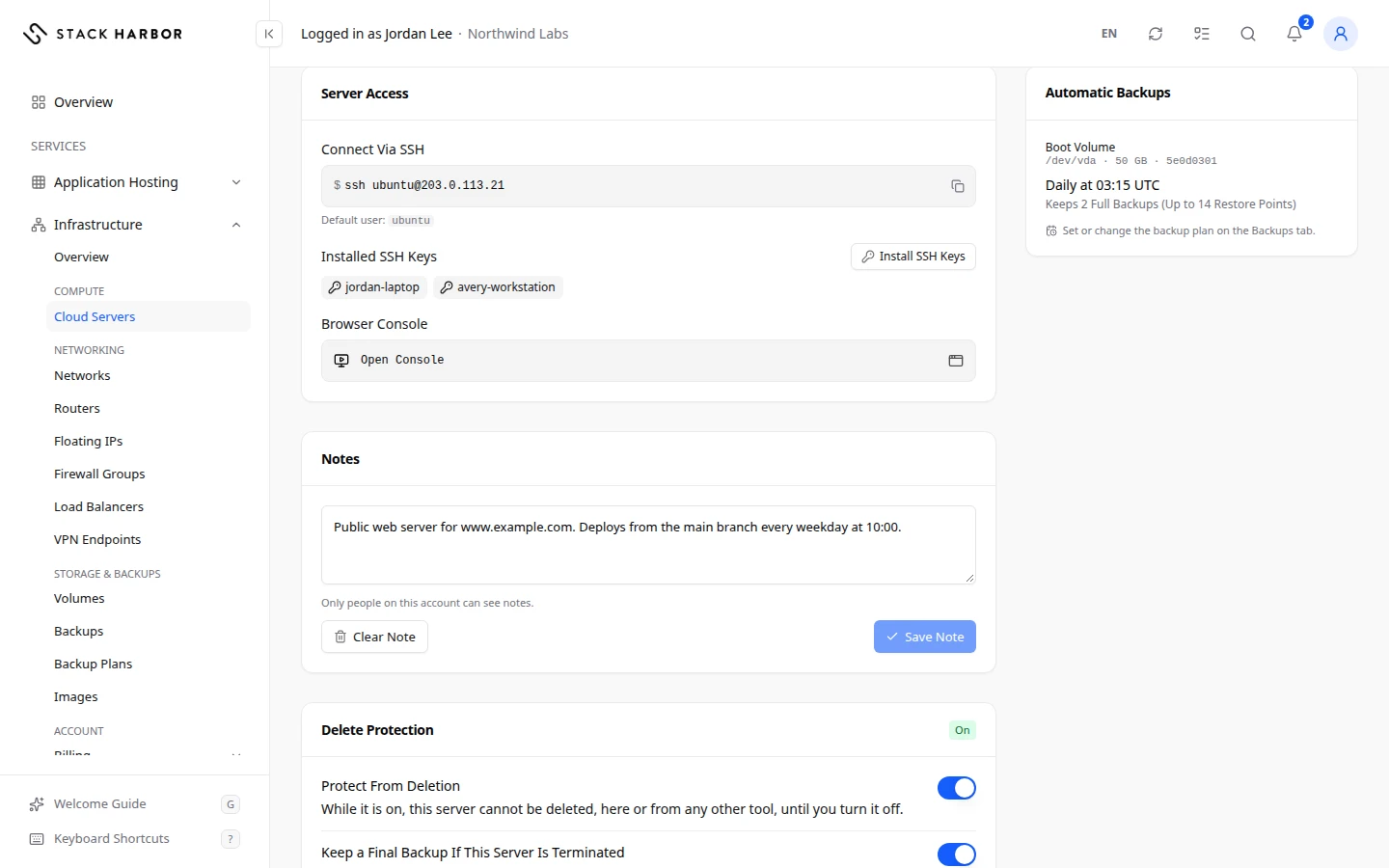
Open the browser console
- Select Console in the server’s header, or Open Console under Browser Console.
- Wait for Connecting to the Console…. The console window shows the server’s screen.
- Type in the window. Every key goes to the server, including Escape.
The console window has these controls:
- Send Ctrl+Alt+Del sends that key combination after you confirm. Most Linux servers restart when they receive it.
- Extra Keys gives you Ctrl, Esc, Tab and the arrow keys for a phone or tablet.
- Paste Text types text on the server one key at a time, as on a US keyboard. Type the text, then select Type Text.
- Scale to Fit, Fullscreen and Open in New Window change how the screen shows.
- Close Console closes it.
The console opens only while the server is running or in recovery mode. On a stopped server, start it first.
Install SSH keys on a running server
Use this to add a key for a new person, or to replace keys you no longer trust. Linux servers only.
- Under Server Access, select Install SSH Keys.
- Tick the keys to install from your SSH keys.
- Under How To Install, choose Add To Existing Keys to keep the keys already on the server, or Replace All Existing Keys so only the keys you choose work.
- In Login User, leave it empty for the default user, or type a user that already exists on the server.
- Select Install SSH Keys (or Replace SSH Keys).
The server goes offline for about a minute while it restarts into maintenance mode, then starts again. A stopped server starts in maintenance mode, then shuts down again. You see Installing SSH Keys… in the status, then the key appears under Installed SSH Keys.
With Replace All Existing Keys, anyone who signs in as that user with another key loses access. Make sure you hold the private key of a key you chose.
Download the console log
The console log is the text the server printed while starting, which helps find a failed boot.
- Select More, then Download Console Log.
- Your browser saves the file.
A stopped server has no console log.
If something goes wrong
- Console Not Available Yet means the browser console isn’t switched on for these servers yet. Use SSH in the meantime.
- Couldn’t Reach the Console or a blank window can mean your browser doesn’t trust the console’s certificate yet. Select Open in New Window, accept the certificate there, then select Reconnect. Use the Basic Viewer is another option.
- The Console Disconnected means the connection closed. Select Reconnect.
- SSH keys can’t be installed on a Windows server that’s already deployed. Add them at deploy instead.
- We can’t tell this server’s default user. Enter the login user and try again. Fill in Login User.
Repair a server in recovery mode
Recovery mode starts a small repair system in place of the server’s own operating system. The server’s own disk is attached as a second disk, so you can fix files on it. Use it when a server no longer starts, or when you are locked out.
Enter recovery mode
- Open the server’s page, then select More and Enter Recovery Mode.
- Read the box. The server stops, then starts the recovery system. It is unavailable until you exit recovery mode.
- Confirm.
A Recovery Password box opens once. Copy the password with Copy, then select Done. We don’t keep it. Sign in with the server’s SSH key first: the recovery system may not use this password.
The status changes to Recovery Mode, and the page shows This Server Is in Recovery Mode.
Repair the server
- Connect over SSH or open the console, as described at the top of this page.
- Find the server’s own disk. It shows as the second disk.
- Mount it, fix what you need, then unmount it.
Exit recovery mode
- Select Exit Recovery Mode on the banner or in More.
- Confirm.
The recovery system is switched off, and the server starts from its own disk again. It ends Running, even if it was stopped before.
Reset the root password
Use this when you lost the root password of a Linux server. Root is the server’s administrator account.
- Keep this browser tab open until the end: the new password appears only here.
- Select More, then Reset Root Password.
- Read the box. The server restarts into maintenance mode while a new root password is set, then starts again from its own disk. It’s unavailable for about a minute. A stopped server is started for this, then shut down again.
- Confirm.
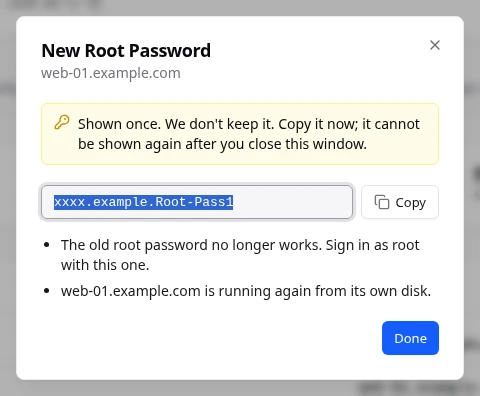
The status shows Resetting Root Password… with its steps. When it ends, New Root Password shows the password once. Copy it with Copy, then select Done. The old root password no longer works.
This works on Linux servers only. On an encrypted or LVM disk nothing is changed, and the old password keeps working.
If something goes wrong
- Not available for Windows servers. applies to Reset Root Password.
- The server couldn’t be switched to recovery mode. Nothing was changed. Your old root password still works.
- If you closed or reloaded the tab during a reset, the password can’t be shown. Wait for the reset to end, then reset again to get a new one.
- If the server couldn’t be shut down again after a reset, it’s left running. Shut it down yourself if you need to.
Fields and statuses
What each item on this page means, what it does and how to read it.
- Server Access Field
-
What it is. The card that shows how to sign in to the server.
What it does. It has the SSH command, the installed keys and the browser console.
- Connect Via SSH Field
-
What it is. The SSH command that signs you in to the server.
What it does. Copy SSH command copies it, ready to paste in a terminal.
How to read it. The line under it shows the image’s default user, for example ubuntu.
- Default user: ubuntu Field
-
What it is. The user name the image signs you in as over SSH.
How to read it. For example ubuntu, debian or root, depending on the image.
- Installed SSH Keys Field
-
What it is. The SSH keys put on the server, with the user each one is for.
How to read it. Keys pasted at deploy show as a count.
- Browser Console Field
-
What it is. The server’s screen and keyboard, in a Lighthouse window.
What it does. Open Console opens it. It helps when SSH doesn’t answer.
How to read it. It opens only while the server is running or in recovery mode.
- Extra Keys Option
-
What it is. A row of keys for a phone or tablet.
What it does. Gives you Ctrl, Esc, Tab and the arrow keys.
- Paste Text Option
-
What it is. Types text on the server one key at a time.
What it does. The text is typed as on a US keyboard. Select Type Text to send it.
- Scale to Fit Option
-
What it is. Fits the server’s screen into the window.
- Console Not Available Yet Status
-
What it is. The browser console isn’t switched on for these servers yet.
How to read it. Use SSH in the meantime.
- Couldn't Reach the Console Status
-
What it is. The console didn’t connect, often because the browser doesn’t trust its certificate yet.
How to read it. Select Open in New Window, accept the certificate, then Reconnect. Use the Basic Viewer is another option.
- The Console Disconnected Status
-
What it is. The console connection closed.
How to read it. Select Reconnect.
- How To Install Field
-
What it is. How new SSH keys are put on a running Linux server.
How to read it. Add To Existing Keys keeps the old keys. Replace All Existing Keys leaves only the keys you choose.
- Add To Existing Keys Option
-
What it is. Adds the chosen keys and keeps the keys already on the server.
- Replace All Existing Keys Option
-
What it is. Removes the keys on the server and installs only the ones you choose.
What it does. Anyone who signs in as that user with another key loses access.
How to read it. Make sure you hold the private key of a key you chose.
- Login User Field
-
What it is. The server user the keys are installed for.
What it does. Empty means the image’s default user.
How to read it. Type a user that already exists on the server.
- Installing SSH Keys… Status
-
What it is. The server restarts into maintenance mode to install the keys.
What it does. It is offline for about a minute.
How to read it. The key then appears under Installed SSH Keys.
- Recovery Password Field
-
What it is. The password of the recovery system, shown once.
How to read it. Copy it now: we don’t keep it. Sign in with the server’s SSH key first.
- This Server Is in Recovery Mode Status
-
What it is. The server runs a small repair system with its own disk attached as a second disk.
How to read it. Fix what you need, then select Exit Recovery Mode. The server then ends Running.
- Resetting Root Password… Status
-
What it is. A new root password is being set. The server restarts into maintenance mode, then starts again.
How to read it. Keep the browser tab open: the new password appears only there.
- New Root Password Field
-
What it is. The server’s new administrator password, shown once.
What it does. The old root password no longer works.
How to read it. Copy it before you select Done.