Each environment has its own page. The Overview tab tells you what the environment is made of and how much it uses. The Power menu at the top changes its state.
Open an environment
- Go to Application Hosting, then Environments.
- Select the environment’s row. Its page opens on Overview.
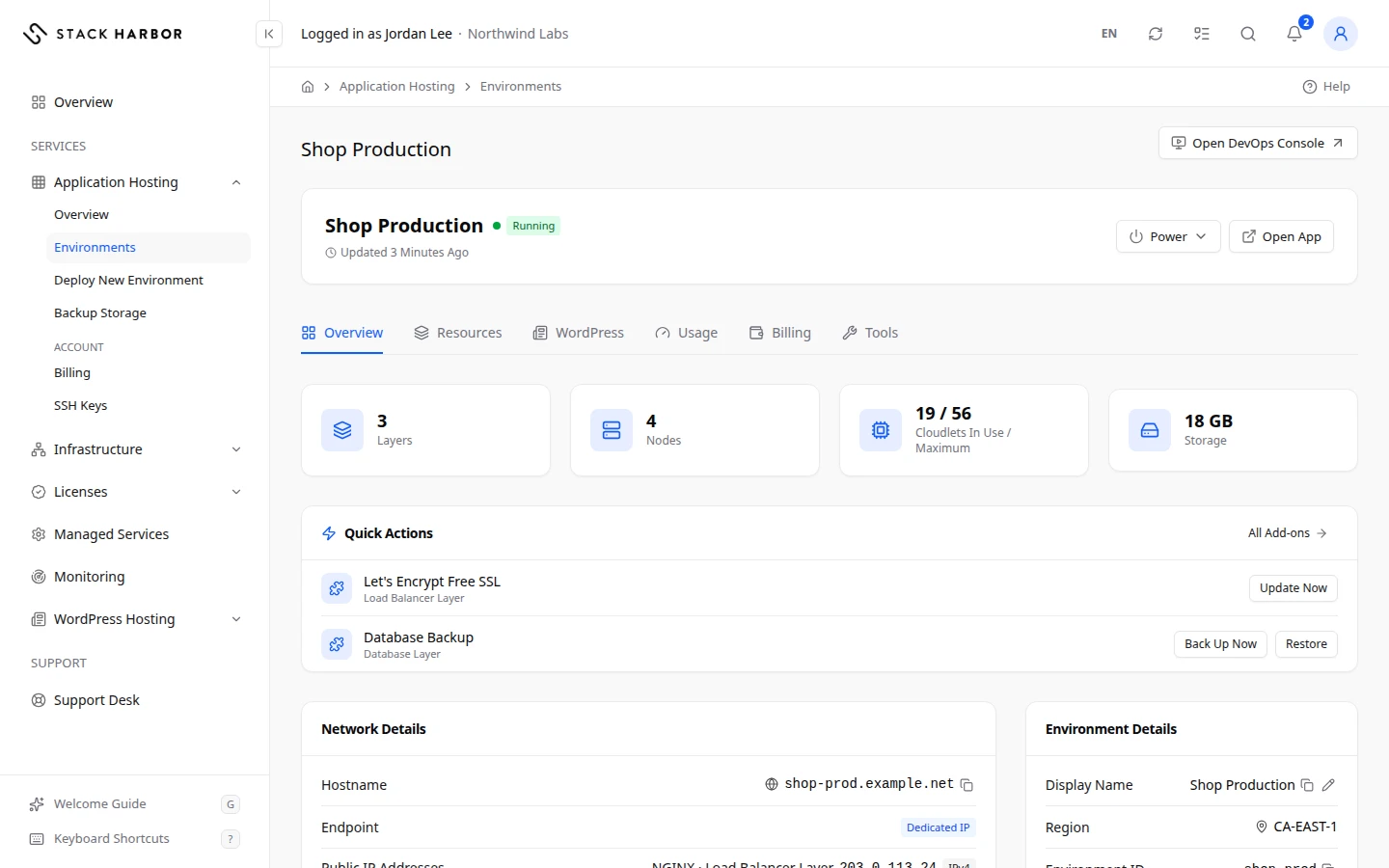
The header shows the display name, the status and when the page was last updated. While the environment is Running, Open App opens it in a new browser tab.
The tabs along the top are Overview, Resources, Usage, Billing and Tools. A WordPress tab also appears when the environment has a PHP layer. Billing only shows if you can see billing on the account.
Read the Overview
- Four tiles sum up the environment. Layers and Nodes count its parts. Cloudlets shows the cloudlets in use against the maximum. Storage shows the disk used, against the limit when there is one. Hold the pointer over a tile to see more.
- Environment Details lists the Display Name, the Region, the Environment ID (the fixed name in its address) and any Tags.
- Network Details lists the Hostname, the Endpoint, the Public IP Addresses and whether the Firewall is Enabled or Disabled. Endpoint reads Shared IP when traffic reaches the environment through a shared address, and Dedicated IP when a layer has its own public address.
- Connection Details lists, for each layer, its Internal IP, its Public IP and, when there is one, an Open Admin Panel button, for example for a database’s admin panel.
- Quick Actions shows the buttons of the add-ons installed on your layers, such as purging a cache. It only appears when an add-on offers one.
Change the power state
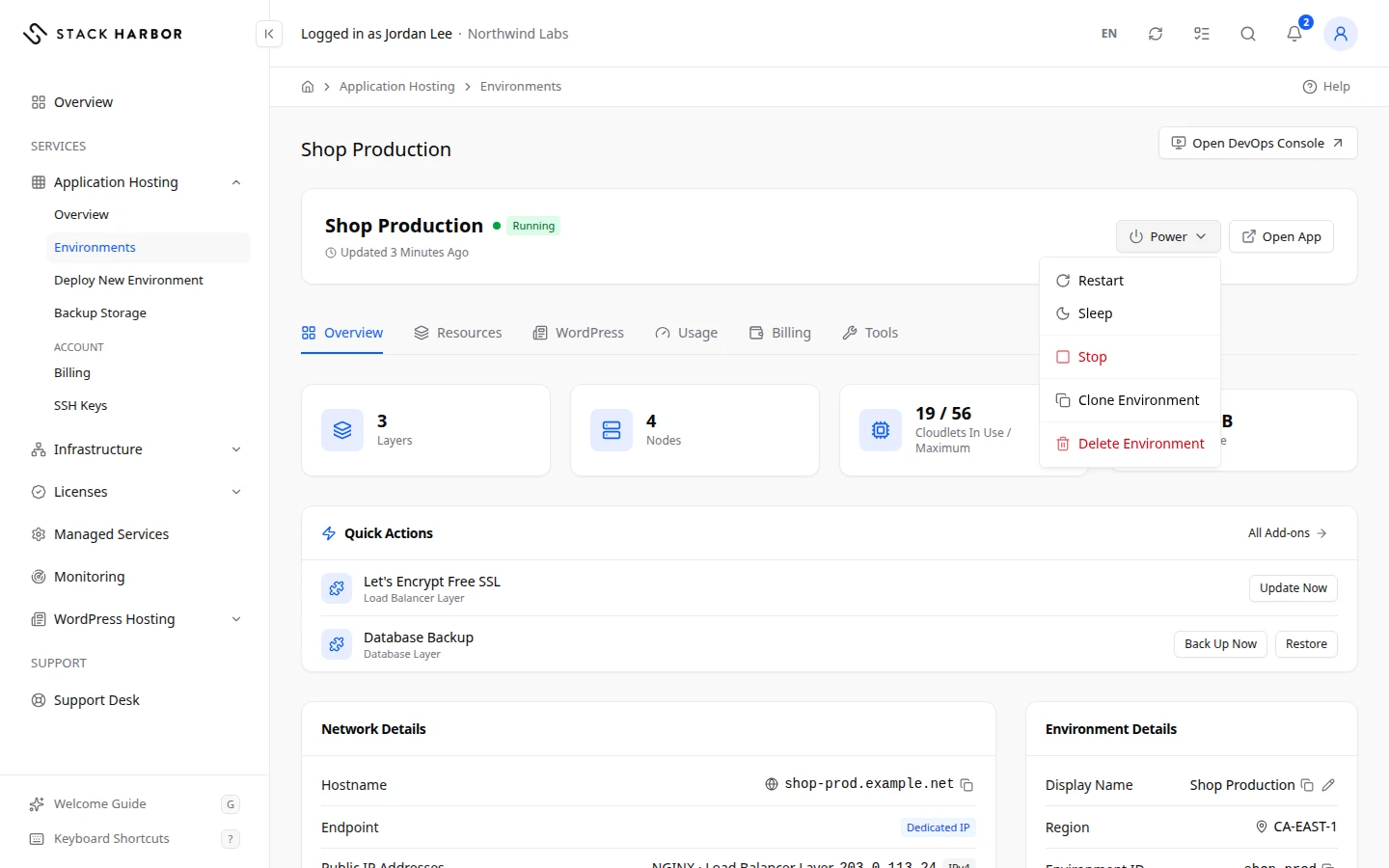
- Select Power at the top of the page.
- Choose an action. What you can pick depends on the current state.
- While Running: Restart, Sleep or Stop.
- While Stopped: Start.
- While Sleeping: Wake Up.
- Read the dialog, then confirm. Stop makes the environment unreachable until you start it again. Restart causes a brief interruption. Sleep idles it, and it wakes on the next request.
The action keeps running if you leave the page. The status changes to Starting or Stopping, then settles.
For a multi-region cluster, a Cluster submenu in Power applies Start All, Stop All, Restart All or Sleep All to every member at once.
Rename an environment
- On Overview, select Rename Environment beside the name.
- Type the new Display Name, then select Rename.
Only the display name changes. The web address and the Environment ID stay the same.
Clone an environment
- Select Power, then Clone Environment.
- Type an Environment Name for the copy. It’s also the copy’s web address.
- Select Clone Environment.
The copy is a full, separate environment. It’s billed on its own from the moment it’s created until you delete it. Cloning can take several minutes, and you can follow it in Background Actions.
Delete an environment
- Select Power, then Delete Environment.
- Read the dialog. Deleting removes every layer and node, all their data, and any backups stored inside the environment. Domains bound to it stop working. You can’t undo it.
- Type the environment’s name in the box to confirm, then select Delete Environment.
Deleting usually takes 10 to 20 seconds. The environment then leaves the list.
To delete a whole multi-region cluster, use Power, then Cluster, then Delete Cluster. The dialog lists the order the members are deleted in. Tick Also Delete the Backup Storage and Every Backup in It if you want the backups gone too.
If something goes wrong
- You need permission to start, stop or restart this environment. Ask the account owner. The Power actions are greyed out until the owner grants it.
- This environment is a WordPress Hosting site. Delete it from its site page in WordPress Hosting. Select Manage in WordPress Hosting and act on it from its site page.
- This environment is part of a multi-region cluster, so it cannot be deleted on its own. Delete the whole cluster instead.
- Another task is running on this environment. Wait for it to finish, then try again.
- This environment could not be found. It may have been deleted. Go back to All Environments.
Fields and statuses
What each item on this page means, what it does and how to read it.
- Layers Metric
-
What it is. How many layers the environment has.
How to read it. Each layer is one role, such as application or database.
- Nodes Metric
-
What it is. How many nodes run across all layers.
- Cloudlets Metric
-
What it is. The cloudlets in use now, against the maximum the environment can reach.
How to read it. One cloudlet is 128 MiB of memory and 200 MHz of CPU. Sitting near the maximum for long means the environment needs more room.
- Reserved Cloudlets Metric
-
What it is. The cloudlets the environment keeps reserved at all times.
How to read it. Billed every hour, used or not.
- Memory Metric
-
What it is. The memory in use across the environment.
How to read it. Shown as a figure only, because the ceiling follows the cloudlets.
- CPU Metric
-
What it is. The processor power in use, in MHz.
How to read it. Shown as a figure only. 200 MHz equals one cloudlet of CPU.
- Storage Metric
-
What it is. The disk space the environment uses.
How to read it. Shown against the disk limit when the platform reports one.
- Disk IOPS Metric
-
What it is. Disk reads and writes per second.
How to read it. A high, steady reading means heavy disk use.
- Display Name Field
-
What it is. The friendly name shown in your lists.
What it does. Rename Environment changes it. The address stays the same.
- Environment ID Field
-
What it is. The fixed name of the environment, used in its address.
How to read it. It never changes.
- Tags Field
-
What it is. Labels attached to the environment.
How to read it. No Tags means none are set.
- Hostname Field
-
What it is. The default web address of the environment.
- Endpoint Field
-
What it is. How traffic from the internet reaches the environment.
How to read it. Shared IP means through a shared address. Dedicated IP means a layer has its own public address. Could Not Determine means it could not be read.
- Public IP Addresses Field
-
What it is. The public IP addresses attached to the environment’s nodes.
How to read it. Not Assigned means it has none. Each public IP is billed.
- Firewall Field
-
What it is. Whether the environment firewall is enforcing its rules.
How to read it. Enabled means only allowed traffic gets through. Disabled means every port is reachable.
- Internal IP Field
-
What it is. The private address of a node, reachable only from inside the environment.
How to read it. Use it to connect one layer to another, for example the application to the database.
- Public IP Field
-
What it is. The address a node can be reached at from the internet, when it has one.
How to read it. Billed according to your plan.
- Admin Panel Field
-
What it is. The web admin panel that comes with some software, such as a database.
What it does. Open Admin Panel opens it in a new tab.
- Quick Actions Field
-
What it is. The buttons of the add-ons installed on your layers, gathered on the Overview.
What it does. Runs an add-on action, such as purging a cache, without opening the layer.
How to read it. Hidden when no installed add-on offers a button.
- Start Option
-
What it is. Turns a stopped environment on.
What it does. It goes to Starting, then Running, and billing for cloudlets resumes.
- Stop Option
-
What it is. Turns the environment off.
What it does. It is unreachable until you start it again. Storage and public IPs are still billed.
- Restart Option
-
What it is. Restarts every layer of the environment.
What it does. Expect a brief interruption.
- Sleep Option
-
What it is. Puts the environment to sleep.
What it does. It idles to save resources and wakes by itself on the next request.
- Wake Up Option
-
What it is. Wakes a sleeping environment now.
What it does. It starts serving requests again.
- Clone Environment Option
-
What it is. Makes a full copy of the environment under a new name.
What it does. The copy is a separate environment, billed on its own from the moment it is created until you delete it.
- Delete Environment Option
-
What it is. Deletes the environment for good.
What it does. Removes every layer and node, their data and any backups stored inside. Domains bound to it stop working. Cannot be undone.
How to read it. You must type the environment’s name to confirm.
- Delete Cluster Option
-
What it is. Deletes every environment of a multi-region cluster, in every region.
What it does. Deletes load balancers first, then databases, then the primary. Optionally deletes the backup storage too. Cannot be undone.
- Also Delete the Backup Storage and Every Backup in It Field
-
What it is. A tick box in Delete Cluster.
What it does. When ticked, the backup storage and every backup in it are deleted last, after the primary. Unticked, they are kept.