Some banks ask you to confirm a card payment before they let it through. This check is called 3-D Secure. Your bank shows it in a small window, for example a code sent to your phone or a prompt in your banking app. Until you confirm, the invoice stays unpaid.
You can confirm on the invoice page, or from the email we send you. The email links to the Confirm Your Payment page.
Confirm from the invoice
- Open the invoice. See Pay an invoice.
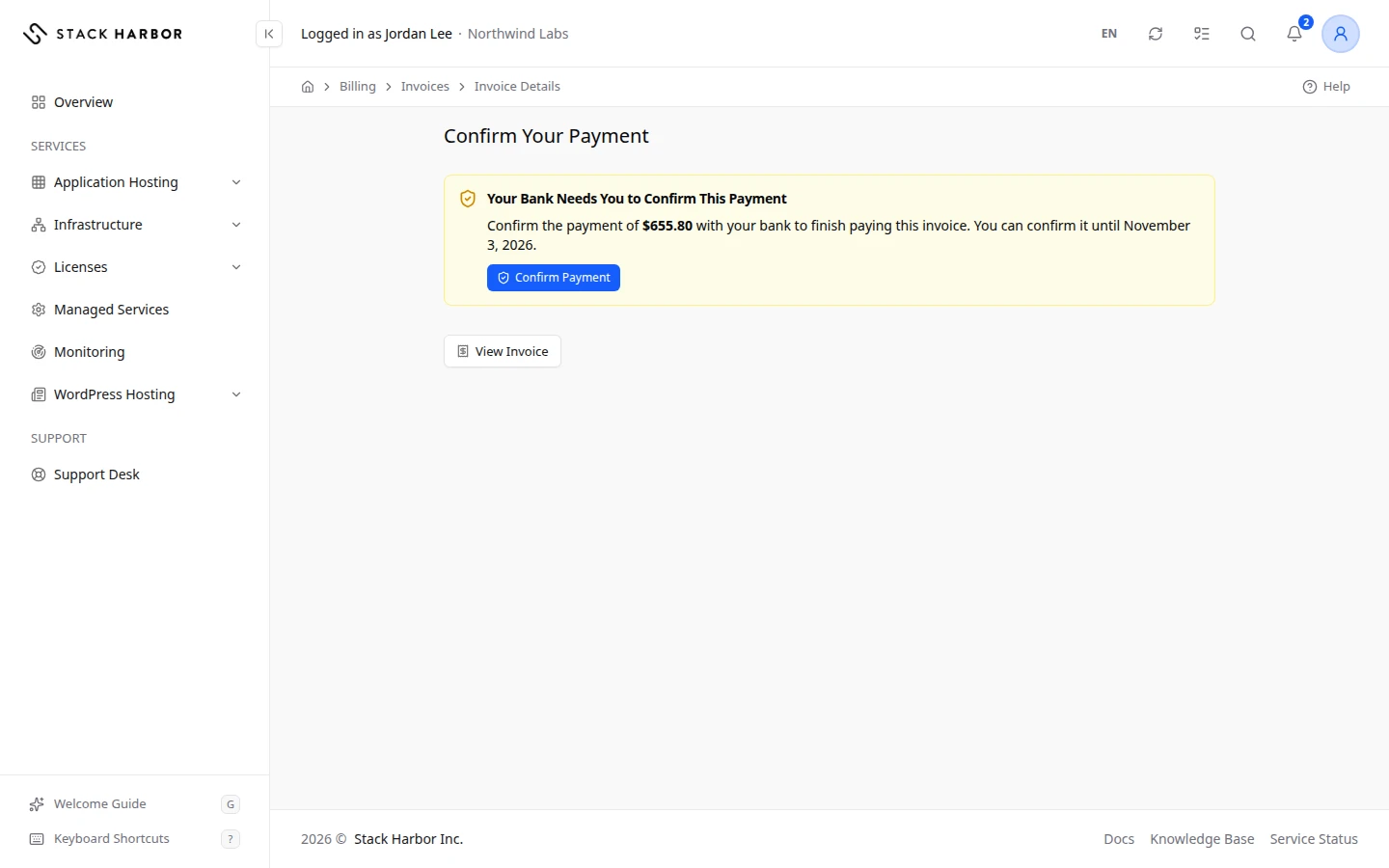
- Look for the box titled Your Bank Needs You to Confirm This Payment. It shows the amount and, when there is one, the date you can confirm until.
- Select Confirm Payment.
- Follow your bank’s steps in the window that opens.
- Wait on the page. It updates by itself.
Confirm from the email
- Open the email we sent about the payment, and select its link.
- Sign in if Lighthouse asks you to. The Confirm Your Payment page opens.
- Select Confirm Payment and follow your bank’s steps.
- Select View Invoice to go back to the invoice.
What the page tells you
- Processing Your Payment means the payment is being processed. The page updates by itself. If it takes a long time, we email you when it’s done.
- Payment Received means the payment went through and is being recorded on the invoice.
- Payment Complete means the payment is applied to the invoice. If you paid more than the invoice needed, the extra amount is added to your account credit, and the page says how much.
- Payment Declined means your card was declined. Check your card or add another, then select Pay Now again.
- Payment Not Completed means the payment didn’t finish and nothing was charged. Select Pay Now to try again.
If something goes wrong
- If the bank’s window doesn’t open, the page says The bank’s confirmation window could not open. Checking the payment’s status instead. Allow pop-ups for Lighthouse in your browser, then try again.
- If you see This payment link isn’t valid for this invoice., the link is for another invoice or was copied wrongly. Open the invoice from Invoices and pay it there.
- If the page says the payment couldn’t be completed here and shows a Complete Secure Payment button, select it to finish paying on our secure payment page.
- If you see A secure payment for this invoice is already under way. Follow it on this page., you don’t need to start a new payment. Follow the one shown.
Fields and statuses
What each item on this page means, what it does and how to read it.
- Your Bank Needs You to Confirm This Payment Status
-
What it is. Your bank wants you to confirm this card payment with 3-D Secure.
What it does. Select Confirm Payment to open your bank’s check.
How to read it. The invoice stays unpaid until you confirm. The box says the date you can confirm until.
- Processing Your Payment Status
-
What it is. The payment is being processed.
How to read it. The page updates by itself. If it takes long, we email you when it’s done.
- Payment Received Status
-
What it is. The payment went through and is being recorded on the invoice.
How to read it. You don't need to do anything.
- Payment Complete Status
-
What it is. The payment is applied to the invoice.
How to read it. If you paid more than the invoice needed, the extra amount is added to your account credit.
- Payment Declined Status
-
What it is. Your card was declined.
How to read it. Check your card or add another, then select Pay Now again.
- Payment Not Completed Status
-
What it is. The payment didn’t finish, for example because the bank check was closed.
How to read it. Nothing was charged. Select Pay Now to try again.