An SSH key lets you sign in to a server without a password. It is a pair: the public key goes on the server, and the private key stays on your computer. The SSH Keys page stores public keys on your account, so you can tick them when you deploy a server. Keys you add here can be used on every server you create.
You need the SSH keys permission to open this page. The account owner has it. See Manage a team member.
Open SSH Keys
- Open Infrastructure in the side menu.
- Select SSH Keys, under Account.
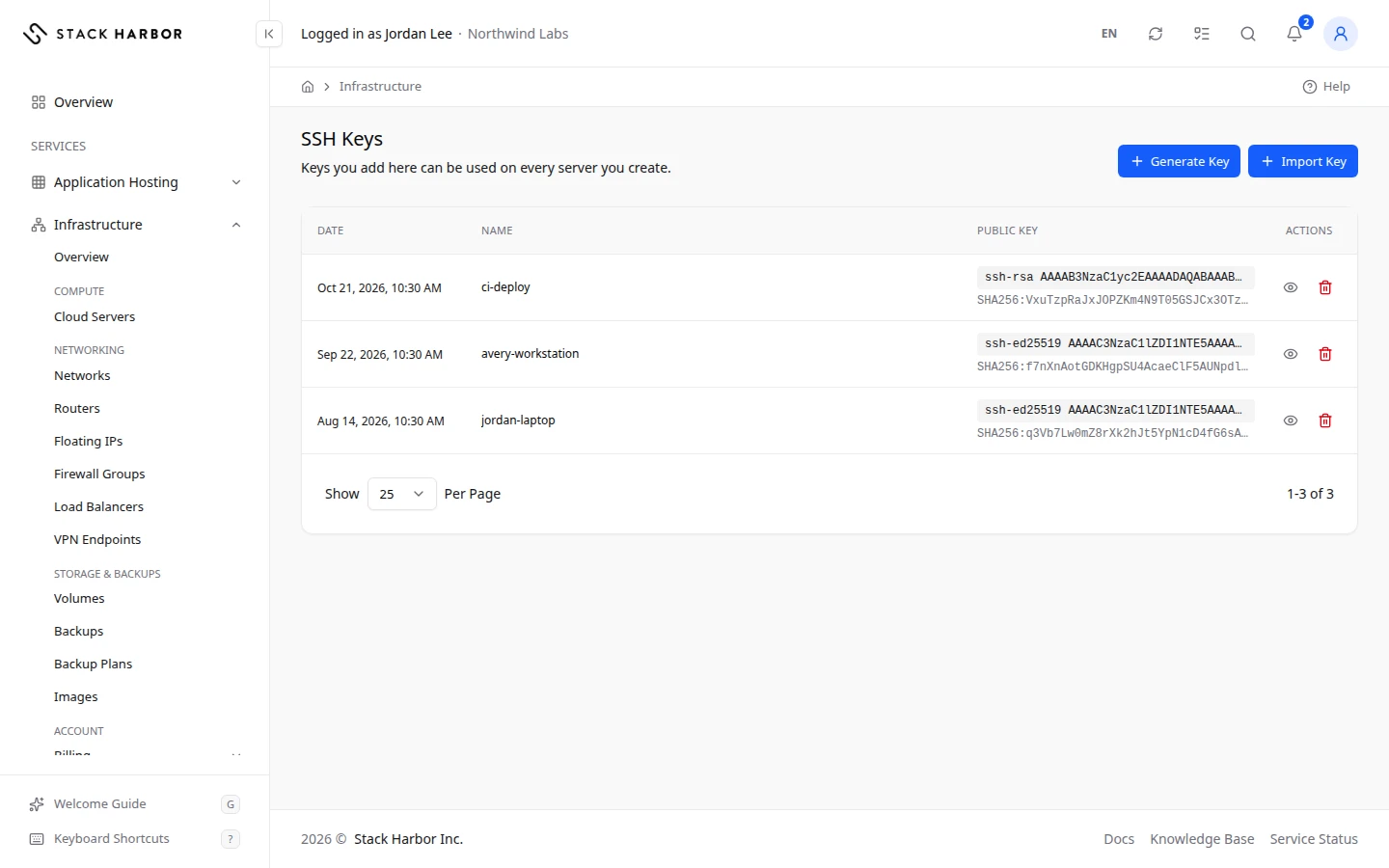
Generate a new key
Use this when you don’t have a key yet.
- Select Generate Key.
- Under Key Type, choose Ed25519 (marked Recommended) or RSA 4096 (marked Max Compatibility, for older tools).
- Optional: type a Name / Comment, for example laptop-2026.
- Select Generate Key.
- The private key shows once, under Generated Key: laptop-2026. Select Download or Copy, and save it in a file on your computer. We never store the private key.
- Select I’ve Saved the Key.
You see SSH key added. The public key is now on your account.
Import a key you already have
- Select Import Key.
- In Public Key, paste your public key: the contents of a .pub file. It starts with ssh-ed25519, ecdsa-sha2- or ssh-rsa, on one line.
- Optional: type a Name / Comment. Leave it blank to use the key’s own comment.
- Select Add Key.
Never paste a private key. If you do, Lighthouse clears it and asks for the public key.
Read the list
The list shows each key with Date, Name, Fingerprint and Actions. The SHA256 Fingerprint is a short code that identifies the key, so you can match it with the one on your computer. View Public Key shows the full public key with Copy.
Remove a key
- Select Remove on the key’s row.
- Confirm.
You see SSH key removed. Servers that already have this key keep it. It can’t be picked for new servers any more.
If something goes wrong
- That doesn’t look like a public key. It should start with ssh-rsa, ssh-ed25519 or ecdsa-.
- Too many keys were generated in the last minute. Try again in a minute.
- Generating a key needs a project on your account. You can still import a key. Enable Infrastructure first. See Enable a service.
To put a key on a server that is already running, see Connect to a server.
Fields and statuses
What each item on this page means, what it does and how to read it.
- Key Type Field
-
What it is. The kind of key to generate.
How to read it. Ed25519 is recommended. RSA 4096 works with older tools.
- Ed25519 Option
-
What it is. A modern, short and strong key type.
How to read it. Marked Recommended.
- RSA 4096 Option
-
What it is. A longer key type that older tools understand.
How to read it. Marked Max Compatibility.
- Name / Comment Field
-
What it is. A name to recognise the key, for example laptop-2026.
How to read it. Optional. When importing, blank uses the key’s own comment.
- Public Key Field
-
What it is. The contents of your .pub file, on one line.
What it does. It is saved on your account so you can pick it at deploy.
How to read it. It starts with ssh-ed25519, ecdsa-sha2- or ssh-rsa. Never paste a private key.
- Date Column
-
What it is. When the key was added.
- Name Column
-
What it is. The key’s name or comment.
- Fingerprint Column
-
What it is. A short code that identifies the key.
How to read it. Match it with the fingerprint on your computer to be sure it is the same key.