Each plan has its own page. It shows what the plan covers, the work our engineers have done and planned, and the tickets linked to it.
Open a plan
- In the side menu, select Managed Services.
- Select the plan in the list.
The top of the page shows the plan’s name, tier, Status and Health, followed by the plan’s key figures.
- Open Incidents is the number of problems still being handled on the monitored resources.
- Covers is how many resources the plan looks after.
- Hours This Period is the engineering time used in the current period, for example 3 of 10 hours. 3 hours · Unlimited means the plan has no hour cap. 3 hours · None included means the plan includes no hours, so all time is billable.
- Response Commitment is how quickly we commit to answer, for example “Within 30 minutes”, During business hours or Around the clock.
- Next Due is the next date the plan is billed.
A figure that is not measured, or that your role can’t see, is left out rather than shown as zero.
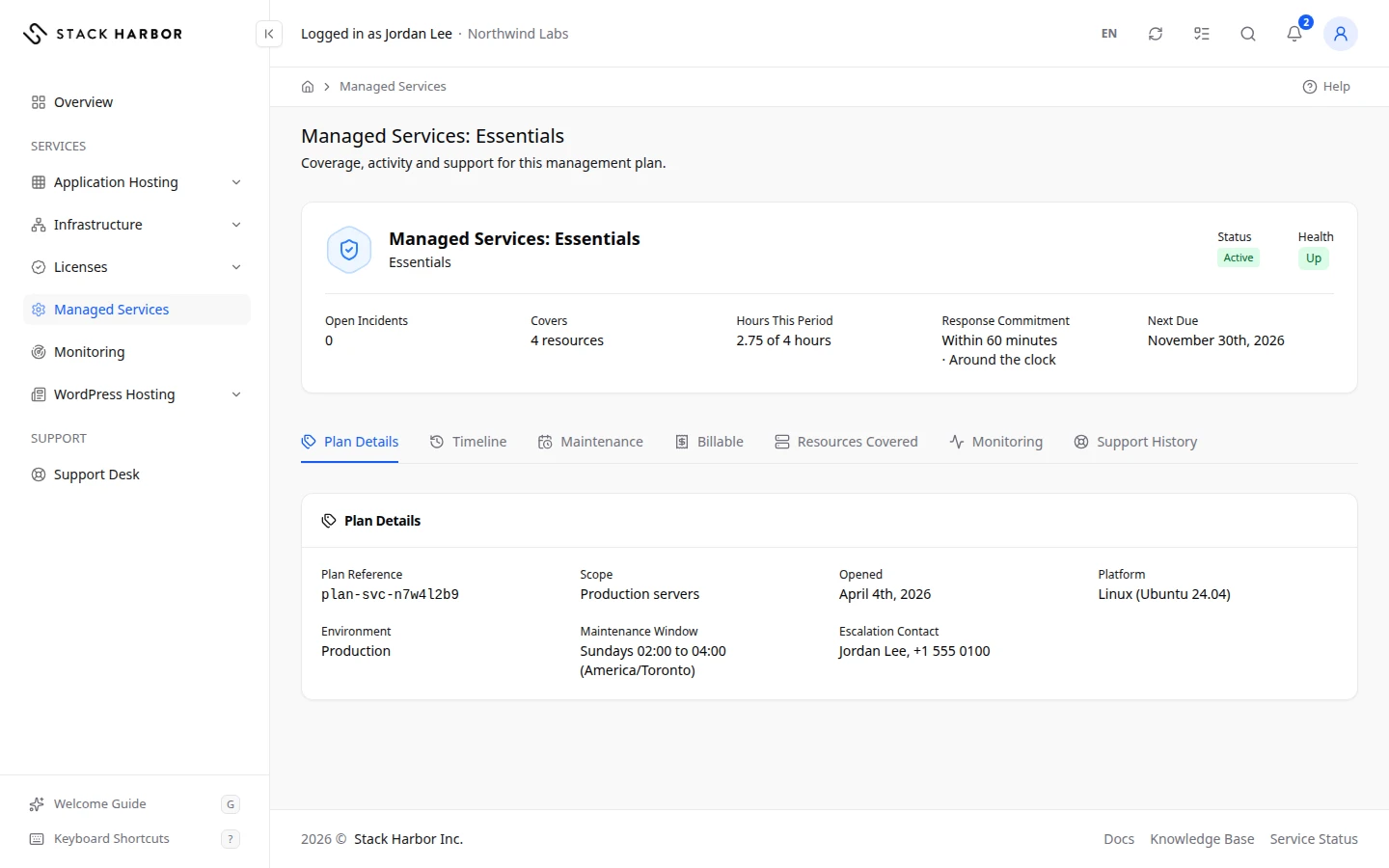
The tabs are Plan Details, Timeline, Maintenance, Billable, Resources Covered, Monitoring and Support History. You see only the tabs your permissions allow.
Plan Details
This tab lists the plan’s Plan Reference, its Scope, the date it was Opened, and the date it Closed if it has ended. When they apply, it also shows the Platform and Environment the plan runs on, the agreed Maintenance Window, and the Escalation Contact we call when something urgent happens.
Timeline
Timeline lists the Completed Work our engineers published for the plan, newest first, grouped by day, week and then month. Each entry shows its category, such as Patching, Configuration Change or Incident Response, and its outcome.
- Completed means the work finished as planned.
- Partly Completed means only part of it was done.
- Did Not Complete means it couldn’t be finished.
- Rolled Back means it was undone to return to the earlier state.
An entry linked to a ticket says so, for example “Related to ticket #4821”. Nothing Published Yet means there is no completed work to show.
Maintenance
Maintenance lists Upcoming Maintenance for the plan, with the time window of each job, grouped under Today, Tomorrow, Next 7 Days and later dates. Nothing Scheduled means no maintenance is planned.
Resources Covered
This tab lists every resource the plan looks after.
- Choose a status filter: All, or one of the statuses below.
- To find a resource, type its name, type or environment in Search resources….
Each row shows the Resource name, its Type (such as Server, Website, Database or Load Balancer), its Status and its Coverage. Covered Since gives the date it joined the plan. With the monitoring permission, a Monitoring column shows its health.
The Status column says whether the resource still exists where we expect it.
- Active means we found it.
- Removed means it no longer exists, for example after it was deleted.
- Needs Review means we can’t match it to anything on your account, and our team will check it.
- Checking means we haven’t verified it yet.
Coverage says why the resource is covered. Plan Scope means it falls inside the plan’s scope. Added By Us means our team added it by hand.
Support History
This tab lists the support tickets linked to the plan, in the same table as the Support Desk. The card above it repeats the plan’s Response Commitment. Select New Ticket to open a ticket already linked to this plan, so it reaches the engineers who look after it. See Open a support ticket.
No support tickets are associated with this plan. means no ticket is linked yet.
Related tasks
- To see the hours used and billed, read Track engineering time on a plan.
- To see uptime and incidents, read Check a plan’s health.
Fields and statuses
What each item on this page means, what it does and how to read it.
- Open Incidents Metric
-
What it is. The number of problems still being handled on the plan’s monitored resources.
How to read it. A count. 0 is healthy.
- Hours This Period Metric
-
What it is. The engineering time used in the current period.
How to read it. Hours, for example 3 of 10 hours. Unlimited means no hour cap. None included means all time is billable.
- Response Commitment Field
-
What it is. How quickly we commit to answer your requests on this plan.
How to read it. For example Within 30 minutes, During business hours or Around the clock.
- Next Due Field
-
What it is. The next date the plan is billed.
How to read it. A date. Hidden from members without access to billing.
- Plan Reference Field
-
What it is. The plan’s own reference.
What it does. Quote it when you contact us about the plan.
- Opened Field
-
What it is. The date the plan started.
- Closed Field
-
What it is. The date the plan ended.
How to read it. Shown only for a plan that has ended.
- Platform Field
-
What it is. The platform the plan runs on.
How to read it. Shown when it applies.
- Environment Field
-
What it is. The environment the plan covers.
How to read it. Shown for a plan scoped to one environment.
- Maintenance Window Field
-
What it is. The agreed time when our engineers may do planned work.
- Escalation Contact Field
-
What it is. The person we call when something urgent happens on the plan.
How to read it. To change it, open a support ticket.
- Completed Work Field
-
What it is. The work our engineers published for the plan.
How to read it. Newest first, grouped by day, week and then month. Each entry shows its category and outcome.
- Completed Status
-
What it is. The work finished as planned.
- Partly Completed Status
-
What it is. Only part of the work was done.
How to read it. Ask in a ticket if you have a question about it.
- Did Not Complete Status
-
What it is. The work couldn’t be finished.
How to read it. Ask in a ticket if you have a question about it.
- Rolled Back Status
-
What it is. The work was undone to return to the earlier state.
How to read it. Ask in a ticket if you have a question about it.
- Patching Option
-
What it is. One of the categories that sort completed work, such as Patching, Configuration Change or Incident Response.
- Upcoming Maintenance Field
-
What it is. The maintenance planned for the plan, with each job’s time window.
How to read it. Grouped under Today, Tomorrow, Next 7 Days and later dates. Nothing Scheduled means no work is planned.
- Resource Column
-
What it is. The name of a resource the plan looks after.
- Type Column
-
What it is. What kind of resource it is.
How to read it. For example Server, Website, Database or Load Balancer.
- Status Column
-
What it is. Whether the resource still exists where we expect it.
How to read it. Active, Removed, Needs Review or Checking.
- Coverage Column
-
What it is. Why the resource is covered by the plan.
How to read it. Plan Scope or Added By Us.
- Covered Since Column
-
What it is. The date the resource joined the plan.
- Monitoring Column
-
What it is. The resource’s monitoring health.
How to read it. The same badges as the plan’s Health. Shown only with the monitoring permission.
- Active Status
-
What it is. We found the resource on your account.
How to read it. Nothing to do.
- Removed Status
-
What it is. The resource no longer exists, for example after it was deleted.
How to read it. If it should still be covered, open a ticket.
- Needs Review Status
-
What it is. We can’t match the resource to anything on your account.
How to read it. Our team will check it. There is nothing you need to do.
- Checking Status
-
What it is. We haven’t verified the resource yet.
How to read it. Check again later.
- Plan Scope Option
-
What it is. The resource falls inside the plan’s scope.
- Added By Us Option
-
What it is. Our team added the resource to the plan by hand.
- Server Option
-
What it is. A server.
- Website Option
-
What it is. A website.
- Database Option
-
What it is. A database.
- Load Balancer Option
-
What it is. A load balancer that spreads traffic across servers.
- Cluster Option
-
What it is. A group of machines that work together.
- Storage Option
-
What it is. Storage, such as a volume.
- Other Option
-
What it is. Any other kind of resource.