The Plugins tab lists the plugins installed on a site and lets you manage them without opening WordPress. Every change applies to the live site, so Lighthouse asks you to confirm first.
Before you start
- The site must be running. A stopped site’s list is read-only and shows the date it was read.
- You need the Manage Plugins permission. Without it you see Managing plugins needs the Manage Plugins permission. The account owner can grant it.
See your plugins
- Open the site from Site Listing, then select the Plugins tab.
- Read the count at the top, for example No updates available, or how many updates are available.
- Type in Search plugins… to find a plugin by name.
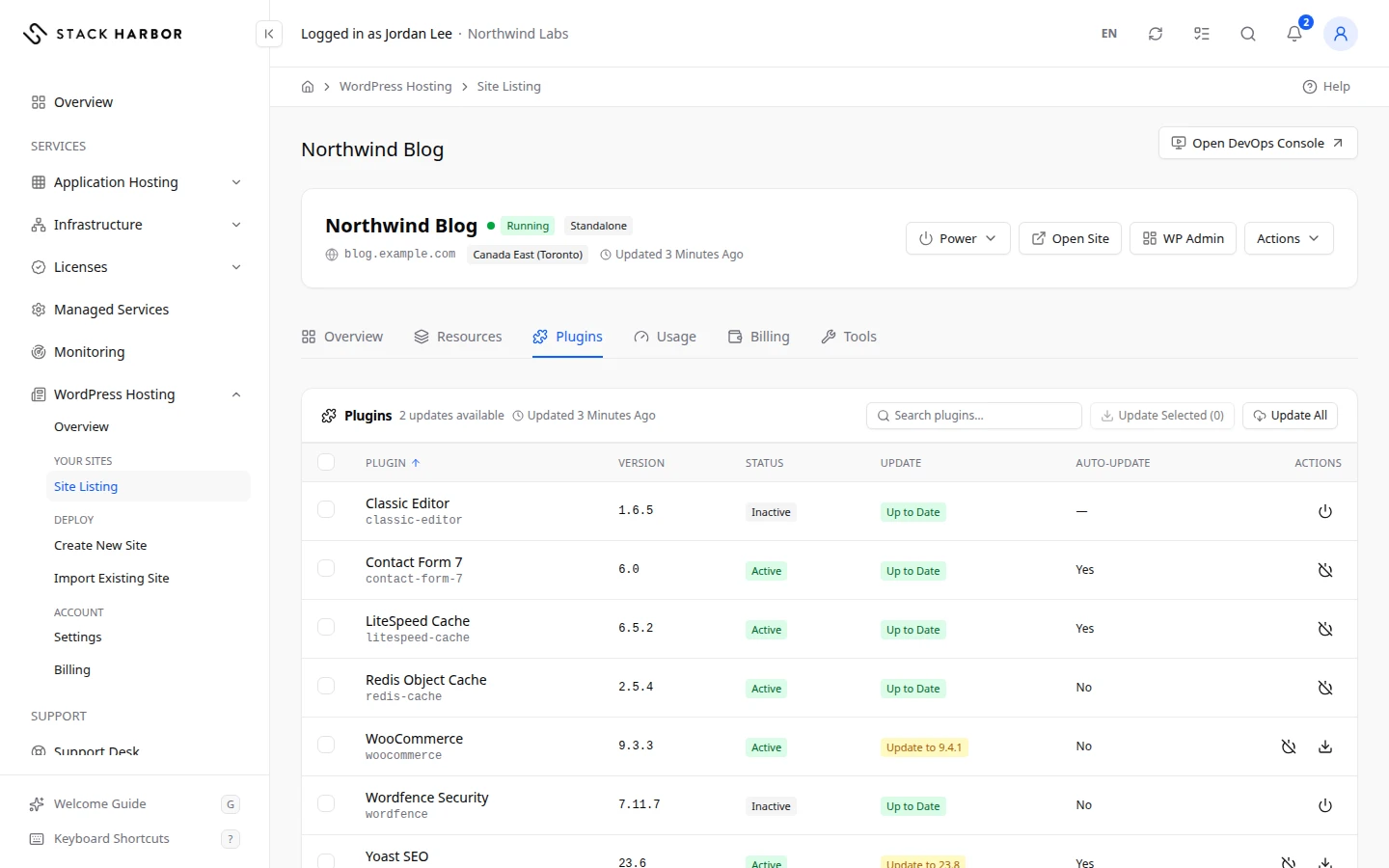
Each row shows the Plugin, its Version, its Status, its Update, whether WordPress updates it by itself (Auto-Update), and the Actions you can take.
Turn a plugin on or off
- In the plugin’s row, select Activate or Deactivate.
- Confirm. When you deactivate a plugin, whatever it provides, such as forms, shortcodes or caching, stops working until you activate it again.
Must-Use and Drop-In plugins are always on. WordPress loads them by itself, so you can’t select or change them.
Update plugins
- To update one plugin, select the update button in its row. It names the new version, for example “Update to 2.4.1”.
- To update several, tick their boxes, then select Update Selected (2) (the number is how many you ticked).
- To update every plugin that has an update, select Update All.
Confirm each update. Updates apply at once to the live site and can’t be rolled back from here, so take a backup first if the site matters.
What you see afterwards
The dialog closes as soon as the update starts. It runs in the background, and the page header shows its progress. When it ends, a message says how it went and the list is read again.
If something goes wrong
- Reading from Your Site… means Lighthouse is still reading the list. Wait a moment.
- No Plugins Installed: the site has no plugins.
- Another action is running on this site. Wait for it to finish.
- The environment must be running for this. Start the site from its page first. See Manage a WordPress site.
Fields and statuses
What each item on this page means, what it does and how to read it.
- Plugin Column
-
What it is. The plugin’s name.
- Version Column
-
What it is. The version installed on the site.
- Status Column
-
What it is. Whether the plugin is on or off in WordPress.
How to read it. Active, Inactive, Must-Use, Drop-In or Network Active.
- Update Column
-
What it is. Whether a newer version is available.
What it does. The button installs it on the live site after you confirm.
How to read it. Up to Date means nothing to do.
- Auto-Update Column
-
What it is. Whether WordPress updates the plugin by itself.
How to read it. Yes or No. The update policy in Settings can set it for every site.
- Actions Column
-
What it is. Activate or Deactivate the plugin.
What it does. Each asks you to confirm and applies to the live site.
How to read it. Must-use plugins and drop-ins have no actions.
- Active Status
-
What it is. The plugin is switched on.
How to read it. Deactivate it to switch it off.
- Inactive Status
-
What it is. The plugin is installed but switched off.
How to read it. Activate it to switch it on, or remove it in WP Admin if you don’t use it.
- Must-Use Status
-
What it is. A plugin WordPress always loads by itself.
How to read it. It can’t be switched off or updated from Lighthouse.
- Drop-In Status
-
What it is. A file that replaces part of WordPress, such as a cache.
How to read it. Always on. It can’t be changed from Lighthouse.
- Network Active Status
-
What it is. On a Multisite network, the plugin is on for every site of the network.
- Update All Option
-
What it is. Updates every plugin that has an update.
What it does. Applies at once to the live site after you confirm. It can’t be rolled back from here.
- Update Selected ({count}) Option
-
What it is. Updates the plugins you ticked.
What it does. Applies at once to the live site after you confirm.
How to read it. The button shows how many you ticked.