A support ticket is a written conversation with our team about one issue. Open one when something is broken, when you have a billing question, or when you want us to change something for you.
You need the Access Support permission to open tickets. The account owner always has it.
Open a ticket
- In the side menu, under Support, select Support Desk.
- Select New Ticket. The Ticket Details form opens.
- Under Department, select the card closest to your issue. Each card names a team and says in one line what it handles. Picking the right one gets your ticket to the right engineers faster.
- If the department you chose has a Priority field, choose Low, Medium, High or Emergency. It starts on Medium. Keep Emergency for a service that is down right now.
- Optional: under Related Service, choose the service the ticket is about. Services are grouped, for example Managed Plans, Application Hosting, WordPress Hosting and Licenses. Leave it on None if the ticket is about your account in general.
- In Subject, write a short summary, for example “Cannot reach web-01.example.com after a resize”. Keep it under 250 characters.
- In Message, describe the issue. Say what you see, which service it affects, and when it started.
- Optional: if the form shows Attachments, drag files onto the box or select Choose Files. The box tells you which file types are accepted, the size limit per file and the maximum number of files.
- If the department asks for more information, fill in the fields under Additional Details.
- Select Submit Ticket.
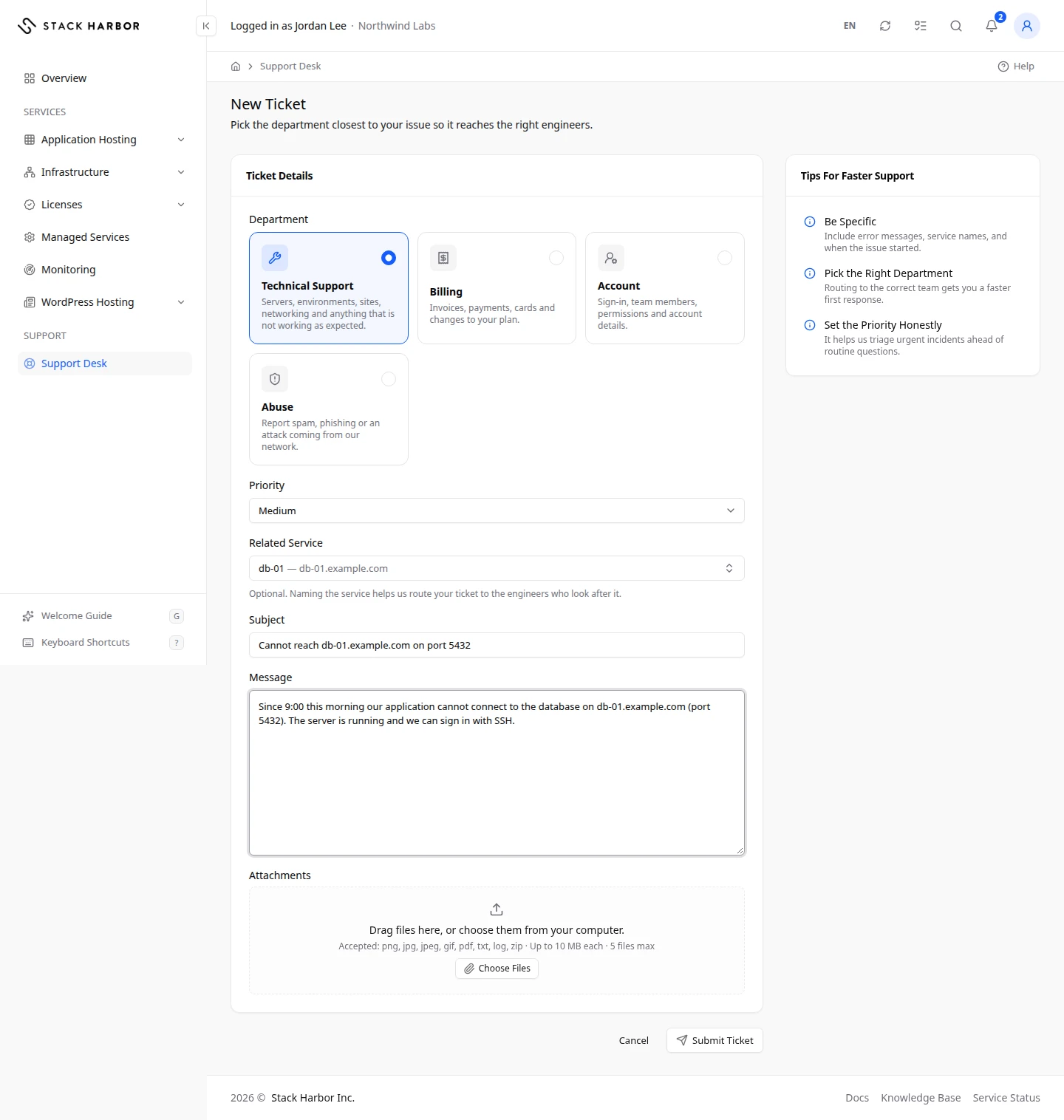
The Tips For Faster Support card beside the form repeats the main advice: be specific, pick the right department and set the priority honestly.
What you see afterwards
You see Ticket submitted. and the ticket’s own page opens. Our replies appear there, and we also email you when we answer. See Follow a support ticket.
A ticket you open about a managed plan is linked to that plan. It also appears on the plan’s Support History tab. See View a Managed Services plan.
If something goes wrong
- Choose a department., Enter a subject. or Describe your issue. means a required field is empty. Fill it in and submit again.
- These Files Were Not Attached lists the files the box refused and the reason for each, such as a file that is too large or a type that isn’t accepted. Remove or replace them, then submit again.
- That department doesn’t take new tickets. Choose one of the departments shown and send again. means the list of departments changed while the form was open. Your text is kept. Choose another department and submit again.
- There Is Nowhere to Send This Yet means no department is accepting new tickets right now. Your existing tickets are not affected. Try again later.
- We couldn’t submit your ticket. Please try again. means the ticket was not sent. Your text is kept, so you can select Submit Ticket again.
Fields and statuses
What each item on this page means, what it does and how to read it.
- Department Field
-
What it is. The team that receives your ticket. Each card names a department and says what it handles.
What it does. Sends the ticket to that team’s queue.
How to read it. Required. Pick the card closest to your issue.
- Priority Field
-
What it is. How urgent the ticket is. It appears only for departments that use priorities.
What it does. Helps our team handle urgent incidents before routine questions.
How to read it. Starts on Medium. Choose Emergency only for a service that is down now.
- Low Option
-
What it is. A question or request with no deadline.
- Medium Option
-
What it is. The usual priority for most tickets.
- High Option
-
What it is. A problem that affects your work but has a workaround.
- Emergency Option
-
What it is. A service is down or failing right now.
- Subject Field
-
What it is. A one-line summary of the issue.
What it does. Becomes the ticket’s title in the list and in our emails.
How to read it. Required, under 250 characters.
- Message Field
-
What it is. Your full description of the issue.
What it does. Becomes the first message of the ticket.
How to read it. Required. Include error messages, service names and when the issue started.
- Attachments Field
-
What it is. Files you add to the ticket, such as screenshots or logs.
What it does. Sends the files with your message.
How to read it. Optional. The box shows the accepted file types, the size limit per file and the maximum number of files.
- Additional Details Field
-
What it is. Extra questions a department asks, such as a server name.
What it does. Gives our team what it needs to start without asking you first.
How to read it. Required fields are marked. They change with the department.