Each backup has its own Backup Details page. It shows what the backup is a copy of, when it was taken, how much space it uses and which backups depend on it. You also restore it or delete it from here. To make backups, see Back up and restore servers and volumes.
Open a backup
- Open Infrastructure, then Backups, under Storage & Backups.
- Select the backup.
You can also open a volume’s backups from its page: select the arrow beside Backups. See Manage a volume.
How a backup is named
Each backup shows a short name. Until you rename it, the name is made of the server, the volume, the date and the kind, for example web-01 · Boot Disk · Nov 4, 12:00 AM (Incremental). The date reads in your own time zone.
A volume with no name of its own reads Boot Disk of web-01, Disk 2 of web-01, or Volume followed by the first 8 characters of its ID.
Read the top of the page
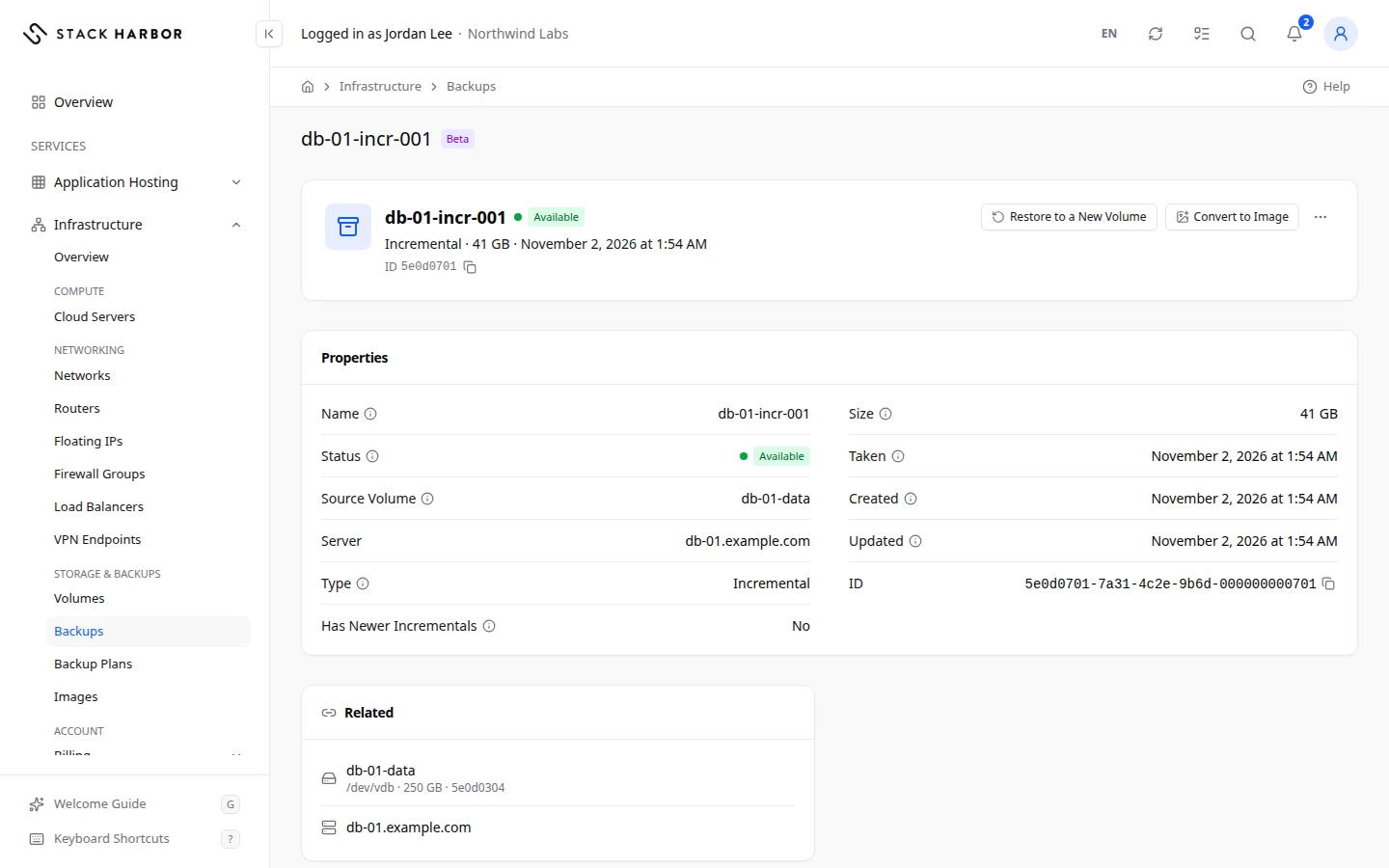
The top of the page shows the backup’s name and status, and a summary of its kind, size and date, for example Full · 40 GB · the date it was taken.
The status is Available when the backup is ready to use. Creating, Restoring, Converting to Image or Deleting mean a change is running.
Read the backup’s properties
The Properties card lists:
- Name, the backup’s name in Lighthouse, and Status.
- System Name, the name the platform gives the backup. Select the copy icon to copy it. Hold the pointer over it to see it in full.
- System Description, the platform’s own description, shown only when you have set a description of your own.
- Source Volume, the volume it is a copy of. Select it to open the volume.
- Server, the server the volume was on. Deleted Server means that server has since been deleted.
- Type: Full is a whole copy of the volume. Incremental stores only what changed since the last backup of that volume.
- Incremental Of, for an incremental backup: the full backup it builds on, by name. Select the name to open it.
- Has Newer Incrementals, Yes when later incremental backups depend on this one.
- Size, the size of the volume it copies.
- Stored Size, the space the backup actually uses.
- Taken, when its data was copied, then Created and Updated.
- Description, when it has one.
- ID, the backup’s unique identifier. Select the copy icon to copy it.
Read what it is related to
The Related card links to the source volume, the server and, for an incremental backup, the backup it builds on. Its volume and server are no longer here. means both have been deleted. The backup still works.
Rename the backup
You can give a backup a name and a description of your own. Rename is on the backup’s own page only, not in the menus of the Backups list.
- Open the backup’s page.
- Select the pencil next to the title, or open the ⋯ menu and select Rename Backup.
- In Name, type up to 64 characters, without
<or>. - In Description, type up to 255 characters.
- Select Save.
You see Backup renamed. To go back to the default name or description, empty the field and save. Renaming changes only what Lighthouse shows. The backup itself doesn’t change.
Restore the server from this backup
When the backup is of a server’s boot disk, you can put that server back to how it was when the backup was taken. You can do this from the backup’s page or from the server’s Backups tab.
- Open the Backup Actions menu and select Restore This Server.
- Read what will happen. The dialog names the backup’s date and size. The server’s boot disk goes back to that time. Other volumes and anything written after the backup are not restored.
- Type the server’s name to confirm.
- Select Restore This Server.
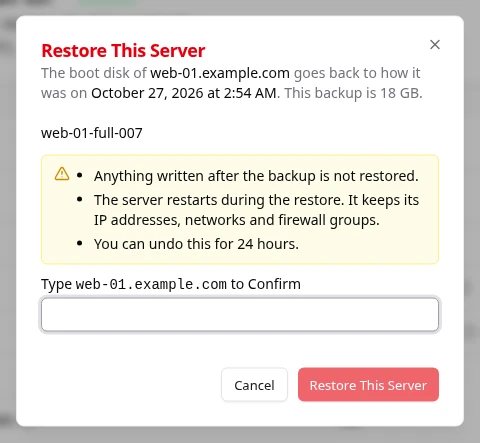
The restore runs in three steps: it restores the boot disk, moves the server onto it, then starts the server. The page shows each step, and the restore keeps running if you leave the page. The server restarts. It keeps its IP addresses, networks, firewall groups and other volumes.
If the restore can’t finish, the server is put back on its own boot disk and the page says so.
Undo a restore
For 24 hours after a restore, the previous boot disk is kept. The page shows You Can Undo This Restore with the time left.
- Select Undo Restore.
- Type the server’s name to confirm.
- Select Undo Restore.
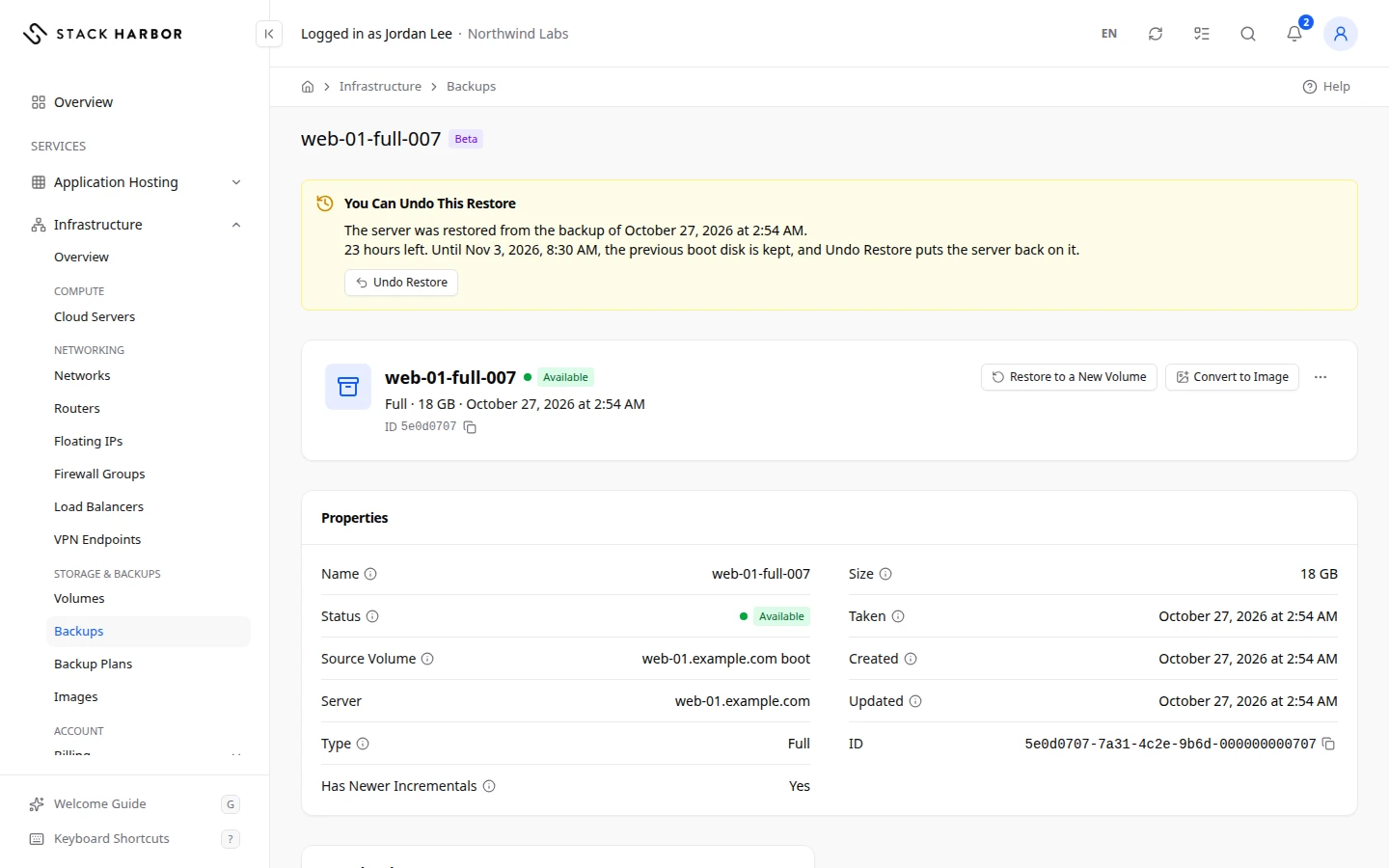
The server goes back to the boot disk it had before the restore. Anything written to the restored disk since then is lost. While the previous boot disk is kept, it counts toward your storage.
Deploy a new server from this backup
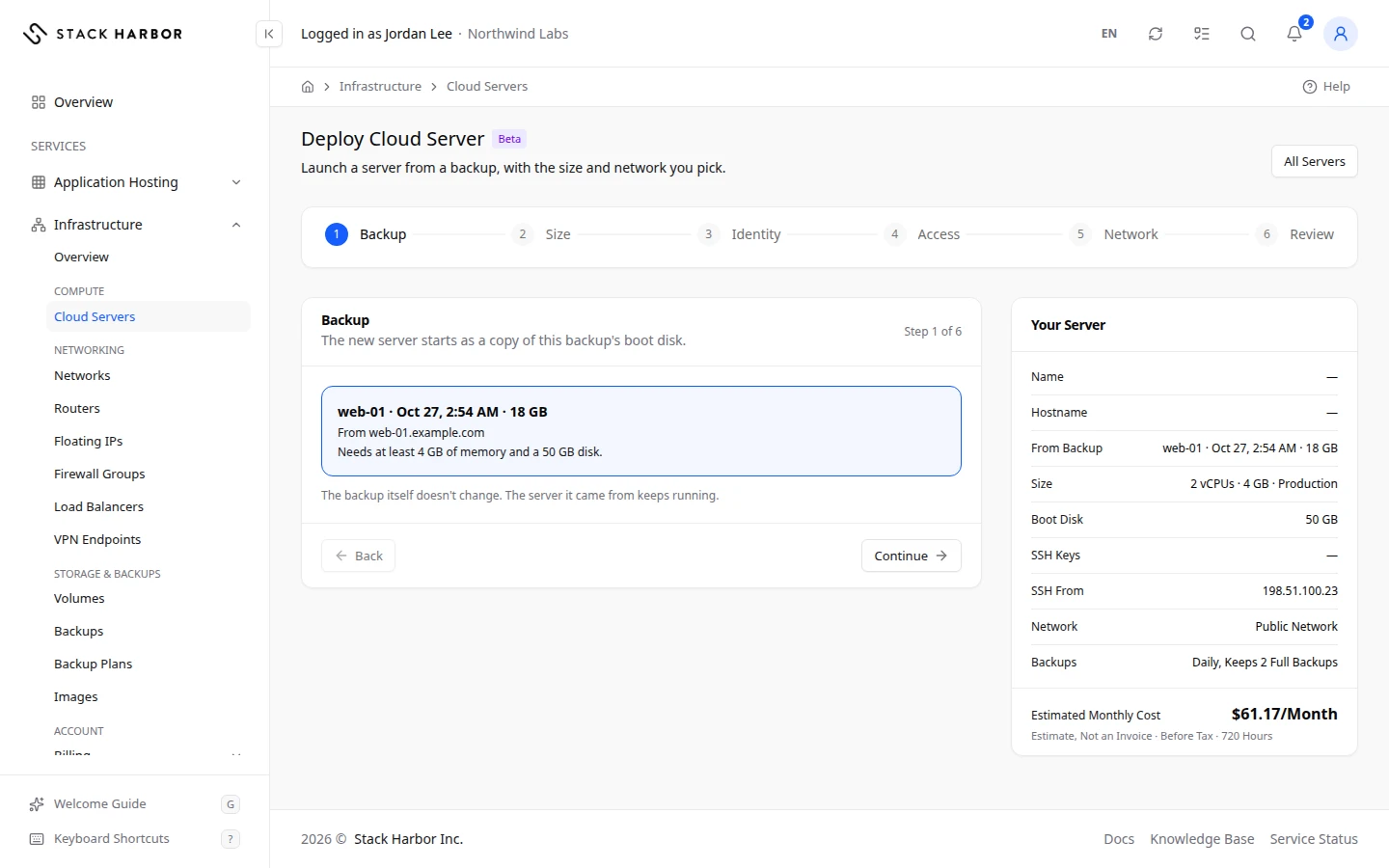
When the backup is of a boot disk, you can also start a new server from it. The backup and the server it came from don’t change.
- Open the Backup Actions menu and select Deploy New Server From Backup.
- The deploy form opens on Backup, with this backup chosen. It shows the smallest memory and disk the new server needs.
- Choose a size. Sizes too small for the backup are greyed out.
- Finish the form as for any server. See Deploy a server.
Restore the backup to a new volume
- Select Restore to a New Volume.
- Type the New Volume Name.
- Select Restore. You see Restore Requested.
The backup is restored into a new, unattached volume of the same size. The original volume isn’t changed. The new volume counts toward your volumes. When it is ready, attach it from the server’s Storage tab. See Manage a server’s storage.
Turn the backup into an image
- Select Convert to Image.
- Type the Image Name, 1 to 64 characters.
- Confirm. You see Conversion to Image Requested.
It takes about a minute, plus about 10 seconds per GB, and keeps running if you leave the page. While it runs, it needs about twice the backup’s size in free storage. The image appears in Images.
Delete the backup
- Open the Backup Actions menu and select Delete Backup.
- Confirm. You see Backup Delete Requested, and the Backups list opens.
This can’t be undone. A full backup that newer incremental backups depend on can’t be deleted until those are deleted.
If something goes wrong
- If Restore to a New Volume, Convert to Image or Delete Backup is missing, that action isn’t offered for this backup. That happens while it isn’t Available, or for a backup made outside Lighthouse.
- A restore of this backup is still in progress. You can restore it again once it finishes.
- If Restore This Server and Deploy New Server From Backup are greyed out with Only a backup of the boot disk can restore the server or start a new one., the backup is of a data volume. Restore it to a new volume instead.
- The server must be running or stopped to restore it. Wait for the server to finish what it is doing, then try again.
- The name you typed doesn’t match the server’s name. Type it exactly as shown.
- If the restore says there isn’t enough storage left, the current boot disk still counts for 24 hours. Free up storage, or open a support ticket to raise your limit.
- This size is too small for the backup. Choose more memory or a larger disk. Pick a size that isn’t greyed out.
- Newer incremental backups depend on this one. Delete those first.
- If converting would go over your storage limit, delete volumes or backups you no longer need, or open a support ticket to raise it.
- A name can’t contain < or > or control characters. Remove those characters from Name.
- If Rename Backup is greyed out with This Project Is Suspended, renaming is paused while the service is suspended. Contact support.
- Backup Not Found means it may have been deleted, or it belongs to a project you can’t see.
Fields and statuses
What each item on this page means, what it does and how to read it.
- Stored Size Field
-
What it is. The space the backup actually uses.
How to read it. An incremental backup is often much smaller than the volume.
- Taken Field
-
What it is. When the backup was taken.
- Incremental Of Field
-
What it is. The full backup this incremental backup builds on, shown by name.
What it does. Select the name to open that backup.
- Has Newer Incrementals Field
-
What it is. Whether later backups depend on this one.
How to read it. If yes, delete those first before you delete this one.
- Source Volume Field
-
What it is. The volume the backup was taken from.
- Name Field
-
What it is. The backup’s name in Lighthouse.
What it does. Rename Backup changes it.
How to read it. By default it combines the server, the volume, the date in your time zone and the kind, for example web-01 · Boot Disk · Nov 4, 12:00 AM (Incremental).
- System Name Field
-
What it is. The name the platform gives the backup.
What it does. The copy icon copies it.
How to read it. Hold the pointer over it to see it in full. It doesn’t change when you rename the backup.
- System Description Field
-
What it is. The platform’s own description of the backup.
How to read it. Shown only when you have set a description of your own.
- Rename Backup Field
-
What it is. The action that gives the backup a name and a description of your own.
What it does. Opens a window with Name and Description. Saving shows Backup renamed.
How to read it. It is on the backup’s own page only: the pencil next to the title, or the ⋯ menu. It isn’t in the Backups list menus.
- Name Field
-
What it is. The backup’s new name.
How to read it. Up to 64 characters, without < or >. Leave it empty to go back to the default name.
- Description Field
-
What it is. The backup’s new description.
How to read it. Up to 255 characters. Leave it empty to go back to the default description.
- A name can't contain < or > or control characters. Status
-
What it is. The name has a character that isn’t allowed.
How to read it. Remove those characters, then save again.
- This Project Is Suspended Status
-
What it is. Renaming is paused while the service is suspended.
How to read it. Contact support.
- Status Field
-
What it is. What the backup is doing now.
How to read it. Available means it is ready to restore or convert.
- Type Field
-
What it is. Whether the backup is a whole copy or only the changes.
How to read it. Full is a whole copy. Incremental stores only what changed since the last backup of that volume.
- Size Field
-
What it is. The size of the volume the backup copies.
How to read it. In GB. Stored Size is the space the backup actually uses.
- Created Field
-
What it is. When the backup was created.
How to read it. In your time zone.
- Updated Field
-
What it is. When the backup last changed.
How to read it. In your time zone.
- Description Field
-
What it is. The backup’s description, when it has one.
How to read it. You can set your own with Rename Backup, up to 255 characters.
- Restore to a New Volume Field
-
What it is. The action that restores the backup into a new volume.
What it does. It creates a new, unattached volume of the same size. The original volume isn’t changed.
How to read it. Attach the new volume from the server’s Storage tab once it is ready.
- Convert to Image Field
-
What it is. The action that makes a private image from the backup.
What it does. You can deploy new servers from the image.
How to read it. It takes about a minute, plus about 10 seconds per GB, and needs about twice the backup’s size in free storage while it runs.
- Restore This Server Field
-
What it is. The action that puts the server’s boot disk back to how it was when this backup was taken.
What it does. The server restarts on a new boot disk made from the backup. It keeps its IP addresses, networks, firewall groups and other volumes. The previous boot disk is kept for 24 hours so you can undo.
How to read it. Only a backup of the boot disk offers it. Other volumes and anything written after the backup are not restored.
- Undo Restore Field
-
What it is. The action that puts the server back on the boot disk it had before the restore.
What it does. Anything written to the restored disk since then is lost.
How to read it. Offered for 24 hours after a restore, with the time left.
- Deploy New Server From Backup Field
-
What it is. The action that opens the deploy form to start a new server from this backup’s boot disk.
What it does. The new server starts as a copy of the backup. The backup and the server it came from don’t change.
How to read it. Only a backup of the boot disk offers it. Sizes too small for the backup are greyed out.
- Delete Backup Field
-
What it is. The action that deletes the backup.
What it does. This can’t be undone.
How to read it. A full backup that newer incremental backups depend on can’t be deleted until those are deleted.
- A restore of this backup is still in progress. You can restore it again once it finishes. Status
-
What it is. A restore of this backup hasn’t finished yet.
How to read it. Wait until it finishes, then restore it again if you need to.
- Newer incremental backups depend on this one. Delete those first. Status
-
What it is. Newer incremental backups build on this one, so it can’t be deleted yet.
How to read it. Delete the newer incremental backups first.
- Backup Not Found Status
-
What it is. The backup can’t be shown.
How to read it. It may have been deleted, or it belongs to a project you can’t see.