An image is a saved copy of a server’s disk that new servers can start from. The Images page lists your own images: snapshots of your servers, and images made from volumes and backups. Our standard operating systems are not listed here. You pick them when you deploy a server.
Stored images are billed per GB-month for the space they use. The rate is on Check rates and limits as Image Storage, and an image’s page shows an estimate of its own cost.
Open Images
- Open Infrastructure in the side menu.
- Select Images, under Storage & Backups.
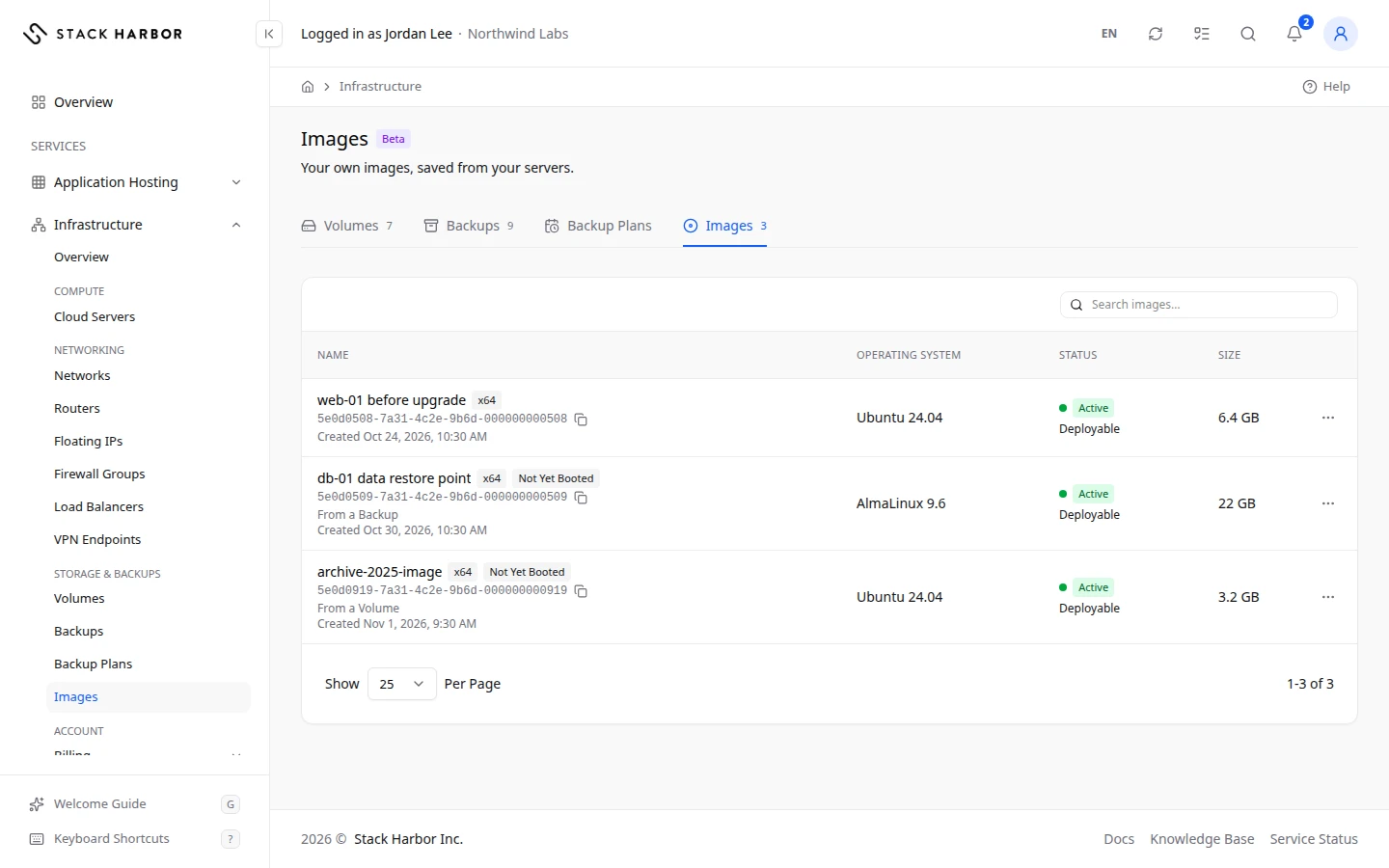
Read the list
Each row shows Name, Operating System, Status, Size, Minimum Disk, Format, Created and ID.
- Status is Active when the image is ready. Queued, Saving, Uploading or Importing mean it is still being made.
- Deployable means you can deploy new servers from it. Not Deployable means you can’t yet. An image can deploy a server only once its status is Active.
- Minimum Disk is the smallest boot disk a server needs to use this image.
- Protected means it can’t be deleted.
An image made from a backup or a volume shows where it came from, for example From a Volume, and whether a server has booted from it:
- Not Yet Booted means no server has started from it yet. It shows Verified after the first one does.
- Verified means a server booted from it.
- Boot Not Confirmed means a server started but showed no sign-in prompt.
- Boot Failed means a server made from it didn’t finish starting. That server is kept so you can look at it.
Open an image
Select an image’s name. Its page shows its Status, where it was Made From, its First Boot, its Operating System, the Minimum Disk and Minimum Memory a server needs, its Size, Disk Format and ID. Select Deploy From This Image to start a server from it.
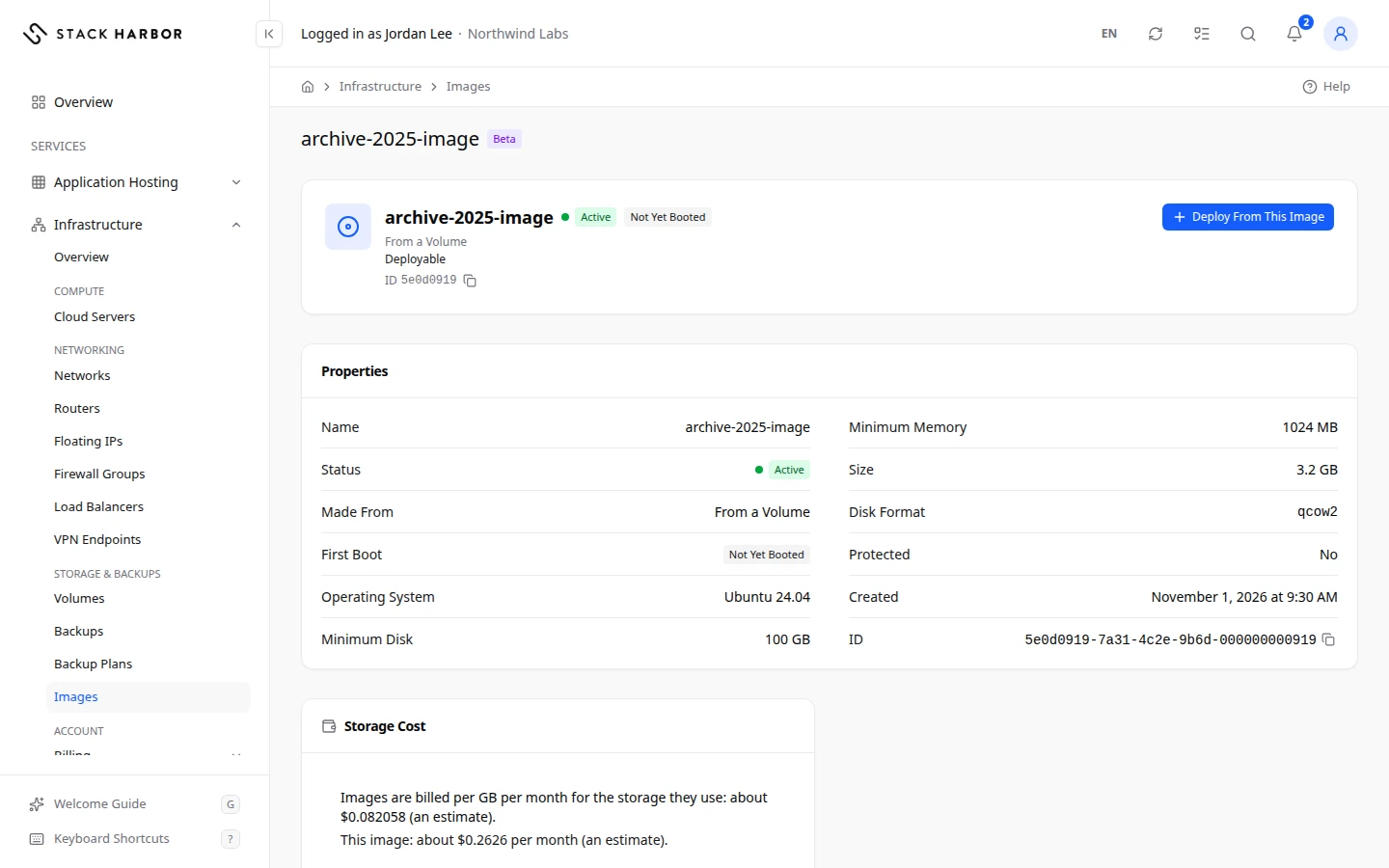
Deploy from an image
Select Deploy From This Image in the row menu. The deploy form opens with the image chosen under My Images. See Deploy a server.
Rename or delete an image
- Open the row menu.
- Select Rename Image, type the Image Name (1 to 64 characters) and confirm. Servers already deployed from it aren’t affected. Only the name can change: the Operating System, Minimum Disk and Minimum Memory show under Fixed at Creation.
- Or select Delete Image and confirm. You won’t be able to deploy new servers from it. This can’t be undone.
Make a new image
- From a server: take a snapshot. See Back up and restore servers and volumes.
- From a backup: use Convert to Image. See Back up and restore servers and volumes.
- From a volume: use Create Image on the volume’s page. See Manage a volume.
If something goes wrong
- This image is protected, so it can’t be deleted.
- A server was deployed from this image and still uses it. Delete or rebuild that server first.
- Read Only means the image wasn’t created in Lighthouse, so it can’t be changed here.
Fields and statuses
What each item on this page means, what it does and how to read it.
- Name Column
-
What it is. The image’s name.
- Operating System Column
-
What it is. The operating system inside the image.
- Size Column
-
What it is. How much space the image takes.
How to read it. In GB.
- Minimum Disk Column
-
What it is. The smallest boot disk a server needs to use this image.
How to read it. In GB.
- Format Column
-
What it is. The image’s file format.
- Created Column
-
What it is. When the image was made.
- ID Column
-
What it is. The image’s unique identifier.
- Active Status
-
What it is. The image is ready.
How to read it. You can deploy servers from it.
- Queued Status
-
What it is. The image is waiting to be made.
How to read it. Wait a few minutes.
- Saving Status
-
What it is. The image is being saved.
How to read it. Wait until it is Active.
- Uploading Status
-
What it is. The image is being uploaded.
How to read it. Wait until it is Active.
- Importing Status
-
What it is. The image is being imported.
How to read it. Wait until it is Active.
- Deployable Status
-
What it is. You can deploy new servers from this image.
- Not Deployable Status
-
What it is. You can’t deploy servers from this image yet.
How to read it. An image deploys only once its status is Active.
- Protected Status
-
What it is. The image can’t be deleted.
- Not Yet Booted Status
-
What it is. No server has started from this image yet.
How to read it. It shows Verified after the first server boots from it.
- Verified Status
-
What it is. A server booted from this image.
- Boot Not Confirmed Status
-
What it is. A server started from this image but showed no sign-in prompt.
How to read it. Open that server’s console to check it.
- Boot Failed Status
-
What it is. A server made from this image didn’t finish starting.
What it does. That server is kept so you can look at it.
How to read it. Check the backup the image came from, or contact support.
- Made From Field
-
What it is. How the image was made: from a volume, from a backup, or imported from a URL.
How to read it. Snapshots of your servers don't show it.
- Not Yet Booted Status
-
What it is. No server made from the image has started yet.
How to read it. It turns Verified once a server made from it boots.