Each private network has its own page in Lighthouse. It shows everything about the network in one place: its address ranges, how it reaches the internet, the servers and router on it, and its subnets. You also change the network from here. To create a network, see Create a network.
Open a network’s page
- In the side menu, open Infrastructure, then select Networks under Networking.
- Select the network’s name in the list.
You can also open it from a search result, or from the network’s name on a server’s Networking tab. Select All Networks at the top to go back to the list.
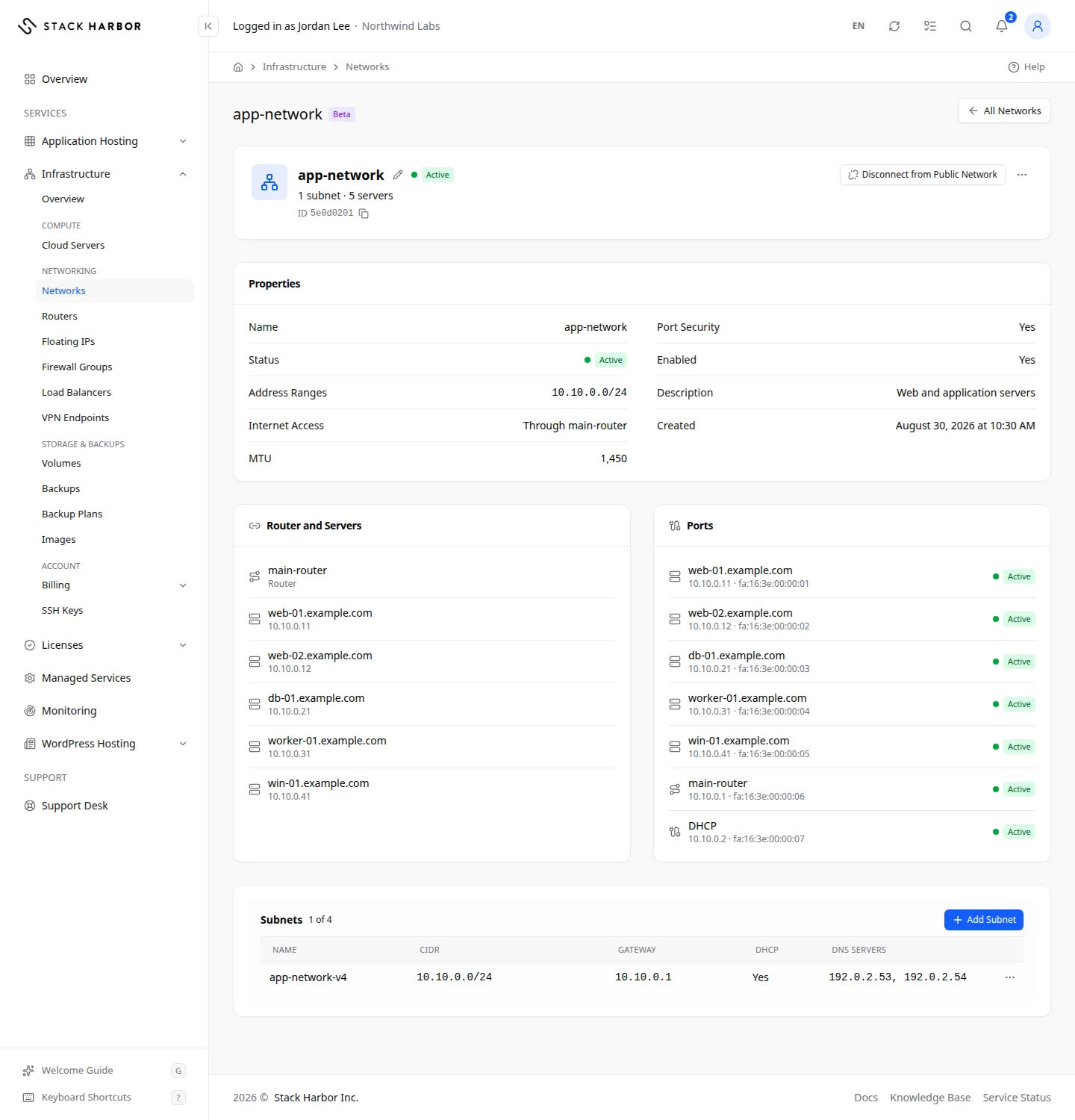
Read the header
- The network’s name, with a pencil to rename it.
- Its status, for example Active.
- A summary line, such as 2 subnets · 3 servers.
- Its ID, with a button to copy it.
- Connect to Public Network or Disconnect from Public Network, depending on whether the network reaches the internet.
- A menu with Rename Network and Delete Network.
A network that wasn’t created in Lighthouse has no buttons or menu. You can read it, but you can’t change it here.
Read the cards
Properties lists:
- Name and Status.
- Address Ranges: the address range of each subnet, for example 192.0.2.0/24.
- Internet Access: Through edge-router (the router’s name) when the network is connected to a public network, or Not Connected. Select the router’s name to open its page.
- MTU: the largest packet size, in bytes, that the network carries.
- Port Security: Yes when firewall groups and address checks apply to the network’s ports.
- Enabled: Yes when the network passes traffic.
- Description, when the network has one, and Created.
Router and Servers lists the router that connects the network, and each server on it with its addresses. Select a name to open that router or server. No router or server is on this network. means nothing is attached yet.
Ports lists every address on the network and what it belongs to: a Server, a Router, the network’s DHCP service, or an Unattached Port. Each line shows the addresses and the MAC address, with the port’s status. Nothing is attached to this network. means it has no ports.
Subnets lists each subnet with its Name, CIDR, Gateway, DHCP and DNS Servers. The count beside the title, such as 2 of 5, shows how many subnets the network has out of its limit.
Connect or disconnect the network
- Select Connect to Public Network.
- Choose the Public Network and confirm. You see Network connected.
To undo it, select Disconnect from Public Network and confirm. You see Network disconnected. Servers keep their private addresses, but lose their route to the internet. See Create a network for how the gateway router works.
Add, change or delete a subnet
A network can hold several subnets, up to the limit shown next to Subnets.
- In the Subnets card, select Add Subnet.
- Fill in the fields:
- Name: a name for the subnet.
- IP Version: IPv4, or IPv6 (Private). For IPv6, a private /64 range is chosen for you.
- Address Range (Optional): a private IPv4 range, or empty for the next free one.
- Gateway: First Host Address, Custom Address or No Gateway. A router needs a gateway address to route the subnet.
- DHCP: hands out addresses to servers automatically. It is always on for IPv6.
- DNS Servers: up to 5 addresses, separated by commas. Leave it empty for the defaults.
- Allocation Pools: the parts of the range handed out to servers, each with a Pool Start and a Pool End. Leave it empty to use the whole range.
- Host Routes: extra routes sent to servers, each with a Destination and a Next Hop. Servers get changes at their next DHCP renewal.
- Select Save Subnet. You see Subnet added.
To change a subnet, open its row menu and select Edit Subnet. The address range and the IP version can’t be changed after the subnet is created. To use another range, add a new subnet, move your servers to it, then delete the old one with Delete Subnet.
Rename or delete a network
- To rename, select Rename Network, type the new name and confirm. You see Network renamed.
- To delete, select Delete Network. The dialog first checks what still uses the network. If anything does, you see Still in use by the items below. Remove them first: this stays off while any remain., with each item listed. Disconnect those servers or routers, then try again. Once nothing uses it, confirm the delete. Its subnets are deleted with it.
If something goes wrong
- Network Not Found means the network was deleted, or it belongs to a project you can’t see. Select All Networks and check the list.
- Changes Are Switched Off means changes to this project are paused for now. You can still read everything. Contact support if it lasts.
- This range overlaps another subnet you can see. Choose a different range. Pick a range that no other subnet uses, or leave the field empty.
- This network already has the most subnets it can have. Delete a subnet you don’t use, or create another network.
- Too many network changes. Wait a moment and try again. Wait the time shown, then repeat the change.
Fields and statuses
What each item on this page means, what it does and how to read it.
- IP Version Field
-
What it is. Whether the subnet is IPv4 or private IPv6.
How to read it. For IPv6, a private /64 range is chosen for you. It can’t be changed later.
- Address Range (Optional) Field
-
What it is. The subnet’s private IPv4 range, as a CIDR.
What it does. Empty gives you the next free range.
How to read it. It can’t be changed after the subnet is created.
- Gateway Field
-
What it is. The address servers on the subnet send outside traffic to.
What it does. A router needs a gateway address to route the subnet.
How to read it. First Host Address, Custom Address or No Gateway.
- First Host Address Option
-
What it is. Uses the first usable address of the range as the gateway.
- Custom Address Option
-
What it is. Uses an address you type as the gateway.
How to read it. It must be inside the range.
- No Gateway Option
-
What it is. The subnet has no gateway.
What it does. A router can’t route it.
- DHCP Field
-
What it is. Hands out addresses to servers automatically.
How to read it. Always on for IPv6.
- DNS Servers Field
-
What it is. The name servers given to servers on the subnet.
How to read it. Up to 5 addresses, separated by commas. Empty uses the defaults.
- Allocation Pools Field
-
What it is. The parts of the range handed out to servers.
What it does. Each pool has a Pool Start and a Pool End.
How to read it. Empty uses the whole range.
- Host Routes Field
-
What it is. Extra routes sent to servers on the subnet.
What it does. Each has a Destination and a Next Hop.
How to read it. Servers get changes at their next DHCP renewal.
- Destination Field
-
What it is. The address range the route is for, as a CIDR.
- Next Hop Field
-
What it is. The address traffic for that range is sent through.
How to read it. It must be inside the subnet.
- Internet Access Field
-
What it is. The router that gives this network its route to the internet.
How to read it. Empty means the network is private only.
- Address Ranges Field
-
What it is. Every subnet range of the network.
- Port Security Field
-
What it is. Whether firewall groups apply on this network.
How to read it. Off means traffic on the network isn’t filtered.
- Enabled Field
-
What it is. Whether the network is switched on.
- Connect to Public Network Field
-
What it is. A button that connects the network to the internet.
What it does. It adds the network to your gateway router on a public network. The gateway takes one public address, shared by every network you connect.
How to read it. It shows while the network isn’t connected.
- Disconnect from Public Network Field
-
What it is. A button that takes the network off your gateway router.
What it does. Servers keep their private addresses but lose their route to the internet. When no network is left on the gateway, it is removed and its public address released.
How to read it. It shows while the network is connected.
- Rename Network Field
-
What it is. The action that changes the network’s name.
What it does. You see Network renamed.
- Delete Network Field
-
What it is. The action that deletes the network and its subnets.
What it does. The dialog first lists what still uses the network. It stays off until nothing does.
How to read it. It can’t be undone.
- Not Connected Status
-
What it is. The network has no route to the internet.
How to read it. Select Connect to Public Network to give it one.
- Router and Servers Field
-
What it is. The router that connects the network, and each server on it with its addresses.
What it does. Select a name to open that router or server.
- Ports Field
-
What it is. Every address on the network and what it belongs to.
How to read it. Each line shows its owner (a server, a router, the DHCP service or an unattached port), its addresses, its MAC address and its status.
- MTU Field
-
What it is. The largest packet the network carries, in bytes.
- Created Field
-
What it is. When the network was created.
How to read it. In your time zone.
- Network Not Found Status
-
What it is. The network wasn’t found.
How to read it. It may have been deleted, or it belongs to a project you can’t see. Go back to All Networks.
- CIDR Column
-
What it is. The subnet’s address range, for example 192.0.2.0/24.
How to read it. It can’t be changed after the subnet is created.
- Gateway Column
-
What it is. The subnet’s gateway address.
What it does. A router needs it to route the subnet.
How to read it. None means the subnet has no gateway.
- DHCP Column
-
What it is. Whether the subnet hands out addresses to servers automatically.
- 2 of 5 Metric
-
What it is. How many subnets the network has, out of its limit.
How to read it. The first number is the subnets in use, the second is the limit. At the limit, Add Subnet is off.
- Add Subnet Field
-
What it is. The button that adds an address range to the network.
What it does. Servers join it from their Networking tab.
- Edit Subnet Field
-
What it is. The action that changes how a subnet hands out addresses.
What it does. You can change its gateway, DHCP, DNS servers, pools and host routes, but not its range or IP version.
- Delete Subnet Field
-
What it is. The action that deletes a subnet.
What it does. Servers can no longer get addresses from it.