A load balancer receives traffic on one address and shares it between several servers. If a server stops answering, its health check takes it out of rotation until it recovers. Load balancers are in beta.
A few words you will meet:
- A pool is one forwarding rule. It listens on one port and sends the traffic to its servers.
- A member is one server in a pool, by its private address.
- A listener is the port and protocol the load balancer answers on.
- A health monitor checks each member at a set interval.
Before you start
- You need a private network for the load balancer to sit on. See Create a network.
- To reach it from the internet, that network needs a router with a public gateway. See Set up a router.
- Creating a load balancer needs the Manage Networks permission. Ask your account owner if you don’t have it. Without it, you see You Can’t Create Load Balancers.
- Pools and members can’t be changed after creation yet, so plan everything you need now.
Create a load balancer
- In the side menu, open Infrastructure, then select Load Balancers under Networking.
- Select Create Load Balancer. The form has four steps: Details, Balancing Pools, Health Monitors and Review. A summary of your choices stays beside the form.
Step 1: Details
- In Name, type a name, for example
web-lb. - In Description (Optional), say what it is for.
- In Network, choose the private network it sits on. The network can’t be changed after creation.
- Turn on High Availability to run a standby that takes over if the active one fails. This can’t be changed after creation.
- Turn on Public Address to add a floating IP, so the load balancer can be reached from the internet. The address is billed like any other floating IP.
- Select Continue.
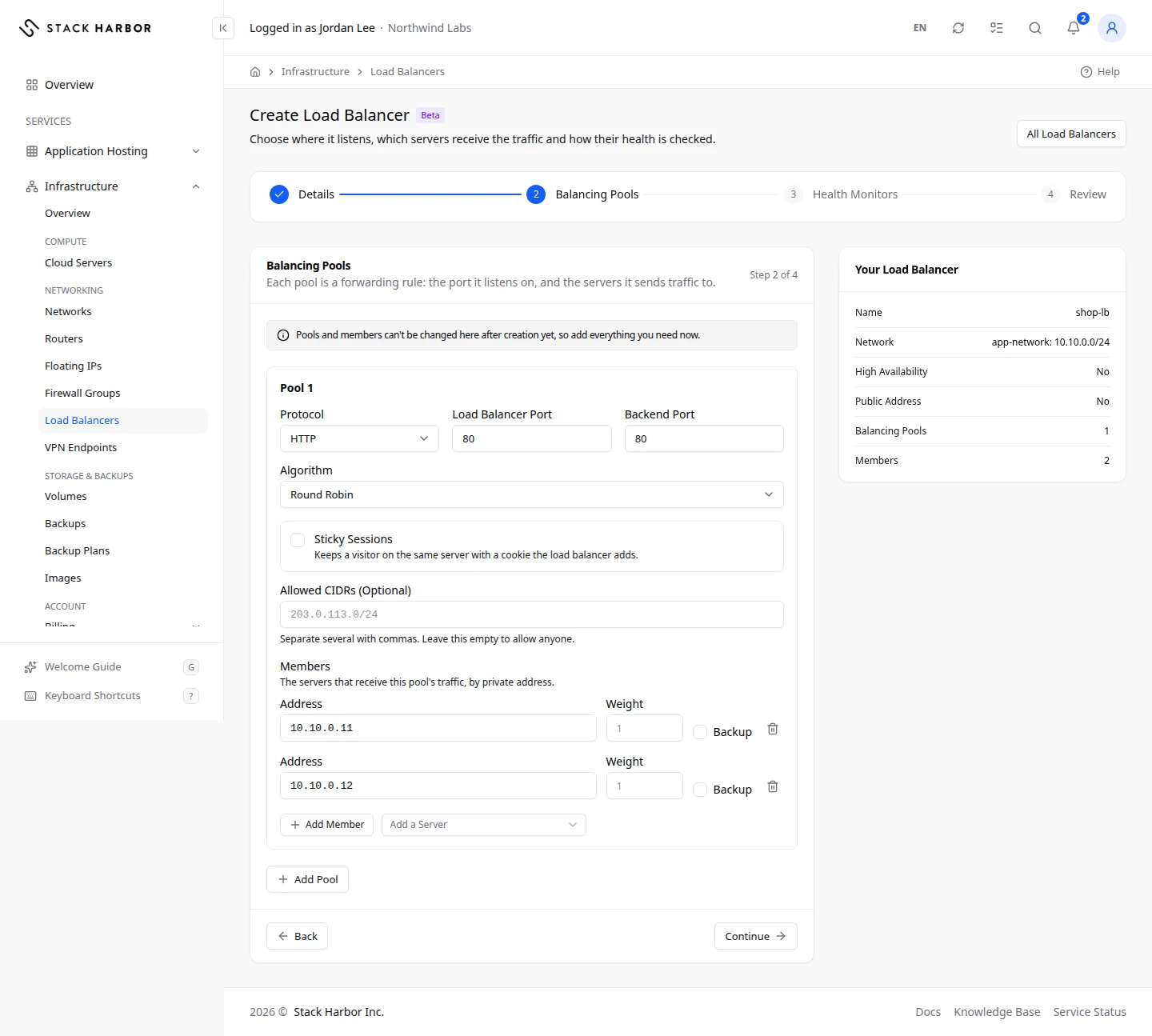
Step 2: Balancing Pools
The first pool is ready to fill in. Select Add Pool for more, up to 10.
- Choose the Protocol: HTTP, HTTPS (Passthrough), TCP or UDP. With HTTPS, encrypted traffic passes straight through, so your servers keep the certificate.
- In Load Balancer Port, type the port the load balancer listens on, for example 80.
- In Backend Port, type the port your servers listen on.
- Choose the Algorithm, the way the pool shares traffic:
- Round Robin sends each new request to the next member in turn.
- Least Connections sends it to the member with the fewest open connections.
- Source IP keeps each visitor’s address on the same member.
- For an HTTP pool, you can turn on Sticky Sessions. They keep a visitor on the same server with a cookie the load balancer adds.
- In Allowed CIDRs (Optional), list the address ranges allowed to connect, separated by commas. Leave it empty to allow anyone.
- Under Members, select Add a Server to pick one of your servers, or Add Member to type an Address. For each member you can set a Weight from 0 to 256, and tick Backup for a member that only gets traffic when the others fail.
- Select Continue.
Step 3: Health Monitors
- Leave Check Member Health on. Without a check, traffic keeps going to a server that has stopped answering.
- Choose the Probe: HTTP, HTTPS, TCP or PING. A UDP pool offers TCP and HTTP.
- For an HTTP or HTTPS probe, set the URL Path. The check sends a GET request and expects a 200 answer.
- Set Interval (seconds between checks, 5 to 300), Timeout (5 to 60, and less than the interval), Healthy Threshold and Unhealthy Threshold (checks in a row, 1 to 10).
- Select Continue.
Step 4: Review
Check every choice, then select Create Load Balancer. You see Creating web-lb., and the load balancer appears in the list with the status Provisioning. It turns Active when it’s ready.
Read the list
Each row shows the load balancer’s Name, Status, Virtual IP, Network, HA, Pools and Listeners. The Virtual IP is the private address it answers on. Above the list, a line shows how many load balancers you use out of your limit.
After it’s created
Select a load balancer’s name to open its page. It shows its properties, listeners, pools and the health of each member, its traffic, its activity and its charges. You edit or delete it there. See Manage a load balancer.
If something goes wrong
- Quota Reached means you use every load balancer your limit allows. Delete one, or open a support ticket to raise the limit.
- Your account has no private network yet. Create one first, then come back. See Create a network.
- This network has no router with a public gateway, so it can’t have a public address. Connect it to a router, or turn off Public Address.
- This network’s router has no IPv4 public network, so a public address can’t be added. Choose another network, or turn off Public Address. Nothing was created.
- This pool has no members, so it won’t send traffic anywhere. Add at least one member.
- The load balancer is being created, but its public address couldn’t be added. Attach one in Edit Load Balancer, under Public Address. The load balancer’s page shows No Public Address Yet until you do.
- The Load Balancer Wasn’t Created means the platform refused it. The message under the title says why, and the form goes back to the field to fix.
Fields and statuses
What each item on this page means, what it does and how to read it.
- Network Field
-
What it is. The private network the load balancer sits on.
How to read it. It can’t be changed after creation.
- High Availability Option
-
What it is. Runs a standby that takes over if the active load balancer fails.
How to read it. It can’t be changed after creation.
- Public Address Option
-
What it is. Adds a floating IP so the load balancer can be reached from the internet.
What it does. The address is billed like any other floating IP.
How to read it. The network needs a router with a public gateway.
- Protocol Field
-
What it is. The kind of traffic the pool handles.
How to read it. HTTP, HTTPS (Passthrough), TCP or UDP.
- HTTP Option
-
What it is. Plain web traffic.
What it does. Allows Sticky Sessions.
- HTTPS (Passthrough) Option
-
What it is. Encrypted web traffic that passes straight through.
What it does. Your servers keep the certificate.
- TCP Option
-
What it is. Any TCP traffic, such as a database or mail.
- UDP Option
-
What it is. UDP traffic, such as DNS.
How to read it. Its health check uses TCP or HTTP.
- Load Balancer Port Field
-
What it is. The port the load balancer listens on, for example 80.
- Backend Port Field
-
What it is. The port your servers listen on.
- Algorithm Field
-
What it is. How the pool shares traffic between its members.
How to read it. Round Robin, Least Connections or Source IP.
- Round Robin Option
-
What it is. Sends each new request to the next member in turn.
- Least Connections Option
-
What it is. Sends each new request to the member with the fewest open connections.
- Source IP Option
-
What it is. Keeps each visitor’s address on the same member.
- Sticky Sessions Option
-
What it is. Keeps a visitor on the same server with a cookie the load balancer adds.
How to read it. HTTP pools only.
- Allowed CIDRs (Optional) Field
-
What it is. The address ranges allowed to connect, separated by commas.
How to read it. Empty allows anyone.
- Address Field
-
What it is. A member’s private address.
What it does. Add a Server fills it from one of your servers.
- Weight Field
-
What it is. How much traffic this member gets compared with the others.
How to read it. From 0 to 256. Higher gets more. 0 gets none.
- Backup Option
-
What it is. A member that only gets traffic when the others fail.
- Check Member Health Option
-
What it is. Checks each member at a set interval.
What it does. A member that fails is taken out of rotation until it recovers.
How to read it. Leave it on. Without it, traffic keeps going to a server that stopped answering.
- Probe Field
-
What it is. How each member is checked.
How to read it. HTTP, HTTPS, TCP or PING. A UDP pool offers TCP and HTTP.
- URL Path Field
-
What it is. The page an HTTP or HTTPS check asks for.
What it does. The check sends a GET request and expects a 200 answer.
- Interval Field
-
What it is. The time between two checks.
How to read it. In seconds, from 5 to 300.
- Timeout Field
-
What it is. How long a check waits for an answer.
How to read it. In seconds, from 5 to 60, and less than the interval.
- Healthy Threshold Field
-
What it is. How many checks in a row a member must pass to be put back in rotation.
How to read it. From 1 to 10.
- Unhealthy Threshold Field
-
What it is. How many checks in a row a member must fail to be taken out of rotation.
How to read it. From 1 to 10.
- Provisioning Status
-
What it is. The load balancer is being created.
How to read it. It turns Active when it is ready.
- Active Status
-
What it is. The load balancer is ready and sharing traffic.
- Error Status
-
What it is. The load balancer failed.
How to read it. Open a support ticket.
- Virtual IP Column
-
What it is. The private address the load balancer answers on.
How to read it. It can’t be reached from the internet without a floating IP.
- HA Column
-
What it is. Whether high availability is on.
- Pools Column
-
What it is. How many pools the load balancer has.
- Listeners Column
-
What it is. How many ports and protocols it answers on.
- Quota Reached Status
-
What it is. You use every load balancer your limit allows.
How to read it. Delete one, or open a support ticket to raise the limit.
- You Can't Create Load Balancers Status
-
What it is. You don’t have the permission to create load balancers.
How to read it. Ask your account owner.