Every charge on your account comes on an invoice. Use the Invoices page to find an invoice, check what it covers and pay it with the card saved as your default.
You need the Access Billing permission to see invoices and pay them.
Find an invoice
- Open the account menu at the top right and select Billing.
- Select Invoices.
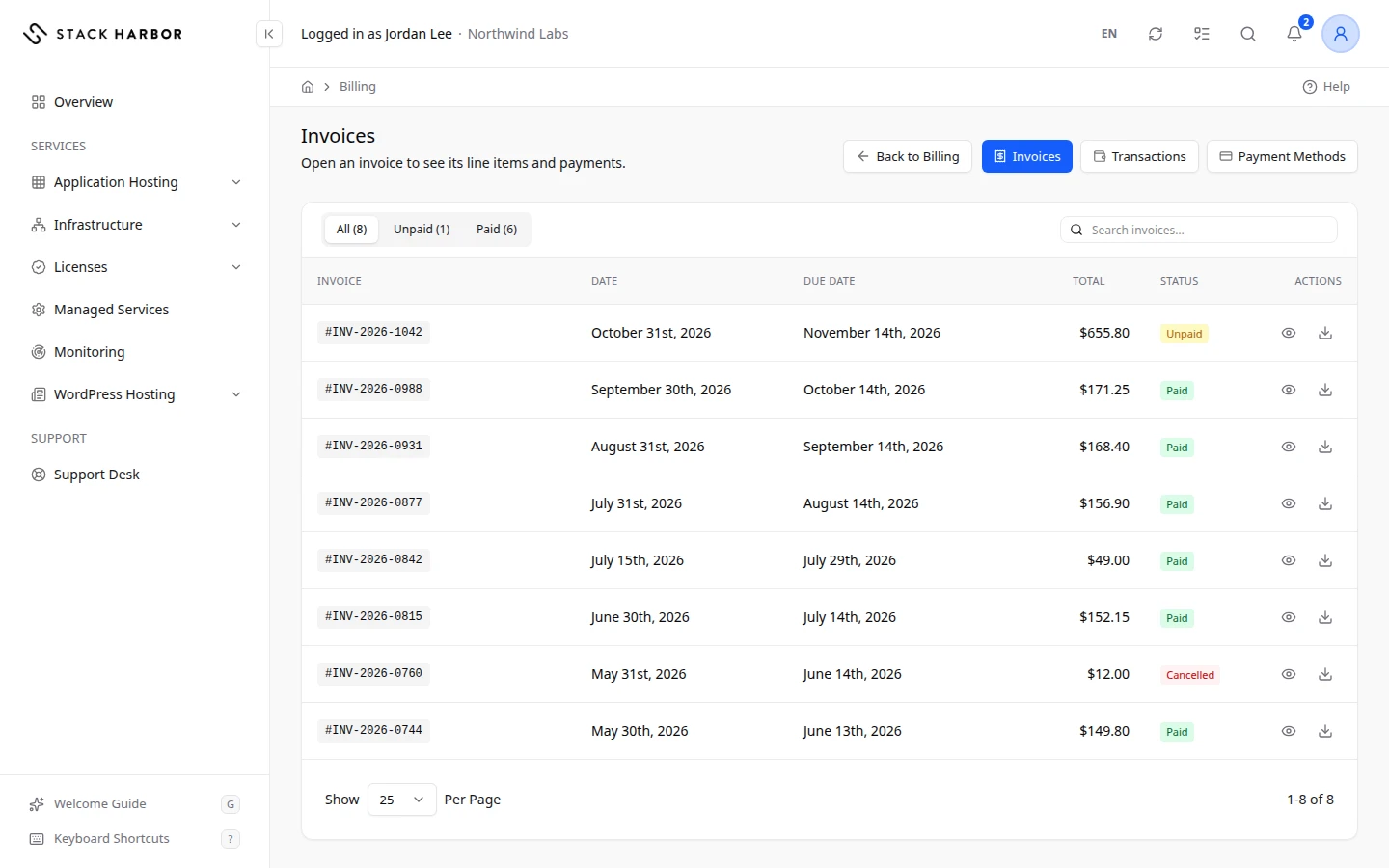
- To narrow the list, select All, Unpaid, Paid or Overdue above the table.
- To find one invoice, type its number in Search invoices….
- Select the invoice number, or the View Invoice button at the end of its row.
The list shows each invoice’s number under Invoice, its issue Date, its Due Date, its Total and its Status. Select a column heading to sort by it. To save a PDF without opening the invoice, select Download Invoice in the Actions column.
Read an invoice
The invoice page has two cards.
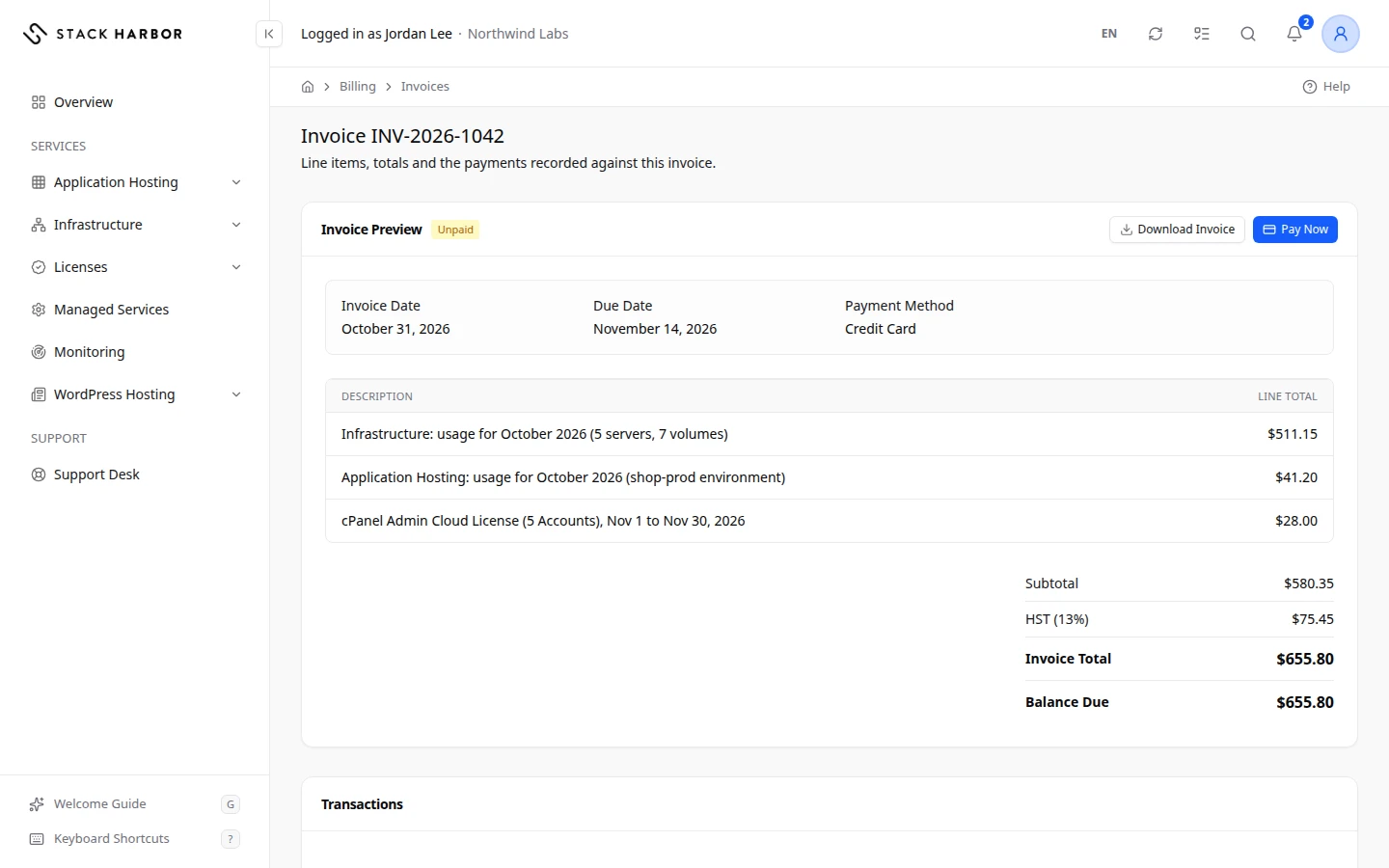
Invoice Preview shows the invoice itself:
- The status badge, and the Invoice Date, Due Date, Paid Date and Payment Method.
- One row per line item, with its Description, Qty, Unit Amount and Line Total.
- The totals. Subtotal is the sum of the lines. Discount appears when a discount applies. Each tax appears on its own row with its rate, for example GST (5%). Invoice Total is the full amount of the invoice. Credit Applied is account credit used on it. Balance Due is what is still left to pay.
Transactions lists every payment and refund recorded against this invoice, with its Date, Description, Amount and Status. A payment made from your credit reads Account Credit.
Pay an invoice
Pay Now appears only when the invoice is waiting for payment and can be charged to a card.
- Open the invoice.
- Select Pay Now.
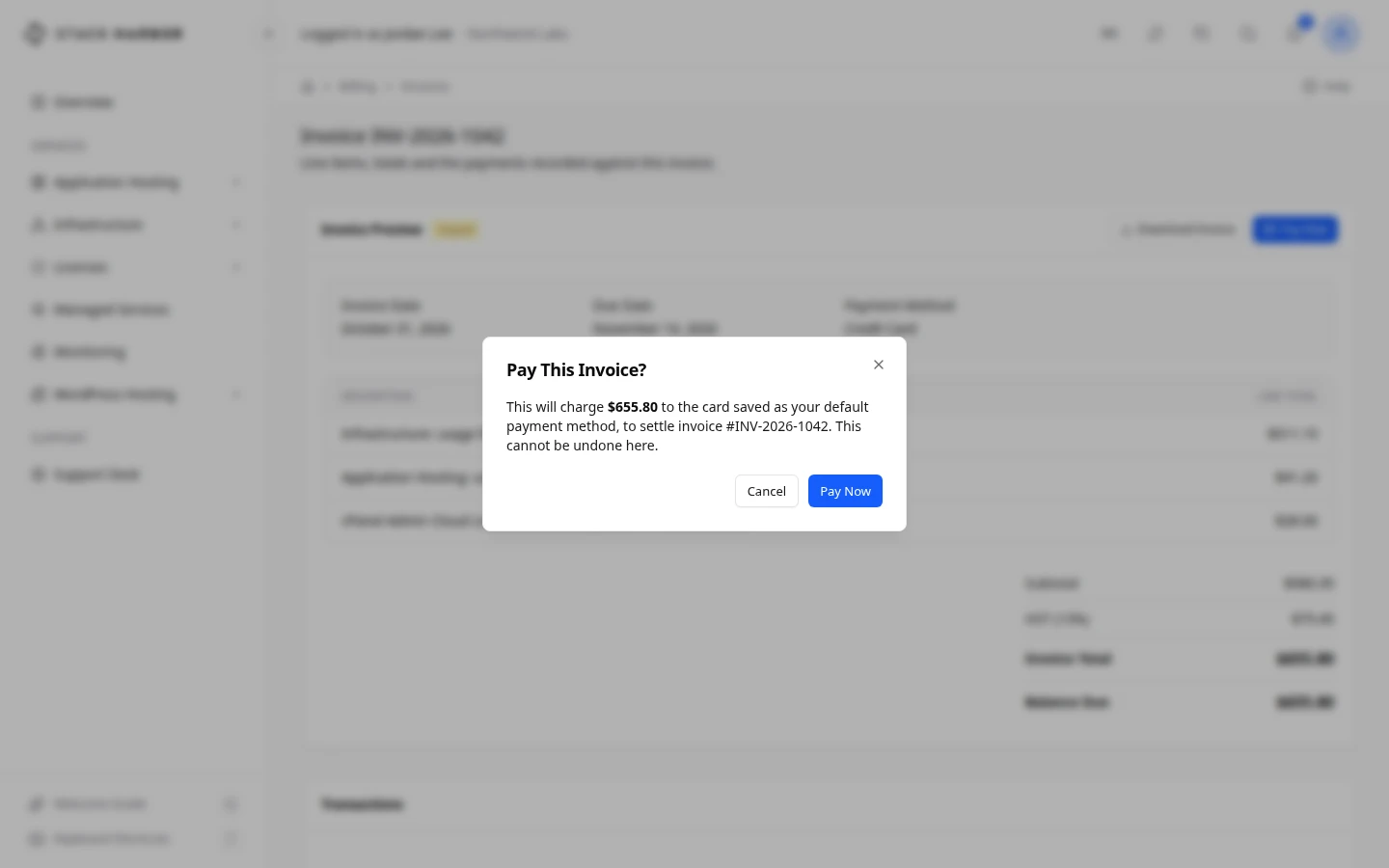
- Read the Pay This Invoice? box. It names the amount that will be charged to your default card.
- Select Pay Now to confirm, or Cancel to go back.
What you see afterwards
- Invoice paid. The status changes to Paid and the payment appears under Transactions.
- Payment submitted — this invoice will update once it settles. The payment is on its way. The invoice updates by itself once the payment settles.
- If your bank asks you to confirm the payment, you see Your Bank Needs You to Confirm This Payment. See Confirm a card payment.
Download the PDF
Select Download Invoice on the invoice page, or in the Actions column of the list. The PDF opens in a new tab, where you can save or print it.
If something goes wrong
- We couldn’t charge your saved card. It may have been declined, or your bank may need to confirm it. Check the card with your bank, or add another card and make it the default. See Add a payment card. Then select Pay Now again.
- There’s no saved card to charge. Add one on the Payment Methods page first. Add a card, then come back.
- This invoice is paid by cheque or bank transfer, so it can’t be charged to a card here. Pay it the way your billing profile says. Contact support if you want to switch to card payments.
- A payment for this invoice is already being processed. Wait a moment before trying again. Nothing more is charged. Wait, then refresh the page.
- An earlier payment for this invoice is still settling. Check again in a few minutes. Your earlier payment may still complete. Check again before you pay a second time.
- This invoice isn’t awaiting payment. It is already paid or was cancelled.
- If you see Couldn’t load the invoice PDF. Please try again., select Download Invoice again in a moment.
Fields and statuses
What each item on this page means, what it does and how to read it.
- Invoice Column
-
What it is. The invoice number.
What it does. Select it to open the invoice.
How to read it. A number such as #1042. Quote it when you contact support about a bill.
- Date Column
-
What it is. The day the invoice was issued.
- Due Date Column
-
What it is. The last day to pay the invoice on time.
How to read it. After this date, an unpaid invoice shows as Overdue.
- Total Column
-
What it is. The full amount of the invoice, taxes included.
How to read it. An amount in the invoice’s own currency.
- Status Column
-
What it is. Where the invoice stands: paid, unpaid, overdue and so on.
How to read it. A coloured badge. Green is paid, amber is unpaid, red is overdue, cancelled or refunded.
- Actions Column
-
What it is. Buttons for one invoice.
What it does. View Invoice opens it. Download Invoice opens its PDF.
- All Option
-
What it is. Shows every invoice.
- Unpaid Option
-
What it is. Shows invoices still waiting for payment, overdue ones included.
- Paid Option
-
What it is. Shows invoices that are paid in full.
- Overdue Option
-
What it is. Shows unpaid invoices whose due date has passed.
- Paid Status
-
What it is. The invoice is paid in full.
How to read it. Nothing is owed on it. You don't need to do anything.
- Unpaid Status
-
What it is. The invoice is waiting for payment and its due date hasn’t passed.
How to read it. Pay it before the due date with Pay Now, or let automatic payment charge your card.
- Overdue Status
-
What it is. The invoice is unpaid and its due date has passed.
How to read it. Pay it now with Pay Now. If a card charge failed, check your card or add another one first.
- Cancelled Status
-
What it is. The invoice was cancelled and is no longer owed.
How to read it. You don't need to do anything.
- Refunded Status
-
What it is. The payment for this invoice was refunded.
How to read it. The refund appears under Transactions. Contact support if you have a question about it.
- Draft Status
-
What it is. The invoice is being prepared and isn’t final yet.
How to read it. Nothing is due yet. It becomes Unpaid once it is issued.
- Collections Status
-
What it is. The invoice stayed unpaid long after its due date and was passed to collections.
How to read it. Contact our billing team as soon as you can to settle it.
- Invoice Date Field
-
What it is. The day the invoice was issued.
- Due Date Field
-
What it is. The last day to pay the invoice on time.
- Paid Date Field
-
What it is. The day the invoice was paid in full.
How to read it. Empty while the invoice is unpaid.
- Payment Method Field
-
What it is. How this invoice is to be paid, for example by card.
What it does. Only card invoices offer Pay Now.
- Description Column
-
What it is. What the line is for, for example a service and its period.
- Qty Column
-
What it is. How many units the line charges for.
- Unit Amount Column
-
What it is. The price of one unit.
- Line Total Column
-
What it is. The amount for the line: quantity times unit amount.
- Subtotal Field
-
What it is. The sum of all lines, before discounts and taxes.
- Discount Field
-
What it is. The amount taken off the invoice.
How to read it. Shown only when a discount applies.
- Tax ({rate}%) Field
-
What it is. A sales tax on the invoice, with its rate.
How to read it. One row per tax, for example GST and QST. Your billing address decides which taxes apply.
- Rounding Field
-
What it is. A cent or so added or removed so the lines add up to the total.
- Invoice Total Field
-
What it is. The full amount of the invoice, taxes included.
How to read it. The figure your bill adds up to, before any payment or credit.
- Credit Applied Field
-
What it is. Account credit used on this invoice.
How to read it. Subtracted from the Invoice Total.
- Balance Due Field
-
What it is. What is still left to pay on the invoice.
How to read it. 0 when the invoice is paid. Pay Now charges this amount.
- Date Column
-
What it is. When the payment or refund was recorded.
- Description Column
-
What it is. What the transaction was, for example a card payment.
- Amount Column
-
What it is. How much money moved.
How to read it. A payment and a refund show with opposite signs.
- Status Column
-
What it is. Whether the transaction went through.
- Account Credit Field
-
What it is. This part of the invoice was paid from your account credit.
How to read it. No card was charged for it.
- Success Status
-
What it is. The payment went through.
- Completed Status
-
What it is. The payment is complete.
- Pending Status
-
What it is. The payment is still being processed.
How to read it. Wait a few minutes. Don’t pay again while it is pending.
- Failed Status
-
What it is. The payment didn’t go through.
How to read it. Nothing was taken. Check your card, then select Pay Now again.
- Declined Status
-
What it is. Your bank refused the payment.
How to read it. Contact your bank, or add another card and make it the default.
- Void Status
-
What it is. The payment was cancelled before it settled.
How to read it. Nothing was taken.
- Refunded Status
-
What it is. The payment was returned to you.
How to read it. It goes back to the card or account it came from.