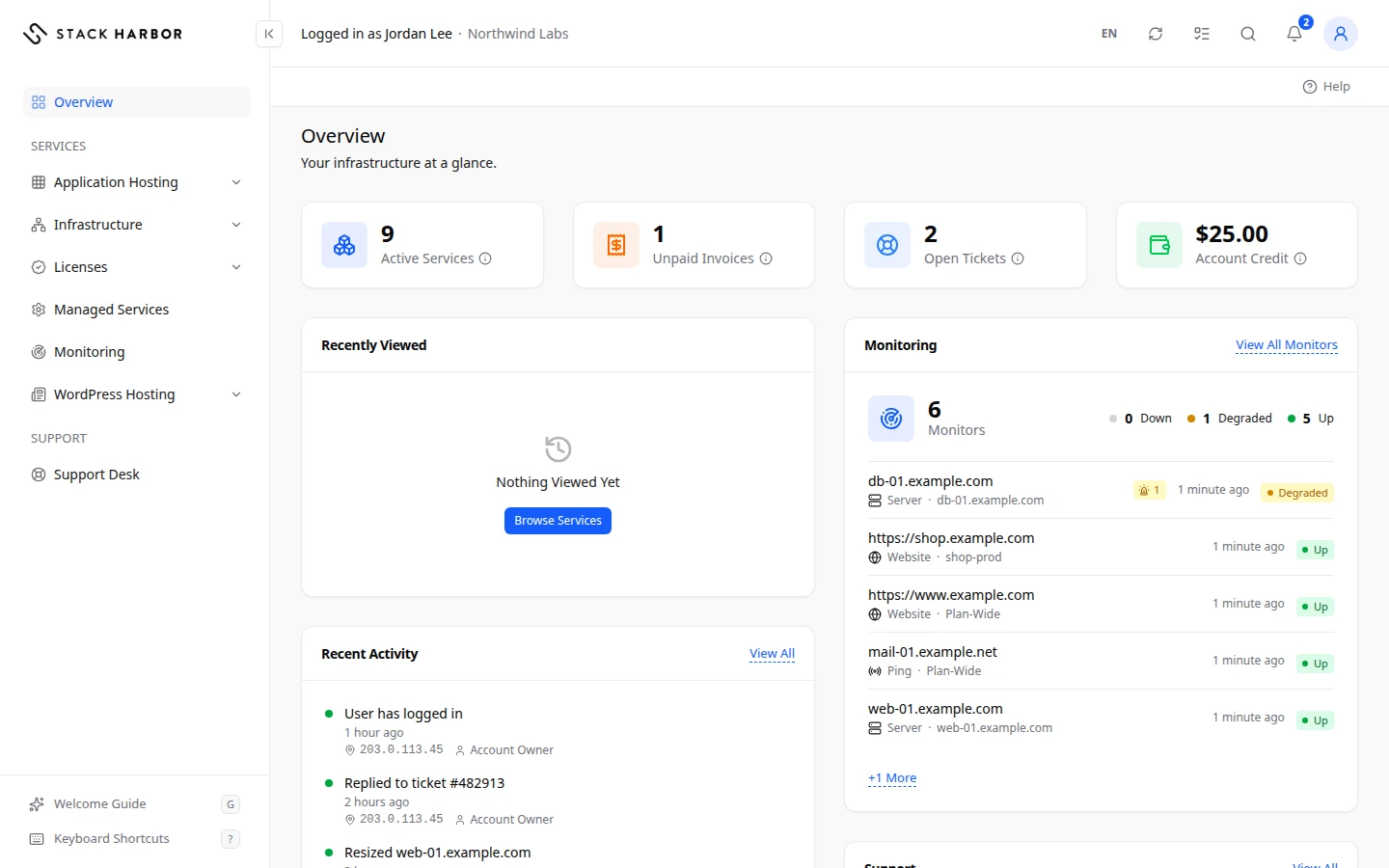
The Overview is the page Lighthouse opens on after you sign in. It shows your account at a glance: what you have, what you owe, what is running up usage this month and what you opened last. Select Overview at the top of the side menu to come back to it.
What you see depends on your permissions. A card you aren’t allowed to see is left out, never shown empty.
Setup card
While your account still has setup steps left, a Get Started card sits at the top. It shows your progress, such as 2 of 4 Done, the next step, and Continue Setup.
Team members see Account Setup in Progress instead, until the owner finishes setup.
The four tiles
| Tile | What it counts |
|---|---|
| Active Services | The services on your account that are active now. |
| Unpaid Invoices | Invoices you haven’t paid yet. Needs access to billing. |
| Open Tickets | Your support tickets that aren’t closed. Needs access to support. |
| Account Credit | Money held on your account, in your account currency. It is used on your next invoices. Needs access to billing. |
Services To Enable
The Services To Enable card lists the services that aren’t on yet, each with a short status:
- Not enabled yet. with an Enable button. See Enable a service.
- Setting up now… while we set the service up.
- Setup didn’t finish. You can try again.
- We’re looking into it. when our team has to finish it.
- Only the account owner can enable it. for a team member.
Once every service is on, the card goes away.
Billing Usage
Billing Usage shows the usage you have run up in the Current Billing Cycle, one row per product: Infrastructure, Application Hosting and WordPress Hosting. Usage is billed after the month ends. Select View Billing for the full figures.
- A dash (—) means the figure can’t be read right now. It never means zero.
- A product you don’t have isn’t listed.
- No Metered Usage Yet means nothing has been used so far.
- A team member who can see infrastructure costs but not billing sees only the Infrastructure row.
Monitoring
If you have a Managed Services plan with monitors, Monitoring lists them with their state and Last Check. The open incidents count shows how many monitors have a problem right now. Select View All Monitors to open the full list. See View a monitor.
Recently Viewed
Recently Viewed lists the last things you opened, of any type, such as a Cloud Server, an Environment or an Invoice. Each line shows the type, the service and when you opened it. Select a line to go back to it.
The right-hand column
- Recent Activity shows the latest sign-ins and changes on the account. Owners only. An entry’s name links to the item it is about, and an arrow at the end opens the background action it came from, when there is one. See Review the Activity Log.
- Unpaid Invoices lists each unpaid invoice with its Invoice Total and due date. It only appears while you owe something. See Pay an invoice.
- Support lists your open tickets. No Open Tickets has a New Ticket button. See Open a support ticket.
Quick Actions
Quick Actions at the bottom starts common tasks: Launch WordPress Site, Deploy Cloud Server, New Environment, New Ticket and Payment Methods. Deploy Cloud Server opens the Infrastructure deploy wizard, and only shows when Infrastructure is enabled for your account. See Deploy a server. You only see the ones you have permission to use. A greyed-out action means your account isn’t ready to deploy yet. Hold the pointer over it to see why.
If something goes wrong
- Usage unavailable right now means the usage figures couldn’t be read. Refresh the page in a few minutes.
- If a tile or card you expect is missing, you may not have the permission for it. Ask your account owner.
Fields and statuses
What each item on this page means, what it does and how to read it.
- Active Services Metric
-
What it is. The number of services on your account that are active now.
How to read it. A count. Select All Services on the Billing page to see the list.
- Unpaid Invoices Metric
-
What it is. The number of invoices you haven’t paid yet.
How to read it. A count. 0 is what you want. Shown only with access to billing.
- Open Tickets Metric
-
What it is. The number of your support tickets that aren’t closed.
How to read it. A count. Shown only with access to support.
- Account Credit Metric
-
What it is. Money held on your account.
What it does. It is used toward your next invoices.
How to read it. An amount in your account currency. Shown only with access to billing.
- Not enabled yet. Status
-
What it is. The service isn’t switched on for your account yet.
How to read it. The account owner can select Enable.
- Setting up now… Status
-
What it is. We are setting the service up.
How to read it. Wait a minute. The card updates by itself.
- Setup didn't finish. You can try again. Status
-
What it is. The last setup attempt didn’t finish.
How to read it. We try again automatically, or you can try again now.
- We're looking into it. Status
-
What it is. Our team has to finish the setup.
How to read it. There is nothing you need to do.
- Only the account owner can enable it. Status
-
What it is. You are a team member, and only the account owner can enable a service.
How to read it. Ask the account owner.
- Current Billing Cycle Field
-
What it is. The billing period you are in now.
How to read it. The amounts are your usage so far this cycle. Usage is billed after the cycle ends.
- Billing Usage Metric
-
What it is. The usage you have run up this cycle, one row per product.
What it does. View Billing opens the full figures.
How to read it. An amount per product. A dash means the figure can’t be read right now, never zero.
- Open Incidents Metric
-
What it is. How many of your monitors have a problem right now.
How to read it. A count. 0 means every monitor is healthy.
- Last Check Column
-
What it is. When the monitor last checked your service.
How to read it. A recent time means the monitor is working. No check recorded yet. means it hasn’t run.
- Recently Viewed Field
-
What it is. The last things you opened in Lighthouse, of any type.
What it does. Select a line to go back to it.
How to read it. Each line shows the type, the service and when you opened it.
- Recent Activity Field
-
What it is. The latest sign-ins and changes on your account.
How to read it. Newest first. Owners only.