The Storage tab shows the disks of one server. The boot volume holds the operating system. Data volumes are extra disks you add for files and databases. A volume is billed by the GB-hour from the moment it is created, attached or not.
Read the tab
- Open the server’s page, then the Storage tab.
- Volumes lists each disk with Volume, Size, Device, Status, Attached and Deleted With Server. Boot Volume marks the disk the server starts from. Device is the disk’s name inside the server, for example /dev/vdb.
- The line under the title counts the volumes on this server and how many of the project’s allowed volumes are used.
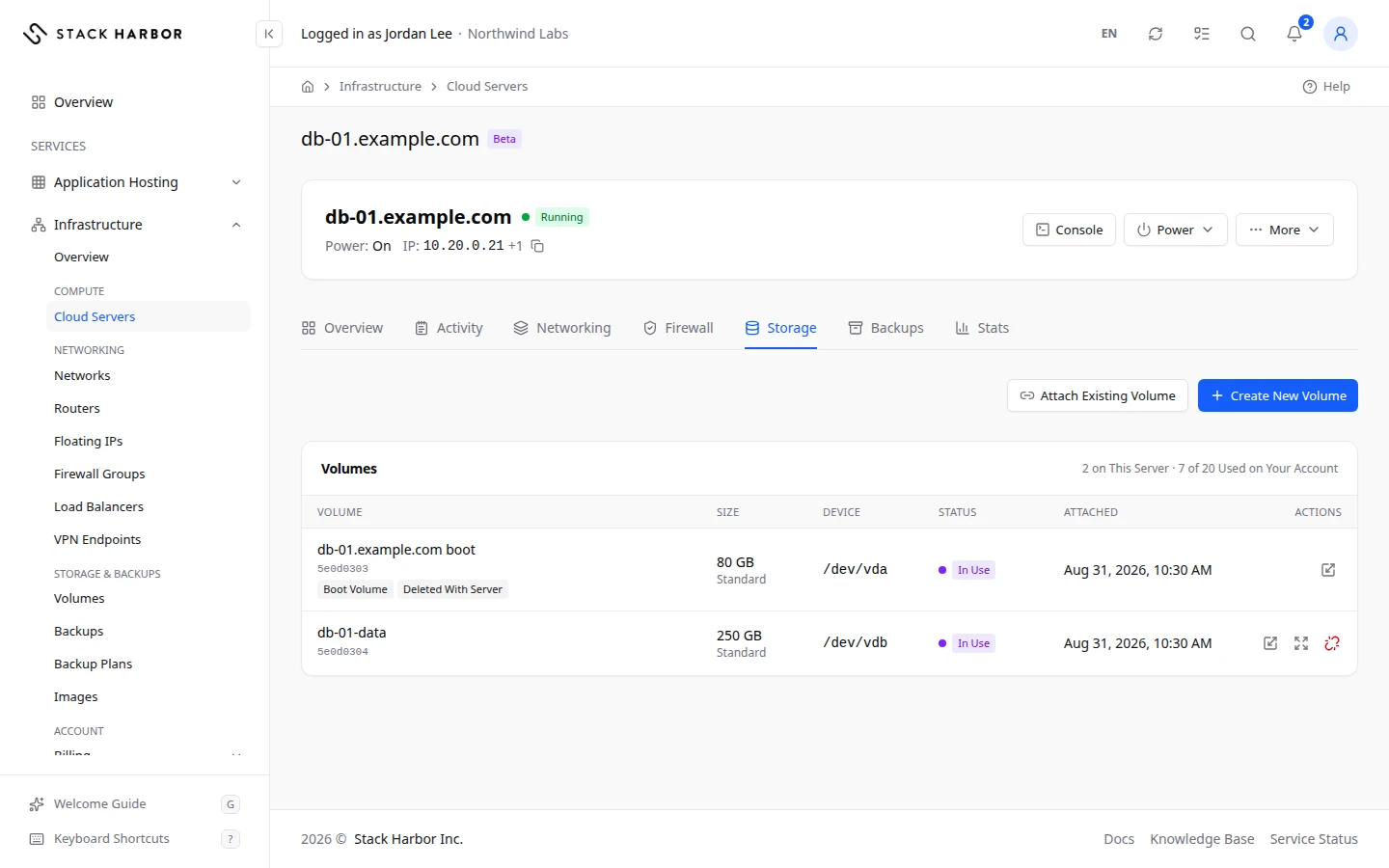
Add a new volume
- Select Create New Volume.
- Type a Name and a Size (GB).
- Confirm. A new blank volume is created in the server’s zone and attached to it.
- Inside the server, format and mount the new disk.
Attach an existing volume
- Select Attach Existing Volume, or open Available Volumes.
- Under Choose a Volume, pick a volume.
- Confirm. Mount it from inside the server afterwards.
Extend a volume
- Select Extend on the volume’s row.
- Set the new size with the slider or the box. Volumes can grow, never shrink. The Estimate: line shows the extra monthly cost.
- Confirm. You see Volume Extend Requested.
For the boot volume, the server keeps running and its root filesystem grows at the next reboot. Reboot Now restarts it straight away. For a data volume, grow its filesystem inside the server with the commands shown, or use Grow Filesystem.
Grow a data volume’s filesystem
Grow Filesystem makes the filesystem fill the whole volume after you extend it.
- Select Grow Filesystem on the volume’s row.
- Choose the Filesystem already on it: ext4 or XFS. Run
lsblk -finside the server if you’re not sure. - Confirm. The server goes offline for about a minute while it restarts into maintenance mode. Nothing on the volume is erased.
You see Filesystem Grown, or Nothing to Grow when it already filled the volume. LVM, btrfs and encrypted volumes can’t be grown here.
Detach a volume
- Inside the server, unmount the disk and remove it from /etc/fstab.
- Select Detach on its row and confirm. The volume and its data are kept, unattached.
Delete a volume
- Select Delete Volume on its row.
- Optional: tick Take a Backup First to make a full backup now.
- Type the volume’s name to confirm.
The data on it can’t be recovered unless it has a backup. Its existing backups are kept.
If something goes wrong
- This project already has its maximum number of volumes. Delete one, or contact support for more. To ask for more, open a support ticket.
- Volume Created but Not Attached means the volume exists under Available Volumes. Attach it again, or delete it.
- Filesystem Not Grown shows the reason. The data wasn’t touched.
Fields and statuses
What each item on this page means, what it does and how to read it.
- Volume Column
-
What it is. The name of a disk on this server.
How to read it. Boot Volume marks the disk the server starts from.
- Size Column
-
What it is. The disk’s size.
How to read it. In GB.
- Device Column
-
What it is. The disk’s name inside the server.
How to read it. For example /dev/vdb.
- Status Column
-
What it is. The volume’s state.
How to read it. See the volume statuses on Create and attach a volume.
- Attached Column
-
What it is. When the volume was attached to this server.
- Deleted With Server Column
-
What it is. Whether the volume is deleted when the server is deleted.
How to read it. Yes for the boot volume. Data volumes are usually kept.
- Boot Volume Status
-
What it is. The disk the server starts from. It holds the operating system.
- Size (GB) Field
-
What it is. The size of the new or extended volume, in GB.
What it does. Volumes can grow, never shrink.
How to read it. It is billed per GB per hour from the moment it exists, attached or not.
- Estimate: Metric
-
What it is. The extra monthly cost of the larger size.
How to read it. In your account currency, before tax. Usage is billed after the month ends.
- Available Volumes Field
-
What it is. Your volumes that aren’t attached to any server.
What it does. You can attach one to this server.
- Filesystem Field
-
What it is. The filesystem on the volume: ext4 or XFS.
What it does. Grow Filesystem uses it to fill the whole volume.
How to read it. Run lsblk -f inside the server if you’re not sure.
- Take a Backup First Option
-
What it is. Makes a full backup of the volume before it is deleted.
- Filesystem Grown Status
-
What it is. The filesystem now fills the whole volume.
- Nothing to Grow Status
-
What it is. The filesystem already filled the volume.
How to read it. Nothing was changed.
- Filesystem Not Grown Status
-
What it is. The filesystem couldn’t be grown.
How to read it. The message gives the reason. The data wasn’t touched. LVM, btrfs and encrypted volumes can’t be grown here.
- Volume Created but Not Attached Status
-
What it is. The new volume exists but couldn’t be attached.
How to read it. Find it under Available Volumes. Attach it again, or delete it.