Each team member has their own page. There you set what they can do, which services they can reach, and which alerts they get by email. You can also check their sign-ins and stop their access.
Only the account owner sees the Permissions, Projects & Services and Notifications tabs. A member with Manage Members sees the other tabs.
Open a member’s page
- Open the account menu at the top right and select Team Members.
- Select the member’s row, or View Member at the end of it.
The Overview tab shows Member Details (Name, Email, Joined) and Security (Two-Factor Authentication and Last Active). Select Manage Permissions or View Sessions to jump to those tabs.
Choose what they can do
- Open the Permissions tab.
- Each card is one area of the account, such as Billing, Support or Servers. Each row is one permission, with a sentence saying what it allows.
- Turn a permission on or off with its switch. Use Enable All or Disable All to set a whole card at once.
- Select Save Changes in the bar at the bottom. The bar counts your unsaved changes.
- In Confirm Permission Changes, check each line. Granting means the member gains it, Revoking means they lose it.
- Select Confirm & Save.
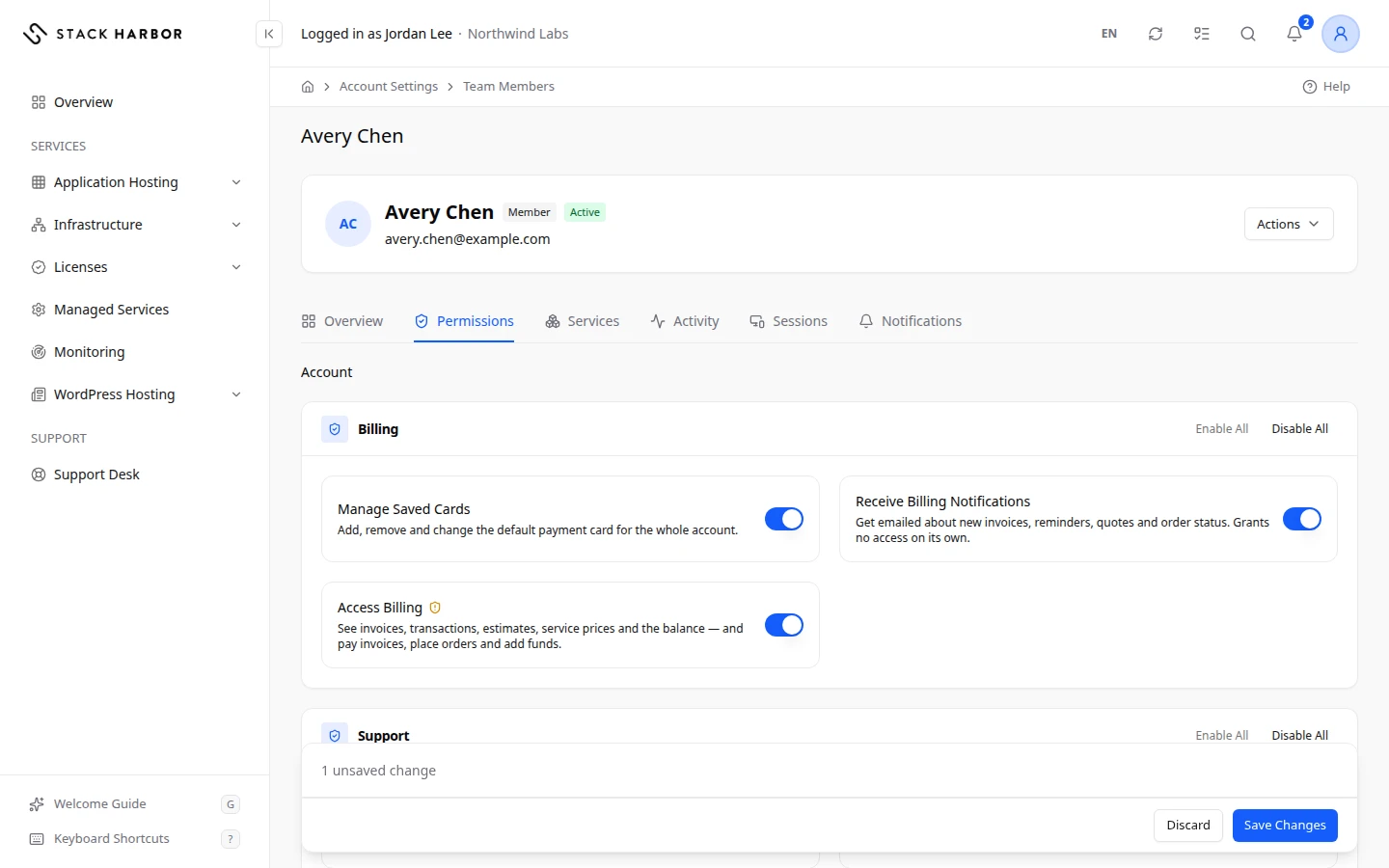
Each permission is explained on the info icon next to it. A few rules apply to all of them:
- A permission whose name starts with Receive only sends email. It opens nothing by itself.
- Some permissions need another one first. For example View License Keys has no effect without Access Licenses.
- Prices and invoices inside a service also need Access Billing.
- Creating and deleting Infrastructure servers and volumes stays with the owner. No permission grants it.
If you see Not Configured Yet: Showing What Applies Today, nobody has set this member’s permissions for that area. For Infrastructure, that means they have no access there yet and every switch is off. Saving records your choice.
To leave without saving, select Discard.
Choose which services they reach
Permissions say what a member can do. Services say where they can do it.
- Open the Projects & Services tab.
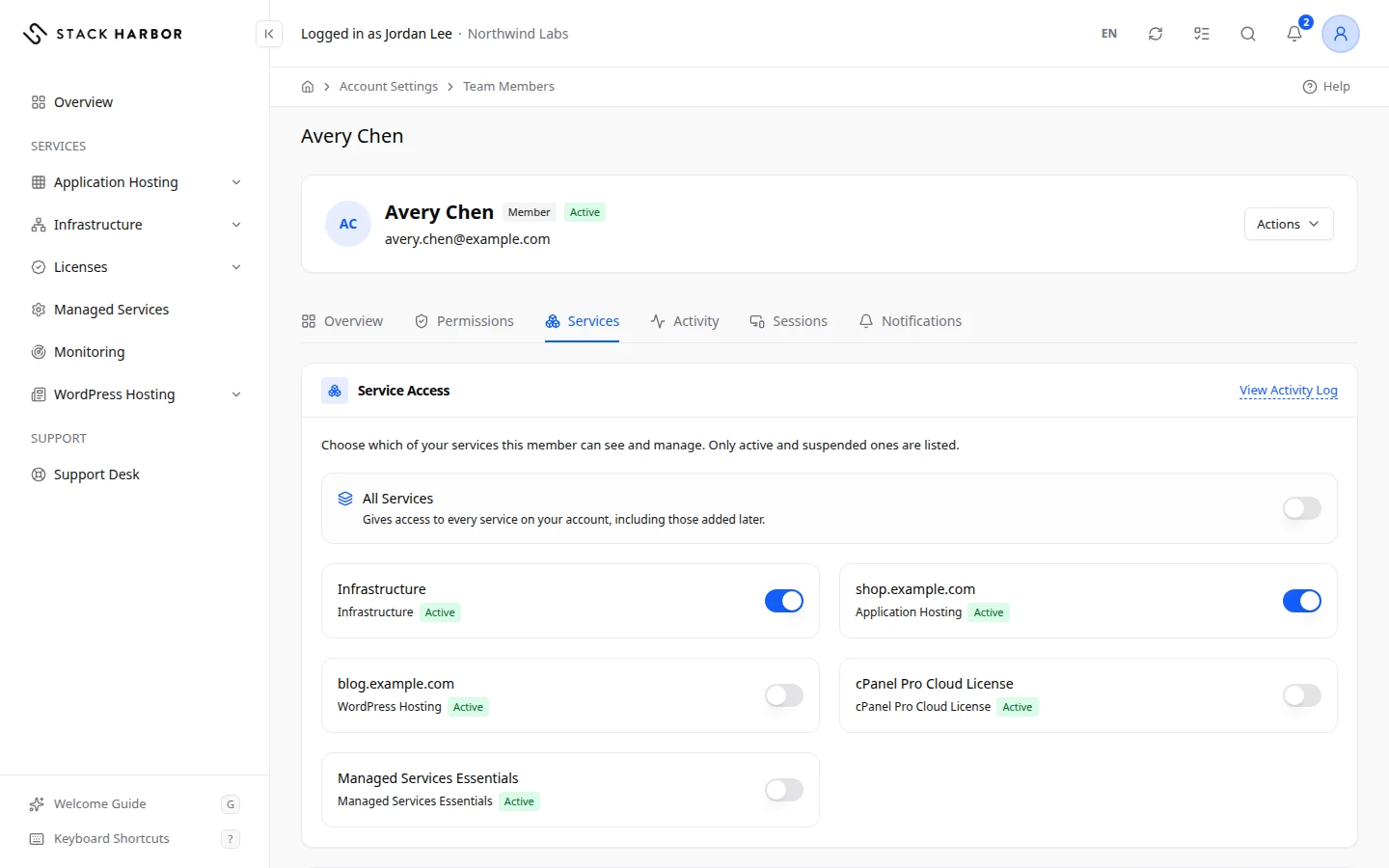
- To give access to everything, turn on All Projects & Services. It includes services you add later. While it is on, the list below is read only.
- Otherwise, turn on each service the member should reach. They are listed under Services. Only active and suspended services are listed.
- Select Save Changes, check Confirm Access Changes, then select Confirm & Save.
Set their email alerts
- Open the Notifications tab.
- For each category, turn Email on or off. In-App is always on: every alert appears in Lighthouse.
- Select Save Changes.
The categories are the same as yours. See Manage your notifications.
Check their activity and sign-ins
- Activity lists what the member did, newest first, the same way as the account’s Activity Log. See Review the activity log.
- Sessions shows Sign-In Details for the last sign-in: Last Sign-In, Sign-In Method, IP Address, Host, Browser and Platform. Recent Sign-Ins lists earlier ones. It is a history of sign-ins, not a list of devices signed in now.
Edit, deactivate or remove a member
Open the Actions menu at the top of the member’s page, or Member Actions on their row in the list.
- Edit changes their name and email address.
- Resend Invite sends the set-password email again, while they haven’t finished setting up.
- Sign In As Member opens Lighthouse as that member, so you see exactly what they see. A bar says You are signed in as Jordan Lee. Select Return To My Account to come back.
- Deactivate stops their access at once. Their status becomes Closed. You can Reactivate them later.
- Delete removes their access and their account for good. This can’t be undone.
Lighthouse may show Confirm It’s You before any of these changes. Type your Current Password, and your two-factor code if asked, then select Verify.
If something goes wrong
- Permissions Changed means someone else changed this member while you were editing. Nothing was saved. Select Reload and make your change again.
- Some of these are no longer active and can’t be granted. Nothing was saved. A service in your list was cancelled. Turn it off or reload the page.
- You didn’t confirm it’s you, so nothing was changed. Make the change again and finish the Confirm It’s You step.
- You could not be signed in as that member. Try again in a moment. If it keeps failing, contact support.
Fields and statuses
What each item on this page means, what it does and how to read it.
- Name Field
-
What it is. The member’s first and last name.
- Email Field
-
What it is. The member’s email address, which they sign in with.
- Joined Field
-
What it is. The day the member was added.
- Two-Factor Authentication Field
-
What it is. Whether the member signs in with a second step.
- Last Active Field
-
What it is. When the member last signed in.
How to read it. Never means they haven’t signed in yet.
- Not Configured Yet: Showing What Applies Today Status
-
What it is. Nobody has set this member’s permissions for this area yet.
How to read it. The switches show what applies today. For Infrastructure, that is no access. Save to record your choice.
- Granting Status
-
What it is. The member gains this permission when you save.
- Revoking Status
-
What it is. The member loses this permission when you save.
- Access Billing Field
-
What it is. Lets the member see and pay your invoices.
What it does. See invoices, transactions, estimates, service prices and the balance — and pay invoices, place orders and add funds.
- Receive Billing Notifications Field
-
What it is. Sends the member invoice and billing emails.
What it does. Get emailed about new invoices, reminders, quotes and order status. Grants no access on its own.
How to read it. Grants no access on its own.
- Manage Saved Cards Field
-
What it is. Lets the member manage the account’s saved cards.
What it does. Add, remove and change the default payment card for the whole account.
- Access Support Field
-
What it is. Lets the member use the Support Desk.
What it does. Open, read, close, reopen, rate and escalate support tickets, including other members' tickets on this account.
- Receive Support Notifications Field
-
What it is. Sends the member support ticket emails.
What it does. Get emailed about ticket replies and updates. Grants no access on its own.
How to read it. Grants no access on its own.
- Access Account Settings Field
-
What it is. Lets the member see account details and the Email Log.
What it does. See the account owner's contact details, email history and service groups. The billing address is under Access Billing.
- Receive Account Notifications Field
-
What it is. Sends the member general account emails.
What it does. Get emailed general account notices and file-related mail. Grants no access on its own.
How to read it. Grants no access on its own.
- Manage Members Field
-
What it is. Lets the member manage the team.
What it does. Invite, edit and remove members, and change what they can do. Lets them change other people's permissions.
- Manage SSH Keys Field
-
What it is. Lets the member manage the account’s SSH keys.
What it does. Add and remove the SSH keys that grant access to servers on this account.
- Manage Allowed IP Access Field
-
What it is. Lets the member change which IP addresses may reach the account.
What it does. Change which source addresses may reach the account.
- Start, Stop & Reboot Servers Field
-
What it is. Lets the member start, stop and reboot Infrastructure servers.
What it does. Change the power state of a server. Interrupts anything running on it.
- Resize Servers Field
-
What it is. Lets the member change a server’s size.
What it does. Change CPU and memory. Affects what the account is billed.
- Rebuild & Recover Servers Field
-
What it is. Lets the member reinstall a server or start it in rescue mode.
What it does. Reinstall a server from a template, or boot it into recovery. Destroys the current contents of the disk.
- Rename Servers & Edit Notes Field
-
What it is. Lets the member rename servers and edit their notes.
What it does. Change a server's hostname, display name and notes. No effect on the running server.
- Open Server Console Field
-
What it is. Lets the member open a server’s console and read its console log.
What it does. Direct screen-and-keyboard access to a server, bypassing SSH and the firewall.
- View Server Activity Field
-
What it is. Lets the member read a server’s Activity tab.
What it does. Read the activity log for a server.
- See Usage & Costs Field
-
What it is. Lets the member see Infrastructure usage and costs without full billing access.
What it does. See usage and costs for the projects this member can reach. No invoices, account totals or limits.
- View Storage Field
-
What it is. Lets the member see volumes and their use.
What it does. See disks, sizes and snapshot usage.
- Add & Resize Disks Field
-
What it is. Lets the member create, attach, detach and grow volumes.
What it does. Add a disk to a server or grow an existing one. Affects what the account is billed.
- Take & Delete Snapshots Field
-
What it is. Lets the member take and delete backups and snapshots.
What it does. Create snapshots on demand and remove them. Deleting a snapshot cannot be undone.
- Restore Snapshots Field
-
What it is. Lets the member restore a backup.
What it does. Roll a server back to a snapshot. Discards everything written since it was taken.
- View Networking Field
-
What it is. Lets the member see networks, IP addresses and firewall groups.
What it does. See network interfaces, IP addresses and remaining IP allowance.
- Manage Network Interfaces Field
-
What it is. Lets the member add and remove a server’s network interfaces.
What it does. Add, rename and remove interfaces. Any change reboots the server, and removing an interface releases its IP addresses.
- Assign & Release IP Addresses Field
-
What it is. Lets the member assign and release IP addresses, floating IPs included.
What it does. Add IP addresses to a server and remove them, including its primary address.
- Manage Firewall Rules Field
-
What it is. Lets the member change firewall rules.
What it does. Change which traffic reaches a server. A mistake here can expose it or lock everyone out.
- Manage Networks Field
-
What it is. Lets the member create and change private networks, subnets and routers.
What it does. Create, change and delete private networks, subnets and routers. A mistake can cut servers off from each other or from the public network.
- Start, Stop & Restart Environments Field
-
What it is. Lets the member start, stop and restart environments.
What it does. Change the power state of an environment, a cluster, a layer or a single node. Interrupts anything the environment is serving.
- Rename Environments Field
-
What it is. Lets the member rename environments.
What it does. Change an environment's display name. No effect on what it runs.
- Create Environments Field
-
What it is. Lets the member create environments.
What it does. Deploy a new environment. Adds to what the account is billed.
- Organize Environments Into Groups Field
-
What it is. Lets the member sort environments into groups.
What it does. Create, rename and remove the groups used to organize environments, and move environments between them. Affects what everyone on the account sees.
- Delete Environments and Clusters Field
-
What it is. Lets the member delete environments.
What it does. Permanently delete an environment, or every environment of a multi-region cluster, with every layer and node and the data stored in them. Cannot be undone.
- Redeploy Containers Field
-
What it is. Lets the member redeploy containers.
What it does. Replace the containers a layer or node runs with a different version. Anything stored outside a mounted volume is lost.
- Scale Environments Field
-
What it is. Lets the member scale environments.
What it does. Change how much computing resource a node may use, and how many nodes a layer runs. Affects what the account is billed.
- Manage Environment Firewall Field
-
What it is. Lets the member change an environment’s firewall.
What it does. Change which traffic reaches an environment. A mistake here can expose it or cut it off.
- Manage Domains & SSL Field
-
What it is. Lets the member manage custom domains and SSL certificates.
What it does. Attach custom domains to an environment and manage the certificates securing them.
- Manage Reverse DNS Field
-
What it is. Lets the member set reverse DNS on public IP addresses.
What it does. Set the name returned when someone looks up the public IP address of an environment or a WordPress site on this service. Visible to anyone on the internet.
- Browse & Edit Environment Files Field
-
What it is. Lets the member browse and edit files inside environments.
What it does. Read and change the configuration files inside a running environment. Comparable to command-line access.
- Manage WordPress Field
-
What it is. Lets the member manage WordPress inside environments.
What it does. Install the Stack Harbor agent, update or switch plugins, themes and WordPress core, and purge caches in a WordPress environment. Changes what the site runs.
- Migrate Sites Into Environments Field
-
What it is. Lets the member migrate a WordPress site into an environment.
What it does. Copy a WordPress site from another host into an environment, replacing what the environment currently serves.
- Install & Remove Add-ons Field
-
What it is. Lets the member install and remove add-ons.
What it does. Add an add-on to a layer of an environment, or remove one. Add-ons run their own setup scripts with full access to the layer and can add to what the account is billed.
- Use Add-on Actions Field
-
What it is. Lets the member run add-on actions and change their settings.
What it does. Run an installed add-on's actions and change its settings — for example renew a certificate or start a database recovery. Some actions restart services.
- Access Managed Services Field
-
What it is. Lets the member open Managed Services.
What it does. See management plans, what each one covers, the hours meter, and published maintenance and change history. Required for every other Managed Services permission. Billable-hours figures additionally require Access Billing; the Support Requests tab requires Access Support.
- View Coverage & Monitoring Field
-
What it is. Lets the member see monitoring for covered infrastructure.
What it does. Health verdicts, uptime, incidents and metric charts for covered infrastructure. Has no effect without Access Managed Services.
- View Monthly Reports Field
-
What it is. Lets the member read monthly management reports.
What it does. Published monthly management reports. Money sections inside a report additionally require Access Billing. Has no effect without Access Managed Services.
- Receive Managed Services Emails Field
-
What it is. Sends the member Managed Services emails.
What it does. Monthly management reports and incident digests by email. This grants no access on its own.
How to read it. Grants no access on its own.
- View Connection Details Field
-
What it is. Lets the member see a site’s database and admin passwords.
What it does. See and copy the site's database and admin panel passwords, and reset the panel passwords. Anyone with them can change the site's data directly. A member who can sign in to the site over SSH or the DevOps Console can still read them there.
- Add and Remove Sites Field
-
What it is. Lets the member add and remove WordPress sites.
What it does. Deploy new WordPress sites, and move sites into WordPress Hosting and back to Application Hosting.
- Manage Plugins Field
-
What it is. Lets the member manage plugins.
What it does. Activate, deactivate and update plugins on WordPress Hosting sites.
- Manage Updates Field
-
What it is. Lets the member update WordPress and themes.
What it does. Update WordPress core and themes, purge the cache and install the site agent on WordPress Hosting sites.
- Run Migrations Field
-
What it is. Lets the member move sites into WordPress Hosting.
What it does. Pre-flight, start, cancel and cut over site migrations into WordPress Hosting sites.
- Delete Sites Field
-
What it is. Lets the member delete WordPress sites.
What it does. Permanently delete WordPress Hosting sites, with their servers, files and database.
- Sign In to WP Admin Field
-
What it is. Lets the member open WP Admin without a WordPress password.
What it does. Open WP Admin on WordPress Hosting sites with a one-time sign-in link, without a WordPress password, and switch a site's address when it goes live.
- Manage Settings Field
-
What it is. Lets the member change WordPress Hosting settings.
What it does. Change the defaults for new sites and the automatic update policy applied to every WordPress Hosting site.
- Access Licenses Field
-
What it is. Lets the member open Licenses.
What it does. See the software licenses on this account, their status, licensed IP and hostname, seat usage and activity. Required for every other Licenses permission. Prices and invoices additionally require Access Billing.
- Change IP & Request Cancellation Field
-
What it is. Lets the member ask for a license IP change or cancellation.
What it does. Ask for a license to move to another IP address, and request that a license is cancelled at the end of its billing period. Has no effect without Access Licenses.
- View License Keys Field
-
What it is. Lets the member reveal license keys.
What it does. Reveal and copy the license keys of licenses that carry one. Every reveal is recorded in Activity. Has no effect without Access Licenses.
- Receive License Emails Field
-
What it is. Sends the member license emails.
What it does. Get emailed about licenses on this account. This grants no access on its own.
How to read it. Grants no access on its own.
- All Projects & Services Field
-
What it is. Access to every service on your account, now and later.
What it does. While it is on, the per-service list is read only.
How to read it. Turn it off to choose services one by one again.
- Projects Field
-
What it is. The Infrastructure accounts the member can reach.
- Services Field
-
What it is. The other services the member can reach, such as environments or licenses.
How to read it. Only active and suspended services are listed.
- Granted Status
-
What it is. The member gains access when you save.
- Removed Status
-
What it is. The member loses access when you save.
- Last Sign-In Field
-
What it is. When the member last signed in.
- Sign-In Method Field
-
What it is. Where the sign-in happened.
How to read it. Client Portal is Lighthouse. Admin Panel means our support staff signed in as this member to help.
- Client Portal Option
-
What it is. The member signed in to Lighthouse.
- Admin Panel Option
-
What it is. Stack Harbor staff signed in as this member, for example to help with a ticket.
- IP Address Field
-
What it is. The IP address the sign-in came from.
How to read it. For example 198.51.100.7. An address you don’t know may need a closer look.
- Host Field
-
What it is. The network name of that IP address, when one exists.
- Browser Field
-
What it is. The web browser used to sign in.
- Platform Field
-
What it is. The operating system of the device used.
- Signed In Column
-
What it is. When each earlier sign-in happened.