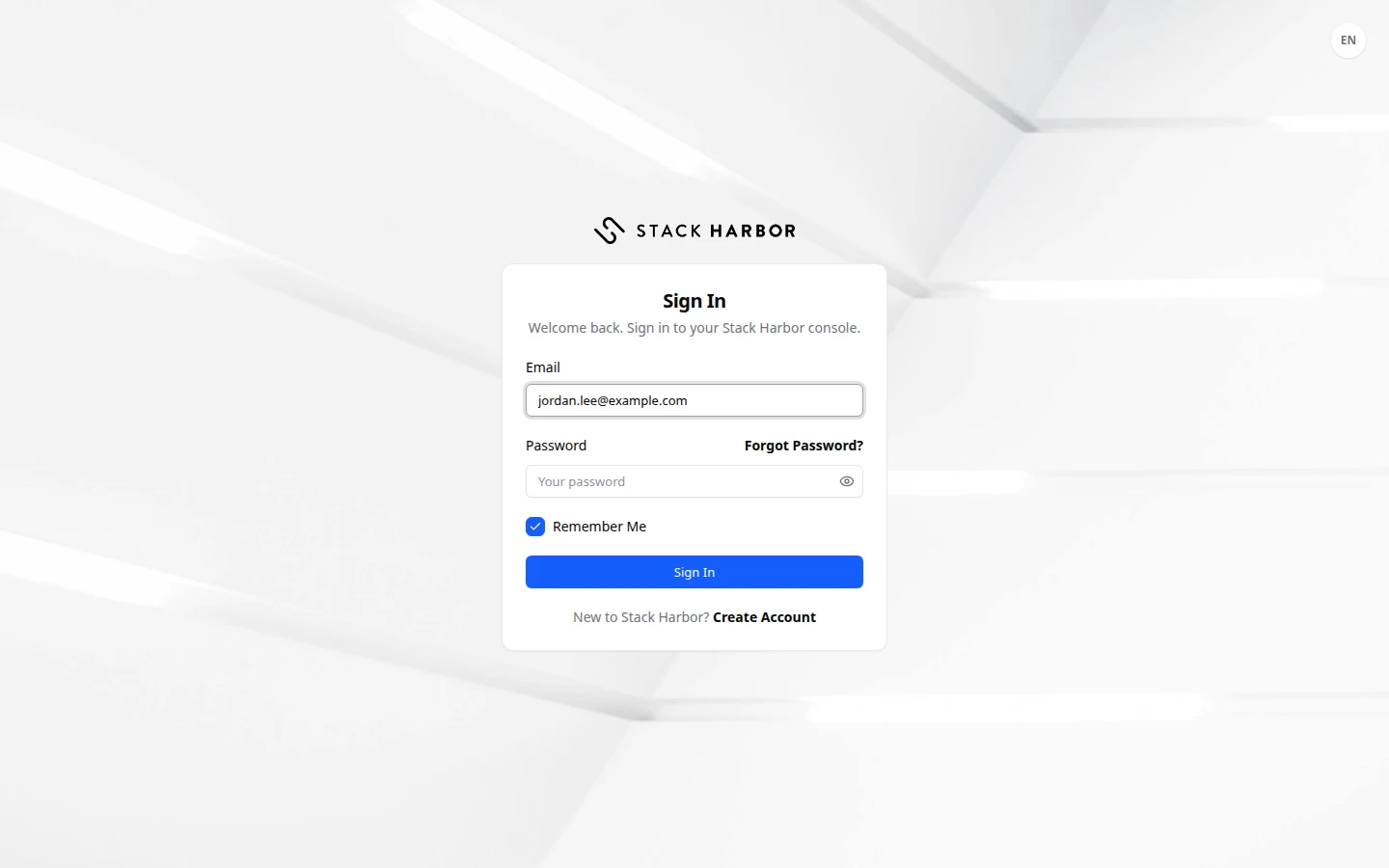
You sign in to Lighthouse with the email address and password of your account. If two-factor authentication is on, you also enter a 6-digit code.
Sign in
- Open the Sign In page.
- Type your address in Email and your password in Password. Select the eye icon to show or hide the password.
- Leave Remember Me ticked to stay signed in after you close the browser. Untick it on a shared computer: you are signed out when you close the tab.
- Select Sign In. The button shows Signing in….
Enter your two-factor code
If two-factor authentication is on for your sign-in, the Two-Factor Authentication page opens next.
- Find your code. The page says where it comes from: your email address or your authenticator app.
- Type the six digits. The code is checked as soon as the sixth digit is in. You can also select Continue.
- If you chose email codes and the email doesn’t come, select Resend. You can ask again after 30 seconds.
You have 5 minutes to enter the code. A countdown on the page shows the time left before the verification window closes.
To set up two-factor authentication, see Turn on two-factor authentication.
What you see afterwards
Lighthouse opens on the Overview, or on the page you were trying to open. The top bar shows whose account you are working in.
If something goes wrong
- Invalid email or password. Check both and try again. If you forgot the password, select Forgot Password?. See Reset your password.
- That code didn’t match. Please try again. The boxes clear. Type the newest code again.
- Verification Window Expired means the 5 minutes ran out. Select Sign In Again to start over.
- We couldn’t confirm you’re human. Please try again. Our automatic check failed.
- Too many attempts. Please wait a few minutes and try again.
- Sign-in is unavailable right now. Please try again. If it lasts, check Service Status.
Fields and statuses
What each item on this page means, what it does and how to read it.
- Email Field
-
What it is. The email address you sign in with.
- Password Field
-
What it is. Your account password.
What it does. The eye icon shows or hides what you type.
- Remember Me Option
-
What it is. Keeps you signed in on this browser.
What it does. Ticked, you stay signed in after you close the browser. Unticked, you are signed out when you close the tab.
How to read it. It is ticked by default. Untick it on a shared computer.
- 6-digit verification code Field
-
What it is. The six-digit code from your authenticator app or your email.
What it does. It confirms your sign-in. The code is checked as soon as you type the sixth digit.
How to read it. You have 5 minutes from your password step. The page counts down the time left.
- Verification Window Expired Status
-
What it is. The 5 minutes to enter your code ran out.
How to read it. Select Sign In Again and start over.