A network is a private network that links your servers to each other. Its addresses come from one or more subnets. A subnet is a range of private addresses, such as a /24, that your servers draw their addresses from. To reach the internet, you connect the network to a public network.
Before you start
- You need the View Networking permission to see networks. The account owner always has it.
- Creating, changing and deleting networks is open to the account owner, and to members the owner allows to manage networks. Without that permission you see the list, but no Create Network button.
Open your networks
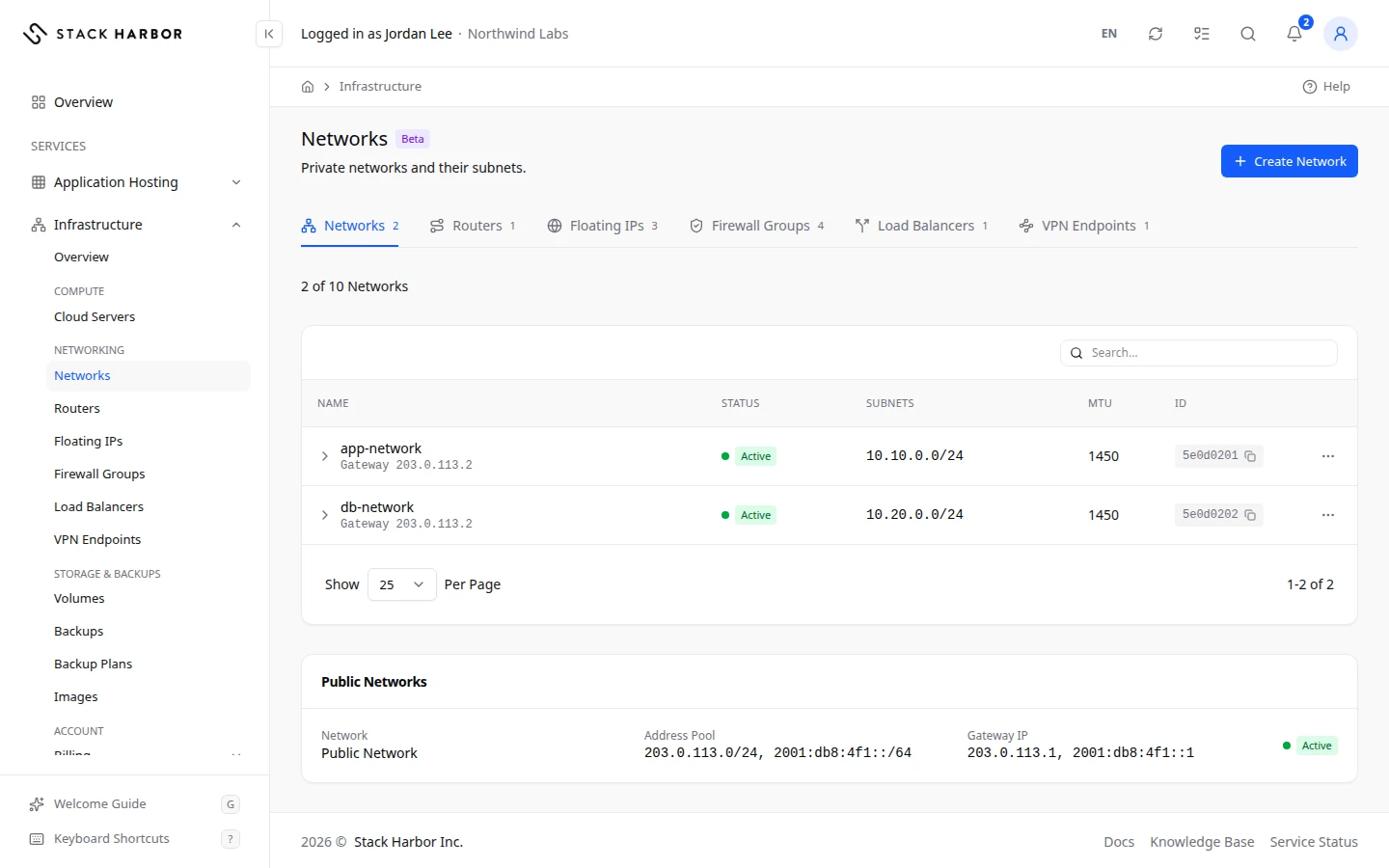
- In the side menu, open Infrastructure, then select Networks under Networking.
- The page opens on the Networks tab. The tabs along the top lead to the other networking sections: Routers, Floating IPs, Firewall Groups, Load Balancers and VPN Endpoints. Each shows how many you have.
Above the list, a chip shows how much of your allowance you use, for example 2 of 10 networks.
Create a network
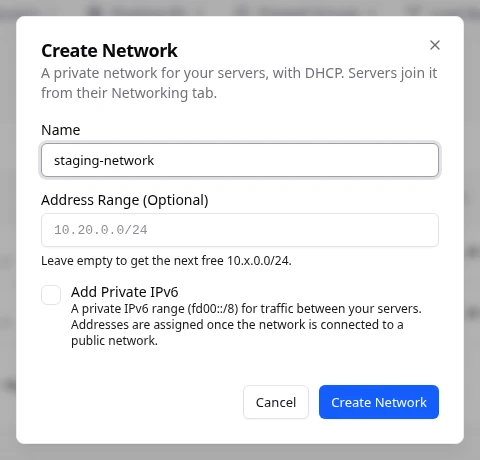
- On the Networks tab, select Create Network.
- In Name, type a name of up to 64 characters, for example
app-private. - In Address Range (Optional), type a private range for the first subnet, or leave it empty. Empty gives you the next free range, as the hint under the field says.
- To give the network private IPv6 addresses too, tick Add Private IPv6. The IPv6 addresses are assigned once the network is connected to a public network.
- Select Create Network.
You see Network created, and the network appears in the list. Its first subnet hands out addresses to servers automatically (DHCP).
Read the list
Each row shows the network’s Name, Status, Subnets, MTU and ID. A network that wasn’t created in Lighthouse carries a Read Only badge, and you can’t change it here.
Select the arrow at the start of a row to show what is attached to the network. The table lists each item under Attached To, with its Addresses, MAC Address, Firewall Groups and Status. An item can be a server, a Router, the network’s DHCP service, or an Unattached Port.
Below the list, two cards may appear:
- Public Networks are the Stack Harbor networks that carry internet traffic. Each shows its Address Pool and Gateway IP.
- Shared Networks are networks that Stack Harbor shares with your project. You can put servers on them, but you can’t change them.
Connect a network to the internet
- In the network’s row menu, or on its page, select Connect to Public Network.
- Choose the Public Network and confirm.
You see Network connected. The network joins your gateway router, the project’s Default Router. That router takes one public address, shared by every network you connect. The row now shows the gateway’s address, and the network page shows the router under Internet Access.
To undo it, select Disconnect from Public Network. Servers keep their private addresses, but lose their route to the internet. When no network is left on the gateway, the router is removed and its public address released.
Manage the network
Select a network’s name to open its page. There you read its properties, router, servers and ports, add or change subnets, and rename or delete it. See Manage a network.
If something goes wrong
- Changes Are Switched Off means changes to this project are paused for now. You can still read everything. Contact support if it lasts.
- This range overlaps another subnet you can see. Choose a different range. Pick a range that no other subnet uses, or leave the field empty.
- This network already has the most subnets it can have. Delete a subnet you don’t use, or create another network.
- Too many network changes. Wait a moment and try again. Wait the time shown, then repeat the change.
- You Do Not Have Access to This in place of the list means you don’t have the View Networking permission. Ask your account owner for it.
Fields and statuses
What each item on this page means, what it does and how to read it.
- Name Field
-
What it is. The network’s name, for example app-private.
How to read it. Up to 64 characters.
- Address Range (Optional) Field
-
What it is. The private address range of the network’s first subnet, as a CIDR.
What it does. Empty gives you the next free range.
How to read it. It must not overlap another subnet you can see.
- Add Private IPv6 Option
-
What it is. Gives the network private IPv6 addresses too.
What it does. The IPv6 addresses are assigned once the network is connected to a public network.
- Status Column
-
What it is. The network’s state.
How to read it. Active is ready to use.
- Subnets Column
-
What it is. The address ranges in the network.
- MTU Column
-
What it is. The largest packet the network carries, in bytes.
How to read it. The platform sets it. You rarely need to change anything on the server for it.
- ID Column
-
What it is. The network’s unique identifier.
- Active Status
-
What it is. The network is ready to use.
- Down Status
-
What it is. The network isn’t carrying traffic.
How to read it. Contact support if you didn’t turn it off.
- Read Only Status
-
What it is. The network wasn’t created in Lighthouse, so you can’t change it here.
How to read it. You can still put servers on it.
- Attached To Column
-
What it is. What is connected to the network: a server, a router, the DHCP service or an unattached port.
- Addresses Column
-
What it is. The addresses that item holds on the network.
- MAC Address Column
-
What it is. The hardware address of the connection.
- Firewall Groups Column
-
What it is. The firewall groups on that connection.
- DHCP Option
-
What it is. The service that hands out addresses to servers on the network.
- Unattached Port Option
-
What it is. An address reserved on the network but used by nothing.
How to read it. It is often left over. Contact support if you don’t know it.
- Public Networks Field
-
What it is. The Stack Harbor networks that carry internet traffic.
How to read it. Each shows its Address Pool and Gateway IP.
- Address Pool Field
-
What it is. The range public addresses are taken from.
- Gateway IP Field
-
What it is. The public network’s gateway address.
- Public Network Field
-
What it is. The public network to connect your network to.
What it does. Your network joins the project’s Default Router, which takes one shared public address.