A migration copies a WordPress site from another host into one of your sites. The Migrations tab lists every migration into a site, newest first. It shows only on sites that came in through Import Existing Site.
Before you start
You need the Run Migrations permission. Without it you see Migrations need the Run Migrations permission. The account owner can grant it.
Follow a migration
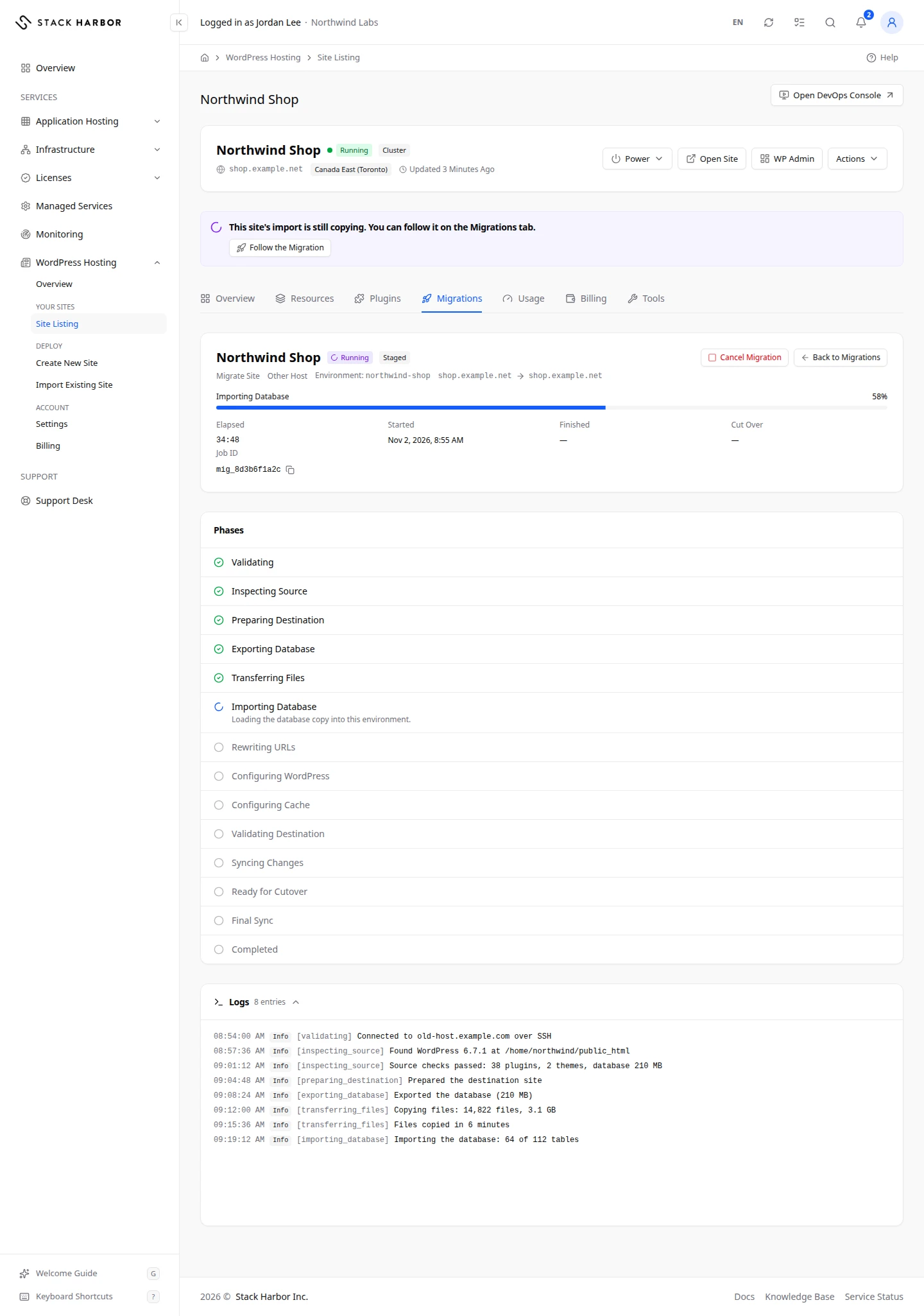
- Open the site from Site Listing, then select the Migrations tab. A migration still running opens by itself.
- In the table, read the Source, State, Phase, Progress, Created and Updated columns. Select a row to open it.
- On Migration Progress, follow the Phases. Each one has a short description, from Validating to Completed.
- Open Logs to see each step in detail. Each entry is marked Info, Warning, Error or Debug.
- Select Back to Migrations to return to the list.
Cut over a staged migration
A staged migration pauses at Ready for Cutover: the copy is complete and kept in step with your old site.
- Select Cut Over.
- Read Cut Over to This Environment, then select Cut Over Now. A last sync copies anything that changed, and this site becomes the live one.
- Point your domain at the site right away. Changes made on the old site after the last sync are not copied.
If the cutover waited too long, Lighthouse asks you to Enter the Source Credentials Again. They are used for this cutover only, then deleted.
Cancel a migration
- Open the migration, then select Cancel Migration.
- Confirm. The migration stops where it is. Files already copied stay in the site, so the site may be incomplete until a new migration runs.
Run a new migration
Select New Migration and follow the form: Source, Credentials, Pre-Flight Check, Start, then Progress. The pre-flight check connects to your old host and lists what it found before anything is copied. Start Migration stays off until the check says Ready to Migrate. A new migration replaces the WordPress content the site holds today.
Only one migration can run at a time. While one is open, New Migration is off.
If something goes wrong
- Migration Failed: read the message, fix the cause where needed, then start a new migration.
- Cannot Migrate Yet: the pre-flight check found problems. Fix the points it lists, then select Re-Run Check.
- A migration is already in progress. Wait for it to finish, or cancel it, before starting another.
- If the live status can’t be refreshed, Lighthouse shows Showing the last known state. We keep trying.
Fields and statuses
What each item on this page means, what it does and how to read it.
- Source Column
-
What it is. The host the site was copied from.
- State Column
-
What it is. Where the migration stands: Queued, Running, Waiting, Completed, Failed or Cancelled.
- Phase Column
-
What it is. The step the copy is on, such as Transferring Files.
- Progress Column
-
What it is. How far the migration has got.
How to read it. A bar from 0 to 100 percent.
- Created Column
-
What it is. When the migration was started.
- Updated Column
-
What it is. When the migration last changed.
- Validating Status
-
What it is. Checking the request and the connection details.
- Inspecting Source Status
-
What it is. Reading the site’s layout, size and settings on the source host.
- Preparing Destination Status
-
What it is. Making room in this site and clearing the previous content.
- Exporting Database Status
-
What it is. Taking a copy of the database on the source host.
- Transferring Files Status
-
What it is. Copying themes, plugins and uploads from the source host.
- Importing Database Status
-
What it is. Loading the database copy into this site.
- Rewriting URLs Status
-
What it is. Replacing the old address with the new one throughout the database.
- Configuring WordPress Status
-
What it is. Writing the configuration for this site’s database and paths.
- Configuring Cache Status
-
What it is. Setting up caching the way Stack Harbor expects it.
- Validating Destination Status
-
What it is. Confirming the copied site loads correctly.
- Syncing Changes Status
-
What it is. Copying anything that changed on the source since the first pass.
- Ready for Cutover Status
-
What it is. The copy is complete and kept in step. Cut over when DNS is ready.
How to read it. Select Cut Over when you are ready.
- Final Sync Status
-
What it is. Copying the last changes from the source before this site goes live.
- Completed Status
-
What it is. The migration is finished.
- Logs Field
-
What it is. The detailed record of what the migration did, one entry per step.
How to read it. Each entry is Info, Warning, Error or Debug. Read the Error entries first when a migration fails.
- Cancel Migration Option
-
What it is. Stops a running migration.
What it does. Files already copied stay in the site, so it may be incomplete until a new migration runs.
- New Migration Option
-
What it is. Starts a new migration into this site.
What it does. Opens the form: Source, Credentials, Pre-Flight Check, Start. It replaces the WordPress content the site holds today.
How to read it. Off while another migration is open.
- Ready to Migrate Status
-
What it is. The pre-flight check passed: the source site can be read and this site has room for it.
How to read it. Select Start Migration.
- Cannot Migrate Yet Status
-
What it is. The pre-flight check found problems that stop the migration.
How to read it. Fix the points listed, then select Re-Run Check.
- Free Space Metric
-
What it is. The disk space free in this site, next to the space the copy needs (Required).
How to read it. Free Space must be larger than Required. Otherwise add disk space before migrating.