A firewall group is a set of rules that decides which traffic reaches your servers. You put a group on a server, and its rules apply to that server at once. A rule only ever allows traffic: anything no rule allows is blocked.
Before you start
- You need the View Networking permission to see firewall groups. Creating and changing them is open to the account owner, and to members with the Manage Firewall Rules permission.
- To put a group on a server or take it off, use the server’s Firewall tab. See Manage a server.
The groups every project has
- Default carries no rules for inbound traffic and allows everything outbound. Every new server gets this group: nothing in, everything out.
- SSH Access lets you reach new servers. Each deploy adds SSH (or RDP on Windows) from the address of the person who deploys.
If you delete one of these, it is made again, empty, the next time a server is deployed.
Create a firewall group
- In the side menu, open Infrastructure, then select Firewall Groups under Networking.
- Select Create Firewall Group.
- In Name, type a name, for example
web-servers. The namedefaultis reserved. - In Description (Optional), say what the group is for.
- Select Create Firewall Group. You see Firewall Group Created.
A new group blocks everything inbound and allows everything outbound until you add rules.
Add a rule
- In the group’s row menu, or on its page, select Add Rule.
- Choose the Direction: Inbound for traffic that reaches the server, Outbound for traffic the server sends.
- Choose the Family: IPv4 or IPv6.
- Choose the Protocol: TCP, UDP, ICMP, ICMPv6, Any, or a less common one such as GRE, ESP, AH, SCTP or VRRP.
- For TCP, UDP and SCTP, fill in Ports: one port, or a range from 1 to 65535. Empty means every port. For ICMP, you can set the ICMP Type / Code instead, or leave it empty for every type.
- Choose who the rule covers, under Source for inbound or Destination for outbound:
- Anywhere: any address of the rule’s family.
- Address Range: a range such as 203.0.113.0/24. Select Use My Address to fill in the address you are using now.
- Firewall Group: the servers in another group, or This Group, whatever their addresses.
- In Description (Optional), note what the rule is for.
- Select Save Rule. You see Rule Added. The rule applies at once.
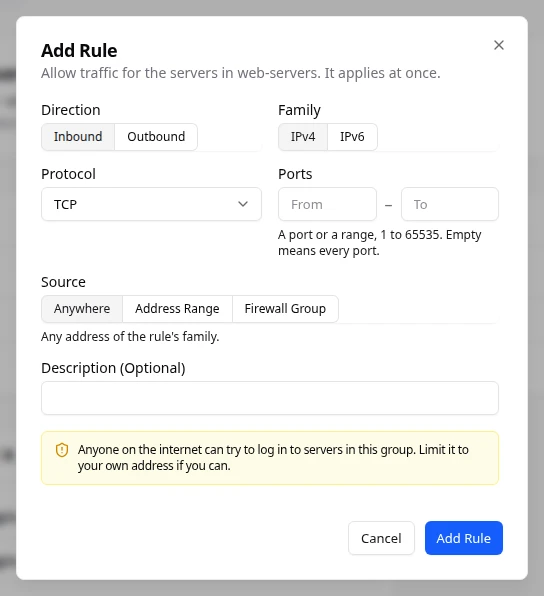
If a rule would let anyone on the internet try to log in by SSH or RDP, you see Open to the Whole Internet?. Limit it to your own address if you can. To keep the rule as it is, select Add Anyway. Such a rule then carries an Open to All badge.
Add the usual rules in one step
- Select Add Preset.
- In Preset, choose SSH (TCP 22), RDP (TCP 3389), Web (TCP 80 and 443) or Ping (ICMP Echo).
- Choose the Source: My Address, Address Range or Anywhere. Anywhere adds the rules for IPv4 and IPv6. My Address and Address Range add them only for that address’s family.
- Select Add Preset. You see how many rules were added. Rules already in the group are skipped. Repeat for another preset.
Read the list
Each row shows the group’s Name, Description, Rules (how many), Servers (how many use it) and ID. Select the arrow at the start of a row to see its rules, each with:
- Direction: Inbound or Outbound.
- Family: IPv4 or IPv6.
- Protocol & Ports: for example TCP 22, or All Ports.
- Source / Destination: Anywhere, a range, or another group.
- Description: the note you added.
The expanded row also lists the servers that use the group, after On Servers:.
Manage the group
Select a group’s name to open its page. There you read its properties, rules and servers, change or delete rules, and rename or delete the group. See Manage a firewall group.
If something goes wrong
- This firewall group is still on a server. Remove it from every server first.
- The new rule is in place, but the old one couldn’t be removed: both apply for now. Try again to remove the old one. Select Remove Old Rule.
- Someone else changed this group at the same time. Refresh and try again.
- This project already has its maximum number of firewall groups. Delete one first.
- A group with a Read Only badge wasn’t created in Lighthouse. You can’t change its rules here, but you can still add it to a server or remove it on the server’s Firewall tab.
Fields and statuses
What each item on this page means, what it does and how to read it.
- Default Status
-
What it is. The group every new server gets: no inbound rules, all outbound allowed.
How to read it. If you delete it, it is made again, empty, at the next deploy.
- SSH Access Status
-
What it is. The group that lets you reach new servers.
What it does. Each deploy adds SSH (or RDP on Windows) from the address of the person who deploys.
- Name Field
-
What it is. The group’s name, for example web-servers.
How to read it. The name default is reserved.
- Description (Optional) Field
-
What it is. A note about what the group is for.
How to read it. Optional.
- Direction Field
-
What it is. Whether the rule is for traffic reaching the server or leaving it.
How to read it. Inbound or Outbound.
- Family Field
-
What it is. The IP version the rule covers.
How to read it. IPv4 or IPv6.
- Protocol Field
-
What it is. The kind of traffic the rule covers.
How to read it. TCP, UDP, ICMP, ICMPv6, Any, or a less common one such as GRE, ESP, AH, SCTP or VRRP.
- Any Option
-
What it is. Every protocol.
- Ports Field
-
What it is. One port or a range of ports, from 1 to 65535.
How to read it. For TCP, UDP and SCTP only. Empty means every port.
- ICMP Type / Code Field
-
What it is. For ICMP: the message type and code the rule covers.
How to read it. Empty means every type.
- Anywhere Option
-
What it is. Any address of the rule’s family.
- Address Range Option
-
What it is. A range of addresses such as 203.0.113.0/24.
What it does. Use My Address fills in the address you are using now.
- Firewall Group Option
-
What it is. The servers in another firewall group, whatever their addresses.
What it does. This Group means the servers in the group you are editing.
- Open to All Status
-
What it is. The rule lets anyone on the internet try to log in by SSH or RDP.
How to read it. Limit it to your own address if you can.
- Preset Field
-
What it is. A ready-made set of rules for a common need.
What it does. Adds the rules in one step. Rules already in the group are skipped.
- SSH (TCP 22) Option
-
What it is. Allows SSH sign-in on TCP port 22.
- RDP (TCP 3389) Option
-
What it is. Allows Remote Desktop on TCP port 3389.
- Web (TCP 80 and 443) Option
-
What it is. Allows web traffic on TCP ports 80 and 443.
- Ping (ICMP Echo) Option
-
What it is. Allows ping requests.
- My Address Option
-
What it is. The address you are using now.
What it does. The rules are added only for that address’s family.
- Rules Column
-
What it is. How many rules the group has.
- Servers Column
-
What it is. How many servers use the group.
How to read it. A group still on a server can’t be deleted.
- Protocol & Ports Column
-
What it is. The protocol and ports the rule allows, for example TCP 22.
How to read it. All Ports means every port.
- Source / Destination Column
-
What it is. Who the rule covers: anywhere, a range, or another group.
- Read Only Status
-
What it is. The group wasn’t created in Lighthouse, so its rules can’t be changed here.
What it does. You can still add it to a server or remove it on the server’s Firewall tab.