The side menu and the top bar look the same on all Lighthouse pages. This page explains each part, so you can reach any screen in a few clicks.
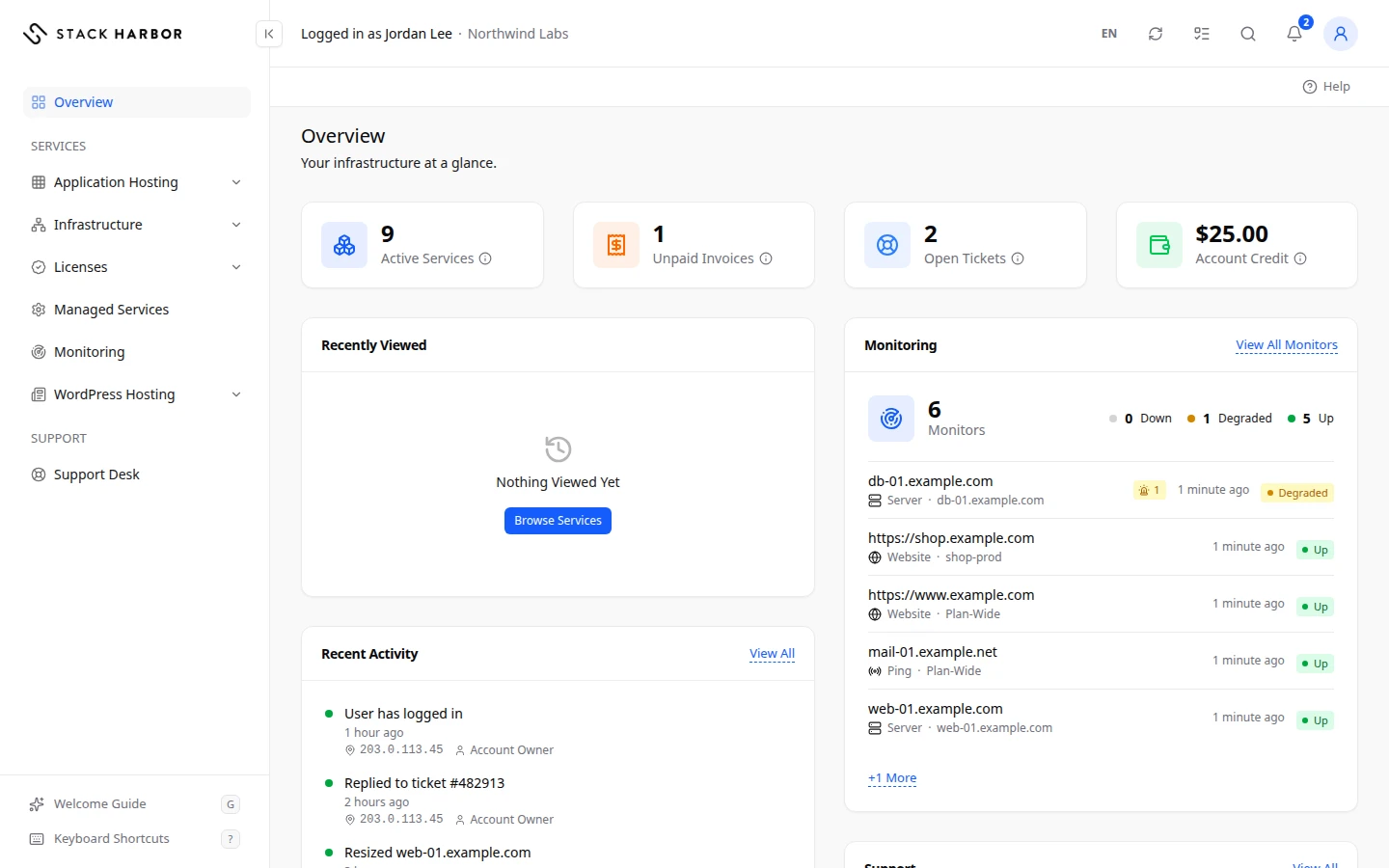
The side menu
The side menu on the left lists everything you can open. It shows only the sections your account has and that you have permission to see.
- Overview is your home page. See Read your Overview.
- Services groups the products: Infrastructure, Application Hosting, WordPress Hosting, Managed Services, Licenses and Monitoring. Select a product to open its pages under it.
- Resources holds Usage, for team members who can see infrastructure costs but not the rest of billing.
- Support holds the Support Desk, where you open and follow tickets.
- Help at the bottom opens the documentation in a new tab. Welcome Guide there opens a short tour.
On a phone, select Open Menu to show the side menu. On a computer, press Q to hide or show it.
The top bar
From left to right, the top bar shows:
- Whose account you are working in, for example Jordan Lee (Northwind Labs).
- The language button, which shows EN or FR. Select it to switch between English and French. Your choice is saved to your account, and our emails use it too.
- Refresh reloads the data on the page. Its tooltip says when the data was last updated.
- Background Actions lists long actions that are running, such as a server being created. See Track background actions.
- Search opens the search box.
- Open Notifications opens your latest notifications. A number shows how many are unread. See Manage notifications.
- The Account Menu, under your name. It shows whether you are the Owner or a Member, and links to Account Settings, Billing, Team Members, Activity Log, Email Log, Notifications and Sign Out.
Search
- Select Search, or press
Ctrl+K(Command+Kon a Mac). - Type a few letters of what you want: a page name, a server, a domain, an invoice number or a ticket.
- Use the arrow keys to move through the results and Enter to open one. Esc closes the box.
Results are grouped by type, such as Cloud Servers, Invoices or Tickets. Quick Actions at the top start a task, such as Create Server or Pay Invoice. If you see Some results can’t be searched right now, so this list may be incomplete., try again in a moment.
Keyboard shortcuts
Press ? to see every shortcut. The main ones are:
| Keys | What they do |
|---|---|
| Ctrl + K or Command + K | Open search |
| Q | Hide or show the side menu |
| R | Refresh this page |
| G | Open the Welcome Guide |
| ? | Show the keyboard shortcuts |
When a new version is out
If you see A new version of Lighthouse is available., select Reload to load it.
If a page says you can’t open it
- You Do Not Have Access to This means your account owner hasn’t given you that permission. Ask them. See Manage a team member.
- This Feature Isn’t Available means the feature isn’t switched on for your account. Contact us if you need it.
- Page Not Found means the address is wrong or the item no longer exists. Use the side menu or search.