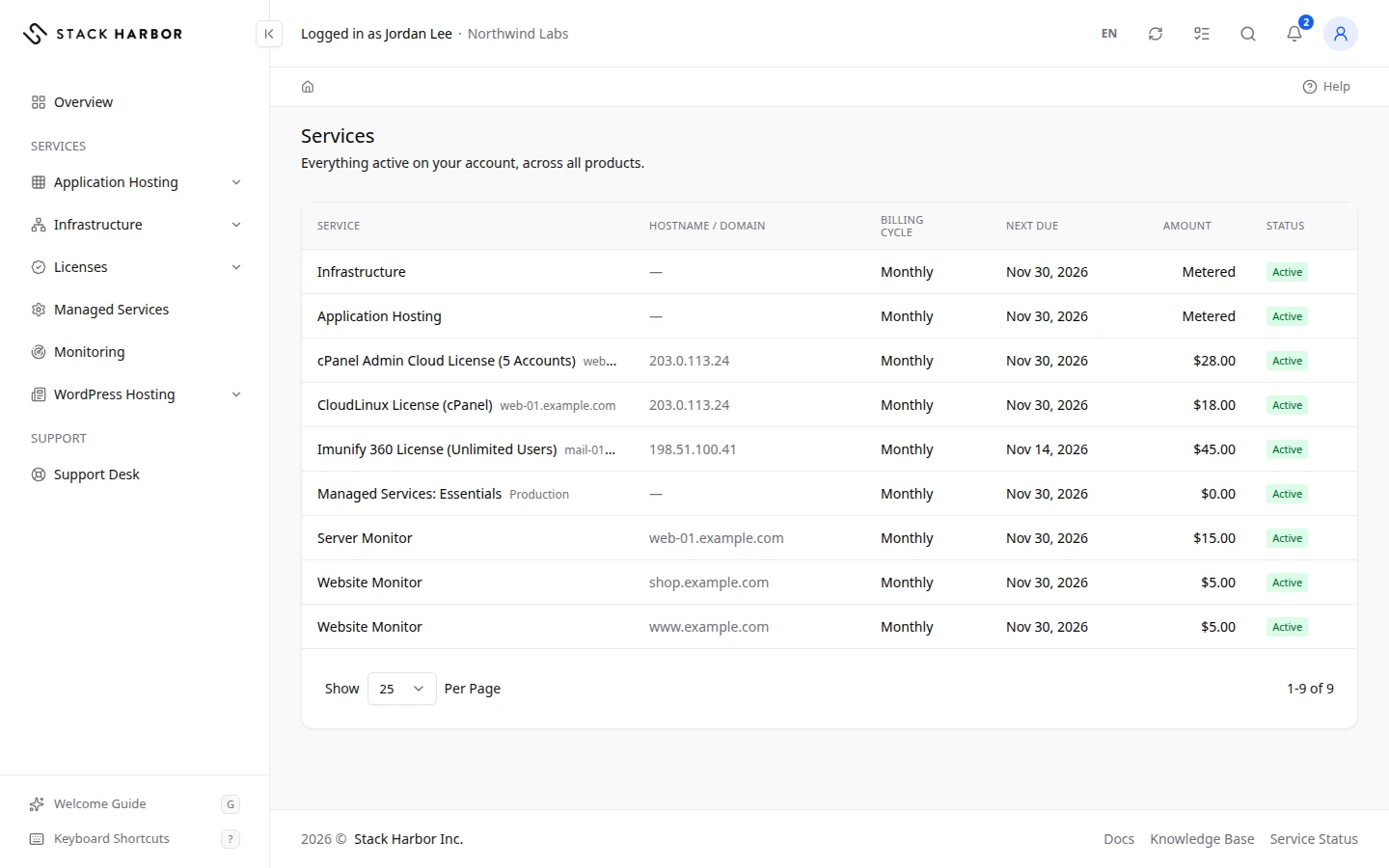
The Services page lists Everything active on your account, across all products. Use it to check what you pay for and when each service renews. You reach it with All Services from the Billing page.
Read the list
- Open the account menu and select Billing, then select All Services.
- Read one row per service:
- Service is the product name.
- Hostname / Domain is the server name or domain the service is for, when it has one.
- Billing Cycle is how often a fixed price is billed, such as Monthly or Annually.
- Next Due is the date of the next invoice for this service.
- Amount is the price per billing cycle. Metered means you pay for what you use, billed monthly after the month ends.
- Status shows the state of the service.
- Select a row to open the service’s own pages, when it has them.
Hold the pointer over an amount to see how it adds up, such as the plan price and each add-on.
Team members without access to billing don’t see the Amount column.
What the statuses mean
- Active: the service is running and billed.
- Pending: the service isn’t active yet, for example while it is being set up.
- Suspended: the service is paused. Check for an unpaid invoice, or contact support to find out why.
- Terminated or Cancelled: the service has ended. It stays in the list for your records.
- Fraud: the order was stopped by our review. Contact support.
If something goes wrong
- No Services Yet means nothing is on your account. Enable a service to start. See Enable a service.
- A row that isn’t a link has no page of its own in Lighthouse. Contact support if you need details about it.
Fields and statuses
What each item on this page means, what it does and how to read it.
- Service Column
-
What it is. The product name of the service.
What it does. Select the row to open the service’s pages, when it has them.
- Hostname / Domain Column
-
What it is. The server name or domain the service is for, for example web-01.example.com.
How to read it. Empty when the service has no hostname or domain.
- Billing Cycle Column
-
What it is. How often the service’s fixed price is billed.
How to read it. For example Monthly or Annually.
- Next Due Column
-
What it is. The date of the next invoice for this service.
How to read it. A dash means no date is set.
- Amount Column
-
What it is. The price per billing cycle.
How to read it. In the service’s currency. Metered means you pay for what you use. Hold the pointer over an amount to see the plan price and each add-on.
- Status Column
-
What it is. The state of the service.
How to read it. Green: active. Orange: pending. Red: suspended or terminated. Grey: any other state.
- Metered Option
-
What it is. The service has no fixed price. You pay for what you use.
How to read it. Usage is billed monthly, after the month ends.
- Monthly Option
-
What it is. Billed every month.
- Quarterly Option
-
What it is. Billed every three months.
- Semi-Annually Option
-
What it is. Billed every six months.
- Annually Option
-
What it is. Billed once a year.
- Biennially Option
-
What it is. Billed every two years.
- Triennially Option
-
What it is. Billed every three years.
- One Time Option
-
What it is. Billed once, with no renewal.
- Free Option
-
What it is. No charge.
- Active Status
-
What it is. The service is running and billed.
How to read it. Nothing to do.
- Pending Status
-
What it is. The service isn’t active yet, for example while it is being set up.
How to read it. Wait, or contact support if it stays pending.
- Suspended Status
-
What it is. The service is paused.
How to read it. Check for an unpaid invoice, or contact support to find out why.
- Terminated Status
-
What it is. The service has ended and is no longer billed.
How to read it. It stays in the list for your records.
- Cancelled Status
-
What it is. The service was cancelled.
How to read it. It stays in the list for your records.
- Fraud Status
-
What it is. The order was stopped by our review.
How to read it. Contact support.