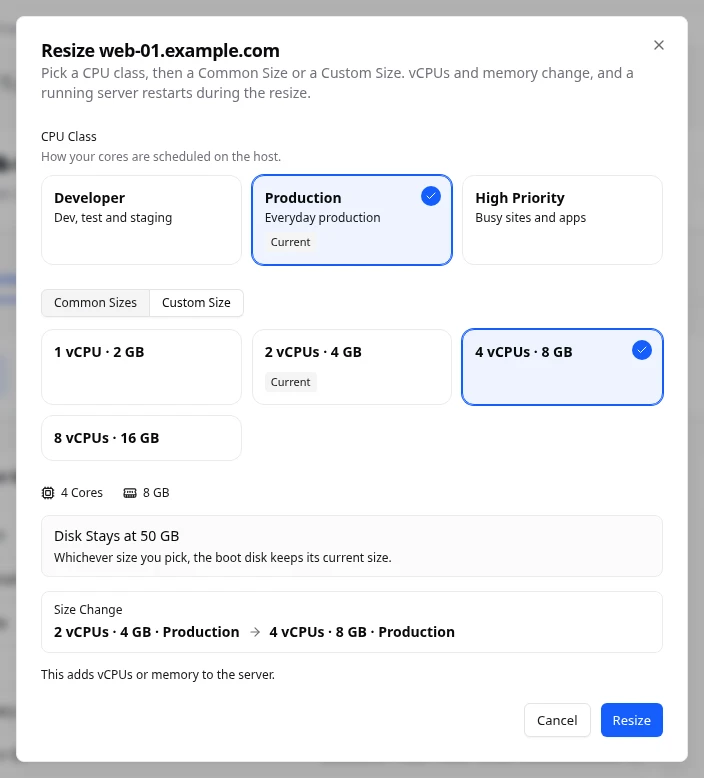
Resize changes a server’s vCPUs (virtual processor cores), its memory and its CPU class. The boot disk keeps its size. To add disk space, extend a volume instead. See Manage a server’s storage.
Resize a server
- Open the server’s page, then select More and Resize.
- Pick a CPU Class: Developer, Production or High Priority. The current one is marked Current.
- Choose Common Sizes and pick a size, or choose Custom Size and set CPU Cores and Memory.
- Read Size Change. It says whether the new size adds or takes away vCPUs or memory.
- Confirm.
You see Resize requested for web-01. and the status shows Resizing.
How long it takes
- A stopped server resizes in under a minute.
- A running server restarts during the resize.
- A running server in the Developer class takes about 10 minutes, because it shuts down slowly before the new size applies.
The server page shows the progress, for example Step 2 of 4. and how long ago it started.
Make a server smaller
A running server can only grow. To make it smaller, shut it down first, then resize. See Manage a cloud server. Make sure what runs on the server still fits in the smaller size.
What you see afterwards
The server shows the new size in Server Details and on its tiles. It is billed at the new size from then on.
If something goes wrong
- No other size is available for this server. means there is nothing to change to.
- The server already has this size and CPU class. Pick a different size.
- That’s more vCPUs than your account limits have left. (or memory) means your account limit is reached. See Check your rates and limits.
- This is taking longer than usual. The platform has not reported a problem. Wait a little longer, then refresh the page.
Reinstall the operating system
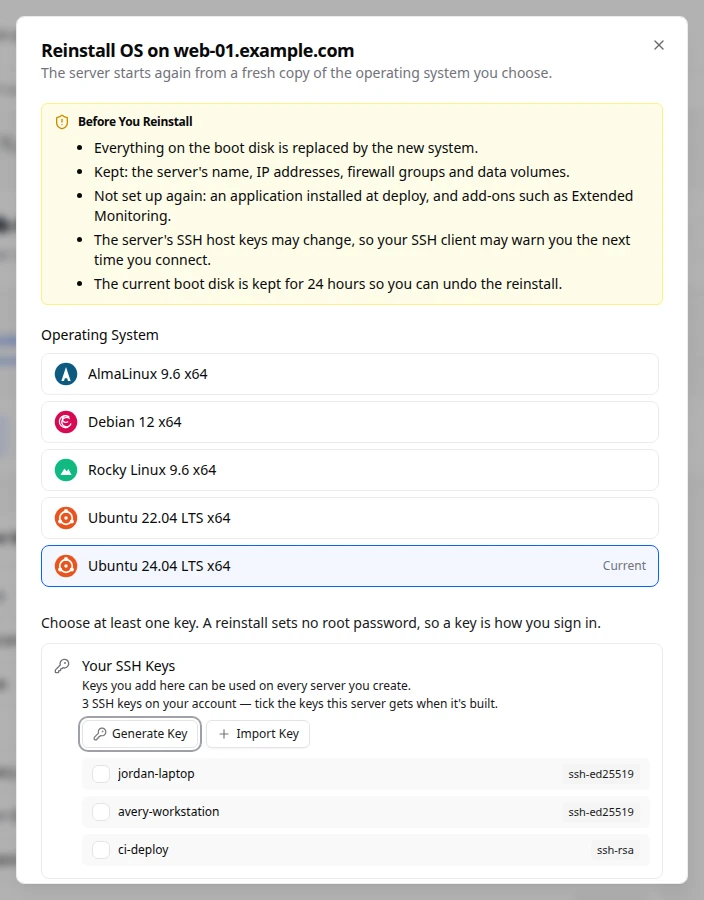
Reinstall OS replaces everything on the server’s boot disk with a fresh copy of the operating system you choose. Use it to start over cleanly or to change operating system. You can undo it for 24 hours.
Before you reinstall
- Everything on the boot disk is replaced by the new system.
- Kept: the server’s name, IP addresses, firewall groups and data volumes.
- Not set up again: an application installed at deploy, and add-ons.
- The server’s SSH host keys may change, so your SSH client may warn you the next time you connect.
Reinstall the operating system
- Open the server’s page, then select More and Reinstall OS.
- Under Operating System, pick an image. The current one is marked Current. My Images holds your own images. An image that doesn’t fit says why, for example that it needs a bigger disk.
- Choose at least one SSH key, or paste a public key. A reinstall sets no root password, so a key is how you sign in.
- Type the server’s name to confirm.
- Select Reinstall OS.
You see Reinstall of web-01 started. The page shows Reinstalling the OS with its steps. The server is unavailable until this ends, and it carries on if you leave the page.
Undo a reinstall
For 24 hours, the server page shows You Can Undo This Reinstall with the time left. The previous boot disk is kept during that time and isn’t billed.
- Select Undo Reinstall.
- Read the warning. Everything written to the reinstalled disk since then is lost, and that disk is deleted. Data volumes stay attached.
- Confirm.
The server goes back to its previous boot disk, on the same IP addresses.
If something goes wrong
After a reinstall, Check This Reinstall can tell you about one of these:
- An IP address was taken during the reinstall, so the server has a new one. Check the Networking tab.
- A data volume could not be attached again. It is kept. Attach it from the Storage tab. See Manage a server’s storage.
- The previous boot disk could not be kept, so this reinstall cannot be undone.
If Reinstall OS is greyed out, the server is busy or locked, or it is neither running nor stopped.
Fields and statuses
What each item on this page means, what it does and how to read it.
- CPU Class Field
-
What it is. How the server’s cores are scheduled on the host.
What it does. Changing class changes the price per core.
How to read it. The current class is marked Current.
- Current Status
-
What it is. This is what the server uses now.
- Size Change Metric
-
What it is. What the new size adds or takes away.
How to read it. Shows the change in vCPUs and memory. A running server can only grow.
- Operating System Field
-
What it is. The image the boot disk is rebuilt from.
What it does. Everything on the boot disk is replaced. Name, addresses, firewall groups and data volumes are kept.
How to read it. The current image is marked Current. An image that doesn’t fit says why.
- Reinstalling the OS Status
-
What it is. The operating system is being reinstalled.
How to read it. The server is unavailable until it ends. It carries on if you leave the page.
- You Can Undo This Reinstall Status
-
What it is. The previous boot disk is kept for 24 hours after a reinstall.
What it does. It isn’t billed during that time.
How to read it. The banner shows the time left. Undo Reinstall goes back to it and deletes the new disk.
- Check This Reinstall Status
-
What it is. Something after the reinstall needs your attention.
How to read it. It can say a new IP address was given, a data volume needs attaching again, or the reinstall can’t be undone.