Notifications are alerts and updates about your account, such as an overdue invoice or a service coming up for renewal. They appear in Lighthouse, and you choose which kinds also reach you by email.
Read your notifications
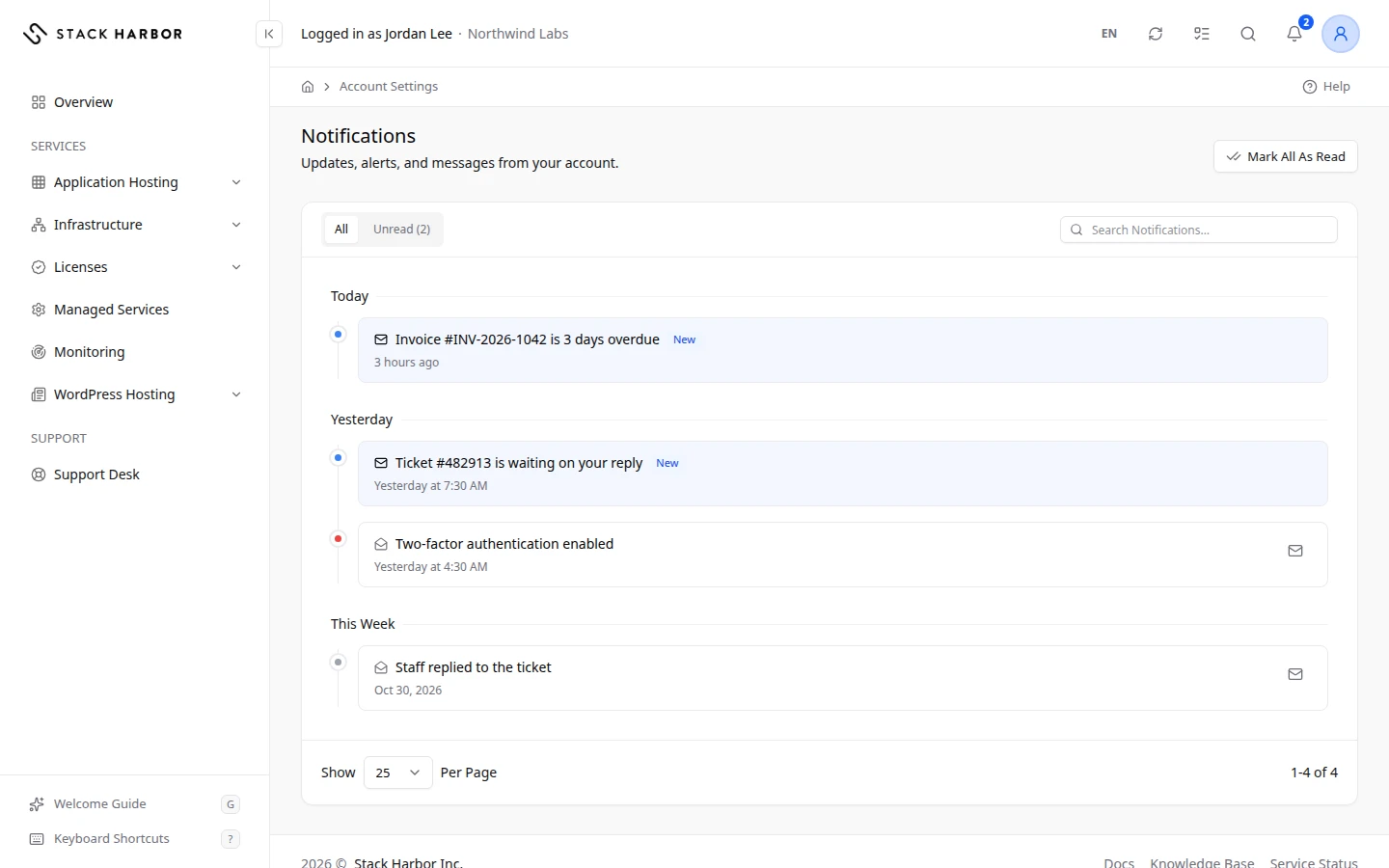
- Select the bell in the top bar. The number on it counts unread notifications.
- Select a notification to read it, or Mark All As Read to clear the count.
- To see them all, open the account menu, and under History select Notifications.
On the Notifications page:
- Select All or Unread to filter the list.
- Type in Search Notifications… to find one.
- Select an unread notification to mark it as read. A New chip marks the unread ones.
- Select Mark As Unread on a read notification to keep it for later.
- Select Show More to read a long notification in full.
- An AI Insight label means Stack Harbor raised the alert automatically. It wasn’t sent by a person.
Choose which alerts email you
- Open the account menu and select Account Settings.
- Scroll to Notification Preferences.
- For each category, turn Email on or off. In-App is always on, so every alert still appears in Lighthouse.
- Select Save Changes. To undo your edits before saving, select Discard.
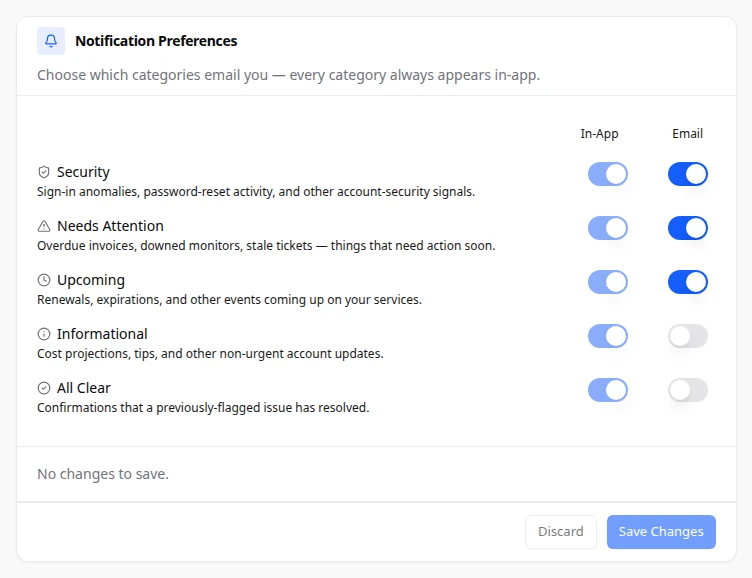
The categories are:
- Security: unusual sign-ins, password resets and other signs about your account’s safety.
- Needs Attention: things to act on soon, such as overdue invoices, a monitor that is down or a ticket waiting on you.
- Upcoming: renewals, expiry dates and other events coming up on your services.
- Informational: cost projections, tips and other updates that aren’t urgent.
- All Clear: confirmation that an issue we flagged is now resolved.
These settings are yours alone. The account owner can set them for each team member from the member’s Notifications tab. See Manage a team member.
If something goes wrong
- Notification Preferences Couldn’t Be Loaded: reload the page and try again.
- We couldn’t save these changes. Please try again. Your switches stay as you set them. Select Save Changes again.
- If you see Notifications Unavailable in the bell menu, we couldn’t reach the notifications service. Try again in a moment.
Fields and statuses
What each item on this page means, what it does and how to read it.
- All Option
-
What it is. Shows every notification.
- Unread Option
-
What it is. Shows only notifications you haven’t read.
How to read it. The count in brackets is how many are unread.
- New Status
-
What it is. You haven’t read this notification yet.
How to read it. Select it to mark it as read.
- AI Insight Field
-
What it is. Stack Harbor raised this alert automatically. It wasn’t sent by a person.
- In-App Column
-
What it is. Alerts shown in Lighthouse.
How to read it. Always on: every category appears in Lighthouse.
- Email Column
-
What it is. Alerts also sent to you by email.
What it does. Turn it on or off per category, then select Save Changes.
- Security Option
-
What it is. Sign-in anomalies, password-reset activity, and other account-security signals.
- Needs Attention Option
-
What it is. Overdue invoices, downed monitors, stale tickets — things that need action soon.
- Upcoming Option
-
What it is. Renewals, expirations, and other events coming up on your services.
- Informational Option
-
What it is. Cost projections, tips, and other non-urgent account updates.
- All Clear Option
-
What it is. Confirmations that a previously-flagged issue has resolved.