Site Listing shows every WordPress site on your account in one table. Use it to spot sites that are stopped or need updates, and to open a site’s page.
Open the site list
- Go to WordPress Hosting, then select Site Listing.
- The card at the top shows how many sites you have (Sites across your account) and how many have updates waiting (With Updates).
- Under it, any deploy, import, delete or address switch that is still running shows in the In Progress card. Select one to follow it.
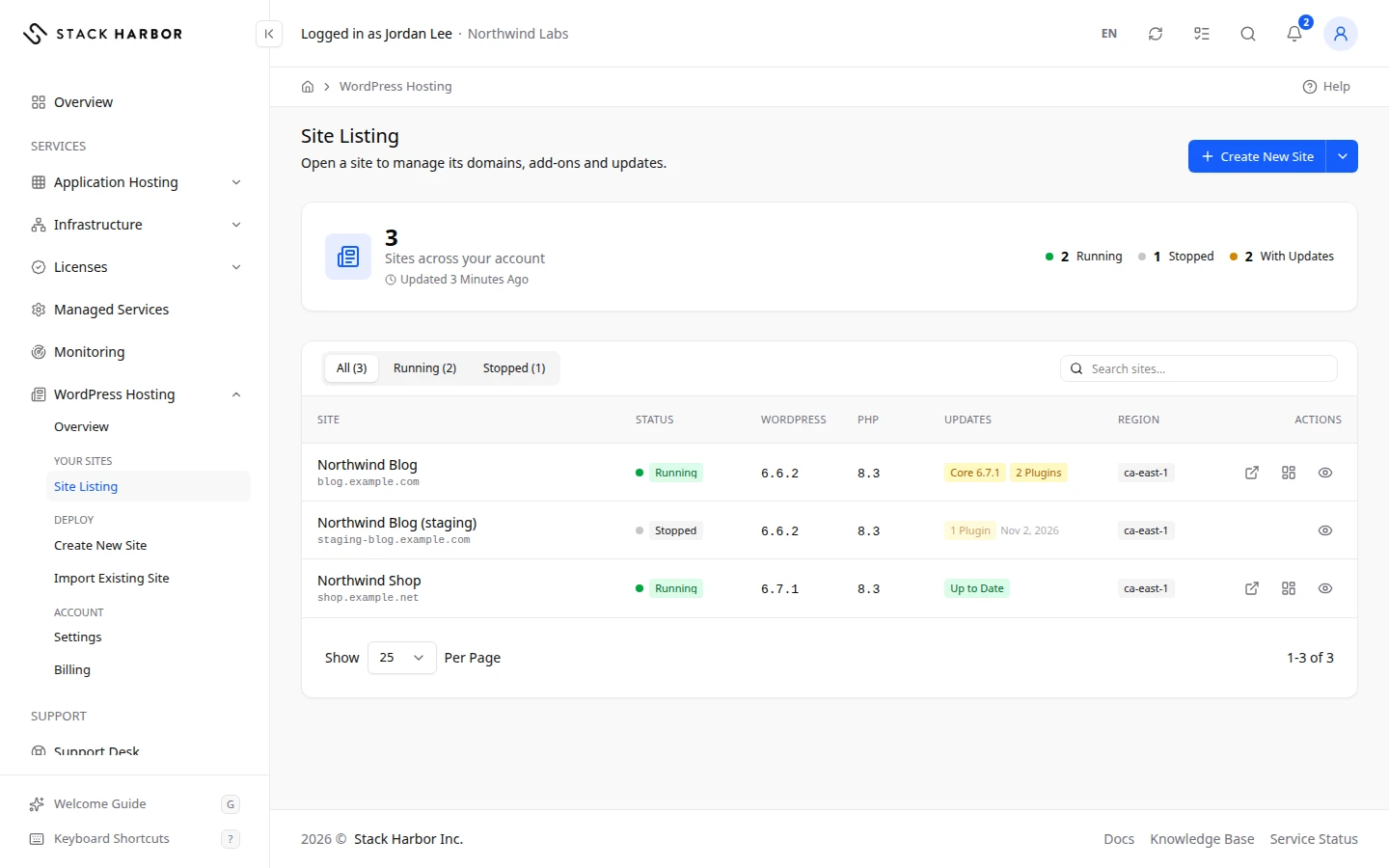
Read the table
Each row is one site. A site in several regions is still one row, with a Multi-Region badge beside its name.
- Site: the site’s name, with its domain under it. Select the name to open the site’s page.
- Status: whether the site is running. A green Running means it serves visitors. Mixed means a multi-region site whose regions are not all in the same state. Hold the pointer over it to see each region.
- WordPress and PHP: the versions the site runs.
- Updates: what is waiting to be updated, such as “Core 6.8.1”, “2 Plugins” or “1 Theme”. Up to Date means nothing is waiting. A dash (—) means the site hasn’t been read yet.
- Region: where the site runs.
- Tier: Standalone or Cluster.
- Actions: open the site in a new tab, or sign in to WP Admin. These buttons show only while the site is running.
The table hides some columns when the window is narrow. On a phone, each site shows as a card.
The versions and updates come from the last time Lighthouse read the site, not from the site live. The time of that reading is in the tooltip. An old reading shows its date beside it.
Filter and search
- Select a status above the table, such as All, Running or Stopped, to show only those sites. Each one shows its count.
- Type in Search sites… to find a site by name, domain, region or service.
If something goes wrong
- No WordPress Sites Yet: you have no site yet. Launch one with Create New Site, or move one in. See Launch a WordPress site.
- No sites match this view. Clear the search or choose All.
- No Application Hosting Service Yet: WordPress sites run on Application Hosting, and your account doesn’t have it. Select Contact Support, or see Enable a service.
- You can also move an existing WordPress environment in from Application Hosting. Open the environment’s WordPress tab and choose Move to WordPress Hosting.
Fields and statuses
What each item on this page means, what it does and how to read it.
- Sites across your account Metric
-
What it is. How many WordPress sites the account has. A multi-region site counts once.
How to read it. A whole number. It matches the All filter.
- With Updates Metric
-
What it is. How many sites have a WordPress, plugin or theme update waiting.
How to read it. Shown only when at least one site has an update. Zero updates is the healthy reading.
- Search sites… Field
-
What it is. A search box above the site table.
What it does. Keeps only the sites whose name, domain, region or service matches what you type.
- All Option
-
What it is. The status filter that shows every site.
What it does. Clears the status filter.
How to read it. Its count is the total number of sites.
- Site Column
-
What it is. The site’s name, with its domain under it.
What it does. Select the name to open the site’s page.
How to read it. A Multi-Region badge beside the name means the site runs in several regions.
- Status Column
-
What it is. Whether the site is running, stopped, asleep or changing state.
How to read it. A coloured dot and a badge. Green Running is the healthy state.
- WordPress Column
-
What it is. The WordPress version the site runs, from the last reading of the site.
How to read it. A version number. A dash means the site has not been read yet.
- PHP Column
-
What it is. The PHP version the site runs. PHP is the language WordPress is written in.
How to read it. A version number. A dash means the site has not been read yet.
- Updates Column
-
What it is. What is waiting to be updated on the site: WordPress itself (Core), plugins and themes.
How to read it. Up to Date in green means nothing is waiting. A date beside it means the reading is more than a day old or the site is not running. The tooltip gives the time of the reading.
- Region Column
-
What it is. The region where the site runs. A multi-region site lists every region, the primary first.
- Tier Column
-
What it is. How the site is built: Standalone or Cluster.
- Actions Column
-
What it is. Buttons to open the site in a new tab, sign in to WP Admin, or open its page in Lighthouse.
What it does. Open Site and WP Admin show only while the site is running.
- Standalone Option
-
What it is. A site on one node that runs LiteSpeed, PHP and the database together.
How to read it. Costs less than a Cluster. Has no standby node.
- Cluster Option
-
What it is. A site on several nodes: load balancers, Application Nodes, a separate database, shared storage and an object cache.
How to read it. Spreads the load across nodes. Costs more than Standalone because it runs more nodes and public IP addresses.
- Running Status
-
What it is. The site is up and serves visitors.
How to read it. Green. WordPress can be managed from Lighthouse.
- Stopped Status
-
What it is. The site was stopped. Visitors see an error page.
How to read it. Grey. Select Start Site on its page. Storage and the public IP are still billed.
- Sleeping Status
-
What it is. The site was put to sleep. It wakes up when someone visits it.
How to read it. Yellow. Select Wake Site on its page to wake it now.
- Starting Status
-
What it is. The site is starting. This usually takes 1 to 2 minutes.
How to read it. Blue, pulsing. Wait: the page updates by itself.
- Stopping Status
-
What it is. The site is stopping.
How to read it. Blue, pulsing. Wait: the page updates by itself.
- Building Status
-
What it is. The site’s nodes are being built, for example during a deploy.
How to read it. Blue, pulsing. Follow the deploy on its progress page.
- Cloning Status
-
What it is. The site is being copied, for example to make a staging copy.
How to read it. Blue, pulsing. Wait for it to finish.
- Mixed Status
-
What it is. A multi-region site whose regions are not all in the same state.
How to read it. Yellow. Hold the pointer over it to see each region’s state, then check the Regions card on the site’s page.
- Unknown Status
-
What it is. Lighthouse could not tell the site’s state.
How to read it. Refresh the page. If it stays, contact support.
- Up to Date Status
-
What it is. No WordPress, plugin or theme update is waiting on the site.
How to read it. Green. Nothing to do.