Use Create New Site to launch a brand-new WordPress site. The form has three steps: Build, Site & Options and Review. You can move between them with your browser’s Back and Forward buttons, and your answers stay until you leave the form.
You don’t choose a WordPress admin password. You sign in to WordPress from Lighthouse with one click, using WP Admin on the site’s page.
Before you start
- You need the Add and Remove Sites permission. The account owner has it. A team member without it sees Deploying sites needs the Add and Remove Sites permission. The account owner can grant it.
- To deploy, WordPress Hosting must be on and your account ready. If it isn’t yet, the Review step shows what is left. See Enable a service.
Step 1: Build
- Go to WordPress Hosting, then select Create New Site.
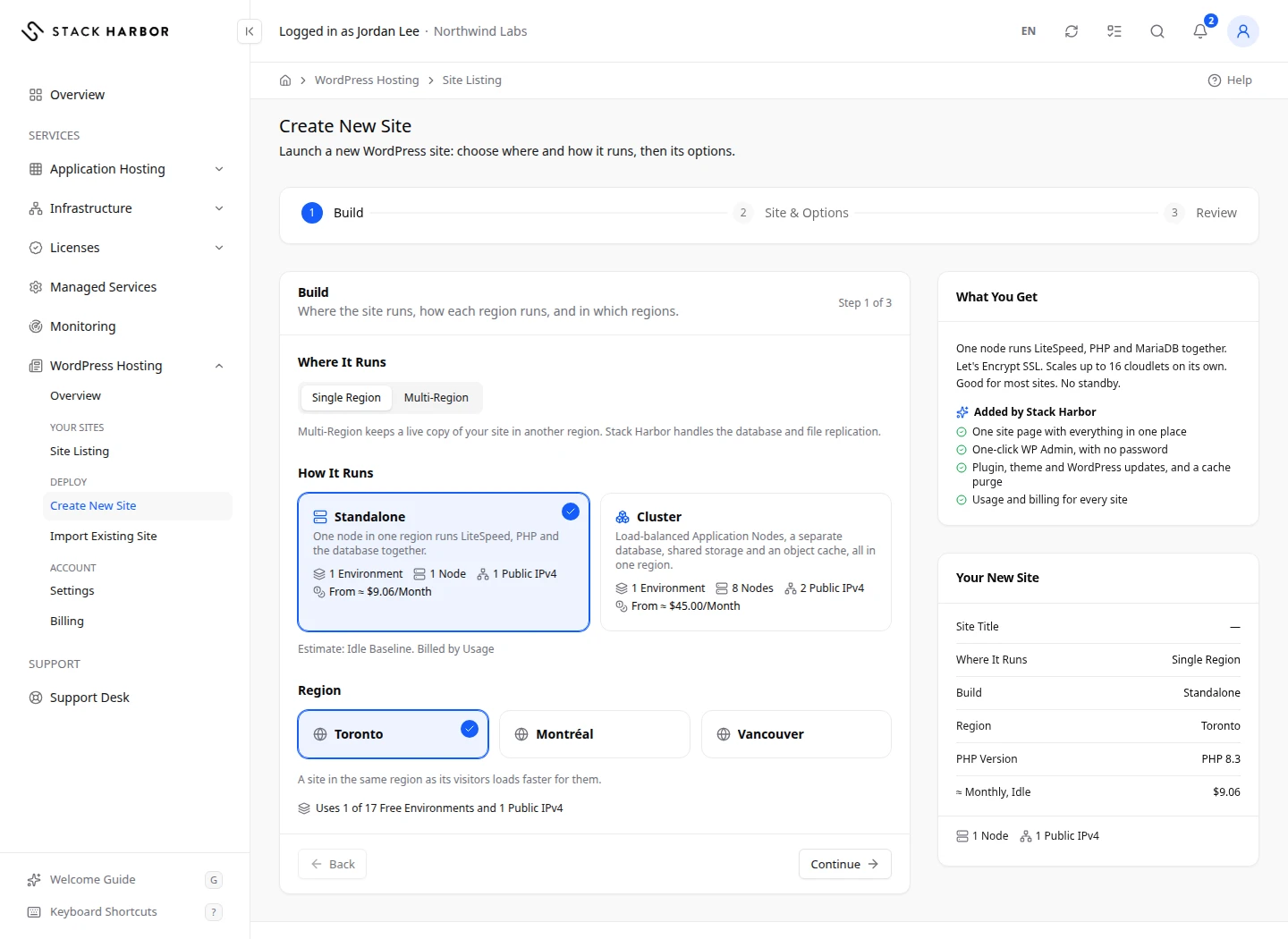
- Under Where It Runs, choose Single Region or Multi-Region. Multi-Region keeps a live copy of your site in another region, and Stack Harbor handles the database and file replication. It appears only when it is offered on your account.
- Under How It Runs (or How Each Region Runs for a multi-region site), choose a tier:
- Standalone: one node runs LiteSpeed, PHP and the database together. Choose it for most sites, such as blogs, business sites and small shops.
- Cluster: load-balanced Application Nodes, a separate database, shared storage and an object cache. Choose it for busy sites and shops that must stay up if a node fails.
- Under Region, choose where the site runs. A site in the same region as its visitors loads faster for them. For a multi-region site, choose the regions in order. The first one you choose is the primary. Use Make Primary to change the order.
- For a multi-region Cluster, choose a Database Topology: Async Primary / Replica (region 1 takes writes) or Galera Sync (every region reads and writes, which suits regions close together).
- Select Continue.
A node is one server that runs part of your site. Each choice shows how many environments, nodes and public IPv4 addresses it creates, and a starting price per month, marked with ≈ because it is an estimate. That figure is the cost of an idle site. Usage on top of it is billed as it happens.
Step 2: Site & Options
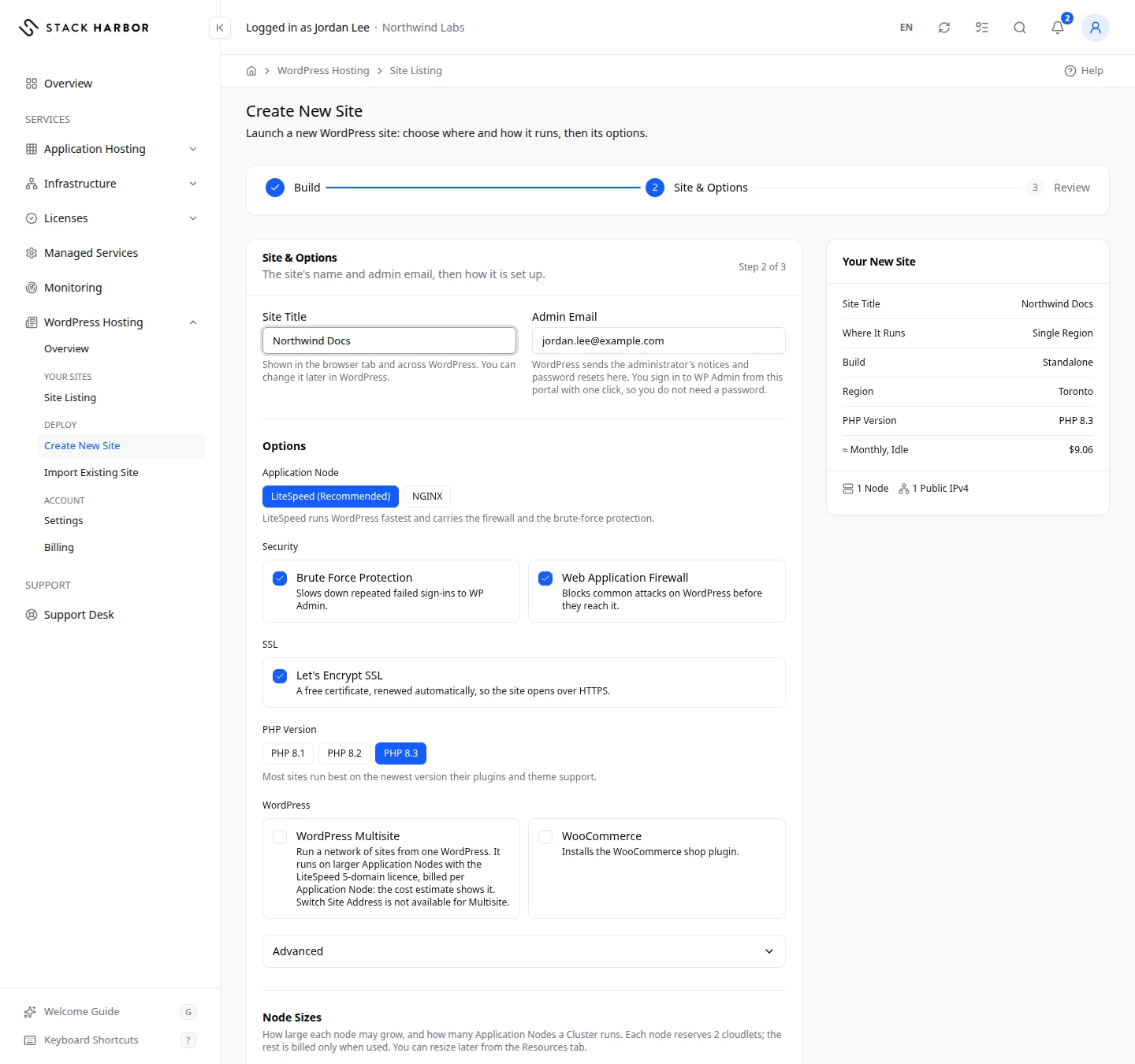
- Enter a Site Title, up to 100 characters. It shows in the browser tab and across WordPress, and you can change it later in WordPress.
- Enter an Admin Email. WordPress sends the administrator’s notices and password resets there.
- Under Options, set how the site is built. You see only the options your build takes:
- Application Node: LiteSpeed (Recommended) or NGINX. LiteSpeed runs WordPress fastest and carries the firewall and the brute-force protection.
- Scaling Strategy: Low Load, Medium Load or High Load. It sets how quickly Application Nodes are added as traffic grows.
- Security: Brute Force Protection slows down repeated failed sign-ins, and Web Application Firewall blocks common attacks. With NGINX, they show Needs LiteSpeed.
- SSL: Let’s Encrypt SSL gives the site a free certificate that renews by itself, so it opens over HTTPS.
- WordPress: WordPress Multisite runs a network of sites from one WordPress, and WooCommerce installs the shop plugin.
- Database and Storage (Cluster builds): Galera Database gives three database nodes that all take writes, and GlusterFS Storage gives three storage nodes that keep the files in step.
- PHP Version: most sites run best on the newest version their plugins and theme support.
- Advanced: Environment Name. Leave it empty for a generated name. It becomes part of the site’s Stack Harbor address, for example
northwind-blog.
- Under Node Sizes (single-region sites only), choose how large each node may grow. A cloudlet is the unit of size: 1 cloudlet is 128 MiB of memory and 200 MHz of CPU. Each node keeps 2 cloudlets reserved, and the rest is billed only when used. For a Cluster you can also set how many Application Nodes run, and the automatic scaling limit, the most Application Nodes the platform adds by itself when the site is busy.
- Watch Estimated Monthly Cost under the sizes. It updates as you change them.
- Select Continue.
Step 3: Review
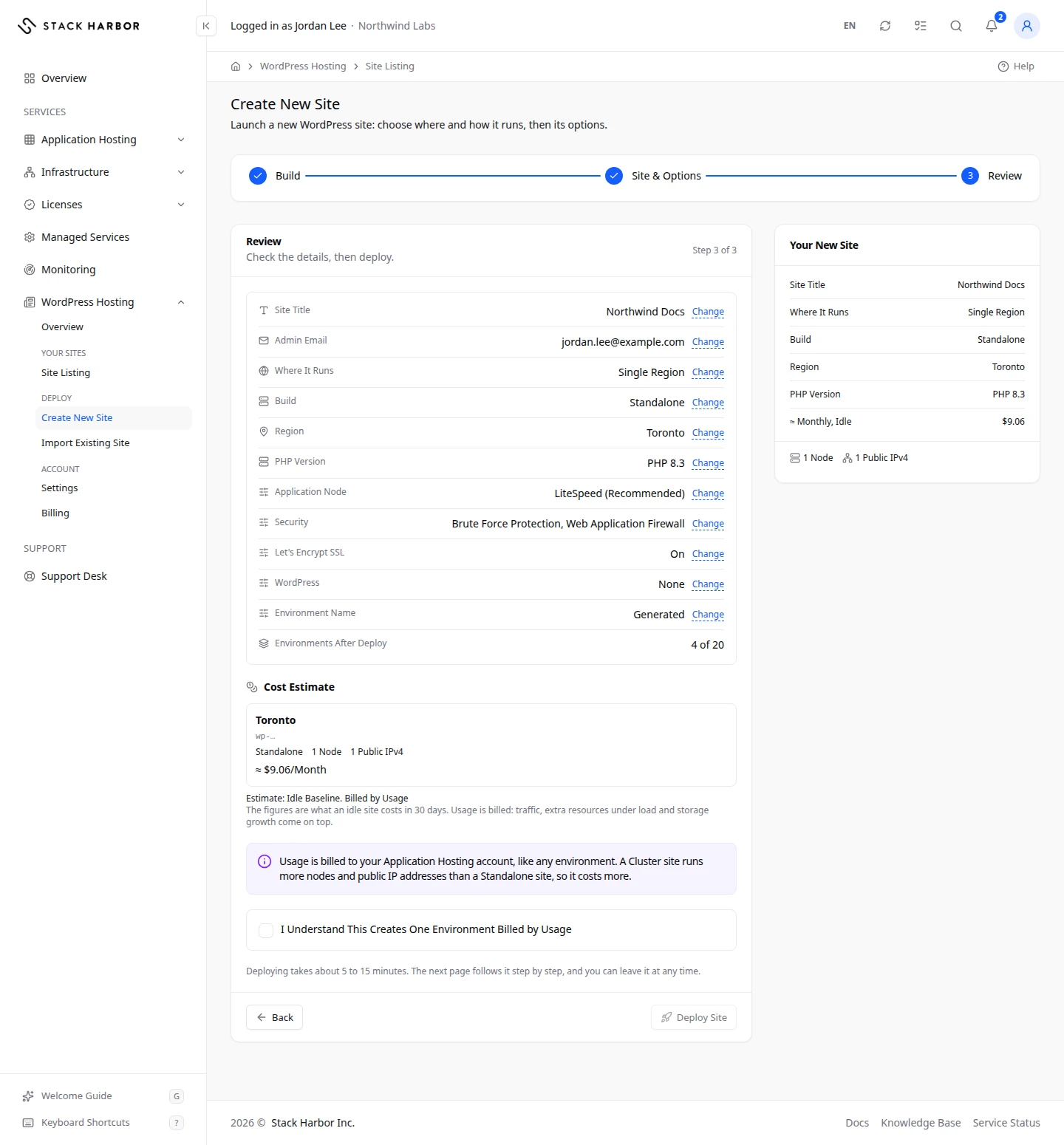
- Check each line. Select Change beside a line to go back to that step.
- Read the Cost Estimate table. It has one row per environment and a Total. The figures are what an idle site costs in 30 days. Traffic, extra resources under load and storage growth are billed on top.
- Tick I Understand This Creates One Environment Billed by Usage. A multi-region site says how many environments it creates.
- Select Deploy Site.
What you see afterwards
Lighthouse opens the site’s progress page. Deploying takes about 5 to 15 minutes, or about 20 to 60 minutes for a multi-region site. You can leave the page: the deploy carries on, and Site Listing shows it until it finishes. See Follow a site’s progress.
When it is done, you see Your Site Is Ready with Open Site and Manage Site.
If something goes wrong
- Complete these steps before deploying: lists what is still missing on the Review step. Each item links to its step.
- The figures or your choices changed since you ticked this. Check them, then tick it again. The price or your build changed. Check the table and tick the box again.
- Something you chose is no longer offered, so it was changed. Check the build and regions, then confirm the cost again. An option you picked is gone. Check the Build step.
- Not Enough Free Environments, or a message that the service uses all of its environments, means your Application Hosting service has no room. Delete a site or environment you no longer need, or contact support to raise the limit.
- No region can take a new site right now. Try again later, or contact support.
- The deploy could not be started. Try again in a moment. Nothing was created. Try again.
- If WordPress Hosting isn’t on yet, the Review step shows the Enable WordPress Hosting panel in place of Deploy Site. Your answers are kept while you enable it.
Fields and statuses
What each item on this page means, what it does and how to read it.
- Where It Runs Field
-
What it is. Whether the site runs in one region or in several.
What it does. Sets how many environments the deploy creates.
- Single Region Option
-
What it is. The site runs in one region. Your data lives in that region.
What it does. Creates one environment.
- Multi-Region Option
-
What it is. The site runs in two or three regions, kept in step. Stack Harbor handles the database and file replication.
What it does. Creates one environment per region. It is still one site in your list.
How to read it. Shown only when it is offered on your account. A Preview badge means it is still being tested.
- How It Runs Field
-
What it is. The tier of the site: Standalone or Cluster.
What it does. Sets how many nodes and public IPv4 addresses each region gets.
How to read it. Each choice shows its environments, nodes per region, public IPv4 per region and a starting monthly price.
- Estimate: Idle Baseline. Billed by Usage Metric
-
What it is. The note under each build’s starting price, which shows as From ≈ an amount per month.
How to read it. The amount is what an idle site with this build costs in 30 days. Usage under load, traffic and storage growth are billed on top.
- Region Field
-
What it is. Where the site runs. A site in the same region as its visitors loads faster for them.
What it does. For a multi-region site, the first region you choose is the primary.
How to read it. A region marked Maintenance, or greyed out, can’t take a new site right now.
- Primary Option
-
What it is. The main region of a multi-region site. Visitors use its address and WP Admin opens it.
What it does. Use Make Primary to choose another region as the primary.
- Database Topology Field
-
What it is. How the database of a multi-region Cluster is copied between regions.
What it does. Sets which regions can take writes.
- Async Primary / Replica Option
-
What it is. Region 1 takes writes, region 2 can take over, and region 3 serves reads.
- Galera Sync Option
-
What it is. Every region reads and writes. It suits regions close together.
- Site Title Field
-
What it is. The name of the site, shown in the browser tab and across WordPress.
How to read it. Up to 100 characters. You can change it later in WordPress.
- Admin Email Field
-
What it is. The email address of the WordPress administrator.
What it does. WordPress sends the administrator’s notices and password resets there. You sign in from Lighthouse, so you need no password.
- Application Node Field
-
What it is. The web server that runs PHP and WordPress: LiteSpeed (Recommended) or NGINX.
What it does. LiteSpeed runs WordPress fastest and carries the firewall and the brute-force protection.
- Scaling Strategy Field
-
What it is. How quickly Application Nodes are added as traffic grows: Low Load, Medium Load or High Load.
- Brute Force Protection Option
-
What it is. Protection against people guessing WP Admin passwords.
What it does. Slows down repeated failed sign-ins to WP Admin.
How to read it. Needs LiteSpeed.
- Web Application Firewall Option
-
What it is. A firewall that understands web traffic.
What it does. Blocks common attacks on WordPress before they reach it.
How to read it. Needs LiteSpeed.
- Let's Encrypt SSL Option
-
What it is. A free SSL certificate that renews by itself.
What it does. Lets the site open over HTTPS.
How to read it. Off, the site opens over plain HTTP until you add a certificate under Domains & SSL.
- WordPress Multisite Option
-
What it is. A network of sites run from one WordPress.
What it does. Uses larger Application Nodes with a paid LiteSpeed licence, billed per Application Node. Switch Site Address is not available for Multisite.
How to read it. The cost estimate includes the licence.
- WooCommerce Option
-
What it is. The WooCommerce shop plugin.
What it does. Installs it on the new site.
- Galera Database Option
-
What it is. A Cluster database on three Database Nodes that all take writes, instead of a primary and a replica.
- GlusterFS Storage Option
-
What it is. Cluster file storage on three Storage Nodes that keep the site’s files in step, instead of one.
- PHP Version Field
-
What it is. The PHP version the site runs.
How to read it. Most sites run best on the newest version their plugins and theme support.
- Environment Name Field
-
What it is. The technical name of the site, used in its Stack Harbor address.
What it does. Leave it empty for a generated name. A multi-region site adds the region number: name-1, name-2.
How to read it. 5 to 40 lowercase letters, numbers and hyphens, starting with a letter. Available in every region you chose means the name is free.
- Node Sizes Field
-
What it is. How large each node may grow, in cloudlets. 1 cloudlet is 128 MiB of memory and 200 MHz of CPU.
What it does. Each node keeps 2 cloudlets reserved; the rest is billed only when used. You can resize later from the Resources tab.
How to read it. Pick a preset or Custom: an even number of cloudlets. Single-region sites only.
- Application Nodes Field
-
What it is. How many Application Nodes a Cluster runs behind its load balancers.
What it does. More nodes share more traffic, and cost more.
How to read it. A whole number within the range shown.
- Automatic Scaling Up To 4 Application Nodes Field
-
What it is. The most Application Nodes the platform may add by itself when the site is busy.
What it does. Nodes are added under load and removed when it calms down, never below the number you set.
- Estimated Monthly Cost Metric
-
What it is. The estimated cost per month of the sizes you chose.
How to read it. An amount per 30 days. Under it: the share for LiteSpeed licences, and the cost if every node used its maximum all month.
- Environment Column
-
What it is. One row per environment the deploy creates.
- Nodes Column
-
What it is. How many nodes the environment runs.
- Public IPv4 Column
-
What it is. How many public IPv4 addresses the environment uses.
How to read it. Each public IPv4 address is billed.
- ≈ Monthly Column
-
What it is. The estimated cost per month of the environment when idle.
How to read it. An amount for 30 days. Traffic, extra resources under load and storage growth come on top.
- Total Metric
-
What it is. The sum of the monthly estimates of every environment.
How to read it. An estimate, not a price. Usage is billed to your Application Hosting account.
- Environments After Deploy Metric
-
What it is. How many environments the Application Hosting service will use after the deploy, out of its limit.
How to read it. Read as used of maximum. When it is full, delete a site or environment, or contact support.
- I Understand This Creates One Environment Billed by Usage Field
-
What it is. A box you tick to confirm you understand the deploy creates billed environments.
What it does. Deploy Site stays off until it is ticked.
How to read it. It unticks itself if the figures or your choices change.
- Application Hosting Service Field
-
What it is. The Application Hosting service the site is created in, when your account has more than one.
What it does. The site counts against that service’s environment limit and is billed to it.
- Not Available on Your Account Yet Status
-
What it is. The build is not available on your account yet.
How to read it. Shown on a build you can’t choose.
- Being Re-Checked After a Platform Update Status
-
What it is. The build is being checked again after a platform update. Try later.
How to read it. Shown on a build you can’t choose.
- Not Enough Free Environments Status
-
What it is. The service has too few free environments for this build. Delete one, or contact support.
How to read it. Shown on a build you can’t choose.
- Not Enough Regions Available Status
-
What it is. Too few regions can take a new site right now. Try later.
How to read it. Shown on a build you can’t choose.