A VPN endpoint links your private networks to another site, such as an office, over an encrypted tunnel. It sits on one of your routers. Each connection on it is one tunnel to one device at the far end, such as an office firewall. VPN endpoints are in beta.
Before you start
- You need a router with a public gateway, and at least one network connected to it. The far end connects to the gateway’s public address. See Set up a router.
- Creating a VPN endpoint needs the Manage Networks permission. Ask your account owner if you don’t have it. Without it, you see You Can’t Create VPN Endpoints.
- Have the far end’s details ready: its public address, the networks behind it, and a pre-shared key you will set on both sides. A pre-shared key is a shared password that both ends use to prove who they are.
Create the VPN endpoint
- In the side menu, open Infrastructure, then select VPN Endpoints under Networking.
- Select Create VPN Endpoint. The form has three steps: Details, Router And Networks and Review.
- In Name, type a name you’ll recognize, for example
office-vpn. Select Continue. - In Router, choose the router. A router that can’t hold a VPN endpoint says why, for example No Public Gateway or Not Created Here.
- Under Local Networks, tick the private networks the far end can reach, up to 10. Choose all IPv4 or all IPv6. Select Continue.
- Check the details, then select Create VPN Endpoint. The router and networks can’t be changed after creation.
You see Creating office-vpn., and the endpoint’s page opens, or the list if the page isn’t ready yet. You add its connections there.
Add a connection
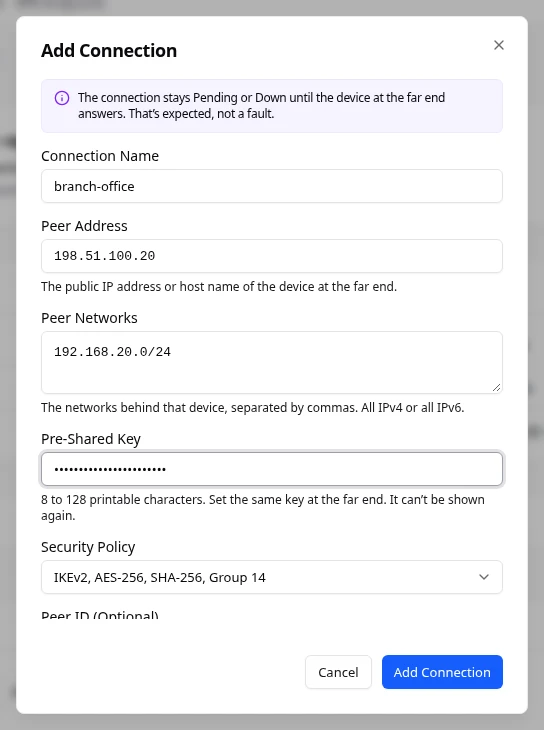
- On the VPN endpoint’s page, select Add Connection.
- Fill in the fields:
- Connection Name: a name for this tunnel, for example
toronto-office. - Peer Address: the public IP address or host name of the device at the far end, for example 198.51.100.10.
- Peer Networks: the networks behind that device, separated by commas, for example 192.0.2.0/24.
- Pre-Shared Key: 8 to 128 printable characters. Set the same key at the far end. It can’t be shown again.
- Security Policy: the encryption both ends use. The default uses IKE version 2 with AES-256, SHA-256 and Diffie-Hellman group 14. The others are IKE version 2 with AES-128, and IKE version 1 with AES-256, SHA-1 and group 5, for older devices. It is fixed after creation.
- Peer ID (Optional): only if the far end identifies itself by something other than its address.
- Connection Name: a name for this tunnel, for example
- Under Advanced Settings, you can set the MTU (Optional) and the dead peer detection (DPD) settings. DPD checks whether the far end is still there. DPD Action says what to do when it stops answering: Hold, Clear, Restart, Restart By Peer or Disabled. DPD Interval (Seconds) and DPD Timeout (Seconds) set how often to check and how long to wait. The defaults are Hold, 30 and 120.
- Select Add Connection.
You see toronto-office Was Added. The connection stays Pending or Down until the device at the far end answers. That’s expected.
Set up the far end
The Settings For The Far End card lists every value to enter on the device at the other site, connection by connection. They include the Address On This Side, the Networks On This Side, the IKE and IPsec settings and the tunnel settings. Select Copy All to copy them in one go, or copy one value at a time.
The pre-shared key isn’t shown. Use the one you set for this connection.
Read the list
The list shows each endpoint’s Name, Status, Router, Public Address, Local Networks and Connections. Select a name to open the endpoint’s page.
Manage it afterwards
On the endpoint’s page, you read each connection’s status, copy the settings for the far end, edit or delete connections, and rename or delete the endpoint. See Manage a VPN endpoint.
If something goes wrong
- This project has no router with a public gateway. Set one up first, then come back.
- This router connects no network yet. Connect one, then come back.
- If the page says the endpoint has reached its limit of connections, delete a connection you don’t use to add another.
- For your security, the key was cleared after sending. Enter it again before you try again.
- The VPN Endpoint Wasn’t Created means the platform refused it. The message says why, and the form goes back to the field to fix.
Fields and statuses
What each item on this page means, what it does and how to read it.
- Name Field
-
What it is. A name you’ll recognise, for example office-vpn.
- Router Field
-
What it is. The router the VPN endpoint sits on.
What it does. The far end connects to the router gateway’s public address.
How to read it. It can’t be changed after creation.
- No Public Gateway Status
-
What it is. This router has no gateway to a public network, so it can’t hold a VPN endpoint.
How to read it. Set a gateway on the router first.
- Not Created Here Status
-
What it is. This router wasn’t created in Lighthouse, so it can’t hold a VPN endpoint made here.
How to read it. Choose a router made in Lighthouse.
- Local Networks Field
-
What it is. The private networks the far end can reach.
How to read it. Up to 10, all IPv4 or all IPv6. They can’t be changed after creation.
- Connection Name Field
-
What it is. A name for this tunnel, for example toronto-office.
- Peer Address Field
-
What it is. The public IP address or host name of the device at the far end, for example 198.51.100.10.
- Peer Networks Field
-
What it is. The networks behind the far-end device, separated by commas.
How to read it. For example 192.0.2.0/24.
- Pre-Shared Key Field
-
What it is. A shared password both ends use to prove who they are.
What it does. Set the same key at the far end.
How to read it. 8 to 128 printable characters. It can’t be shown again.
- Security Policy Field
-
What it is. The encryption both ends use.
How to read it. The default uses IKE version 2 with AES-256, SHA-256 and Diffie-Hellman group 14. Older devices can use IKE version 1. It is fixed after creation.
- Peer ID (Optional) Field
-
What it is. How the far end identifies itself, when it isn’t by its address.
How to read it. Leave it empty in most cases.
- MTU (Optional) Field
-
What it is. The largest packet the tunnel carries, in bytes.
How to read it. Leave it empty unless the far end needs a set value.
- DPD Action Field
-
What it is. What to do when the far end stops answering. DPD means dead peer detection.
How to read it. The default is Hold.
- Hold Option
-
What it is. Keeps the tunnel and waits for the far end to come back.
- Clear Option
-
What it is. Closes the tunnel.
- Restart Option
-
What it is. Closes the tunnel and tries to open it again.
- Restart By Peer Option
-
What it is. Waits for the far end to open the tunnel again.
- Disabled Option
-
What it is. Doesn’t check whether the far end is still there.
- DPD Interval (Seconds) Field
-
What it is. How often to check the far end.
How to read it. In seconds. The default is 30.
- DPD Timeout (Seconds) Field
-
What it is. How long to wait before the far end counts as gone.
How to read it. In seconds. The default is 120.
- Address On This Side Field
-
What it is. The public address the far end connects to.
How to read it. Enter it on the device at the other site.
- Networks On This Side Field
-
What it is. Your private networks, as the far end should list them.
How to read it. Enter them on the device at the other site.
- Public Address Column
-
What it is. The public address of the VPN endpoint.
- Connections Column
-
What it is. How many tunnels the endpoint has.