You need a saved card before you can enable a service and deploy. Adding a card charges nothing today. Usage is billed monthly, and invoices are paid with your default card.
To manage cards, you need the account owner’s role or the permission to manage payment cards. Access to billing alone isn’t enough.
Add a card
- Open the account menu (your name, top right) and select Billing, then Payment Methods. You can also use Add Payment Method in the Get Started checklist.
- Select Add Card. The Add a Card window opens.
- Type the cardholder’s name in Name on Card, as printed on the card.
- Optionally, give the card a Label (Optional), for example Northwind Labs Card. Only you see it.
- In Card Details, type the card number, expiry date and security code. We accept shows the card types we take.
- Select Add Card.
- If your bank asks you to confirm the card, a window from your bank opens. This check is called 3-D Secure. Approve it in that window or in your banking app.
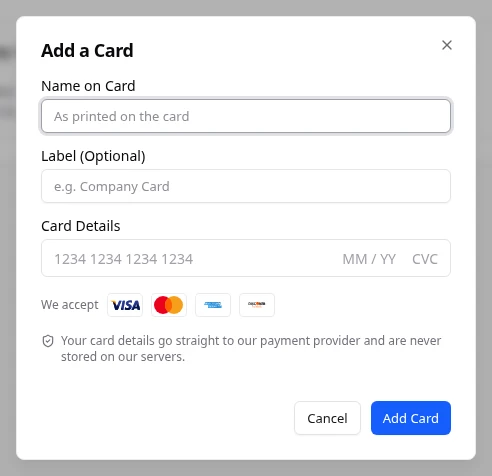
Your card details go straight to our payment provider. They are never stored on our servers. Your billing address from Account Settings is sent with the card, so check it first.
What you see afterwards
You see Card added. The card appears on Payment Methods with its type, last four digits and Expires date. Your first card becomes the default, marked Default.
Choose the default card
The default card is the one used for invoice payments.
- Open the card’s actions menu and select Set As Default.
- In Set As Default Payment Method, select Set As Default again to confirm.
If the card has expired, the window warns you that payments with it will fail and that new deployments pause while it is the default. Update its expiry first.
Update an expiry date or label
- Open the card’s actions menu and select Edit Card.
- Change the Expiry Date (MM and YYYY) or the Label (Optional).
- Select Save Changes.
You can’t change the card number or security code. If your bank sent you a new card number, add it as a new card. The default card’s expiry can’t be changed here: make another card the default first, or add the card again with its new date.
Remove a card
- Open the card’s actions menu and select Remove.
- In Remove Payment Method, confirm with Remove.
You can’t remove the default card while other cards are saved. Set another card as the default first. If you remove your only card, invoices must be paid by hand and new deployments pause until you add a card.
If something goes wrong
- That card could not be verified. Check the details and try again. The bank declined the card, or a detail is wrong. Fix it, or use another card.
- Your card was authorised but could not be saved to your account. Refresh your saved cards before trying again. Reload the page and check Payment Methods first, so you don’t add the card twice.
- The secure card form is unavailable right now. Please try again shortly.
- Expired next to a card means its date has passed. Edit the expiry or add the new card.
- Can’t Be Charged means the card isn’t saved with our payment provider. Add the card again, then remove the old copy.
Fields and statuses
What each item on this page means, what it does and how to read it.
- Add a Payment Method Field
-
What it is. The setup step that saves a payment card on your account.
What it does. Add Payment Method opens Payment Methods, where you add a card.
How to read it. It shows Done with the card type and last four digits once a card is saved. Nothing is charged today.
- Name on Card Field
-
What it is. The cardholder’s name, as printed on the card.
What it does. It is sent to the bank with the card, which helps the card pass its checks.
- Label (Optional) Field
-
What it is. Your own name for the card, for example Northwind Labs Card. Optional.
What it does. It helps you tell your cards apart. Only you see it.
- Card Details Field
-
What it is. The card number, expiry date and security code, in a secure field from our payment provider.
What it does. The details go straight to our payment provider and are never stored on our servers.
- Expiry Date Field
-
What it is. The month and year the card expires, as MM and YYYY.
What it does. Edit Card updates it when your bank sends you a new expiry date.
How to read it. The default card’s expiry can’t be changed here. Make another card the default first.
- Default Status
-
What it is. The card used to pay your invoices.
How to read it. Your first card becomes the default. Use Set As Default to choose another.
- Expired Status
-
What it is. The card’s expiry date has passed.
How to read it. Payments with it fail. Update its expiry with Edit Card, or add the new card.
- Can't Be Charged Status
-
What it is. The card isn’t saved with our payment provider, so it can’t be charged or made the default.
How to read it. Add the card again, then remove this copy.