SSH and SFTP let you work on a node from your own computer. You sign in with an SSH key, which comes in two halves. The private key stays on your computer. The public key, the line in your .pub file, goes into Lighthouse.
Keys belong to an Application Hosting service, not to one person. A key works on every environment of the service, and everyone with file access to the service shares the list.
Add a key
- In the side menu, open Application Hosting, then SSH Keys. You can also open it from an environment’s Tools tab.
- If your account has more than one service, pick it under Service.
- Select Import Key.
- Paste your Public Key, the whole line from your .pub file. It starts with ssh-ed25519, ecdsa- or ssh-rsa.
- Give it a Name, for example jordan-laptop. Leave it blank to use the key’s own comment.
- Select Add Key. You see SSH key added.
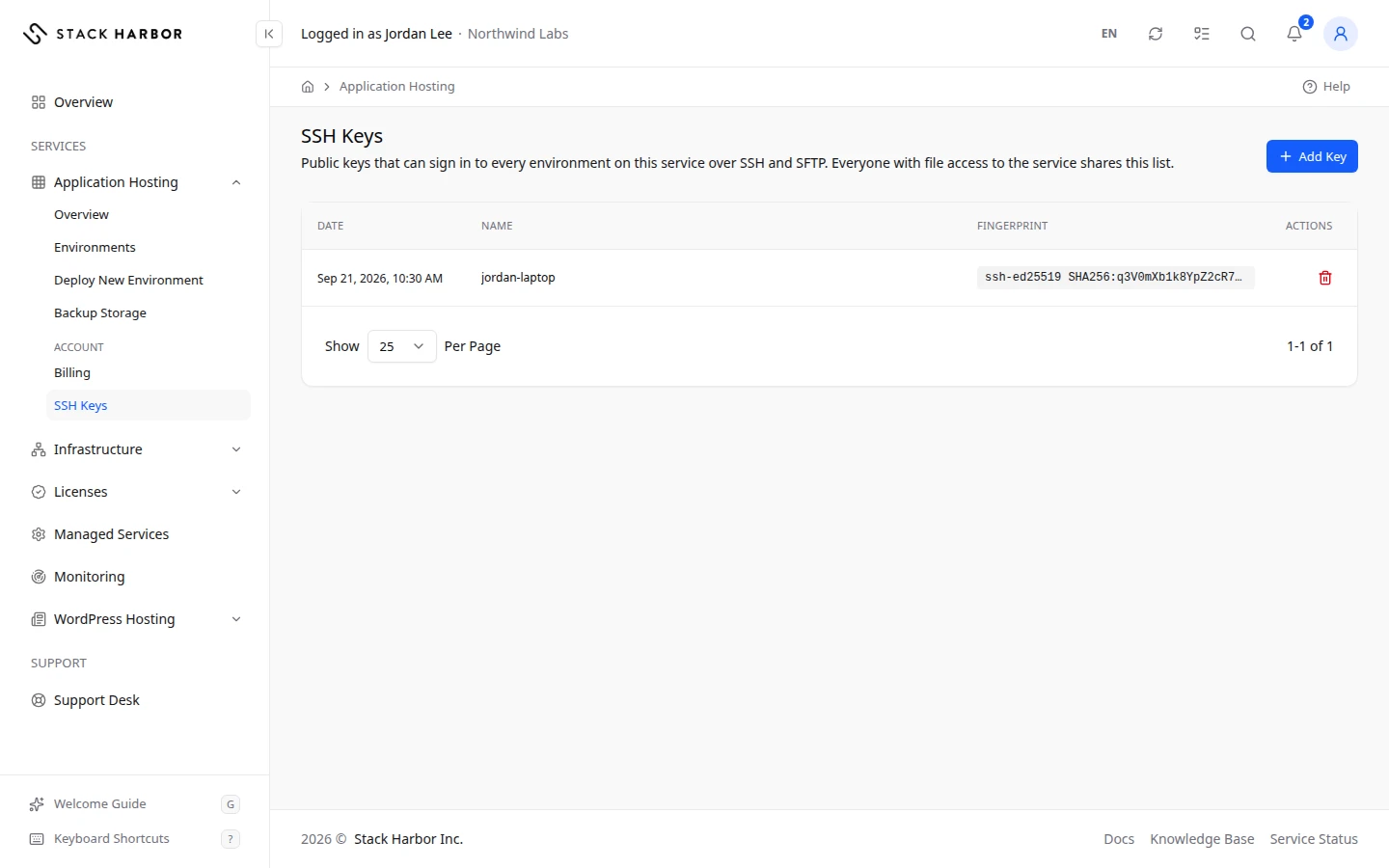
The list shows each key’s Name, its Fingerprint (a short code that identifies the key) and the Date it was added. To remove a key, select Remove and confirm. Anyone using it can no longer sign in.
Connect to a node
- Open the environment, then Resources.
- Open a node’s details. The SSH & SFTP card shows the SSH Command, the SFTP Link, the Host, the Port and the Username.
- Copy the SSH Command into your terminal, or use the details in your SFTP app.
If something goes wrong
- That’s a private key, so it wasn’t saved. Keep it safe and paste the public key instead: the line from your .pub file.
- That key type isn’t supported. Use ssh-ed25519, ecdsa-sha2-nistp256/384/521, or ssh-rsa of at least 2048 bits.
- This key is already on this service.
- You need file access on this service to manage its SSH keys. Ask the account owner.
- No Application Hosting Service Yet means you need an environment first. Select New Environment.
Fields and statuses
What each item on this page means, what it does and how to read it.
- SSH Command Field
-
What it is. The command that opens an SSH session on the node.
What it does. Paste it into your terminal. You sign in with a key added on the SSH Keys page.
- SFTP Link Field
-
What it is. A link that opens the node in an SFTP app.
What it does. Lets you transfer files with an app such as FileZilla.
- Host Field
-
What it is. The address to connect to for SSH and SFTP.
- Port Field
-
What it is. The port to connect to for SSH and SFTP.
- Username Field
-
What it is. The user name to sign in with over SSH and SFTP.
- Public Key Field
-
What it is. The public half of your SSH key, the line in your .pub file.
What it does. Lets that key sign in to every environment of the service.
How to read it. Starts with ssh-ed25519, ecdsa- or ssh-rsa. Never paste a private key.
- Name Column
-
What it is. A name to tell your keys apart.
How to read it. Unnamed Key means none was given.
- Fingerprint Column
-
What it is. A short code that identifies the key.
How to read it. Compare it with the output of ssh-keygen -lf on your .pub file to check it is the right key.
- Date Column
-
What it is. When the key was added.