Backups keep copies of your data so you can get it back after a mistake or a failure. Start from a server’s Backups tab to make copies. Use the Backups list to find every copy on your account and restore it.
Back up a server from its Backups tab
The Backups tab of a server keeps copies of its disks. There are two kinds of copy:
- A backup is a separate copy of one volume, kept apart from the server. A full backup copies the whole volume. An incremental backup stores only what changed since the last backup of that volume. You restore a backup to a new volume.
- A snapshot is a quick copy of the whole server on the same storage, for rolling back. A snapshot becomes one of your images, so you can deploy new servers from it.
Set the backup plan
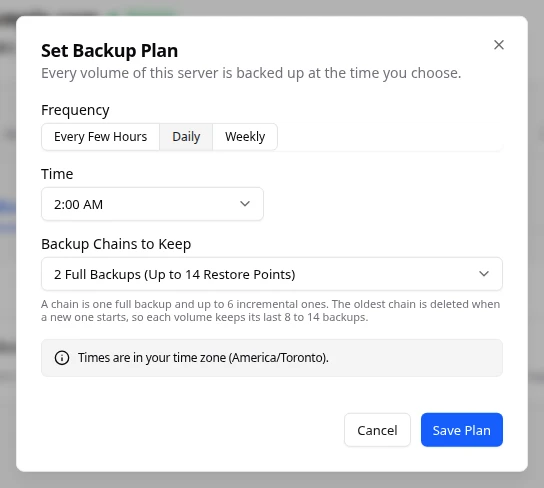
A backup plan backs up every volume of the server on a schedule.
- Open the server’s page, then the Backups tab, then Backup Plans.
- Select Set Backup Plan (or Edit Plan when one exists).
- Under Frequency, choose Every Few Hours, Daily or Weekly.
- Set the timing: Every and Starting At for every few hours, Time for daily, or Day and Time for weekly. Times are in your time zone.
- Under Backup Chains to Keep, choose how many full backups to keep. A chain is one full backup and up to 6 incremental ones. The oldest chain is deleted when a new one starts.
- Select Save Plan. You see Backup Plan Saved.
The Backup Plan card then shows Runs, Next Run, Retention and Last Run. Pause stops new backups for a while, and Resume starts them again. Remove Plan stops new backups. The backups already made are kept.
Take a manual backup
- On the Backups tab, select Create Manual Backup.
- Pick the volume, and choose full or incremental. Incremental needs a full backup of that volume first.
- Optional: type a Name and a Note (Optional).
- Confirm. You see Backup Requested.
A backup taken while the server runs is marked Taken While Running: for a clean copy, stop the server first.
Take a snapshot
- Under Server Snapshots, select Take Snapshot.
- Type a name and confirm. You see Snapshot Requested.
The snapshot appears here and in Images.
Restore a backup
- On a backup’s row, select Restore to a New Volume.
- Type the New Volume Name and select Restore.
- When the new volume is ready, attach it from the Storage tab. See Manage a server’s storage.
The original volume is not changed.
Delete a backup or snapshot
Select Delete Backup or Delete Snapshot on its row and confirm. This can’t be undone. A full backup that newer incremental backups depend on can’t be deleted until those are deleted.
If something goes wrong
- This project already has its maximum number of backups. Delete one first. Only manual backups count toward this limit.
- This server already has its maximum number of snapshots. Delete one first.
- Needs Attention on a plan means it is missing on the platform. Save the plan again to recreate it.
- If the plan says volumes were attached after it was saved, save the plan again to include them.
- Backup plans are available once Lighthouse manages this server. Adopt it to set one. See Manage a cloud server.
For every backup on the account, read the next section.
Find and restore every backup
The Backups list shows every backup of your volumes, including backups of servers that were deleted. A backup is a separate copy of a volume. Use it to get data back, or to start a new server from it. To make backups, use a server’s Backups tab, described above, or a backup plan.
Open Backups
- Open Infrastructure in the side menu.
- Select Backups, under Storage & Backups.
Read the list
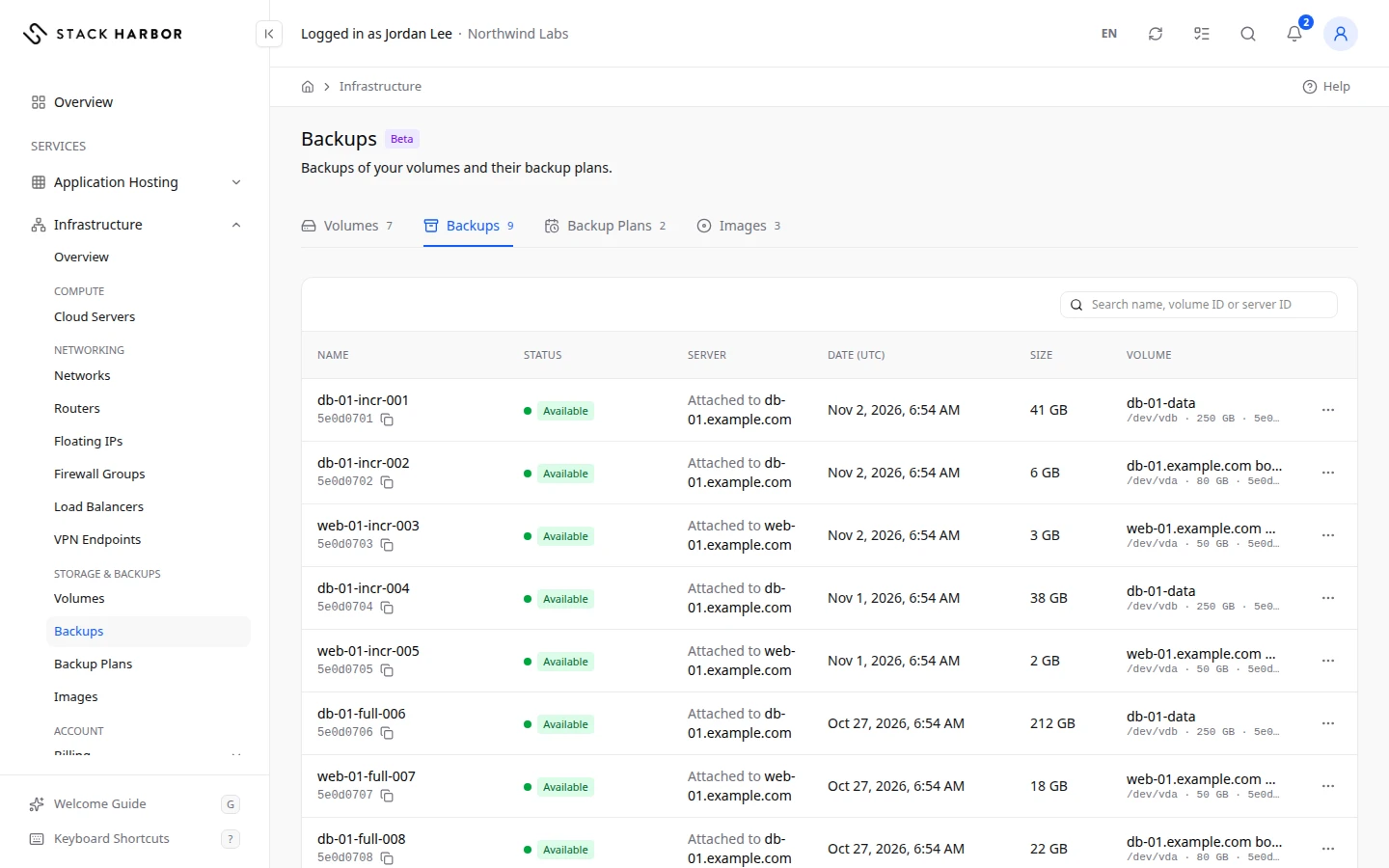
Each row shows Name, Status, Server, Date, Size, Volume and Kind.
-
Name is the backup’s short name, for example web-01 · Boot Disk · Nov 4, 12:00 AM (Incremental), in your time zone. Its Backup ID sits under it, with a copy button. Select the name to open the backup’s page, where you can rename it. See Manage a backup.
-
Kind is Full (a whole copy) or Incremental (only what changed since the last backup of that volume).
-
Server names the server. Deleted Server means it was made from a server that has since been deleted.
-
Status is Available when the backup is ready. Creating, Restoring or Deleting mean a change is running.
Use Search name, volume ID or server ID to narrow the list.
Restore a backup
- Open the row menu and select Restore to a New Volume.
- Type the New Volume Name.
- Select Restore. You see Restore Requested.
The backup is restored into a new, unattached volume of the same size. The original volume is not changed. When it is ready, attach it to a server. See Create a volume.
Turn a backup into an image
- Open the row menu and select Convert to Image.
- Type the Image Name (1 to 64 characters).
- Confirm. You see Conversion to Image Requested.
It takes about a minute, plus about 10 seconds per GB. While it runs, it needs about twice the backup’s size in free storage. The image appears in Images, and it can deploy a server once we confirm a server boots from it.
Delete a backup
- Open the row menu and select Delete Backup.
- Confirm. This can’t be undone.
The backup’s details page
Select a backup to open its Backup Details page. It shows what the backup is a copy of, its size and stored size, the backups it depends on, and its restore, convert and delete actions. See Manage a backup.
If something goes wrong
- Newer incremental backups depend on this one. Delete those first.
- A restore of this backup is still in progress. You can restore it again once it finishes.
- Not every action is available for a backup in its current status. Wait until it shows Available.
- If converting would go over your storage limit, delete volumes or backups you no longer need, or open a support ticket.
Fields and statuses
What each item on this page means, what it does and how to read it.
- Frequency Field
-
What it is. How often the plan backs up the server’s volumes.
How to read it. Every Few Hours, Daily or Weekly.
- Every Few Hours Option
-
What it is. Backs up every few hours.
What it does. Set Every and Starting At.
- Daily Option
-
What it is. Backs up once a day.
What it does. Set the Time.
- Weekly Option
-
What it is. Backs up once a week.
What it does. Set the Day and the Time.
- Every Field
-
What it is. The number of hours between backups.
- Starting At Field
-
What it is. The time of the first backup of the day.
How to read it. In your time zone.
- Time Field
-
What it is. The time the backup runs.
How to read it. In your time zone.
- Day Field
-
What it is. The day of the week the backup runs.
- Backup Chains to Keep Field
-
What it is. How many full backups to keep.
What it does. A chain is one full backup and up to 6 incremental ones. The oldest chain is deleted when a new one starts.
- Runs Field
-
What it is. When the plan runs, in words.
- Next Run Field
-
What it is. When the next backup is due.
- Retention Field
-
What it is. How many backups the plan keeps.
- Last Run Field
-
What it is. When the plan last ran, and how it went.
- Note (Optional) Field
-
What it is. A note about why you took this backup.
- Taken While Running: for a clean copy, stop the server first. Status
-
What it is. The backup was taken while the server was running.
How to read it. Files being written at that moment may be incomplete. For a clean copy, stop the server first.
- New Volume Name Field
-
What it is. The name of the volume the backup is restored into.
What it does. The backup is restored into a new, unattached volume of the same size. The original volume isn’t changed.
- Backup ID Column
-
What it is. The backup’s unique identifier.
How to read it. It sits under the backup’s name in the Name column, with a copy button.
- Name Column
-
What it is. The backup’s short name, the first column of the Backups list.
What it does. Select it to open the backup’s page.
How to read it. The default combines the server, the volume, the date in your time zone and the kind. Hold the pointer over it to see it in full.
- Server Column
-
What it is. The server the backup came from.
How to read it. Deleted Server means that server has since been deleted.
- Date Column
-
What it is. When the backup was taken.
- Volume Column
-
What it is. The volume the backup is a copy of.
- Kind Column
-
What it is. Whether the backup is full or incremental.
- Full Option
-
What it is. A whole copy of the volume.
How to read it. It starts a chain.
- Incremental Option
-
What it is. Only what changed since the last backup of that volume.
What it does. It needs a full backup of the volume first.
How to read it. It builds on an earlier backup, which can’t be deleted while it depends on it.
- Deleted Server Status
-
What it is. The backup was made from a server that has since been deleted.
How to read it. You can still restore it to a new volume or turn it into an image.
- Available Status
-
What it is. The backup is ready.
How to read it. You can restore it, convert it or delete it.
- Creating Status
-
What it is. The backup is being taken.
How to read it. Wait until it shows Available.
- Restoring Status
-
What it is. The backup is being restored to a new volume, or onto its server.
How to read it. You can restore it again once this ends.
- Converting to Image Status
-
What it is. The backup is being made into an image.
How to read it. The backup itself doesn’t change. The image appears in Images when this ends.
- Deleting Status
-
What it is. The backup is being deleted.
- Image Name Field
-
What it is. The name of the image made from the backup.
How to read it. 1 to 64 characters.
- Setup Failed Status
-
What it is. The server’s backup schedule couldn’t be set up.
What it does. Retry sends the same settings again.
How to read it. Select Retry. If it fails again, contact support.