The Billing page shows your account’s money at a glance. You see what you owe, the credit you hold, your next payment, how you are billed, and what each service costs.
You need the Access Billing permission to open it. If you don’t have it, you see You Do Not Have Access to This. Ask your account owner to grant it. See Manage a team member.
Open Billing
- Select your name or picture at the top right of the screen to open the account menu.
- Select Billing.
- Use the buttons at the top of the page to move to Invoices, Transactions or Payment Methods.
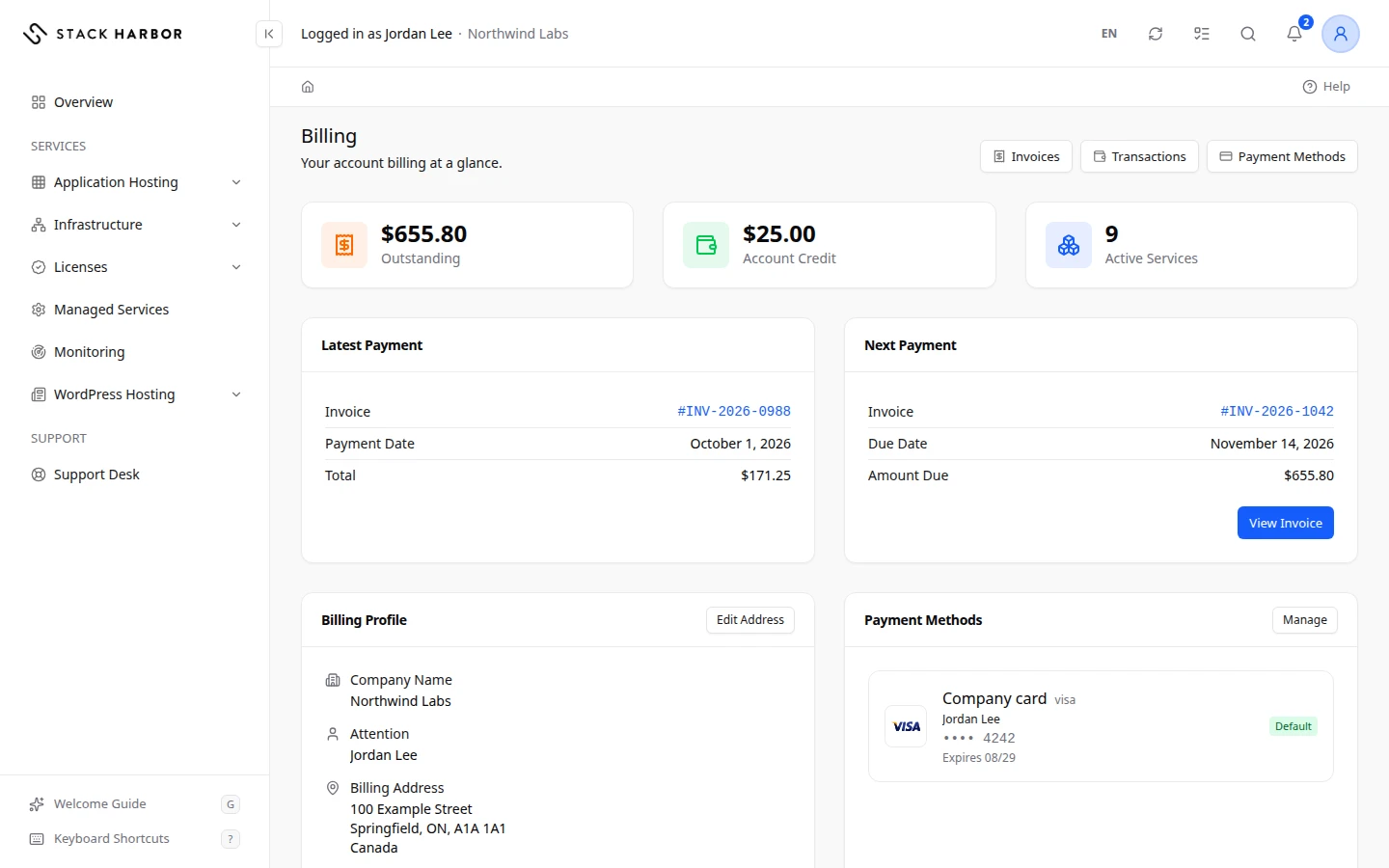
Read the page from top to bottom
The three tiles
Outstanding is the total of your unpaid invoices. Account Credit is money already on your account. It is used first on new invoices. Active Services is how many services are running on the account.
Latest Payment and Next Payment
Latest Payment shows your most recently paid invoice, its Payment Date and its Total. Next Payment shows the unpaid invoice that is due soonest, with its Due Date and Amount Due. A due date in the past is marked Overdue. Select View Invoice to open it and pay it. When nothing is owed, the card says You’re all paid up.
Billing Profile
This card shows how your account is billed:
- Payment Terms says how long you have to pay an invoice, for example Due On Receipt or Net 30.
- Payment Method says how invoices are paid, for example Credit Card On File.
- Payment Automation says whether we charge your card automatically (Automatic Capture) or you pay each invoice yourself (Manual Payment).
- Invoice Notifications lists who receives invoice emails.
- Account Currency is the currency all your amounts are shown in.
- Billing Address is the address printed on new invoices. Select Edit Address to change it, or Add Billing Address if none is on file.
To change your payment terms, payment method, payment automation or invoice recipients, contact our billing team. See Open a support ticket.
Billable Services
Your services, grouped by product, with what each one costs. A Recurring amount is a fixed price charged every billing cycle. A Metered amount is billed for what you used in the Current Billing Cycle. Select View Report on a metered row to open its usage report. Usage Pending means the usage for that service hasn’t been reported yet.
Infrastructure Costs
If you use Infrastructure, this card shows its cost for the period you pick. Amounts are Before Tax. Estimated to Date is what you have used so far this month. Projected Month Total is what the month will cost if you keep using the same resources. Select View Full Usage for the full report. See Read your infrastructure usage.
Invoices
Your five newest invoices. Select View All for the full list.
Where to go next
- Pay an invoice
- View your transactions
- Add a payment card
- Read your Application Hosting usage
- Read your WordPress Hosting usage
If something goes wrong
- If a card shows a load error, select Try Again on that card. The rest of the page still works.
- If Account Currency shows Not Available, amounts appear without a currency sign. Contact support so we can fix your billing profile.
- If you don’t see Payment Methods, you don’t have the Manage Saved Cards permission. Ask your account owner.
Fields and statuses
What each item on this page means, what it does and how to read it.
- Outstanding Metric
-
What it is. The total of every invoice on your account that is still unpaid.
How to read it. An amount in your account currency. A healthy reading is 0, meaning nothing is owed. Above 0, open Invoices and select Unpaid to see which invoices make it up.
- Account Credit Metric
-
What it is. Money already on your account, for example from a refund or an overpayment.
What it does. Credit is used first on new invoices, before your card is charged.
How to read it. An amount in your account currency. On an invoice, the part paid from credit shows as Credit Applied.
- Active Services Metric
-
What it is. The number of services running on your account right now.
How to read it. A count. It includes every product, for example your Infrastructure account and each license.
- Latest Payment Field
-
What it is. Your most recently paid invoice.
What it does. Select the invoice number to open it.
How to read it. Shows the invoice number, its Payment Date and its Total. No Payments Yet means no invoice has been paid so far.
- Payment Date Field
-
What it is. The date the latest paid invoice was paid.
How to read it. A date in your timezone, set in Account Settings.
- Next Payment Field
-
What it is. The unpaid invoice that is due soonest.
What it does. Select View Invoice to open it and pay it.
How to read it. Shows the invoice number, its Due Date and its Amount Due. A past due date is marked Overdue.
- Due Date Field
-
What it is. The last day to pay the next invoice on time.
How to read it. A date. Your payment terms decide how far it is from the invoice date.
- Amount Due Field
-
What it is. What is still owed on the next invoice.
How to read it. An amount in the invoice’s currency, after any credit already applied.
- You're all paid up. Status
-
What it is. No invoice is waiting for payment.
How to read it. Every invoice is paid, cancelled or refunded. You don't need to do anything.
- Payment Terms Field
-
What it is. How long you have to pay an invoice after it is issued.
What it does. Sets the due date of each new invoice.
How to read it. One of Due On Receipt, Net 10 or Net 30. To change it, contact our billing team.
- Due On Receipt Option
-
What it is. Invoices are due the day they are issued.
How to read it. The due date is the same as the invoice date.
- Net 10 Option
-
What it is. Invoices are due 10 days after they are issued.
- Net 30 Option
-
What it is. Invoices are due 30 days after they are issued.
- Payment Method Field
-
What it is. How your invoices are normally paid.
What it does. Decides whether Pay Now can charge a card for an invoice.
How to read it. One of Credit Card On File, Wire Transfer, Check or PayPal. To change it, contact our billing team.
- Credit Card On File Option
-
What it is. Invoices are paid with the card saved as your default.
How to read it. Manage the card on Payment Methods.
- Wire Transfer Option
-
What it is. You pay invoices by bank wire.
What it does. Pay Now is not offered for these invoices.
- Check Option
-
What it is. You pay invoices by cheque.
What it does. Pay Now is not offered for these invoices.
- PayPal Option
-
What it is. You pay invoices through PayPal.
- Payment Automation Field
-
What it is. Whether we charge your card automatically when an invoice is issued.
How to read it. Automatic Capture or Manual Payment. To change it, contact our billing team.
- Automatic Capture Option
-
What it is. We charge your default card for each invoice.
What it does. You don’t need to pay invoices yourself.
How to read it. If a charge fails, the invoice stays Unpaid and you can pay it with Pay Now.
- Manual Payment Option
-
What it is. You pay each invoice yourself.
How to read it. Open each invoice and select Pay Now, or pay it the way your payment method says.
- Invoice Notifications Field
-
What it is. The people who receive invoice emails.
How to read it. A list of names or email addresses. No Invoice Recipients On File means nobody is set. Contact our billing team to change it.
- Account Currency Field
-
What it is. The currency your account is billed in.
What it does. Every amount on the Billing page uses it.
How to read it. A currency code, for example CAD. Not Available means it couldn’t be read; amounts then show with no currency sign.
- Billing Address Field
-
What it is. The address printed as the Bill-To on your invoices.
What it does. It also sets your tax location, so it decides which taxes apply to new invoices.
How to read it. Select Edit Address to change it. Invoices already issued keep their old address.
- Attention Field
-
What it is. The person invoices are addressed to, inside your organization.
- Not Configured Status
-
What it is. This billing setting has no value on your account yet.
How to read it. Contact our billing team if you want it set.
- Not On File Status
-
What it is. We don’t have this detail on file.
How to read it. The owner can add it, for example with Add Billing Address.
- Billable Services Field
-
What it is. Every service you are billed for, grouped by product.
What it does. Select a group to see its services, or to open its usage report.
How to read it. Each row shows the service and what it costs, as Recurring or Metered.
- Recurring Option
-
What it is. A fixed price charged every billing cycle.
How to read it. The amount and its cycle, for example monthly. It doesn’t change with use.
- Metered Option
-
What it is. A service billed for what you use.
How to read it. The amount so far in the current billing cycle. It grows as you use the service, and is billed monthly.
- Metered Usage Metric
-
What it is. The total of your metered services for the period shown.
How to read it. An amount in your account currency, before tax.
- Current Billing Cycle Field
-
What it is. The billing period now running, usually the current month.
How to read it. Metered amounts in this period are still growing and are not yet on an invoice.
- Usage Pending Status
-
What it is. Usage for this service hasn’t been reported yet.
How to read it. It appears once we receive it. You don't need to do anything.
- No Metered Usage This Cycle Status
-
What it is. Nothing metered was used in this billing cycle.
How to read it. The metered amount is 0 for now.
- Infrastructure Costs Field
-
What it is. What your Infrastructure resources cost for the period you pick.
What it does. Select View Full Usage to open the full usage report.
How to read it. Amounts are before tax, in the currency shown.
- Estimated to Date Metric
-
What it is. What your Infrastructure usage has cost so far this month.
How to read it. An estimate, before tax. It grows during the month and becomes final on the invoice.
- Estimated Total Metric
-
What it is. The estimated cost of a past period or a custom date range.
How to read it. An estimate, before tax. The invoice has the final amount.
- Invoiced Total Metric
-
What it is. The amount that was invoiced for this period.
How to read it. A final amount, before tax. It matches the Infrastructure lines on your invoice.
- Projected Month Total Metric
-
What it is. What the whole month will cost if you keep the same resources running.
How to read it. An estimate, before tax. It changes when you add or remove resources.
- Before Tax Status
-
What it is. The amount does not include sales taxes.
How to read it. Taxes are added on the invoice, based on your billing address.
- Account-Level Fees Field
-
What it is. Charges for your Infrastructure account as a whole, not for one resource.
How to read it. An amount for the period, before tax.