Some WordPress Hosting tasks take minutes, so Lighthouse runs them in the background as a job. The progress page follows one job and shows each of its steps. Leaving the page never stops the job.
Lighthouse opens this page by itself after you select Deploy Site, Start Import or Delete Site. An update policy has a job page too: select View Progress under Update Policy Status in Settings. A site address switch also runs as a job, and the Go Live card follows it on the site’s page.
Follow a job
- Open the job. Lighthouse takes you there when you start it. You can also reach it from the In Progress card on the Site Listing page, or from Track background actions.
- Read the title. It names the job, for example New Site Deployment, Site Import, Site Deletion, Site Address Change or Update Policy for Every Site.
- Follow the steps. Each one shows whether it is completed, in progress, waiting or pending. The page reads the job again every few seconds while it runs.
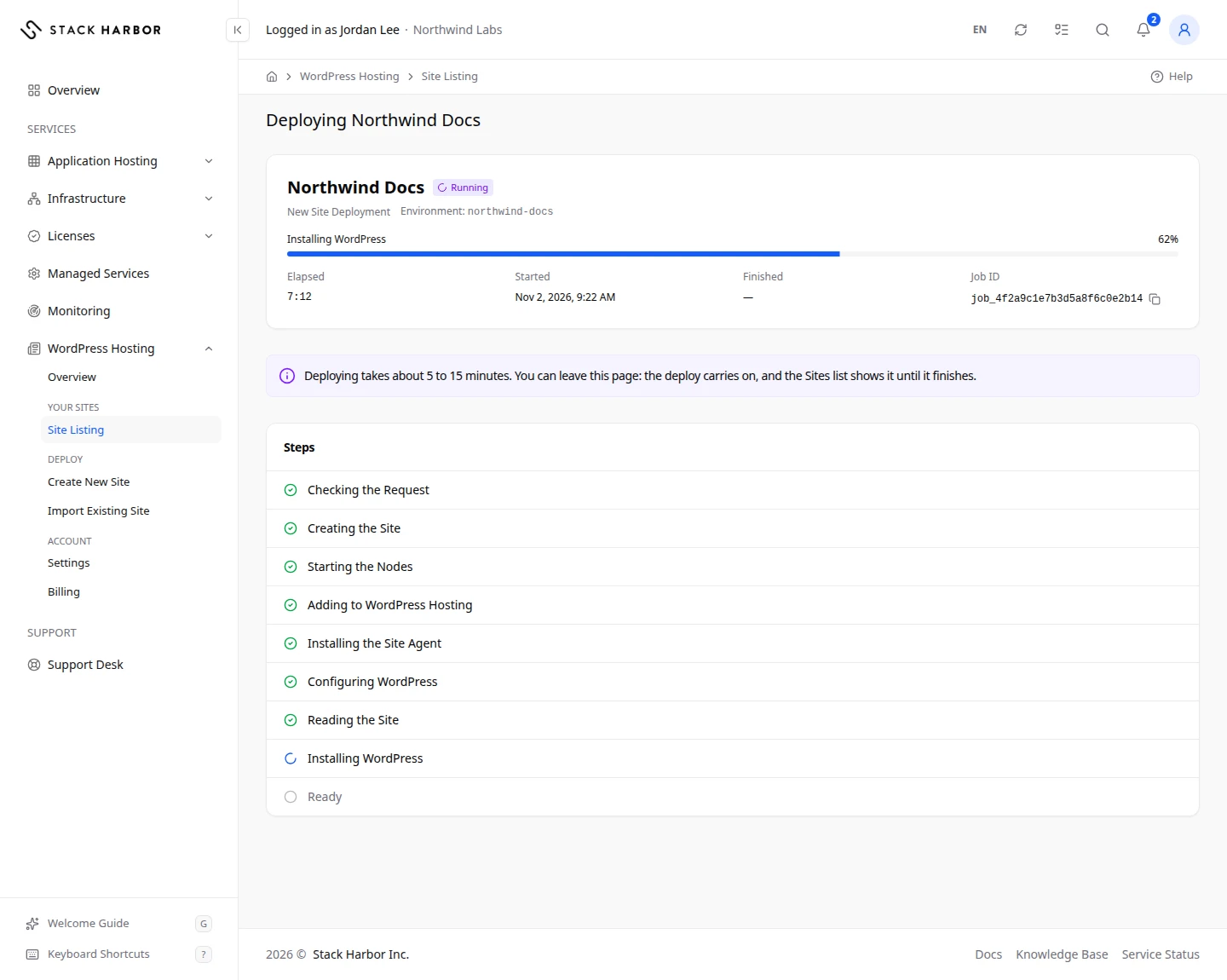
A deploy goes through Checking the Request, Creating the Site (the longest step), Starting the Nodes, Adding to WordPress Hosting, Installing the Site Agent, Configuring WordPress, Reading the Site and Ready. A multi-region deploy adds Securing the Regions, and a Regions list with the state of each region.
What you see afterwards
- Your Site Is Ready: the deploy worked. Select Open Site to visit it, or Manage Site to open its page in Lighthouse.
- Your Site Is Imported or Your Site Is Copied: the import worked. Select Go Live to open the site’s page, where the Go Live card walks you through moving your domain. See Move a WordPress site to Stack Harbor.
- After a delete you go back to the site list, with a message that the site has been deleted.
- The Site Address Was Switched: WordPress now answers on the new address.
- Update Policy Applied: the policy reached every site it could. The Sites list shows the result for each site. Select Open Settings to go back to the settings.
If something goes wrong
- The Deploy Did Not Finish. If the page says the site’s environment was created, open the site’s page to check it or delete it. A failed deploy is not removed for you. If nothing was created, select Start a New Deploy.
- The Import Did Not Finish. If your new site was kept, fix what is listed, then run the migration again from the site’s Migrations tab, or delete the site. If nothing was created, select Start a New Import.
- The Delete Did Not Finish. Open the site’s page and delete it again. For a multi-region site, the page lists the regions already deleted. Deleting again finishes the job.
- The Address Was Not Switched or The Update Policy Was Not Applied. The reason is shown on the page. Fix it, then try again.
- This Was Cancelled. The job stopped before it finished.
- Nothing was found at this address. The job it followed may belong to another account, or no longer exist. Check the link, or open the site from Site Listing.
Fields and statuses
What each item on this page means, what it does and how to read it.
- Queued Status
-
What it is. The job is waiting to start.
How to read it. It starts on its own. Nothing to do.
- Running Status
-
What it is. The job is working through its steps.
How to read it. Leave the page if you like: it carries on.
- Waiting Status
-
What it is. The job is paused and waiting for you, for example a staged import ready for cutover.
How to read it. Do the step it waits for, such as Cut Over.
- Completed Status
-
What it is. The job finished.
How to read it. Green. Use the buttons on the page for the next step.
- Failed Status
-
What it is. The job stopped on an error.
How to read it. Red. Read the reason on the page, fix it, then try again.
- Cancelled Status
-
What it is. The job was cancelled before it finished.
How to read it. Start it again if you still need it.
- Not Confirmed Status
-
What it is. Lighthouse can’t confirm how the job ended.
How to read it. Refresh in a minute. If it stays, contact support.
- Elapsed Field
-
What it is. How long the job has run so far, or ran in total.
How to read it. Hours, minutes and seconds.
- Started Field
-
What it is. When the job started, in your time zone.
- Finished Field
-
What it is. When the job ended, in your time zone.
How to read it. Empty while the job runs.
- Job ID Field
-
What it is. The job’s reference.
How to read it. Give it to support if you ask about this job.
- Waiting Status
-
What it is. The region is waiting its turn.
- Creating Status
-
What it is. The region’s nodes are being created.
- Starting Status
-
What it is. The region’s nodes are starting.
- Created Status
-
What it is. The region was created.
- Running Status
-
What it is. The region is up and running.
- Stopped Status
-
What it is. The region is stopped.
- Sleeping Status
-
What it is. The region is asleep.
- Busy Status
-
What it is. The region is changing state.
- Deleting Status
-
What it is. The region is being deleted.
- Deleted Status
-
What it is. The region was deleted.
- Refused Status
-
What it is. The platform refused to delete the region, so nothing more was deleted.
How to read it. Delete the site again to finish.
- Not Attempted Status
-
What it is. The job stopped before it reached this region.
How to read it. Delete the site again to finish.
- Not Created Status
-
What it is. The region was not created.