The Email Log lists every email we sent to your account, newest first. Use it to find an invoice email you deleted, or to check that a notice reached the right address.
You need the Access Account Settings permission to open it.
Open the email log
- Open the account menu at the top right.
- Under History, select Email Log.
- Type in Search Emails… to find a message by its subject or recipient.
- Select a message to read it.
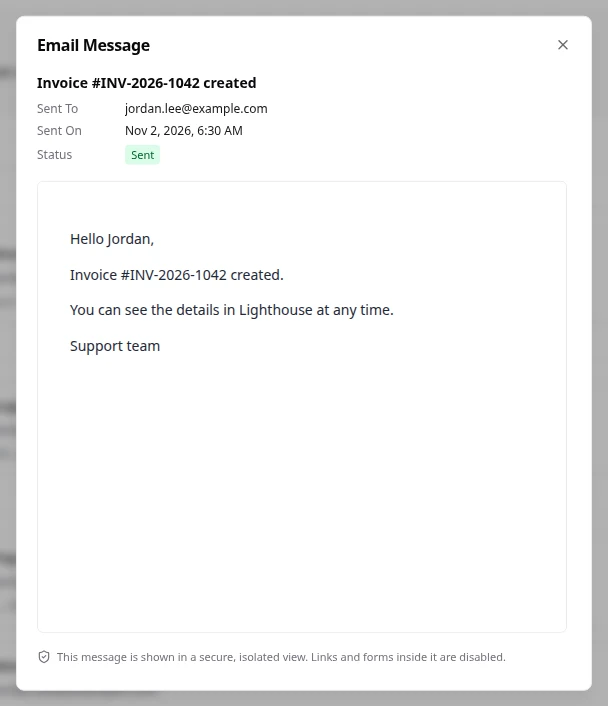
Read a message
The message shows Sent On, Sent To and Status. Sent means the email left our servers. Failed means we couldn’t send it, and a Delivery Error explains why.
The message is shown in a secure, isolated view. Links and forms inside it don’t work there.
Emails that held a password, a code or a secure link show Content Hidden. We hide their content to keep your account safe. Open the original email in your inbox if you need it.
The log has no read or unread state. It records what we sent, not what you opened.
If something goes wrong
- If you see No Emails Yet, we haven’t emailed this account yet.
- If you see Emails Couldn’t Be Loaded, select Try Again in a moment.
- If an email shows Failed, check the address under Sent To. To change who receives invoice emails, contact our billing team. See Open a support ticket.
Fields and statuses
What each item on this page means, what it does and how to read it.
- Sent On Field
-
What it is. When we sent the email.
- Sent To Field
-
What it is. The address we sent the email to.
- Status Field
-
What it is. Whether the email left our servers.
How to read it. Sent or Failed. It doesn’t say whether you opened it.
- Sent Status
-
What it is. We sent the email.
How to read it. If it isn’t in your inbox, check your spam folder.
- Failed Status
-
What it is. We couldn’t send the email.
How to read it. Read the Delivery Error. Check the address under Sent To.
- Delivery Error Field
-
What it is. Why a failed email couldn’t be sent.