Each firewall group has its own page in Lighthouse. It shows the group’s rules, which decide what traffic reaches your servers, and the servers that use it. You change the rules and the group from here. To create a group, see Create a firewall group.
Open a firewall group’s page
- In the side menu, open Infrastructure, then select Firewall Groups under Networking.
- Select the group’s name in the list.
You can also open it from a server’s Firewall tab. Select All Firewall Groups at the top to go back to the list.
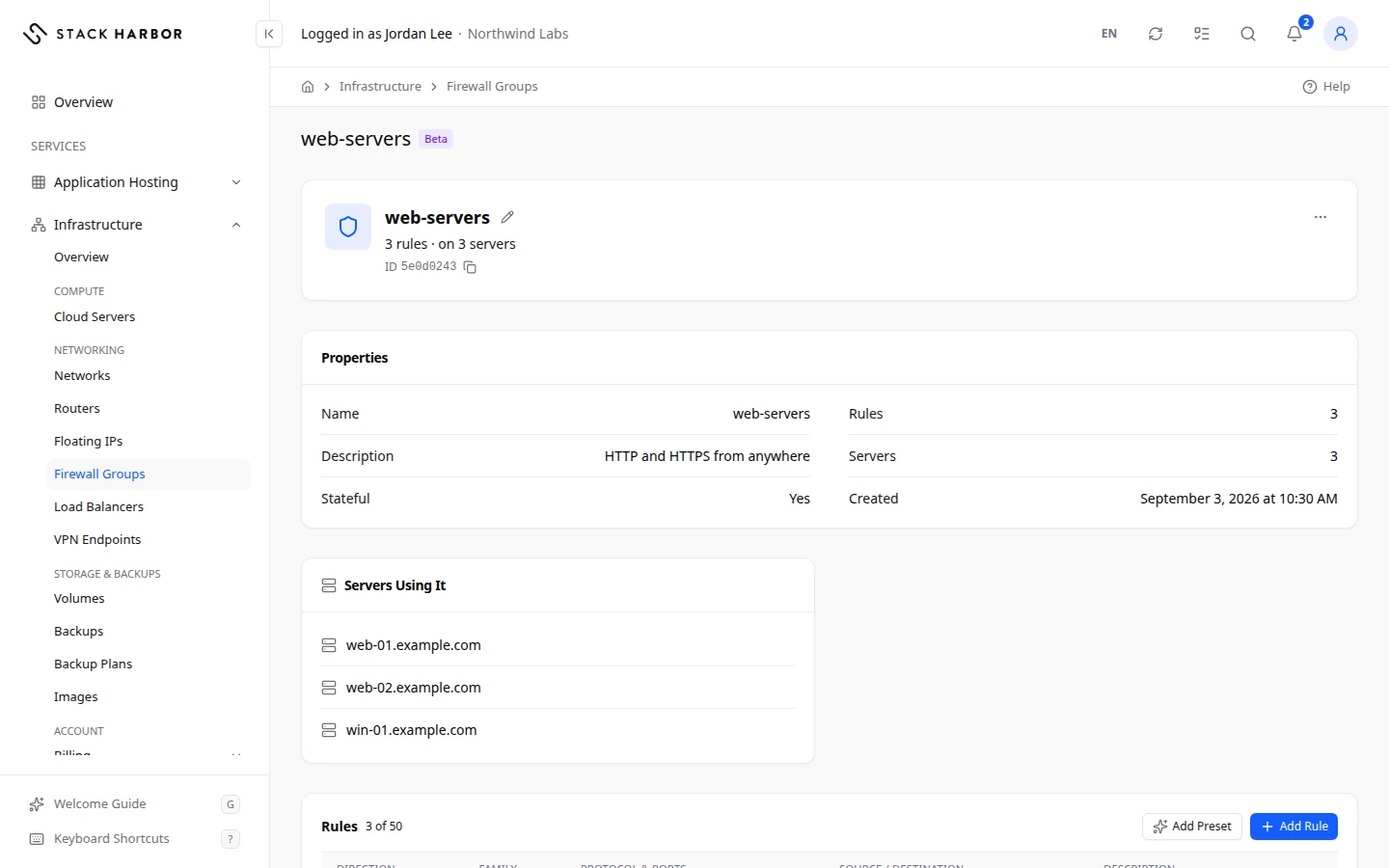
Read the header
- The group’s name, with a pencil to change its name and description.
- Its badges: Default or SSH Access for the groups every project has, Open to All when a rule lets anyone reach SSH or RDP, and Read Only for a group that wasn’t created in Lighthouse.
- A summary line, such as 3 rules · on 2 servers.
- Its ID, with a button to copy it.
- A menu with Edit Firewall Group and Delete Firewall Group.
Read the cards
Properties lists:
- Name and Description.
- Stateful: Yes means replies to allowed traffic are let back in by themselves.
- Rules: how many rules the group has.
- Servers: how many servers use it.
- Created.
Servers Using It links to each server the group is on. No server uses this group. means it is on none.
Rules lists each rule, with a count such as 4 of 50 against the group’s limit:
- Direction: Inbound for traffic that reaches the server, Outbound for traffic it sends.
- Family: IPv4 or IPv6.
- Protocol & Ports: for example TCP 22.
- Source / Destination: Anywhere, an address range, or another group.
- Description: the note added to the rule.
No rules: nothing is allowed in, and nothing out. means the group has no rules. A rule only ever allows traffic: anything no rule allows is blocked.
Add rules
Select Add Rule for one rule, or Add Preset for the usual rules in one step. See Create a firewall group for each field.
Change or delete a rule
- To change a rule, select Edit Rule, make the change and select Save Rule. A rule can’t be changed in place: the new rule is added first, then the old one is removed, so traffic is never cut in between. You see Rule Updated.
- To delete a rule, select Delete Rule and confirm. The traffic it allows stops at once. You see Rule Deleted.
Rename or delete a group
- Edit Firewall Group changes the name and description. Select Save Changes. You see Firewall Group Updated.
- Delete Firewall Group deletes the group and its rules. It can’t be undone. A group that is still on a server can’t be deleted: take it off every server first. You see Firewall Group Deleted.
If something goes wrong
- Firewall Group Not Found means the group was deleted, or it belongs to a project you can’t see. Select All Firewall Groups and check the list.
- This firewall group is still on a server. Remove it from every server first. Take it off each server on the server’s Firewall tab. See Manage a server.
- The new rule is in place, but the old one couldn’t be removed: both apply for now. Try again to remove the old one. Select Remove Old Rule.
- Someone else changed this group at the same time. Refresh and try again.
- Read only: this group wasn’t created here. It can still be added to or removed from a server on the server’s Firewall tab. You can’t change its rules here.
- If the menu and the rule buttons are missing, you don’t have the Manage Firewall Rules permission. Ask your account owner.
Fields and statuses
What each item on this page means, what it does and how to read it.
- Stateful Field
-
What it is. Replies to allowed traffic are let back in by themselves.
- Servers Using It Field
-
What it is. The servers that have this group.
What it does. Each name links to the server.
- Edit Firewall Group Field
-
What it is. The action that changes the group’s name and description.
What it does. You see Firewall Group Updated.
- Delete Firewall Group Field
-
What it is. The action that deletes the group and its rules.
How to read it. It can’t be undone. A group still on a server can’t be deleted.
- Add Rule Field
-
What it is. The button that adds one rule to the group.
What it does. The rule applies at once to every server that uses the group.
- Add Preset Field
-
What it is. The button that adds the usual rules in one step, such as SSH or web.
What it does. Rules already in the group are skipped.
- Edit Rule Field
-
What it is. The action that changes a rule.
What it does. The new rule is added first, then the old one is removed, so traffic is never cut in between.
- Delete Rule Field
-
What it is. The action that deletes a rule.
What it does. The traffic it allows stops at once.
- Direction Column
-
What it is. Which way the traffic goes.
How to read it. Inbound is traffic that reaches the server. Outbound is traffic the server sends.
- Family Column
-
What it is. The address family the rule covers.
How to read it. IPv4 or IPv6.
- Description Column
-
What it is. The note added to the rule.
- Inbound Option
-
What it is. Traffic that reaches the server.
- Outbound Option
-
What it is. Traffic the server sends.
- 4 of 50 Metric
-
What it is. How many rules the group has, out of its limit.
How to read it. The first number is the rules in the group, the second is the limit.
- No rules: nothing is allowed in, and nothing out. Status
-
What it is. The group has no rules.
How to read it. Nothing is allowed in, and nothing out, by this group. Add a rule or a preset.
- Created Field
-
What it is. When the group was created.
How to read it. In your time zone.
- Firewall Group Not Found Status
-
What it is. The firewall group wasn’t found.
How to read it. It may have been deleted, or it belongs to a project you can’t see. Go back to All Firewall Groups.