Two-factor authentication adds a second step to your sign-in. After your password, Lighthouse asks for a 6-digit code. Someone who learns your password still can’t sign in without the code.
You can get the code in two ways:
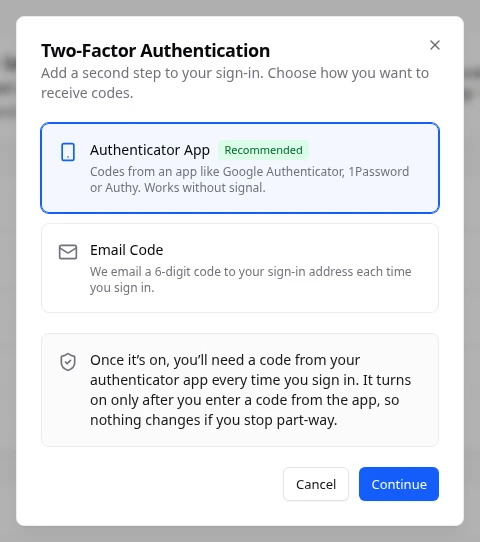
- Authenticator App (marked Recommended). An app on your phone, such as Google Authenticator, 1Password or Authy, shows a new code every few seconds. It works without a phone signal.
- Email Code. We email a 6-digit code to your sign-in address each time you sign in.
Each person on the account turns it on for their own sign-in.
Turn it on with an authenticator app
- Open the account menu at the top right and select Account Settings.
- In the Security card, on the Two-Factor Authentication row, select Manage.
- Under Verification Method, select Authenticator App, then Continue.
- Type your Current Password, then select Continue.
- Open your authenticator app and scan the Setup QR Code. If you can’t scan it, type the Setup Key into the app by hand. Select Copy to copy it.
- Type the 6-digit code the app shows, then select Confirm.
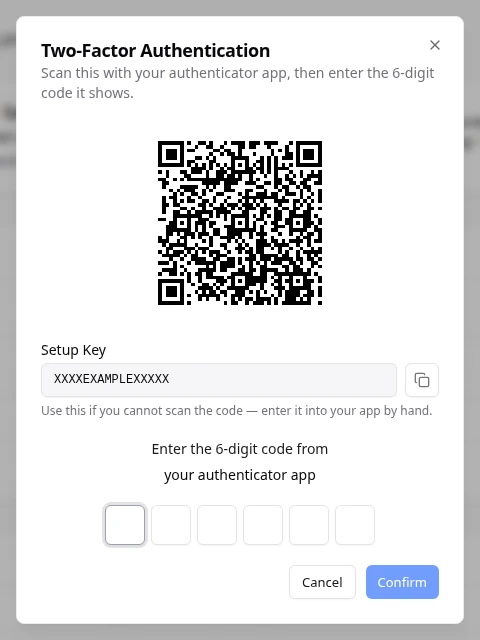
Two-factor authentication turns on only after you enter a correct code. If you stop part-way, nothing changes.
Turn it on with email codes
- Open Account Settings and, in the Security card, select Manage on the Two-Factor Authentication row.
- Under Verification Method, select Email Code, then Continue.
- Type your Current Password, then select Send Code.
- Open the email we sent you and type the 6-digit code.
- Select Turn On.
What you see afterwards
You see Two-factor authentication is on. The Two-Factor Authentication row shows Enabled and the method you chose. From your next sign-in, Lighthouse asks for a code after your password. See Sign in.
Turn it off
- Open Account Settings and select Manage on the Two-Factor Authentication row.
- Select Turn Off.
- For an authenticator app, type your Current Password and a current code from the app, then select Turn Off.
- For email codes, type your Current Password and select Send Code. Type the code from the email, then select Turn Off.
You see Two-factor authentication is off. The row shows Disabled.
Turning it off signs you out on every other device and browser, as a password change does. You stay signed in where you made the change.
If something goes wrong
- That password is not correct. Type your current Lighthouse password again.
- That code is not correct or has expired. Codes from an app change every few seconds. Type the newest one. For email, use the code in the latest email.
- That took too long. Please start again. Close the box and start again from Manage.
- Too many incorrect codes. Start again to get a new QR code. Close the box, then start again and scan the new QR code.
- If the QR code can’t be drawn, Lighthouse says so. Use the Setup Key instead.
- There are no backup codes. If you lose your authenticator, contact support from your account’s email address. See Open a support ticket. To protect your account, we verify your identity before anything changes, so this can take some time. Once you’re verified, our team resets two-factor authentication, and you set it up again the next time you sign in.
Fields and statuses
What each item on this page means, what it does and how to read it.
- Verification Method Field
-
What it is. How you want to receive your sign-in codes.
- Authenticator App Option
-
What it is. Codes from an app on your phone, such as Google Authenticator, 1Password or Authy.
What it does. Recommended. It works without a phone signal.
- Email Code Option
-
What it is. A 6-digit code emailed to your sign-in address each time you sign in.
- Current Password Field
-
What it is. Your Lighthouse password.
What it does. Proves it is you before two-factor authentication changes.
- Setup QR Code Field
-
What it is. A square code to scan with your authenticator app.
What it does. Adds your Lighthouse sign-in to the app.
- Setup Key Field
-
What it is. The same setup as the QR code, written out as text.
What it does. Type it into your app if you can’t scan the QR code.
How to read it. Keep it private: anyone with it can make your codes.