The Infrastructure Billing page shows the estimated usage cost of your Infrastructure servers, volumes and public addresses. Infrastructure is billed monthly for what you use: you are charged after the use, on your next invoice. Every figure here is an estimate before tax, not an invoice.
Who sees this page
- The account owner, and members with the Access Billing permission, see the whole page with its three tabs: Usage, Rates and Limits.
- Members with only the See Usage & Costs permission see a shorter page. They open it from Usage under Resources in the side menu. They see the costs of what they can reach, with Usage and Rates but no Limits. The page says Showing usage and cost for the projects you can reach. Invoices, account totals and limits aren’t shown.
Open the page
- In the side menu, open Infrastructure, then select Billing under Account.
- The page opens on the Usage tab, for the current month.
You can also get there with View Full Usage on the Infrastructure Costs card of the Billing page, or by searching for Infrastructure Billing.
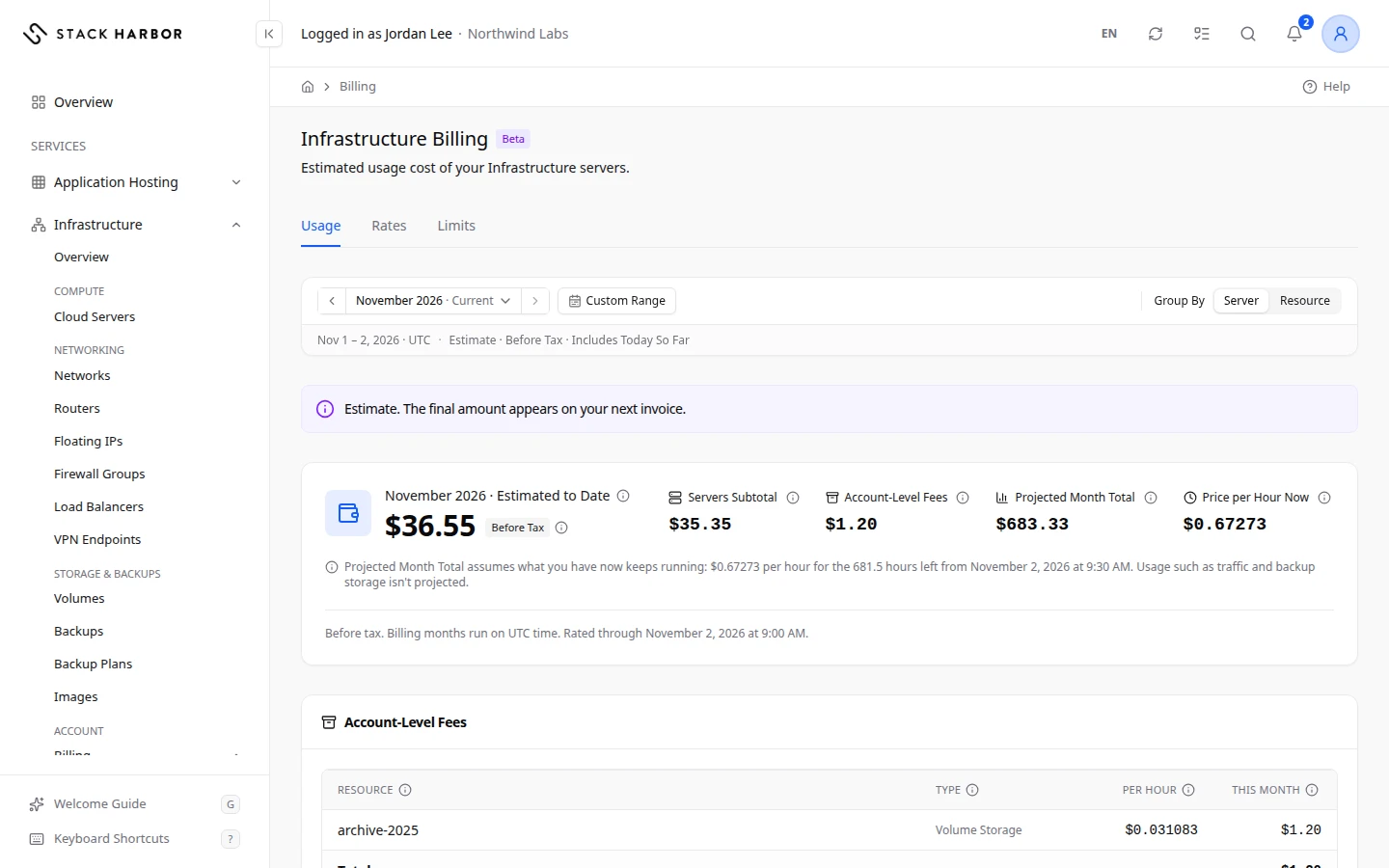
Choose the period
The bar at the top picks the period.
- Use Previous Month and Next Month to step through billing months. Billing months run on UTC time.
- Where offered, Quick Picks and Custom Range show any span of days.
- Group By switches the table below between Server and Resource.
The bar’s second line says what the figures cover, for example Estimate, Before Tax and Includes Today So Far.
Read the summary
A note above the summary says how the figures relate to your bill. Estimate. The final amount appears on your next invoice. means the figures will be invoiced. Estimate, not an invoice. Infrastructure is in beta and nothing here is invoiced yet. means nothing here is charged yet.
The summary card shows:
- Estimated to Date: what the current month has cost so far. For a past month or a custom range, it reads Estimated Total.
- An amount shown as < CA$0.01 is above zero but smaller than one cent. Hold the pointer over it to see the exact figure, to 4 decimals.
- Servers Subtotal: the part that comes from your servers.
- Account-Level Fees: charges that belong to the account rather than a server.
- Projected Month Total: what the whole month will cost if what you have now keeps running. It doesn’t include usage such as traffic or backup storage. A line under the card explains the assumption, with the price per hour and the hours left.
- Price per Hour Now: what everything running now costs per hour, at today’s sizes.
The footnote says the amounts are before tax, when they were last rated, and, if needed, which currency they were converted from and at which date’s rate.
Amounts show to the cent. Hold the pointer over one to see 4 decimals. An amount under half a cent reads as under one cent, never as zero. A dash means there’s no figure yet, which isn’t the same as zero.
Metered, Not Charged
This card lists usage that we measure but don’t charge for right now. It carries the Not In Any Total badge. Its amounts are not part of the totals and aren’t on your invoice.
Time not yet priced
A note such as 2 h 15 min not billed while a size is being confirmed. lists periods we couldn’t price yet, for example right after a resize. Each period shows its reason: Not Billed Yet or Not Priced. You aren’t charged for that time.
Account-Level Fees
This card lists charges that belong to the account, not to one server. Today that’s volumes and public IPv4 addresses while they are attached to no server, and other charges such as images and backups. Each row shows the Resource, its Type, the price Per Hour and the amount This Month. Backups are grouped by the volume they came from.
A volume marked Kept for Undo, Not Billed is the copy kept after you reinstall a server, so you can undo the reinstall. It isn’t billed.
Daily Usage
The chart shows the cost of each day, split into Compute, Storage and Network. Charges build up by the hour, and each day appears once it has been rated.
Cost Details
The table lists every server, with:
- Server: its name, and whether it is on or off. Stopped Servers Are Still Billed appears next to a stopped server: it keeps its vCPU and RAM, so stopping it saves nothing. A server you deleted shows Removed.
- Cloud Server ID and Size.
- Hours: the hours billed, to the nearest hour. Hold the pointer over it to see the running and stopped hours.
- Compute, Storage and Network: the cost of each kind of resource.
- Subtotal: the server’s cost for the period. Each server is rounded to the cent on the invoice.
Select Show Details on a row to see each item behind it, with its Resource, Quantity, price Per Hour, Hours and Amount. With Group By set to Resource, the Cost by Resource card shows the totals per resource instead.
A server marked Not Billed: Size Being Confirmed isn’t billed until its size is confirmed.
One server’s usage
Select a server’s name to open its own usage page. It shows the same period bar, the server’s total, Hours, Projected Month Total, Price per Hour Now and Size, its daily chart, its Cost by Resource and the Rates That Apply. Use Back to Infrastructure Billing or Back to Cloud Server to leave it.
You can also reach this page from a server’s own page, through the link on its estimated charges card. See Manage a server.
If something goes wrong
- Estimates Not Running: month-to-date estimates aren’t switched on yet. The prices per hour already apply. See Check rates and limits.
- Estimates Paused: we are checking the figures. Nothing is lost, and estimates resume where they stopped.
- Estimate on Hold: we are confirming this month’s figures. The estimate returns once they are confirmed.
- Estimate Delayed: we couldn’t read your servers recently. The estimate returns after the next successful read.
- Estimate Unavailable: try again in a few minutes.
- No Usage This Period: no server, volume or public address was in use in that period. Select View Servers to see your servers.
Fields and statuses
What each item on this page means, what it does and how to read it.
- Previous Month Field
-
What it is. The billing month the figures cover.
What it does. Previous Month and Next Month step through months.
How to read it. Billing months run on UTC time.
- Custom Range Option
-
What it is. Shows any span of days you pick.
How to read it. Offered where available, with Quick Picks.
- Group By Field
-
What it is. How the cost table is grouped.
How to read it. Server lists each server. Resource totals each resource.
- Estimate Status
-
What it is. The figures are an estimate, not an invoice.
How to read it. The final amount appears on your next invoice.
- Before Tax Status
-
What it is. The amounts don’t include tax.
How to read it. Tax is added on the invoice.
- Includes Today So Far Status
-
What it is. The figures include today’s usage up to now.
How to read it. They grow during the day.
- Estimated to Date Metric
-
What it is. What the current month has cost so far.
How to read it. In your account currency, before tax. Usage is post-billed: you are charged after the month, on your next invoice.
- Estimated Total Metric
-
What it is. What a past month or a custom range cost.
How to read it. In your account currency, before tax.
- < CA$0.01 Metric
-
What it is. An amount above zero but smaller than one cent.
How to read it. It is shown in your account currency. Hold the pointer over it to see the exact figure, to 4 decimals.
- Servers Subtotal Metric
-
What it is. The part of the total that comes from your servers.
- Account-Level Fees Metric
-
What it is. Charges that belong to the account rather than one server.
How to read it. For example volumes and public addresses attached to no server, images and backups.
- Projected Month Total Metric
-
What it is. What the whole month will cost if what you have now keeps running.
How to read it. It leaves out usage such as traffic or backup storage. The line under the card gives the price per hour and the hours left.
- Price per Hour Now Metric
-
What it is. What everything running now costs per hour, at today’s sizes.
How to read it. In your account currency, before tax.
- Not In Any Total Status
-
What it is. Usage we measure but don’t charge for right now.
How to read it. Its amounts aren’t part of the totals and aren’t on your invoice.
- Not Billed Yet Status
-
What it is. A period we couldn’t price yet, for example right after a resize.
How to read it. You aren’t charged for that time.
- Not Priced Status
-
What it is. A period without a price, for another reason.
How to read it. You aren’t charged for that time.
- Resource Column
-
What it is. What is billed.
- Type Column
-
What it is. The kind of charge, such as a volume or a public address.
- Per Hour Column
-
What it is. The price per hour of the resource.
How to read it. In your account currency, before tax.
- This Month Column
-
What it is. What the resource has cost this month.
- Kept for Undo, Not Billed Status
-
What it is. The copy of a boot disk kept after a reinstall, so you can undo it.
How to read it. It isn’t billed.
- Stopped Servers Are Still Billed Status
-
What it is. A stopped server keeps its vCPU and RAM, so it is still billed.
How to read it. To stop paying, delete the server.
- Removed Status
-
What it is. The server was deleted during the period.
How to read it. Its cost up to the delete is still counted.
- Cloud Server ID Column
-
What it is. The server’s unique identifier.
- Hours Column
-
What it is. The hours billed in the period.
How to read it. To the nearest hour. Hold the pointer over it to see the running and stopped hours.
- Subtotal Column
-
What it is. The server’s cost for the period.
How to read it. Each server is rounded to the cent on the invoice.
- Quantity Column
-
What it is. How many units of the resource were used.
How to read it. For example 4 GB of RAM.
- Amount Column
-
What it is. The cost of that item.
How to read it. Amounts show to the cent. Hold the pointer over one to see 4 decimals.
- Not Billed: Size Being Confirmed Status
-
What it is. The server isn’t billed until its size is confirmed.
- Estimates Not Running Status
-
What it is. Month-to-date estimates aren’t switched on yet.
How to read it. The prices per hour already apply. See the Rates tab.
- Estimates Paused Status
-
What it is. We are checking the figures.
How to read it. Nothing is lost. Estimates resume where they stopped.
- Estimate on Hold Status
-
What it is. We are confirming this month’s figures.
How to read it. The estimate returns once they are confirmed.
- Estimate Delayed Status
-
What it is. We couldn’t read your servers recently.
How to read it. The estimate returns after the next successful read.
- No Usage This Period Status
-
What it is. No server, volume or public address was in use in that period.
How to read it. Select View Servers to see your servers.