WordPress Hosting Settings holds two things. The defaults fill in the forms for new and imported sites. The update policy decides which WordPress, plugin and theme updates install by themselves on every site.
Before you start
Anyone on the team can read the settings. To change them you need the Manage Settings permission. To change the update policy you also need access to every Application Hosting service on the account, because the policy covers every site.
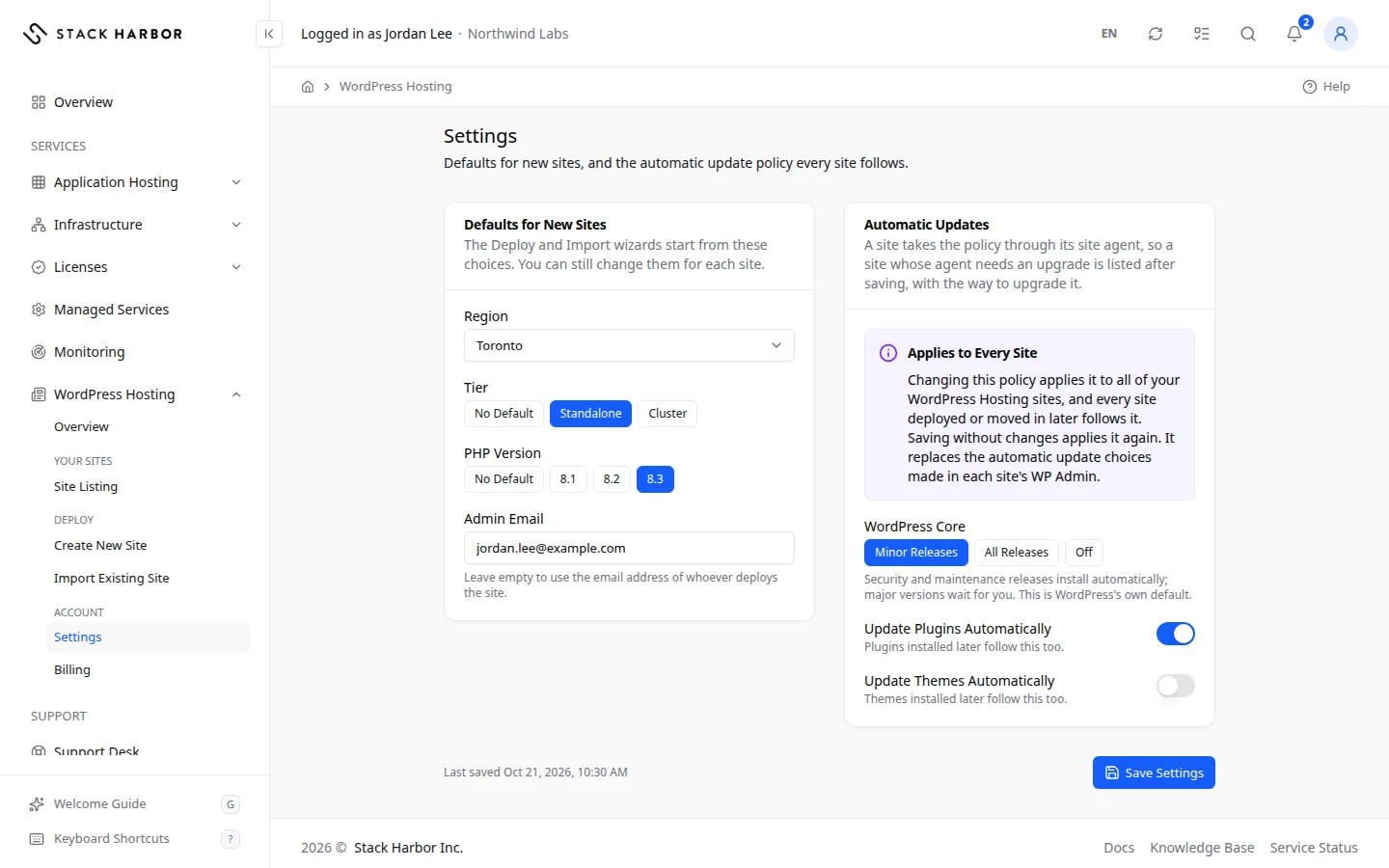
Set defaults for new sites
- Go to WordPress Hosting, then select Settings.
- Under Defaults for New Sites, choose a Region, a Tier and a PHP Version, or No Default.
- Enter an Admin Email, or leave it empty to use the email address of whoever deploys the site.
- Select Save Settings.
The Create New Site and Import Existing Site forms start from these choices. You can still change them for each site.
Set the automatic update policy
- Under Automatic Updates, choose what WordPress Core does:
- Minor Releases: security and maintenance releases install by themselves, and major versions wait for you. This is WordPress’s own default.
- All Releases: every release installs by itself, major versions included.
- Off: nothing installs by itself, not even security releases. You update each site yourself.
- Turn Update Plugins Automatically and Update Themes Automatically on or off. Plugins and themes installed later follow these too.
- Select Save Settings.
The policy applies to all your WordPress Hosting sites, and every site deployed or moved in later follows it. It replaces the automatic update choices made in each site’s WP Admin. Saving again without changes applies it again, for example to a site that was stopped last time.
What you see afterwards
You see Settings saved. Applying the update policy to your sites. The Update Policy Status card shows the policy reaching each site. Select View Progress to open its progress page.
Each site ends up Applied, Not Applied or Skipped. A site is skipped when it isn’t running. A site whose site agent needs an upgrade is listed with the way to upgrade it.
To undo changes you haven’t saved, select Discard Changes.
If something goes wrong
- You can view these settings. Changing them needs the Manage Settings permission from your account owner.
- The update policy covers every site of the account, so changing it needs access to all of its Application Hosting services. Ask your account owner.
- Some settings were not accepted. Check the highlighted fields.
- The settings were saved, but applying them to your sites could not start. Save again to retry.
Fields and statuses
What each item on this page means, what it does and how to read it.
- Region Field
-
What it is. The region new and imported sites start with.
What it does. Fills in the Region step of the forms. You can still change it per site.
How to read it. No Default leaves the choice open.
- Tier Field
-
What it is. The tier new and imported sites start with: Standalone or Cluster.
What it does. Fills in the build step of the forms.
- PHP Version Field
-
What it is. The PHP version new and imported sites start with.
- Admin Email Field
-
What it is. The admin email new sites start with.
What it does. Leave it empty to use the email address of whoever deploys the site.
- WordPress Core Field
-
What it is. Which WordPress releases install by themselves on every site.
What it does. Applies to every WordPress Hosting site and replaces the choices made in each site’s WP Admin.
- Minor Releases Option
-
What it is. Security and maintenance releases install by themselves; major versions wait for you.
How to read it. WordPress’s own default, and a safe choice for most sites.
- All Releases Option
-
What it is. Every release installs by itself, major versions included.
How to read it. Check that your theme and plugins keep up with new major versions.
- Off Option
-
What it is. Nothing installs by itself, not even security releases.
How to read it. You update each site yourself from its page.
- Update Plugins Automatically Option
-
What it is. Whether plugins update by themselves on every site.
What it does. Plugins installed later follow it too.
- Update Themes Automatically Option
-
What it is. Whether themes update by themselves on every site.
What it does. Themes installed later follow it too.
- Applied Status
-
What it is. The site now follows the update policy.
How to read it. Green. Nothing to do.
- Not Applied Status
-
What it is. The policy could not reach the site.
How to read it. Read the reason beside it. If the site agent needs an upgrade, upgrade it, then save the settings again.
- Skipped Status
-
What it is. The site was skipped, for example because it wasn’t running.
How to read it. Start the site, then select Save Settings again to apply the policy to it.