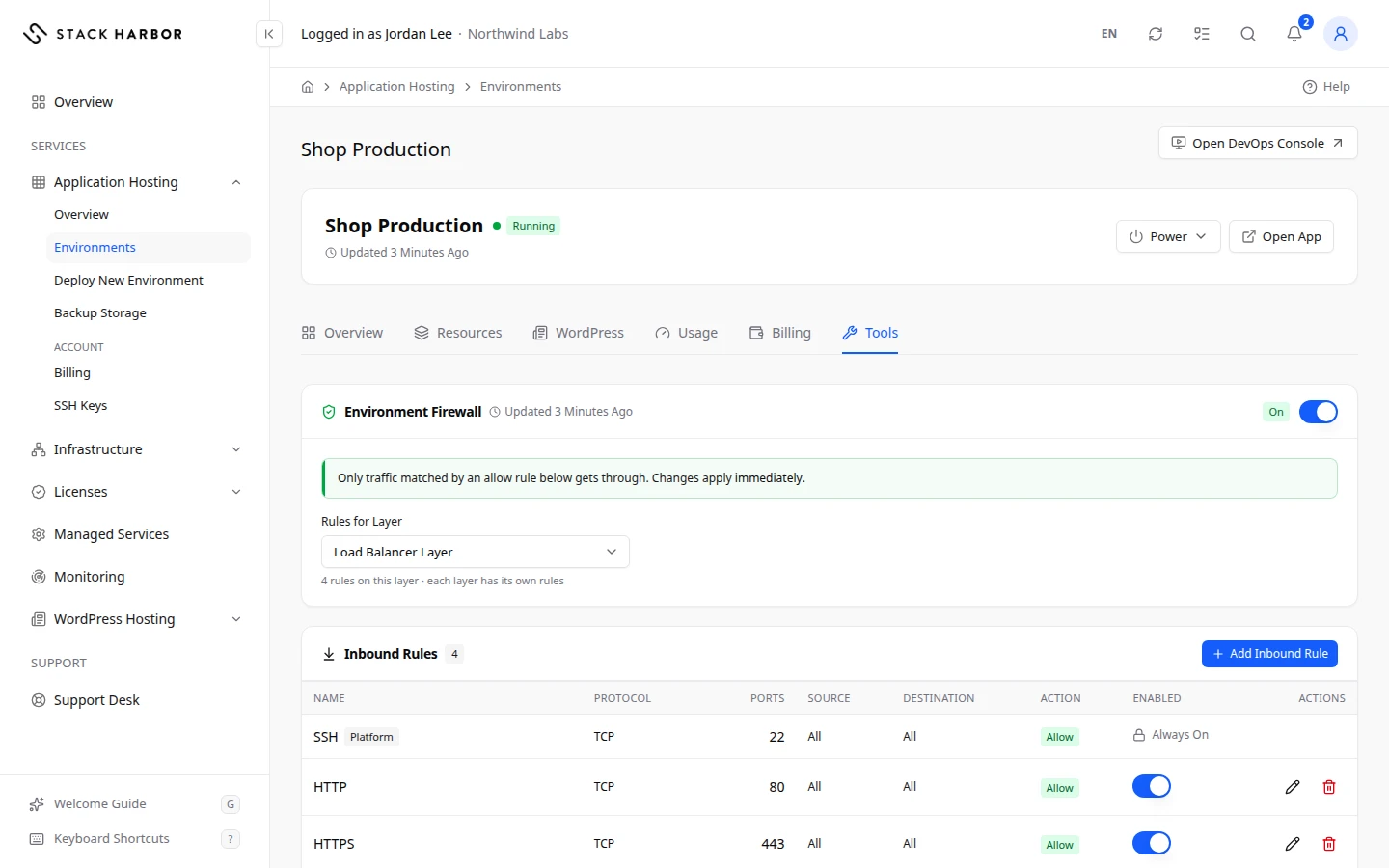
The environment firewall decides which traffic can reach each layer, and which traffic can leave it. Each layer has its own rules. Changes apply immediately.
Open the firewall
- Open the environment, then select Tools, then Firewall.
- The Environment Firewall card shows whether it’s On or Off.
- On means only traffic that matches an allow rule gets through.
- Off means no rules are enforced and every port is reachable.
- Under Rules for Layer, pick the layer whose rules you want to see.
Read the rules
Inbound Rules control traffic arriving at the layer. Outbound Rules control traffic leaving it. Each table has these columns:
- Name is a label for the rule.
- Protocol is the kind of traffic, such as TCP, UDP or All Protocols.
- Ports is a single port, a range or a list. Any means every port.
- Source (inbound) or Destination (outbound) is the address range the rule matches, written as a CIDR such as 203.0.113.0/24. All means any address.
- Related Layer names another layer of the environment when the rule matches that layer instead of an address.
- Action is Allow or Deny.
- Enabled is a switch that turns the rule on or off without deleting it.
A Platform badge marks a built-in rule that can’t be edited or removed. A Managed badge marks a rule your WordPress site relies on, which Stack Harbor keeps in place.
Add a rule
- Select Add Inbound Rule or Add Outbound Rule.
- Fill in the fields.
- Name, for example Allow App Traffic.
- Layer the rule goes on.
- Protocol and Ports, for example 8080 or 8000-9000. Ports aren’t used for ICMP or for all protocols.
- Action: Allow or Deny.
- Source or Destination:
ALLor a CIDR, for example 198.51.100.0/24.
- To limit the rule to traffic from or to another layer, choose that layer at the bottom of the form. It replaces the address above.
- Select Save Rule. You see Rule added.
To change a rule, select its edit button. To delete one, select its remove button, then confirm Remove. The rule stops at once.
Allow traffic from Cloudflare only
If your site sits behind Cloudflare, you can allow only Cloudflare’s addresses.
- Select Add Inbound Rule.
- Under Source, choose Cloudflare instead of Manual CIDR.
- Keep Include IPv4 Ranges and Include IPv6 Ranges as you need them.
- Select Save Rule. Lighthouse creates one rule per Cloudflare address range, grouped under one row.
When Cloudflare publishes new ranges, the group shows Update Available. Select Sync Now to bring it up to date.
Turn the firewall on or off
- On the Environment Firewall card, use the switch.
- Read the dialog, then select Turn On or Turn Off.
Turning it off makes every port on the environment reachable from anywhere. That can expose services you didn’t mean to make public.
Open a public endpoint
A public endpoint lets someone reach a node’s port from outside, without a public IP address. Use it for a service such as a database you need to reach remotely.
- Under Public Endpoints, select Add Endpoint.
- Choose a Service, or Custom Port, then the Node it runs on.
- Check the Private Port and Protocol, and give it a Name.
- Read This Opens a Real Public Port, then select Open Public Port.
The new address appears in the list. Select Copy Address to copy it. Make sure the service needs a strong password, because anyone on the internet can try to connect.
If something goes wrong
- Only the workspace owner can manage firewall rules. You can read the rules, but not change them.
- That rule could not be saved. Please check the fields and try again.
- A port is a number from 1 to 65535.
- This node has its own firewall. Open the port inside the container too, or connections won’t get through.
Fields and statuses
What each item on this page means, what it does and how to read it.
- Environment Firewall Field
-
What it is. The main switch for the environment’s firewall.
What it does. On, only traffic matched by an allow rule gets through. Off, no rules are enforced and every port is reachable.
How to read it. Changes apply immediately.
- Rules for Layer Field
-
What it is. The layer whose rules the tables show.
What it does. Each layer has its own rules.
- Name Column
-
What it is. A label for the rule.
- Protocol Column
-
What it is. The kind of traffic the rule matches.
How to read it. TCP, UDP, TCP and UDP, ICMP, or All Protocols.
- Ports Column
-
What it is. The ports the rule matches.
How to read it. A single port, a range such as 8000-9000, or a list. Any means every port.
- Source Column
-
What it is. Where inbound traffic comes from.
How to read it. A CIDR address range such as 203.0.113.0/24, or All for any address.
- Destination Column
-
What it is. Where outbound traffic goes to.
How to read it. A CIDR address range, or All for any address.
- Action Column
-
What it is. What happens to matching traffic.
How to read it. Allow lets it through. Deny blocks it.
- Enabled Column
-
What it is. A switch that turns the rule on or off.
What it does. Off keeps the rule but stops enforcing it.
- Platform Status
-
What it is. A built-in rule the platform needs.
What it does. It cannot be edited or removed.
- Managed Status
-
What it is. A rule your WordPress site relies on.
What it does. Stack Harbor keeps it in place. It cannot be edited or removed.
- Update Available Status
-
What it is. Cloudflare has published address ranges your rule group does not have yet.
How to read it. Select Sync Now to add the new ranges and remove the old ones.
- Cloudflare Option
-
What it is. A source made of every published Cloudflare IP range.
What it does. Creates one rule per range, grouped under one row and kept in sync with Sync Now.
- Manual CIDR Option
-
What it is. A source you type yourself, as ALL or a CIDR range.
- Service Field
-
What it is. The service the public endpoint exposes, such as a database.
What it does. Fills in its usual port. Choose Custom Port to set your own.
- Node Field
-
What it is. The node the service runs on.
How to read it. An endpoint stays on its node. To move it, delete it and add a new one.
- Private Port Field
-
What it is. The port the service listens on inside the node.
How to read it. A number from 1 to 65535. The platform assigns the public port.
- Protocol Field
-
What it is. TCP or UDP, the kind of traffic the endpoint carries.