Licenses holds the software licenses you rent from Stack Harbor for your servers, such as control panels, performance and security tools, and Microsoft products. You can see each license, its status and what it costs.
You need the Licenses permission to open this section. The account owner always has it.
Open Licenses
- In the side menu, under Services, select Licenses.
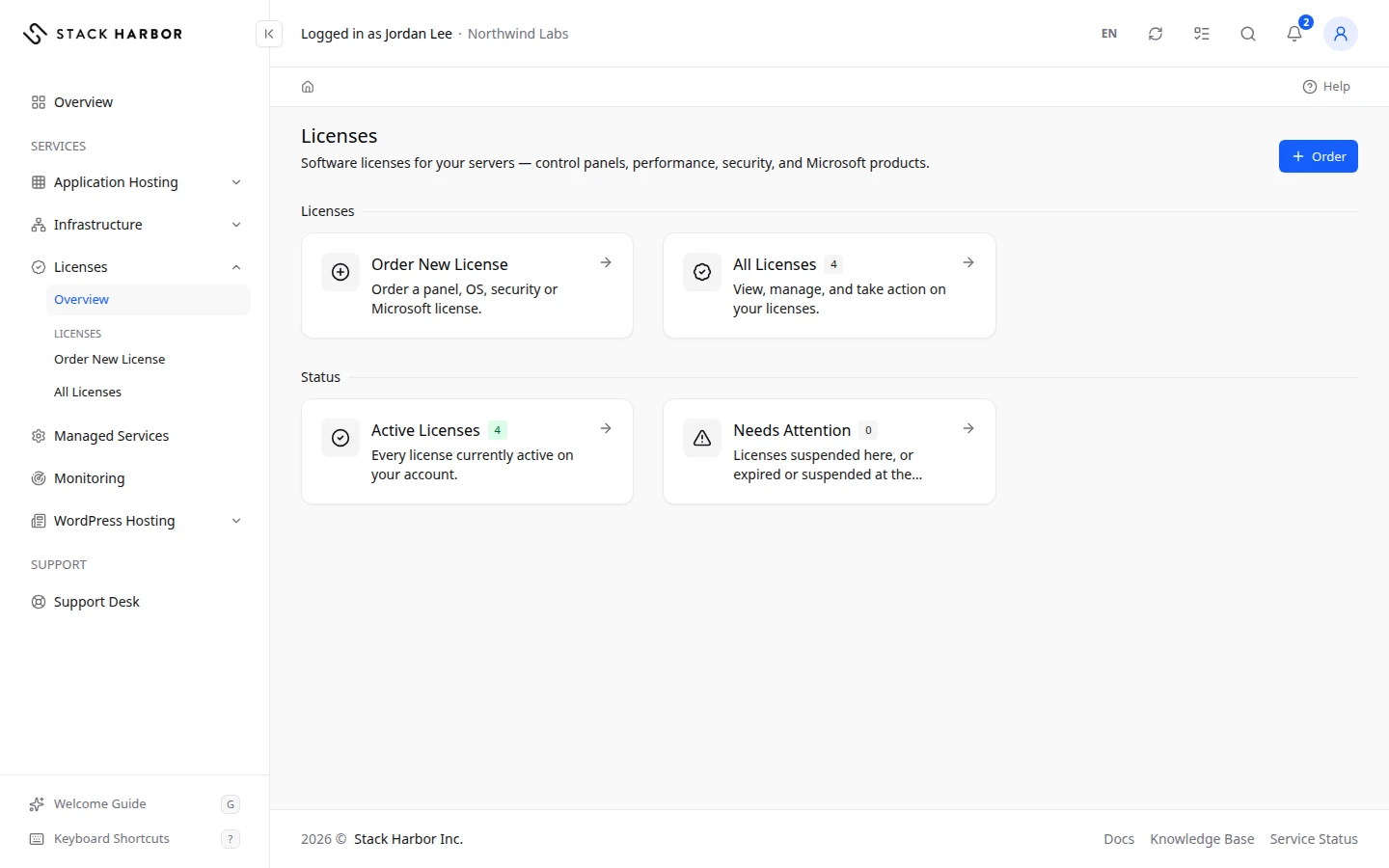
- The section page shows two groups of cards.
- Under Licenses, Order New License opens the catalogue (see Order a new license), and All Licenses opens the full list with its count.
- Under Status, Active Licenses and Needs Attention open the list already filtered. Pending Licenses appears while our team is still setting up a license.
Read the list
- Select All Licenses.
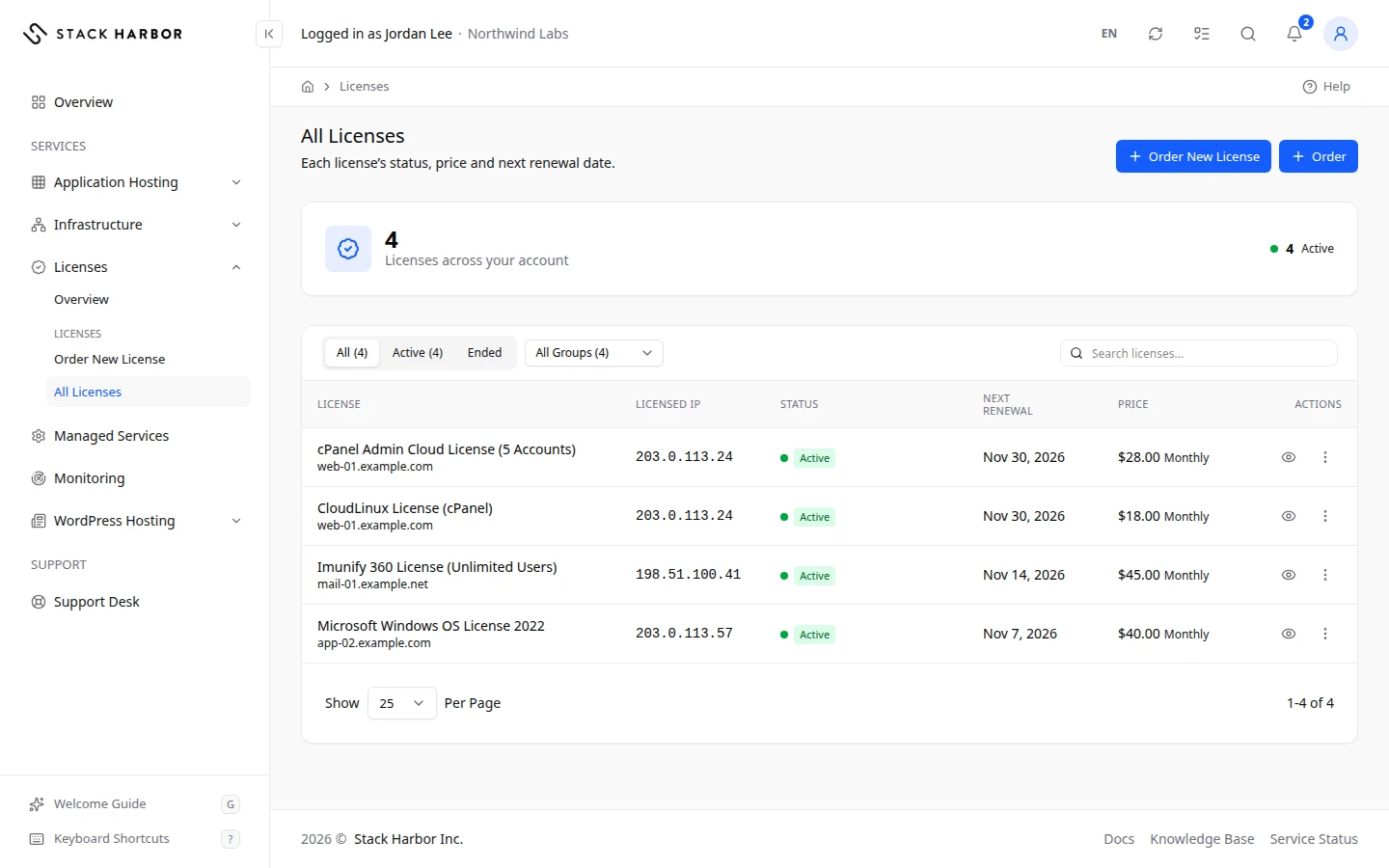
- The summary card at the top shows how many licenses your account has, with a count for Active, and for Pending and Needs Attention when there are any.
- Choose a status filter. All shows every live license. Active, Pending and Suspended show one status. Needs Attention shows licenses that are suspended, or that the software vendor reports as expired or suspended. Ended shows licenses that were terminated or cancelled.
- To show one kind of license, choose a group in the group menu, such as Control Panels, OS & Performance, Backup & Security or Microsoft. All Groups shows them all.
- To find one license, type part of its name, IP address, hostname or domain in Search licenses….
Each row shows the License name, its Group and the Licensed IP it is tied to. It also shows its Status, the date of its Next Renewal and its Price with the billing cycle, for example “$45.00 Monthly”. The Price column appears only if you have the Access Billing permission.
Act on a license
- Select View License to open the license’s own page. See View a license’s details.
- Open the row’s menu for Change IP, Open Support Ticket or Request Cancellation. Each option appears only when it applies to that license and your permissions allow it.
If something goes wrong
- No Licenses Yet means your account holds no license with us. If you are billed for a license that isn’t listed, open a support ticket and we will add it.
- No licenses match this view. means no license matches the filter or search you chose. Select All and clear the search.
- No ended licenses on this account. appears on Ended when no license has ended.
- If Licenses is missing from the side menu, or you see You Do Not Have Access to This, ask your account owner for the Licenses permission.
Fields and statuses
What each item on this page means, what it does and how to read it.
- License Column
-
What it is. The license’s name, usually the product and its tier.
How to read it. Select it to open the license.
- Group Column
-
What it is. The kind of license: control panel, OS and performance, backup and security, or Microsoft.
- Licensed IP Column
-
What it is. The server IP address the license is tied to.
How to read it. The licensed software works only on the server with this address. A dash means none is on record.
- Status Column
-
What it is. Where the license stands.
How to read it. See the status values for what each one means.
- Next Renewal Column
-
What it is. The date the license is next billed.
How to read it. A dash for a license that has ended.
- Price Column
-
What it is. What the license costs per billing cycle, in your account’s currency.
How to read it. Shown only with the Access Billing permission. A dash means no price is on record.
- Actions Column
-
What it is. View License and the row’s menu.
- Search licenses… Field
-
What it is. A search box above the list.
What it does. Shows only licenses whose name, IP address, hostname or domain contains what you type.
- All Option
-
What it is. Every live license: active, pending and suspended.
What it does. Filters the list by status.
- Active Option
-
What it is. Licenses that are working.
What it does. Filters the list by status.
- Pending Option
-
What it is. Licenses our team is still setting up.
What it does. Filters the list by status.
- Suspended Option
-
What it is. Licenses that are suspended.
What it does. Filters the list by status.
- Needs Attention Option
-
What it is. Licenses that are suspended here, or that the software vendor reports as expired or suspended.
What it does. Filters the list by status.
- Ended Option
-
What it is. Licenses that were terminated or cancelled.
What it does. Filters the list by status.
- All Groups Option
-
What it is. Every group of licenses.
What it does. Filters the list by group.
- Control Panels Option
-
What it is. Control panels such as cPanel & WHM and Plesk.
What it does. Filters the list by group.
- OS & Performance Option
-
What it is. Operating system and speed tools such as CloudLinux, LiteSpeed Web Server and KernelCare.
What it does. Filters the list by group.
- Backup & Security Option
-
What it is. Backup and security tools such as JetBackup and Imunify360.
What it does. Filters the list by group.
- Microsoft Option
-
What it is. Microsoft licenses: Windows Server, Remote Desktop CALs and SQL Server.
What it does. Filters the list by group.
- Active Status
-
What it is. The license is working and billed.
- Pending Status
-
What it is. Our team is still setting the license up.
What it does. Nothing to do. Its details appear once it is active.
- Suspended Status
-
What it is. The license is suspended, often for an unpaid invoice.
What it does. Pay the invoice named on the license page, or contact support.
- Terminated Status
-
What it is. The license has ended and no longer works.
How to read it. Request it again from Order New License if you still need it.
- Cancelled Status
-
What it is. The license was cancelled and no longer works.
- Cancellation Requested Status
-
What it is. A cancellation is requested. The license works until the end of its billing period.
What it does. To keep it, open a support ticket before that date.
- Expired at Vendor Status
-
What it is. Our records say active, but the software vendor reports the license as expired.
What it does. If your server shows license errors, open a support ticket and we will fix it.
- Suspended at Vendor Status
-
What it is. Our records say active, but the software vendor reports the license as suspended.
What it does. If your server shows license errors, open a support ticket and we will fix it.
- Unknown Status
-
What it is. We can’t tell the license’s state right now.
What it does. Open a support ticket if this lasts.