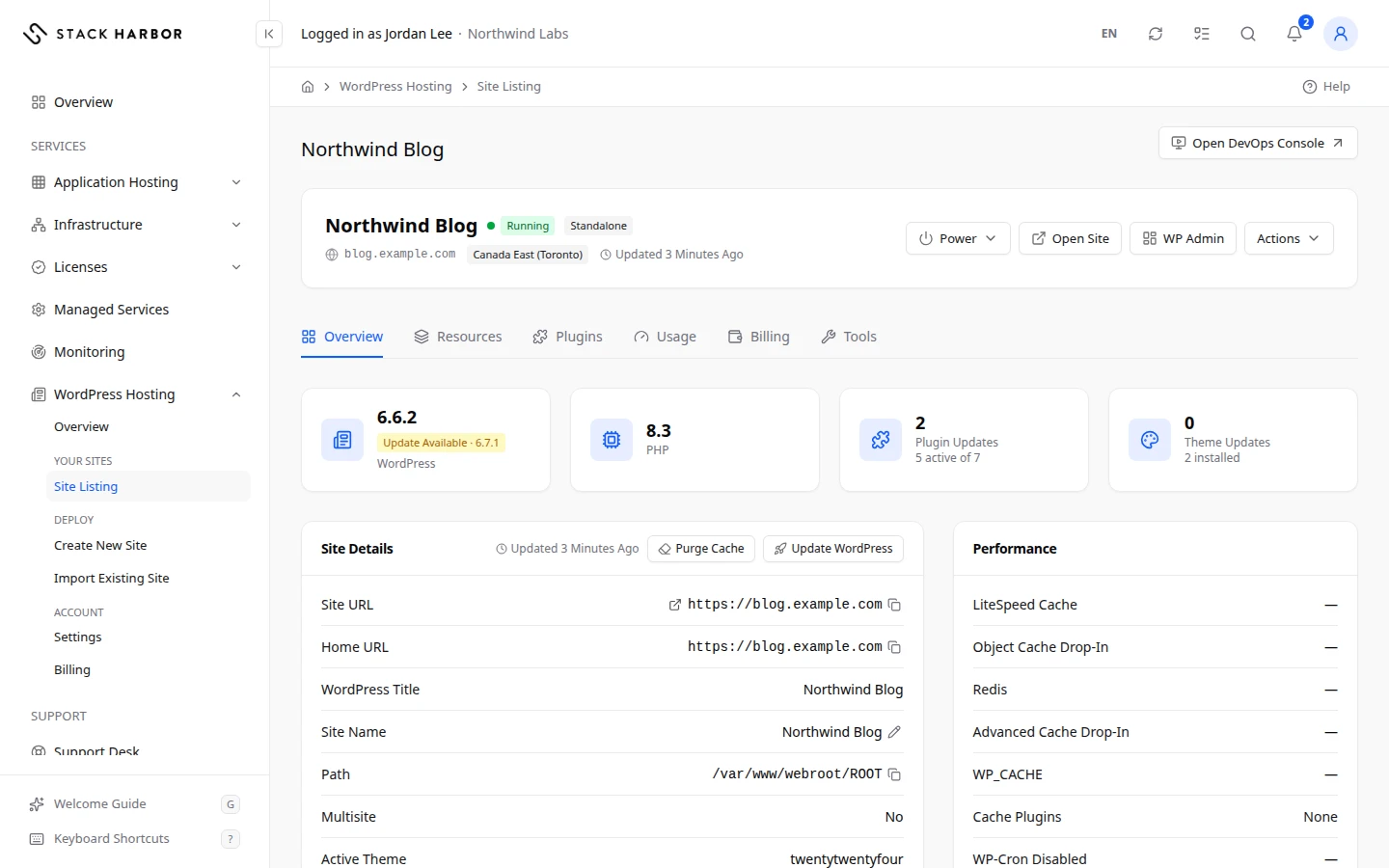
Each WordPress site has its own page in Lighthouse. The top of the page shows the site’s name, status, region and tier, with the buttons you use most. The tabs below hold the details: Overview, Resources, Plugins, Usage, Billing and Tools. You see Billing only with access to billing. Sites that came in through an import also have Migrations.
Open a site
- Go to WordPress Hosting, then Site Listing.
- Select the site’s name. The page opens on Overview.
Start, stop or wake a site
- A stopped site shows This Site Is Stopped and a Start Site button. Visitors see an error page until it runs again. Select Start Site. You see Starting Your Site… Usually 1–2 Minutes, and the page updates by itself.
- A sleeping site shows This Site Is Sleeping and Wake Site. It also wakes up on its own when someone visits it.
- A running site has a Power menu with Stop, Restart and Sleep. Each one asks you to confirm.
- A multi-region site has no Power menu. Use the Regions card below the header instead: each region has Start Region, Restart Region and Stop Region. When you stop or restart one region, the other regions keep serving.
A stopped site still costs something: Storage and the public IP are still billed.
If you see Ask the account owner, or a member allowed to start and stop environments, to start this site., you don’t have the permission to start or stop it.
Sign in to WordPress
- Make sure the site is running.
- Select WP Admin. A new tab opens and signs you in with a one-time link. You don’t need a WordPress password.
- To visit the public site, select Open Site.
If your browser blocks the new tab, select Open WP Admin in the message. The link works once, within 5 minutes. Without the Sign In to WP Admin permission, WP Admin opens at its sign-in page and you sign in with your WordPress password.
Read the Overview
The Overview tab reads the site through the site agent, a small Stack Harbor program installed in the site. It has four tiles:
- WordPress: the version installed, with Update Available when a newer one exists.
- PHP: the PHP version the site runs.
- Plugin Updates: how many plugins have an update, and how many are active of the total.
- Theme Updates: how many themes have an update, and how many are installed.
Below the tiles:
- Site Details lists the site’s name, Site URL, Home URL, WordPress Title, Site Agent version, Path, Multisite, Active Theme, Database and Free Disk Space. Use the pencil beside the name to rename the site in Lighthouse.
- Performance shows which caches are on, such as LiteSpeed Cache, Redis and the cache drop-ins, and two WordPress settings, WP-Cron Disabled and WP_DEBUG.
- Connection Details shows how to reach the site’s database and control panels. Select Show Connection Details, then Reveal to see a password or Copy to copy it. You need the View Connection Details permission.
- Staging lets you make a copy of the site to try changes on. See below.
- Backups shows the site’s backup schedule when backups are on.
To get a fresh reading, use the refresh button in the page header.
Update WordPress or purge the cache
- On Overview, select Update WordPress.
- Under Choose a Version, pick the release. The newest is marked “Latest”. A security release keeps the site on its current branch.
- Confirm. The update applies at once to the live site and can’t be rolled back from here, so take a backup first if the site matters.
To empty every cache the agent knows about, select Purge Cache and confirm. The site stays online, and the first visit to each page is slower while the cache rebuilds.
Both need the Manage Updates permission and a running site. They run in the background, and the header shows their progress.
Set up or upgrade the site agent
The site agent lets Lighthouse manage plugins, updates and sign-in. If it is missing, you see Set Up the WordPress Agent. Select Install Agent. If it is old, select Upgrade Agent. Either takes about a minute and doesn’t interrupt the site.
Make a staging copy
A staging copy is a separate copy of the site, for trying changes without touching the live one.
- In the Staging card, select Create Staging Copy.
- Read the note: A Staging Copy Is a New Billable Environment. It is billed on its own from the moment it is created until you delete it. Confirm.
- Wait a few minutes. The copy’s Domain shows when it is ready. Select Open Staging Copy to visit it.
There is no push to live: changes on the copy stay on the copy. When you no longer need it, select Delete Staging and type its name to confirm. The live site is not touched.
Domains, add-ons, firewall, tools and billing
The site’s Tools tab, and the Actions menu under Environment, open the same panels an Application Hosting environment has:
- Domains & SSL: add your own domain and its certificate.
- Add-ons: extra features installed in the site.
- Firewall: the rules that decide who can reach the site’s nodes.
- Tools: cards for the site’s extensions, deployments, scaling, networking, backups, activity and logs.
- Billing: this site’s cost. You see it only with access to billing.
These panels work the same way as for an environment. See Manage an environment.
Move a site to Application Hosting
- Open Actions, then select Move to Application Hosting.
- Confirm. The site leaves WordPress Hosting and shows under Application Hosting again. The site itself doesn’t change and keeps running, and you can move it back at any time.
You need the Add and Remove Sites permission. A multi-region site can’t move.
Delete a site
- Open Actions, then select Delete Site.
- Read Delete This Site?. Deleting removes the site’s nodes, files and database for good, and the site goes offline straight away.
- Type the name shown to confirm, then select Delete Site.
Lighthouse opens the delete’s progress page. A multi-region site is deleted region by region, the primary last. You need the Delete Sites permission.
If something goes wrong
- This site could not be found in WordPress Hosting. The site may belong to another account, or it was moved or deleted. Select All Sites, or Open in Application Hosting if it is shown.
- WordPress Was Not Detected: the agent found no WordPress installation. If the site was only just deployed, refresh in a moment.
- The environment must be running for this. Start the site first.
- Another action is running on this site. Wait for it to finish.
- The site could not be started. Try again, or contact support if it keeps failing.
Fields and statuses
What each item on this page means, what it does and how to read it.
- Start Site Option
-
What it is. A button on a stopped site.
What it does. Starts the site. It usually takes 1 to 2 minutes, and the page updates by itself.
How to read it. Shown only to people allowed to start and stop environments.
- Wake Site Option
-
What it is. A button on a sleeping site.
What it does. Wakes the site now, without waiting for a visitor.
- Power Option
-
What it is. The menu of a running single-region site: Stop, Restart and Sleep.
What it does. Each action asks you to confirm, then runs in the background.
- WP Admin Option
-
What it is. A button that opens the WordPress dashboard in a new tab.
What it does. Signs you in with a one-time link, with no WordPress password.
How to read it. Shown only while the site is running. Without the Sign In to WP Admin permission, it opens the WordPress sign-in page.
- Open Site Option
-
What it is. A button that opens the public site in a new tab.
How to read it. Shown only while the site is running.
- Actions Option
-
What it is. The site’s menu of less common tasks.
What it does. Opens Domains & SSL, Tools and Billing, and offers Move to Application Hosting and Delete Site.
How to read it. A greyed-out item has its reason printed under it.
- Move to Application Hosting Option
-
What it is. Moves the site back under Application Hosting.
What it does. The site itself doesn’t change and keeps running. You can move it back at any time.
How to read it. Needs Add and Remove Sites. Not offered for a multi-region site.
- Delete Site Option
-
What it is. Deletes the site for good, with its nodes, files and database.
What it does. The site goes offline straight away. You type the site’s name to confirm. A multi-region site is deleted in every region, the primary last.
How to read it. Needs the Delete Sites permission. It can’t be undone.
- WordPress Metric
-
What it is. The WordPress version installed on the site.
How to read it. A version number. Update Available under it means a newer release exists.
- PHP Metric
-
What it is. The PHP version the site runs.
How to read it. A version number.
- Plugin Updates Metric
-
What it is. How many plugins have an update waiting.
How to read it. A count, with how many plugins are active of the total under it. Zero is the healthy reading.
- Theme Updates Metric
-
What it is. How many themes have an update waiting.
How to read it. A count, with how many themes are installed under it. Zero is the healthy reading.
- Site Name Field
-
What it is. The site’s name in Lighthouse.
What it does. Select the pencil to rename it. The new name shows everywhere in Lighthouse.
- Site URL Field
-
What it is. The address where WordPress itself lives.
- Home URL Field
-
What it is. The address visitors use for the site’s home page.
How to read it. Usually the same as Site URL.
- WordPress Title Field
-
What it is. The site title set in WordPress.
- Site Agent Field
-
What it is. The version of the site agent, the small Stack Harbor program that lets Lighthouse manage the site.
How to read it. Agent Update Available means you should select Upgrade Agent.
- Path Field
-
What it is. The folder on the node where WordPress is installed.
- Multisite Field
-
What it is. Whether the site is a WordPress Multisite network.
How to read it. Yes or No.
- Active Theme Field
-
What it is. The theme the site uses now.
- Database Field
-
What it is. The site’s database, with its table prefix and size.
How to read it. The size grows with the content. Watch it against Free Disk Space.
- Free Disk Space Field
-
What it is. How much disk space is left on the node that holds WordPress.
How to read it. In MB or GB. Low free space can stop uploads and updates: resize the layer if it runs low.
- LiteSpeed Cache Field
-
What it is. Whether the LiteSpeed Cache plugin is found on the site.
How to read it. Detected or Not Detected.
- Object Cache Drop-In Field
-
What it is. Whether WordPress loads an object-cache drop-in, a file that keeps database results in memory.
How to read it. Detected or Not Detected.
- Redis Field
-
What it is. Whether the Redis object cache is on and connected.
How to read it. Enabled or Disabled, with its connection state, such as Connected.
- Advanced Cache Drop-In Field
-
What it is. Whether WordPress loads an advanced-cache drop-in for page caching.
How to read it. Detected or Not Detected.
- WP_CACHE Field
-
What it is. A WordPress setting that turns page caching on.
How to read it. Enabled or Disabled.
- Cache Plugins Field
-
What it is. The caching plugins installed on the site.
How to read it. None means no caching plugin is installed.
- WP-Cron Disabled Field
-
What it is. Whether WordPress’s built-in task scheduler is switched off.
How to read it. Yes means scheduled tasks don’t run on page visits.
- WP_DEBUG Field
-
What it is. A WordPress setting that shows debugging messages.
How to read it. Leave it off on a live site.
- Update WordPress Option
-
What it is. Installs a newer WordPress release on the live site.
What it does. Choose the version, then confirm. The database is upgraded if the new version needs it. The update can’t be rolled back from here.
How to read it. Needs Manage Updates and a running site.
- Choose a Version Field
-
What it is. The WordPress release to install.
How to read it. Latest moves the site to the newest branch. A Security Release keeps it on its current branch with the latest fixes.
- Purge Cache Option
-
What it is. Empties every cache the agent knows about: page cache, object cache and LiteSpeed.
What it does. The site stays online. The first visit to each page is slower while the cache rebuilds.
How to read it. Needs Manage Updates and a running site.
- Install Agent Option
-
What it is. Installs the Stack Harbor site agent, once per site.
What it does. Lets Lighthouse manage plugins, updates and sign-in. Takes about a minute and doesn’t interrupt the site.
- Upgrade Agent Option
-
What it is. Upgrades the site agent to the newest version.
What it does. Takes about a minute and doesn’t interrupt the site.
How to read it. Needed when the page says Agent Upgrade Required.
- This Site Is Stopped Status
-
What it is. The site is stopped. Visitors see an error page, and WordPress can’t be managed.
How to read it. Select Start Site. Storage and the public IP are still billed while it is stopped.
- This Site Is Sleeping Status
-
What it is. The site is asleep. It wakes up when someone visits it.
How to read it. Select Wake Site to manage WordPress now.
- No Details Recorded Yet Status
-
What it is. The site has never been read while running, so there are no WordPress details yet.
How to read it. Start the site to see its version, PHP and updates.
- WordPress Was Not Detected Status
-
What it is. The site agent found no WordPress installation.
How to read it. If the site was only just deployed, refresh in a moment. Otherwise contact support.
- Database Field
-
What it is. Where WordPress stores its content, with its Host, Database Name, User and Password.
What it does. Reveal or copy the password to connect with a database tool.
How to read it. Private Network means only the site can reach it. Open to the Internet means only the password protects it.
- phpMyAdmin Field
-
What it is. A web tool to browse and edit the database.
What it does. Sign in with the database user and password.
- LiteSpeed WebAdmin Field
-
What it is. The control panel of the Application Node that runs PHP.
What it does. Open WebAdmin opens it. Reset Password sets a new password.
- LiteSpeed Web ADC Field
-
What it is. The control panel of the load balancer, which also caches pages.
What it does. Open Web ADC opens it. Reset Password sets a new password.
- Object Cache Field
-
What it is. The cache that keeps database query results in memory.
How to read it. It has no password: only your site can reach it. Used by WordPress says whether WordPress uses it.
- Private Network Status
-
What it is. Only the site’s own private network can reach the database. This is the safe reading.
- Other Regions Only Status
-
What it is. The database port is open only to the site’s other regions, which keep a copy in step.
- Open to the Internet Status
-
What it is. The database port is open to the whole internet, and only the password protects it. Check the site’s firewall.
- Exposure Unknown Status
-
What it is. The firewall could not be read, so who can reach the database is not known. Try again in a moment.
- Create Staging Copy Option
-
What it is. Makes a separate copy of the site for trying changes.
What it does. Creates a new environment, billed on its own from the moment it is created until you delete it.
How to read it. Not offered on a multi-region site or on a copy.
- Domain Field
-
What it is. The address of the staging copy.
How to read it. Shows once the copy is ready. Search engines can index the copy.
- Delete Staging Option
-
What it is. Deletes the staging copy and everything on it.
What it does. The live site is not touched. You type the copy’s name to confirm.
- Running Status
-
What it is. The staging copy is running.
- Stopped Status
-
What it is. The staging copy is stopped.
- Creating Status
-
What it is. The copy is being made. This usually takes a few minutes.
- Backups Field
-
What it is. The backup schedule of the site’s WordPress layer.
What it does. Backups go to a Backup Storage of yours.
How to read it. Backups aren’t turned on for this site yet means there is no schedule. Not offered on a multi-region site.
- Region Column
-
What it is. One region of a multi-region site, marked Primary or Region 2, Region 3.
- Status Column
-
What it is. Whether the region is running, stopped or changing state.
How to read it. Running in every region is the healthy reading.
- Nodes Column
-
What it is. How many nodes the region runs.
- Public IPv4 Column
-
What it is. The region’s public IPv4 address, for example 198.51.100.24.
- Address Column
-
What it is. The region’s own Stack Harbor address.
- Month to Date Column
-
What it is. What the region has cost so far this billing month.
How to read it. An amount before tax, billed by usage. Shown only with access to billing.
- Start Region Option
-
What it is. Starts one stopped region of a multi-region site.
What it does. Acts on that region only.
- Restart Region Option
-
What it is. Restarts the nodes of one region.
What it does. The other regions keep serving while it restarts. You confirm first.
- Stop Region Option
-
What it is. Stops one region. Its database stops first.
What it does. The other regions keep serving. You confirm first.