A transaction is money that moved: a payment you made, or a refund we sent you. The Transactions page lists them all, newest first.
You need the Access Billing permission to open it.
Open your transactions
- Open the account menu at the top right and select Billing.
- Select Transactions.
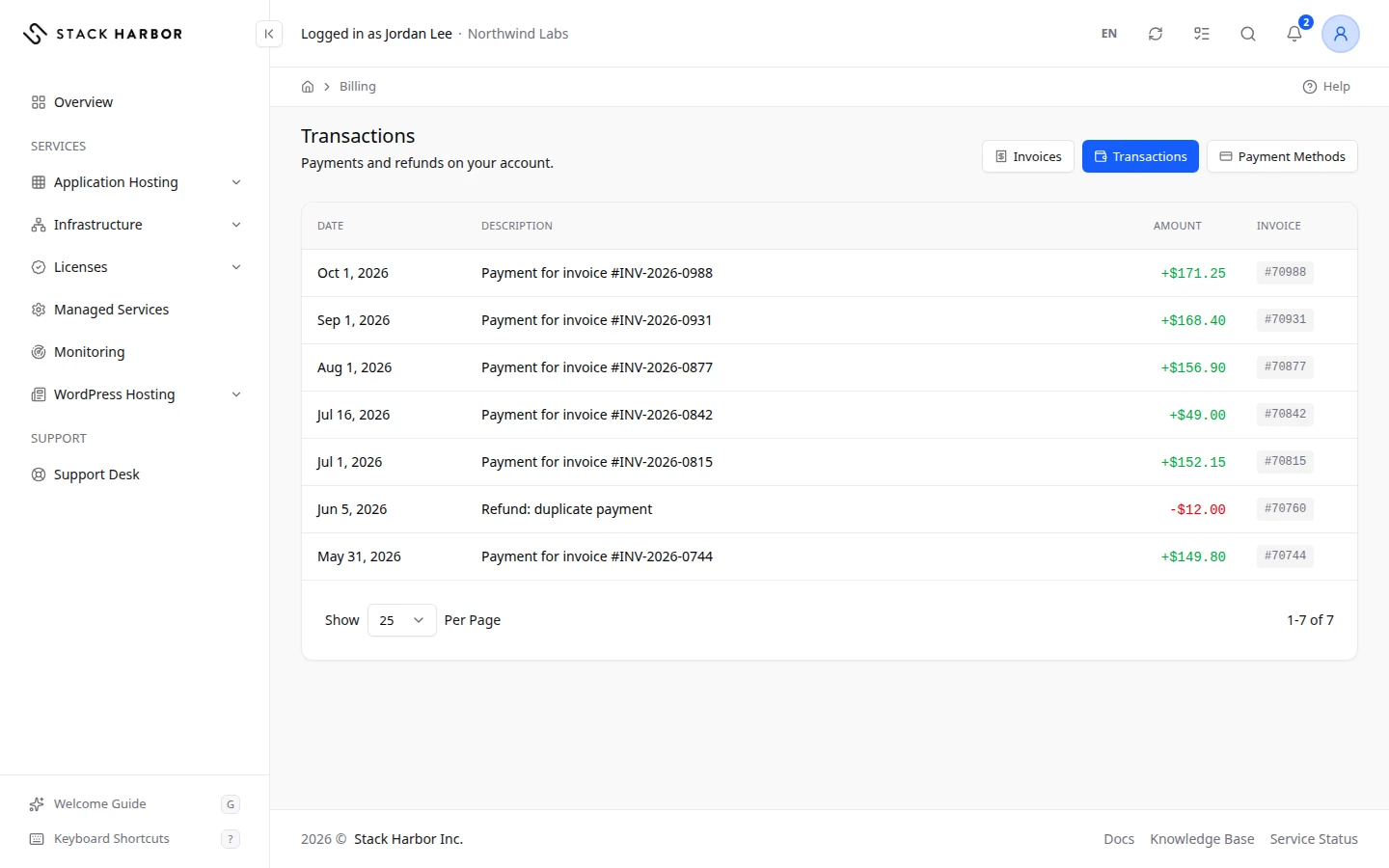
Read the list
- Date is when the money moved.
- Description says what it was, for example a card payment.
- Amount is the sum, in the transaction’s own currency. A payment and a refund show with opposite signs.
- Invoice is the invoice the transaction belongs to. Select the number to open that invoice.
Select a column heading to sort by it. To go back, select Back to Billing.
If something goes wrong
- If you see No transactions found., no payment or refund has been recorded on your account yet.
- If a payment you made is missing, check the invoice itself. A payment can take a few minutes to appear. See Pay an invoice.
Fields and statuses
What each item on this page means, what it does and how to read it.
- Date Column
-
What it is. When the money moved.
- Description Column
-
What it is. What the transaction was, for example a card payment or a refund.
- Amount Column
-
What it is. How much money moved.
How to read it. In the transaction’s own currency. A payment and a refund show with opposite signs.
- Invoice Column
-
What it is. The invoice the transaction belongs to.
What it does. Select the number to open the invoice.
How to read it. Empty when the transaction isn’t tied to an invoice.