The Cloud Servers list shows every server on your account, and each server has its own page, Cloud Server Details. Its Overview tab shows what the server is, how to reach it and what it costs this month. The buttons in the header run actions on the server, and the tabs hold its network, firewall, storage, backups, graphs and history.
View your cloud servers
The Cloud Servers page lists every server you can see on the account. Use it to check which servers are running, find a server by name or address, and open it.
Open the list
- Open Infrastructure in the side menu.
- Select Cloud Servers.
Read the list
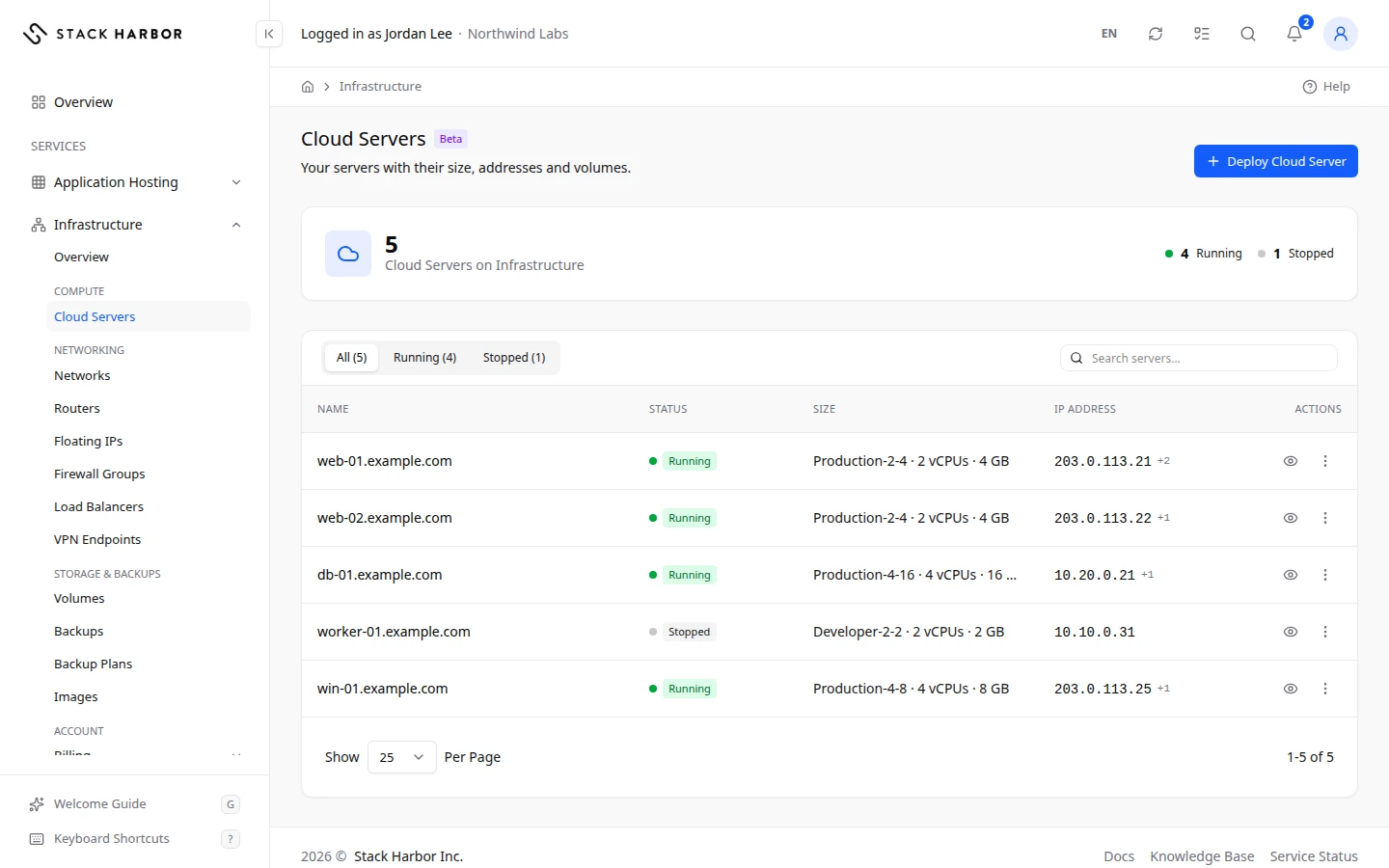
- The card at the top, Cloud Servers on Infrastructure, counts your servers by status: Running, Stopped, and any other status that some server has right now.
- The tabs under it filter the table. All shows every server. The other tabs show only servers in that status.
- Use Search servers… to find a server by name, ID, size or IP address.
- Each row shows Name, Status, Size, IP Address and Server ID. Select a name, or View Server in the row menu, to open the server’s page.
- The Actions menu on a row has the same controls as the server’s page: power, resize, console and delete. You only see the controls you are allowed to use.
While any server is busy, for example Building or Rebooting, the list refreshes by itself every few seconds.
Servers created outside Lighthouse
A server built with another tool shows Created Outside Lighthouse. Lighthouse can show it, but it can’t change it. The account owner sees Adopt Server on its row.
- Select Adopt Server.
- Read the confirmation. Lighthouse will manage the server like one it deployed. Billing starts now, at the server’s current size. Nothing on the server changes, and its attached data volumes come with it.
- Select Adopt Server again to confirm.
You see that the server is now managed in Lighthouse. Adopt Server is available only while the server is running or stopped, with no change in progress.
What you see when there are no servers
No Cloud Servers Yet means the account has no server you can see. The account owner sees Deploy Cloud Server. See Deploy a server.
No servers match this view. means the tab or the search hides every server. Select All or clear the search.
If something goes wrong
- Changes Are Switched Off means servers in this project can’t be changed from Lighthouse right now. The list still works. Open a support ticket if you need a change.
- Deletion Not Confirmed Yet means we couldn’t confirm a deleted server is gone. Select Refresh to check again.
Open a server
- Open Infrastructure, then Cloud Servers.
- Select the server’s name.
All Servers at the top takes you back to the list.
The header
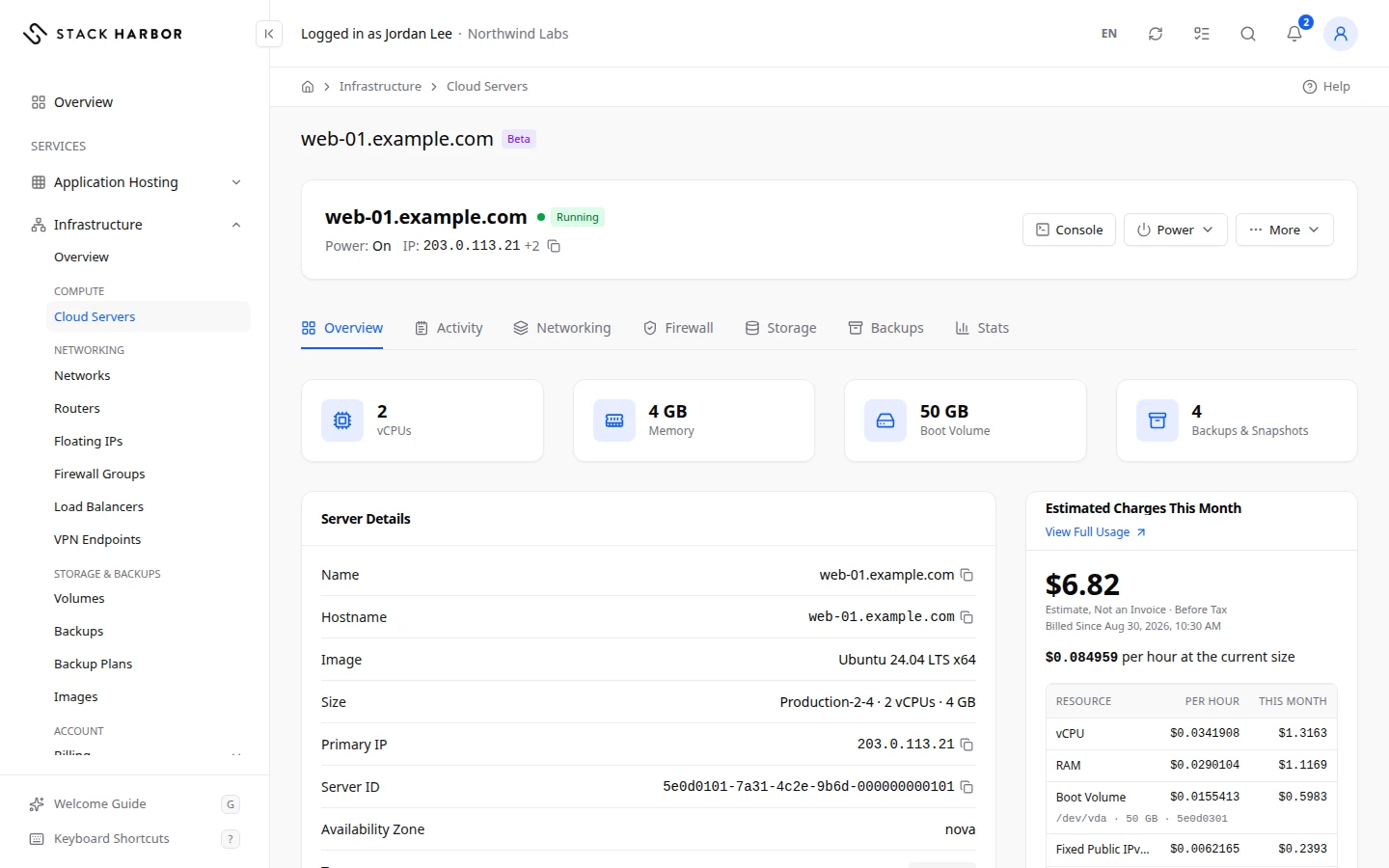
- The status badge, for example Running or Stopped. A spinning dot means a change is in progress, such as Rebooting….
- Power: shows whether the machine is On, Off, Paused, Suspended or Crashed.
- IP: shows the primary address, with a copy button.
- Locked appears when the server is locked, for example by delete protection or a suspension. A locked server refuses some actions.
- The action buttons: Console, Power and More. Power and deleting are covered further down this page. For the console and recovery mode, see Connect to a server. For resizing and reinstalling, see Resize or reinstall a server.
A disabled action always says why when you hold the pointer over it, for example Available while the server is running.
The Overview tab
- The tiles show vCPUs, Memory, Storage and Backups & Snapshots.
- Server Details lists Name, Hostname, Image, Size, Primary IP, Server ID, Availability Zone, Created, Launched and Last Updated. A hostname shows Managed by Stack Harbor when we look after its DNS, or Not Managed by Stack Harbor when it is on your own domain.
- Server Access shows how to sign in. See Connect to a server.
- Automatic Backups shows the backup plan, Paused or Not Configured. Change it on the Backups tab.
- Delete Protection shows On or Off. See the section on deleting a server, further down this page.
- Estimated Charges This Month shows what the server has cost so far this month, per resource. It is an estimate, not an invoice, before tax. See Read your Infrastructure usage.
- Notes keeps a private note about the server. Only people on this account can see notes.
Rename a server
- Select More, then Rename Server.
- Type the new Server Name: 1 to 64 characters, without
<or>. - Confirm.
The new name shows in Lighthouse. The server’s hostname doesn’t change.
Keep a note
- In Notes, type in the box.
- Select Save Note. You see Note saved.
Clear Note empties it. The counter shows how many characters are left.
The tabs
- Activity: every action on the server. See Read a server’s graphs and activity.
- Networking: interfaces, addresses and reverse DNS. See Manage a server’s networking and firewall.
- Firewall: the firewall groups on the server. See Manage a server’s networking and firewall.
- Storage: the boot volume and data volumes. See Manage a server’s storage.
- Backups: backups, snapshots and the backup plan. See Back up and restore servers and volumes.
- Stats: CPU, memory, disk and network graphs. See Read a server’s graphs and activity.
Start, stop or reboot a server
The Power menu turns a cloud server on and off. Some actions ask the operating system to stop cleanly, others cut the power at once. A stopped server keeps its disks and addresses, and it is still billed. See Read your Infrastructure usage.
Use the Power menu
- Open the server’s page, or the Actions menu on its row in Cloud Servers.
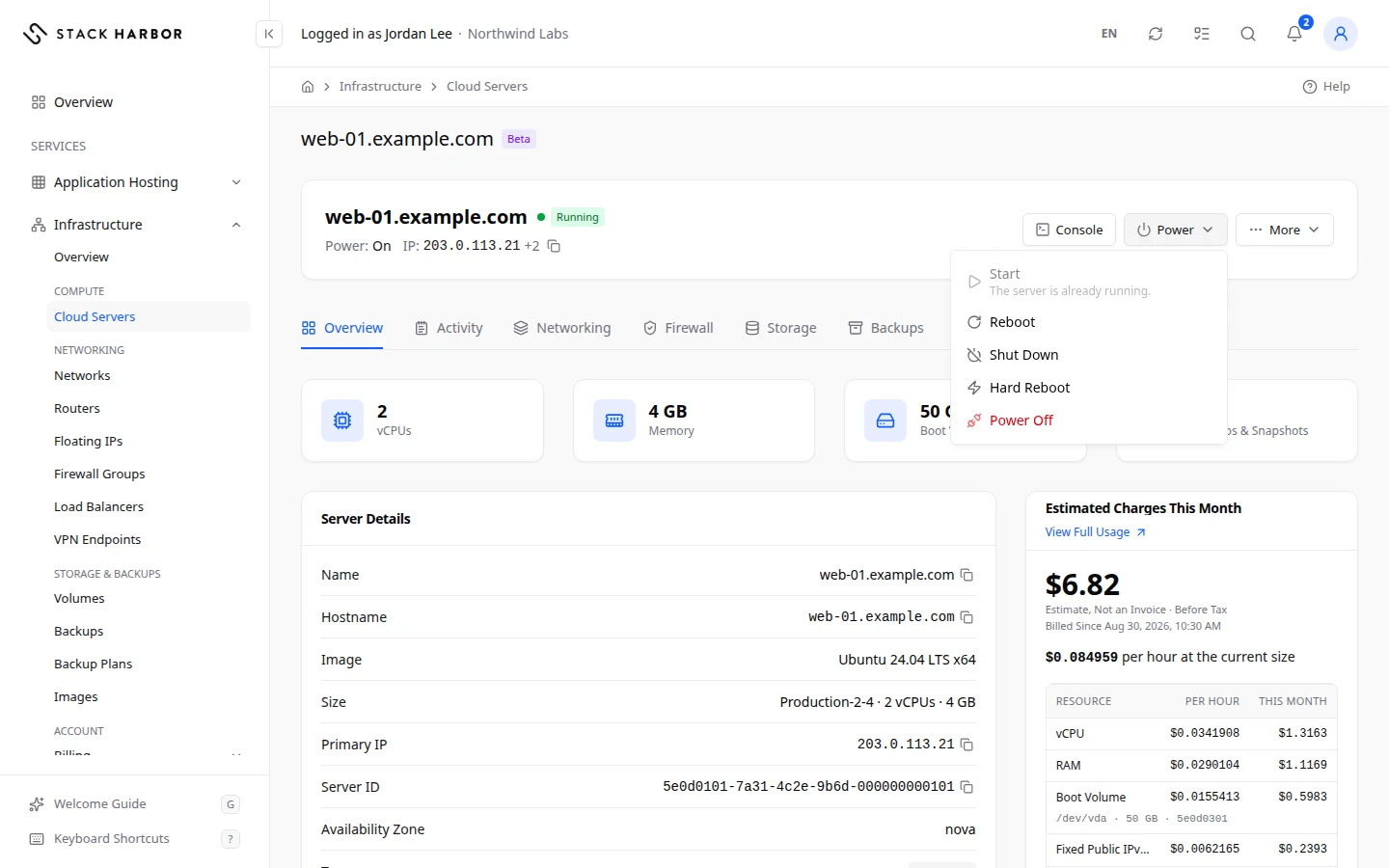
- Select Power, then the action you want.
- Every action except Start asks you to confirm. Read the box, then confirm.
You see a message such as Reboot requested for web-01., and the status changes while the action runs.
What each action does
- Start turns on a stopped server. It ends Running.
- Reboot restarts the operating system cleanly. The server is unavailable for a moment.
- Shut Down asks the operating system to shut down. If it hasn’t finished after 10 minutes, the server is powered off. It ends Stopped. While it waits, every Power item is off and a note says so.
- Hard Reboot resets the server at once, like cutting the power. Anything not saved to disk is lost. Use it only when Reboot doesn’t respond.
- Power Off switches the server off within about 10 seconds, like pulling the plug. Anything not saved to disk is lost. Use it only when Shut Down doesn’t work.
When an action is greyed out
Each action works only in some states. Hold the pointer over a greyed-out item to see why:
- Available when the server is stopped. applies to Start.
- Available while the server is running. applies to Reboot, Shut Down, Hard Reboot and Power Off.
- Another action is in progress. It comes back when that ends.
- The server is being deleted.
You only see the Power menu if you are allowed to start, stop and reboot servers. Ask your account owner for the permission. See Manage a team member.
If something goes wrong
- Power Off isn’t available on this platform right now. Use Shut Down.
- Changes Are Switched Off means servers in this project can’t be changed from Lighthouse right now.
- If the status stays on Rebooting for a long time, try Hard Reboot. If the server still doesn’t answer, open the console to see its screen.
Delete a server
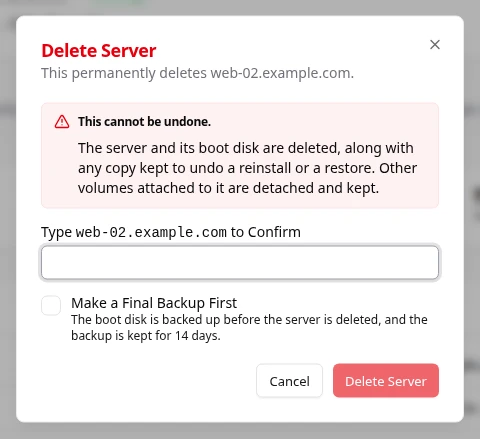
Deleting a server removes it and its boot disk for good, and billing for it stops. Other volumes attached to it are detached and kept. Only the account owner can delete a server.
Delete the server
- Open the server’s page, select More, then Delete Server under Danger Zone.
- Read the warning: This cannot be undone.
- Optional: tick Make a Final Backup First. The boot disk is backed up before the server is deleted, and the backup is kept for the retention period.
- Type the server’s name to confirm.
- Select Delete Server.
You see Deleting web-01…, then Server Deleted. The server leaves the list.
With a final backup, the delete waits for the backup. If the box says nothing has been deleted yet, try again in a moment: the delete goes ahead once the backup is ready.
Turn on delete protection
Delete protection stops anyone from deleting the server, in Lighthouse or with any other tool, until it is turned off.
- On the server’s Overview tab, find Delete Protection.
- Turn on Protect From Deletion.
- Confirm with Turn On.
While it is on, Delete Server is greyed out with Turn off delete protection first. To delete the server later, turn Protect From Deletion off and confirm with Turn Off.
Keep a final backup if the server is terminated
On the same card, Keep a Final Backup If This Server Is Terminated covers the case where your project ends and the server is terminated. When it is on, the boot disk is backed up first and kept for the retention period. If the card says A final backup is not offered for this project, so this cannot be turned on., your plan doesn’t include it.
If something goes wrong
- We can’t confirm the final backup yet. Nothing has been deleted. Try again later, or untick Make a Final Backup First to delete now.
- Deletion Not Confirmed Yet means we couldn’t confirm the server is gone. Select Refresh to check again.
- If the status shows Couldn’t Be Deleted, try again. If it stays, open a support ticket.
If something goes wrong
- Error means the server failed. Server Details can show an Error Code. A server that Couldn’t Be Created or whose Creation Was Interrupted can be deleted. Open a support ticket with the error code.
- Taking Longer Than Usual means the server is still working on its last change and Lighthouse stopped checking. Select Refresh.
- We Couldn’t Refresh This Server means the page shows the last known state. Select Try Again.
- Read Only means the server wasn’t created or adopted in Lighthouse, so it can’t be changed here. To adopt it, see the section on servers created outside Lighthouse, near the top of this page.
Fields and statuses
What each item on this page means, what it does and how to read it.
- Cloud Servers on Infrastructure Metric
-
What it is. How many servers you have, counted by status.
How to read it. Running and Stopped always show. Other statuses show only while a server has them.
- Search servers… Field
-
What it is. A box to find a server in the list.
What it does. Filters the list by name, ID, size or IP address as you type.
- Name Column
-
What it is. The server’s name in Lighthouse.
What it does. Select it to open the server’s page.
- Status Column
-
What it is. The server’s state now.
How to read it. A spinning dot means a change is in progress.
- Size Column
-
What it is. The server’s size: its cores and memory.
- IP Address Column
-
What it is. The server’s primary address.
How to read it. A public address if it has one, otherwise its private address.
- Server ID Column
-
What it is. The server’s unique identifier.
How to read it. Quote it when you contact support.
- Running Status
-
What it is. The server is on and working.
How to read it. Billing for cores and memory runs.
- Stopped Status
-
What it is. The server is switched off.
How to read it. Its disks and addresses are kept and still billed. Select Power, then Start, to turn it on.
- Building Status
-
What it is. The server is being created.
How to read it. It takes about a minute, then changes to Running.
- Rebooting Status
-
What it is. The server is restarting.
How to read it. Wait a moment. If it stays a long time, try Hard Reboot or open the console.
- Rebuilding Status
-
What it is. The operating system is being reinstalled.
How to read it. Wait until it ends. The server is unavailable meanwhile.
- Resizing Status
-
What it is. The server is changing size.
How to read it. Wait until it ends. The page shows the step it is on.
- Migrating Status
-
What it is. The server is moving to another host.
How to read it. No action is needed. It ends Running.
- Recovery Mode Status
-
What it is. The server started from a rescue system so you can repair its disk.
How to read it. Exit Recovery Mode when you are done.
- Paused Status
-
What it is. The server is frozen in memory.
How to read it. Contact support if you didn’t expect it.
- Suspended Status
-
What it is. The server is suspended and locked.
How to read it. Check for an unpaid invoice, or contact support.
- Shelved Status
-
What it is. The server is stored away and not running.
How to read it. Contact support to bring it back.
- Deleting Status
-
What it is. The server is being deleted.
How to read it. It leaves the list when the delete ends.
- Deleted Status
-
What it is. The server was deleted.
How to read it. Billing for it has stopped.
- Error Status
-
What it is. The server failed.
How to read it. Server Details can show an Error Code. Open a support ticket with it.
- Unknown Status
-
What it is. Lighthouse can’t read the server’s state right now.
How to read it. Select Refresh in a moment.
- Created Outside Lighthouse Status
-
What it is. The server was built with another tool.
What it does. Lighthouse shows it but can’t change it.
How to read it. The account owner can select Adopt Server to manage it here. Billing then starts at its current size.
- Read Only Status
-
What it is. The item wasn’t created or adopted in Lighthouse, so it can’t be changed here.
How to read it. Adopt the server to manage it in Lighthouse.
- Power: Field
-
What it is. Whether the machine itself is switched on.
How to read it. On, Off, Paused, Suspended or Crashed.
- On Status
-
What it is. The machine is powered on.
- Off Status
-
What it is. The machine is powered off.
How to read it. Use Start to turn it on.
- Paused Status
-
What it is. The machine is frozen.
- Suspended Status
-
What it is. The machine is suspended.
- Crashed Status
-
What it is. The operating system stopped responding.
How to read it. Try Hard Reboot, then open the console to see the screen.
- Locked Status
-
What it is. The server is locked, for example by delete protection or a suspension.
What it does. A locked server refuses some actions.
- vCPUs Metric
-
What it is. The number of virtual CPU cores.
How to read it. A count, from the server’s size.
- Memory Metric
-
What it is. The server’s RAM.
How to read it. In GB, from the server’s size.
- Storage Metric
-
What it is. The server’s disks.
How to read it. The boot volume or local disk, plus the number of data volumes.
- Backups & Snapshots Metric
-
What it is. How many backups and snapshots this server has.
How to read it. A count of each. Open the Backups tab for the list.
- Hostname Field
-
What it is. The server’s full network name.
How to read it. Managed by Stack Harbor means we look after its DNS. Not Managed by Stack Harbor means it is on your own domain.
- Image Field
-
What it is. The operating system image the server was built from.
- Primary IP Field
-
What it is. The server’s main address.
How to read it. The copy button copies it.
- Availability Zone Field
-
What it is. The part of the data centre the server runs in.
- Created Field
-
What it is. When the server was created.
- Launched Field
-
What it is. When the server first started.
- Last Updated Field
-
What it is. When the server last changed.
- Error Code Field
-
What it is. A code that says why the server failed.
How to read it. Quote it in a support ticket.
- Automatic Backups Field
-
What it is. The backup plan that protects this server.
How to read it. Shows the plan, Paused or Not Configured. Change it on the Backups tab.
- Not Configured Status
-
What it is. No backup plan is set for this server.
How to read it. Set one on the Backups tab.
- Delete Protection Field
-
What it is. Whether the server is protected from deletion.
What it does. While on, nobody can delete the server, in Lighthouse or with another tool.
How to read it. On or Off.
- Protect From Deletion Option
-
What it is. The switch that turns delete protection on or off.
What it does. Delete Server stays greyed out while it is on.
- Keep a Final Backup If This Server Is Terminated Option
-
What it is. Backs up the boot disk if your project ends and the server is terminated.
What it does. The backup is kept for the retention period.
How to read it. If your plan doesn’t offer it, the card says so and the switch stays off.
- Make a Final Backup First Option
-
What it is. Backs up the boot disk before the server is deleted.
What it does. The delete waits for the backup. The backup is kept for the retention period.
- Estimated Charges This Month Metric
-
What it is. What the server has cost so far this month, per resource.
How to read it. In your account currency, before tax. Usage is billed after the month ends. It is an estimate, not an invoice.
- Notes Field
-
What it is. A private note about the server.
What it does. Save Note keeps it. Only people on this account can see it.
How to read it. The counter shows how many characters are left.
- Couldn't Be Created Status
-
What it is. The server failed while it was being created.
How to read it. Delete it and deploy again. Open a support ticket with the error code if it repeats.
- Creation Was Interrupted Status
-
What it is. The creation of the server stopped before the end.
How to read it. Delete it and deploy again.
- Couldn't Be Deleted Status
-
What it is. The delete didn’t go through.
How to read it. Try again. Open a support ticket if it stays.
- Taking Longer Than Usual Status
-
What it is. The server is still working on its last change and Lighthouse stopped checking.
How to read it. Select Refresh to check again.
- Changes Are Switched Off Status
-
What it is. Servers in this project can’t be changed from Lighthouse right now.
How to read it. The pages still show everything. Open a support ticket if you need a change.
- Deletion Not Confirmed Yet Status
-
What it is. We couldn’t confirm that a deleted server is gone.
How to read it. Select Refresh to check again.
- Start Option
-
What it is. Turns on a stopped server.
What it does. It ends Running.
How to read it. Available only when the server is stopped.
- Reboot Option
-
What it is. Restarts the operating system cleanly.
What it does. The server is unavailable for a moment.
How to read it. Available while the server is running.
- Shut Down Option
-
What it is. Asks the operating system to shut down.
What it does. If it hasn’t finished after 10 minutes, the server is powered off. It ends Stopped, and is still billed for its disks and addresses.
How to read it. Available while the server is running.
- Hard Reboot Option
-
What it is. Resets the server at once, like cutting the power.
What it does. Anything not saved to disk is lost.
How to read it. Use it only when Reboot doesn’t respond.
- Power Off Option
-
What it is. Switches the server off within about 10 seconds, like pulling the plug.
What it does. Anything not saved to disk is lost.
How to read it. Use it only when Shut Down doesn’t work.