Change your password from Account Settings. You need your current password. If you forgot it, sign out and reset it instead. See Reset your password.
Change your password
- Open the account menu at the top right and select Account Settings.
- In the Security card, on the Password row, select Change.
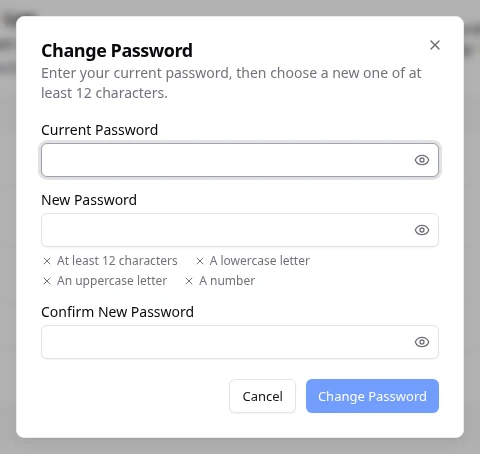
- In Change Password, type your Current Password.
- Type a New Password. The box tells you the minimum length.
- Type it again in Confirm New Password.
- Select Change Password.
What you see afterwards
You see Password changed. Your other sessions stay signed in. The Password row shows when it was last changed. Use the new password next time you sign in.
Your other open sessions stay signed in. If you changed your password because you think someone else knows it, also turn on two-factor authentication. See Turn on two-factor authentication.
If something goes wrong
- The two passwords do not match. Type the same new password in both fields.
- The password could not be changed. Your current password may be wrong, or the new one may not meet the rules shown. Check both, then try again.
Fields and statuses
What each item on this page means, what it does and how to read it.
- Current Password Field
-
What it is. The password you use now.
What it does. Proves it is you before the change.
- New Password Field
-
What it is. The password you want to use from now on.
How to read it. It must be at least the length the box shows.
- Confirm New Password Field
-
What it is. The new password, typed a second time.
What it does. Catches typing mistakes.