Use the Deploy New Environment wizard to build a new, empty environment. You choose where it runs, which layers it has, and how big each layer can grow. Billing starts as soon as the environment runs.
Before you start
- Application Hosting must be on for your account. See Enable a service.
- You need permission to create environments. The account owner can grant it.
- A cloudlet is the unit you size layers in. One cloudlet is 128 MiB of memory and 200 MHz of CPU.
Create the environment
- In the side menu, select Application Hosting, then Deploy New Environment. From the Environments list, you can also select New Environment, then Blank Environment.
- If your account has more than one service, choose it under Application Hosting Service.
- On the Region step, select the region where the environment runs. The region also sets the end of its web address and which software you can pick. A region marked Maintenance can’t take new environments for now. Select Continue.
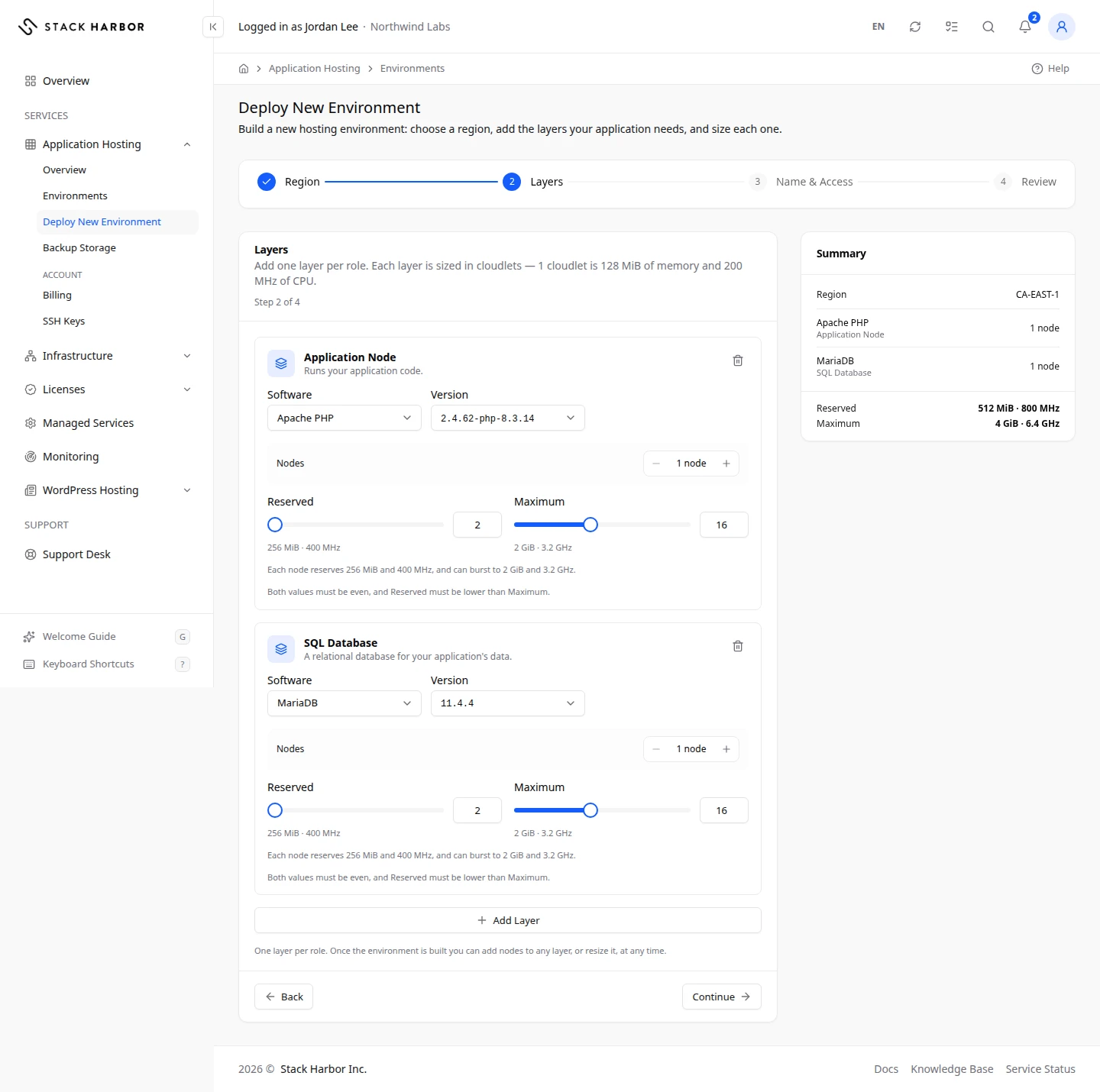
- On the Layers step, set up each layer. The wizard starts with one Application Node layer.
- Under Software, choose the software for the layer, for example a PHP or Node.js runtime. Under Version, pick a version. The version marked Default is the one the platform suggests.
- Under Nodes, use the minus and plus buttons to set how many nodes the layer runs.
- Set Reserved and Maximum cloudlets for each node. Reserved cloudlets are always billed. The node can grow up to Maximum when it’s busy, and you pay for the extra only while it’s used. Both numbers must be even, and Reserved must be lower than Maximum.
- To add another layer, select Add Layer and choose its role, such as Load Balancer, SQL Database or Cache. You can add one layer of each role.
- Select Continue.
- On the Name & Access step, fill in the fields.
- Environment Name is also the web address, for example
northwind-shopbecomes the start of the address shown under the field. Use 5 to 50 lowercase letters, numbers and hyphens. - Display Name is what you see in your list. It doesn’t change the address.
- Built-In SSL serves the default address over HTTPS with a certificate we manage for you.
- Environment Name is also the web address, for example
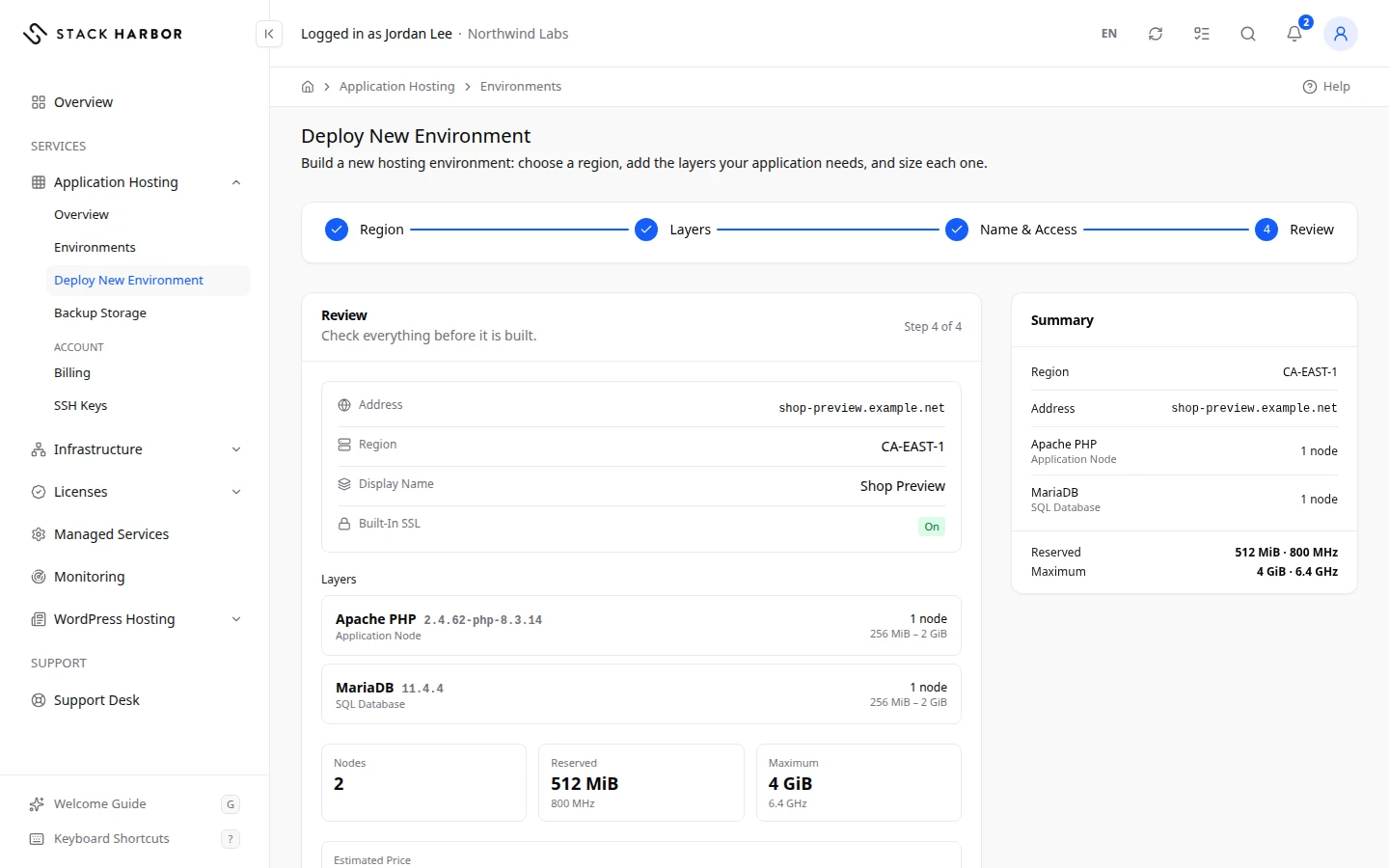
- Select Continue. The Review step shows the address, region, display name, SSL, each layer and the totals for Nodes, Reserved and Maximum.
- Read Estimated Price. It shows a monthly range, from the environment idle to every cloudlet in use, plus items that are billed separately such as storage and traffic.
- Select Create Environment. The button shows Creating… while it works.
What you see afterwards
You land on the Environments list. The new environment shows Building, then Running. Some builds take several minutes. If the build outlasts the wizard, you see a message that the environment is being built and will appear as soon as it runs.
Next, you can add a custom domain, deploy your code or add an SSH key.
Create backup storage
Backup storage is a small environment that holds database backups. The Database Backup add-on writes its backups there. Create it once, before you set up database backups.
- In the side menu, open Application Hosting, then Backup Storage.
- If your account has more than one service, choose the Application Hosting Service.
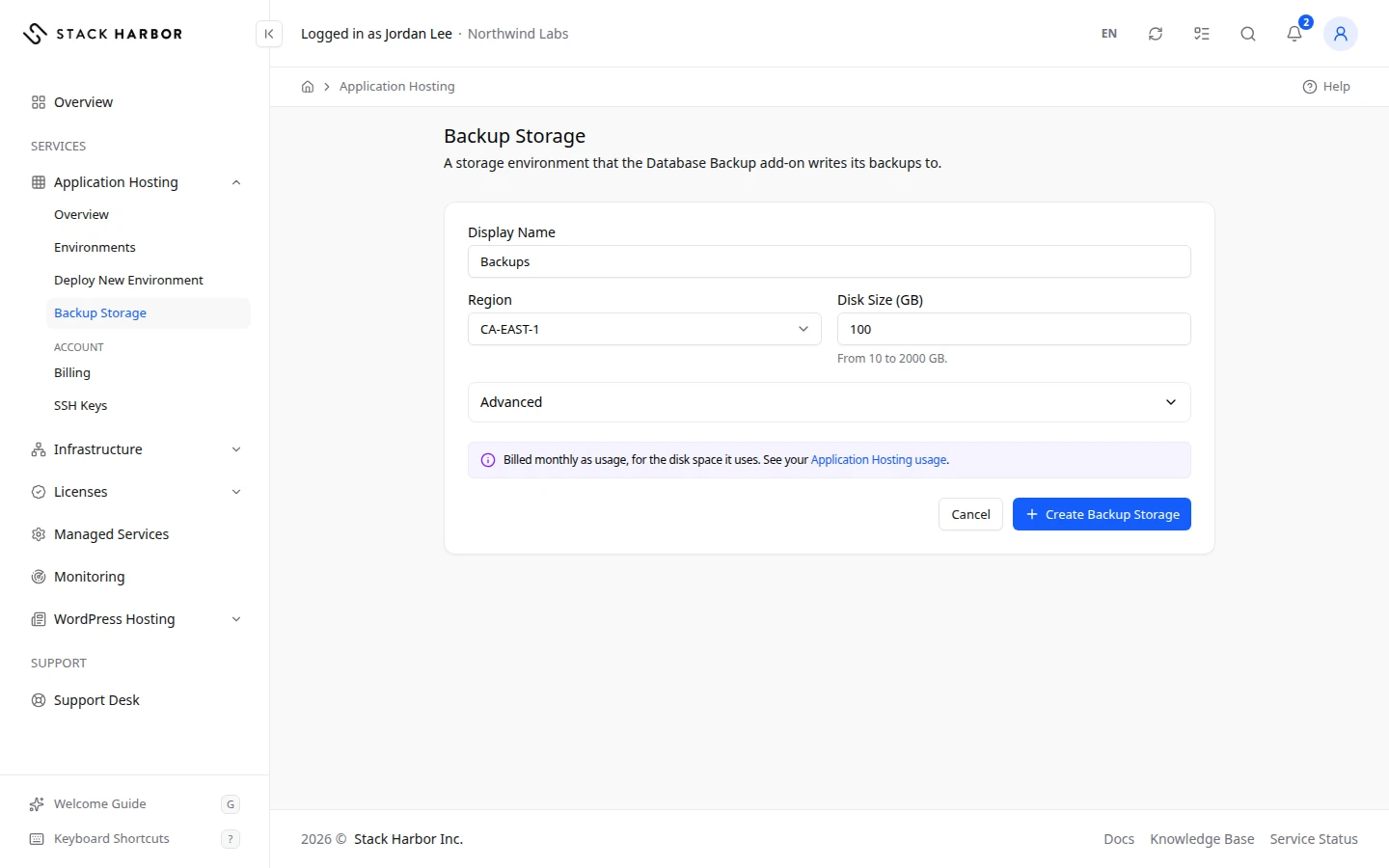
- Choose the Region. Pick the region of the databases you want to back up.
- Check the Environment Name and Display Name. They’re filled in for you, and you can change them.
- Set the Disk Size (GB). The hint under the field shows the smallest and largest size you can pick.
- Select Create Backup Storage.
Backup storage is billed as usage, like any environment. The form shows its price in one of two ways:
- Once the price can be read, a line gives the price per GB per month and an estimate for the size you chose, for example “CA$… per GB per month. 5 GB ≈ CA$… / month.” The estimate follows the Disk Size (GB) you set.
- Until then, it reads Billed monthly as usage, for the disk space it uses. See your Application Hosting usage. The link opens your usage. See Read Application Hosting usage.
You land on the Environments list, and a message says how many minutes creation takes. The backup storage then appears as an environment like any other.
Next, install the Database Backup add-on on your database layer. See Install an add-on.
If something goes wrong
- That environment name is already in use. Try another. Each environment name must be unique, because it’s also a web address.
- You have reached the environment limit for this service. Delete an environment you no longer need, or contact support.
- That region is not accepting new environments right now. Go back and pick another region.
- One of the layers you chose is not available in that region. Pick other software for that layer, or another region.
- The Review step warns you when the environment has no Application Node and no Load Balancer. It won’t be reachable from the web, and it can’t have a custom domain.
- Price Unavailable means the estimate couldn’t be worked out. You can still create the environment.
- The software catalogue could not be loaded. Please try again. Reload the page after a moment.
- This service has reached its environment limit. Remove one before installing another.
- We couldn’t confirm this started. Try again: it won’t create a second one.
- You do not have permission to create environments. The account owner can grant this.
Fields and statuses
What each item on this page means, what it does and how to read it.
- Application Hosting Service Field
-
What it is. The Application Hosting service the new environment belongs to.
What it does. Shown only when your account has more than one service.
- Region Field
-
What it is. Where the environment runs.
What it does. Sets the end of its web address and which software you can choose.
How to read it. A region marked Maintenance cannot take new environments for now. Moving later would change the address.
- Maintenance Status
-
What it is. The region is temporarily closed to new environments.
What it does. You cannot select it.
How to read it. Pick another region, or try again later.
- Load Balancer Option
-
What it is. A load balancer layer.
What it does. Spreads incoming traffic across your application nodes.
- Application Node Option
-
What it is. An application layer.
What it does. Runs your application code. The wizard starts with this layer.
- VPS Node Option
-
What it is. A plain Linux node that you manage yourself.
What it does. Runs whatever you install on it.
- SQL Database Option
-
What it is. A relational database layer, such as MySQL or PostgreSQL.
What it does. Stores your application’s data.
- NoSQL Database Option
-
What it is. A document, key-value or search database layer.
What it does. Stores data that does not fit in tables.
- Cache Option
-
What it is. An in-memory cache layer.
What it does. Keeps frequently used data in memory so responses come back faster.
- Shared Storage Option
-
What it is. A shared file system layer.
What it does. Every other layer can mount it to share files.
- Build Node Option
-
What it is. A build layer.
What it does. Compiles and packages your application before deployment.
- Software Field
-
What it is. The software the layer runs, such as a PHP, Node.js or database engine.
What it does. Decides what the layer can do and which versions you can pick.
- Version Field
-
What it is. The version of the chosen software.
How to read it. The version marked Default is the one the platform suggests.
- Runtime Field
-
What it is. The language runtime version, for software that offers more than one.
How to read it. The runtime marked Default is the suggested one.
- Nodes Field
-
What it is. How many nodes the layer runs.
What it does. More nodes share the load and keep the layer up if one fails. Each node is billed.
How to read it. Your plan sets the most nodes one environment can have.
- Reserved Field
-
What it is. The cloudlets each node keeps for itself at all times. One cloudlet is 128 MiB of memory and 200 MHz of CPU.
What it does. Reserved cloudlets are billed every hour, used or not.
How to read it. Must be an even number and lower than Maximum.
- Maximum Field
-
What it is. The most cloudlets each node can grow to when it is busy.
What it does. Cloudlets above the reserved ones are billed only while used.
How to read it. Must be an even number and higher than Reserved.
- Environment Name Field
-
What it is. The environment’s fixed name, which is also the start of its web address.
What it does. Cannot be changed after creation.
How to read it. 5 to 50 lowercase letters, numbers and hyphens, starting and ending with a letter or number. The full address shows under the field.
- Display Name Field
-
What it is. A friendly name for the environment.
What it does. Shown in your lists. It does not change the address, and you can rename it later.
- Built-In SSL Field
-
What it is. HTTPS for the environment’s default address.
What it does. Serves the default address over HTTPS with a certificate we manage for you.
How to read it. Your own domains get their certificates in Domains & SSL.
- Estimated Price Metric
-
What it is. An estimate of the monthly cost of the environment you are about to create.
How to read it. The lower figure is the environment idle, the higher one every cloudlet in use. Storage, traffic, public IPs, SSL and add-ons are billed on top. Post-billed monthly for what you use.
- Nodes Metric
-
What it is. The total number of nodes across all layers.
How to read it. Must stay within the limit of your plan.
- Reserved Metric
-
What it is. The total reserved cloudlets across all nodes.
How to read it. This part is always billed while the environment runs.
- Maximum Metric
-
What it is. The total maximum cloudlets across all nodes.
How to read it. The ceiling your environment can reach when every node is busy.
- Disk Size (GB) Field
-
What it is. How much disk the backup storage has, in gigabytes.
What it does. Sets how many backups it can hold.
How to read it. The hint under the field shows the smallest and largest size allowed. The line below gives the price per GB per month and an estimate, once the price can be read. Until then it says it is billed monthly as usage.
- … per GB per month. 5 GB ≈ … / month. Field
-
What it is. The price of backup storage, once it can be read.
What it does. The estimate follows the Disk Size (GB) you set.
How to read it. The first amount is the price per GB per month, in your account currency. The second is an estimate for the size you chose. Until the price can be read, the form says it is billed monthly as usage.
- Region Field
-
What it is. Where the backup storage runs.
How to read it. Pick the region of the databases you back up.