The Support Desk lists every ticket on your account. Open a ticket to read the conversation, reply to our team and manage the ticket until your issue is solved.
Find a ticket
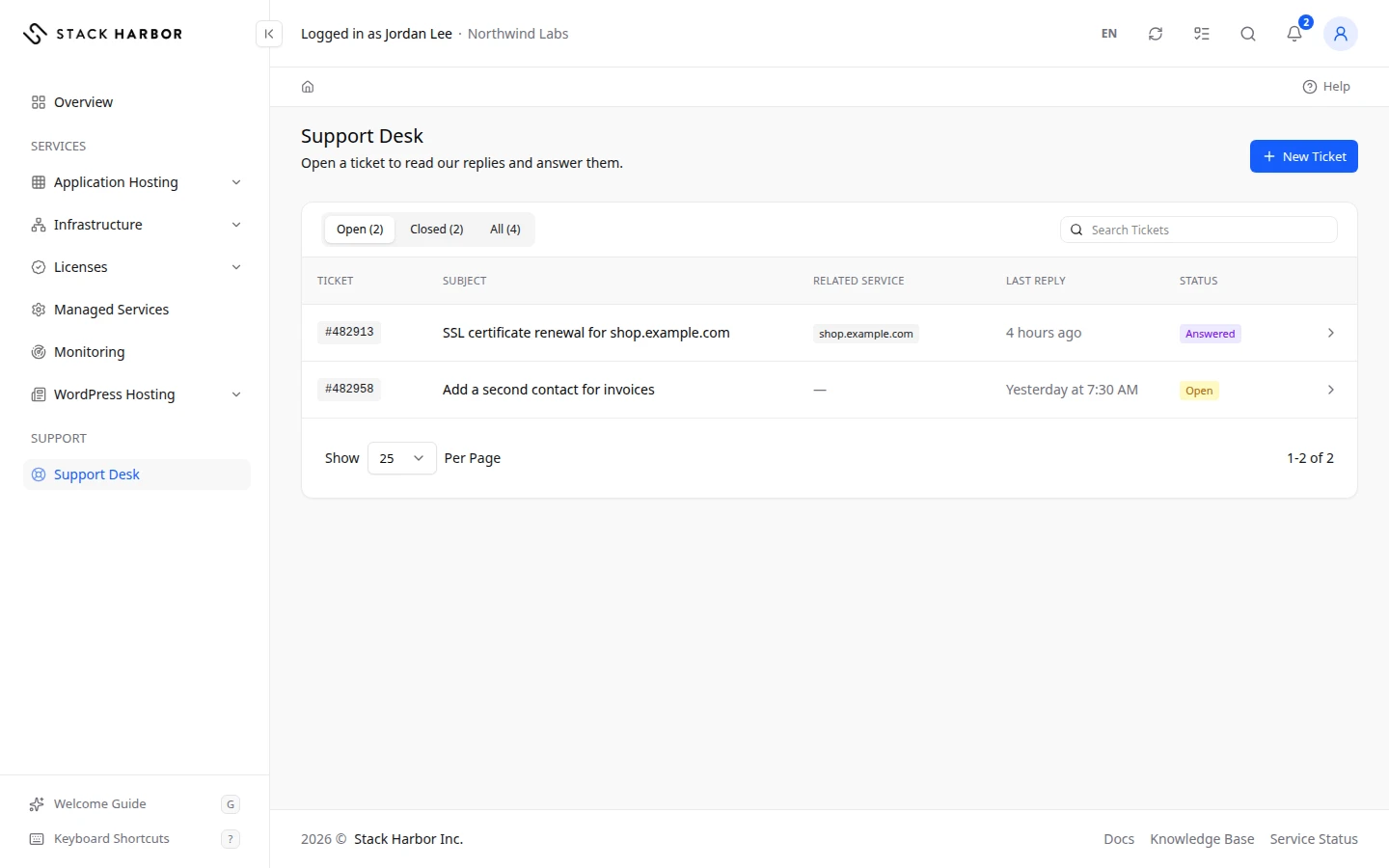
- In the side menu, under Support, select Support Desk.
- The list opens on Open, which shows the tickets still being worked on. Select Closed for resolved tickets, or All for every ticket. Each tab shows its count.
- To narrow the list, type part of the ticket number, subject, department or related service in Search Tickets.
- Select a row, or its Open button, to open the ticket.
The ticket that moved most recently is at the top. A closed ticket never sorts above an open one.
Read the ticket page
The page title is the ticket number, for example Ticket #4821. Under it you see the ticket’s Status, Priority, Department, when it was Opened and its Last Reply. If the ticket is about a service, a Related Service card names it. For a managed plan, the card shows the Plan, its Tier and Scope, and an Open Plan button.
The conversation reads from the first message to the newest. Our team’s messages carry a Support badge, and yours carry You. The first message is marked Original. Files attached to a message are listed under it. Select Preview to view an image, or Download to save a file.
Reply to our team
- Scroll to the Reply box at the bottom of the ticket.
- Type your message.
- Optional: add files with Choose Files, or drag them onto the box.
- Select Send Reply. You see Reply sent, and the ticket’s status changes to My Reply.
Close a ticket
When your issue is solved, close the ticket so our team knows.
- Select Close Ticket.
- The dialog asks Is your issue resolved? Select Close Ticket again to confirm.
You see Ticket closed. The reply box is replaced by a Ticket Closed note. You can’t close a ticket our support team opened for you.
Reopen a ticket
If the issue comes back, select Reopen Ticket on the Ticket Closed note. You see Ticket reopened. and the reply box returns. If the ticket can’t be reopened, you see You can’t reopen this ticket. Please open a new ticket instead. In that case, open a new ticket.
Escalate a ticket or a reply
Escalating sends the ticket to a supervisor. Use it when you feel the ticket is not being handled well. It can take longer to get an answer, and you can escalate a ticket only once.
- Select Escalate.
- In Reason, say why you are escalating. The reason is required and must be under 2,000 characters.
- Select Escalate Ticket.
You see Thank you, this ticket is now escalated to a supervisor. The ticket shows an Escalated badge and your reason. To escalate one of our replies instead, select Escalate under that reply, then Escalate Reply. A closed ticket can’t be escalated until you reopen it.
Rate a ticket or a reply
Under each reply from our team, Rate This Response lets you give it stars once. After a ticket is closed, the Rate Ticket card asks How satisfied are you with how this ticket was handled?
- Choose a number of stars.
- Optional: add a Comment (Optional) for the support supervisor.
- Select Submit Rating.
Your rating then appears as Your Rating. A rating can’t be changed. Some departments turn rating off.
If something goes wrong
- No tickets yet. means your account has no tickets. No tickets match this filter. means none match the tab or search you chose.
- Couldn’t load this ticket. Try again in a moment. means the page could not reach the ticket. Refresh the page.
- Your reply could not be sent. Please try again. means your reply was kept but not sent. Select Send Reply again.
- Not available while an administrator is signed in as this account. appears when Stack Harbor staff are viewing your account for you. The buttons work again in your own session.
- Your role doesn’t allow this action. Ask the account owner for access. means your member permissions don’t include this action.
Fields and statuses
What each item on this page means, what it does and how to read it.
- Search Tickets Field
-
What it is. A search box above the ticket list.
What it does. Shows only the tickets whose number, subject, department or related service contains what you type.
- Open Option
-
What it is. Tickets still being worked on. This is the view the list opens on.
What it does. Filters the list.
How to read it. The tab shows how many tickets it holds.
- Closed Option
-
What it is. Tickets that have been resolved.
What it does. Filters the list.
How to read it. The tab shows how many tickets it holds.
- All Option
-
What it is. Every ticket on the account.
What it does. Filters the list.
How to read it. The tab shows how many tickets it holds.
- Ticket Column
-
What it is. The ticket number.
How to read it. Use it when you contact us about the ticket.
- Subject Column
-
What it is. The ticket’s one-line summary.
- Department Column
-
What it is. The team handling the ticket.
- Last Reply Column
-
What it is. When the last message was added, by you or by us.
How to read it. The list is sorted on this, newest first.
- Status Column
-
What it is. Where the ticket stands.
How to read it. See the status values for what each one means.
- Open Status
-
What it is. The ticket is new and waiting for our first answer.
What it does. Wait for our reply, or add details with Send Reply.
- Answered Status
-
What it is. Our team replied and is waiting for you.
What it does. Read the reply, then answer or close the ticket.
- My Reply Status
-
What it is. You replied last, and the ticket is waiting for our team.
What it does. Nothing to do. We answer in the ticket.
- In Progress Status
-
What it is. Our team is working on the ticket.
What it does. Nothing to do unless we ask you something.
- On Hold Status
-
What it is. The ticket is paused, often while we wait on a third party or a planned date.
What it does. Reply if you have news that changes things.
- Closed Status
-
What it is. The ticket is resolved.
What it does. Reopen it with Reopen Ticket if the issue comes back.
- Escalated Status
-
What it is. You escalated the ticket or a reply to a supervisor.
What it does. A supervisor reviews it. Answers can take longer.
How to read it. Shown once; a ticket or reply can be escalated only once.
- Priority Field
-
What it is. How urgent the ticket is: Low, Medium, High or Emergency.
How to read it. Set when the ticket was opened.
- Opened Field
-
What it is. When the ticket was opened.
How to read it. Shown in your account’s timezone.
- Tier Field
-
What it is. The level of the managed plan the ticket is linked to.
- Scope Field
-
What it is. What the linked managed plan covers: the whole account, one environment or one resource.
- Support Status
-
What it is. A message written by our support team.
What it does. You can rate it and escalate it.
- You Status
-
What it is. A message you or a member of your account wrote.
- Original Status
-
What it is. The first message of the ticket.
- Reply Field
-
What it is. The box where you write a reply to our team.
What it does. Send Reply adds your message to the ticket and sets its status to My Reply.
How to read it. You can attach files to it.
- Reason Field
-
What it is. Why you are escalating the ticket or reply.
What it does. Goes to the supervisor with the escalation.
How to read it. Required, under 2,000 characters.
- Rate Ticket Field
-
What it is. A star rating of how the whole ticket was handled. It appears once the ticket is closed.
What it does. Sends your rating to the support supervisor.
How to read it. More stars means more satisfied. A rating can be given once and not changed.
- Rate This Response Field
-
What it is. A star rating of one reply from our team.
What it does. Records your rating of that reply.
How to read it. One rating per reply; it then shows as Rated.
- Comment (Optional) Field
-
What it is. An optional comment sent with your rating.
What it does. Helps the support supervisor understand your rating.
How to read it. Under 2,000 characters.
- Your Rating Field
-
What it is. The rating you gave the ticket, with its date.