Each backup plan has its own Backup Plan Details page. It shows when the plan runs, how many backups it keeps, which volumes it covers and how its last run went. To set up a plan, see Set up a backup plan.
Open a plan
- Open Infrastructure, then Backup Plans, under Storage & Backups.
- Select the plan’s name.
You can also open a volume’s plans from its page: select the arrow beside Backup Plans. See Manage a volume.
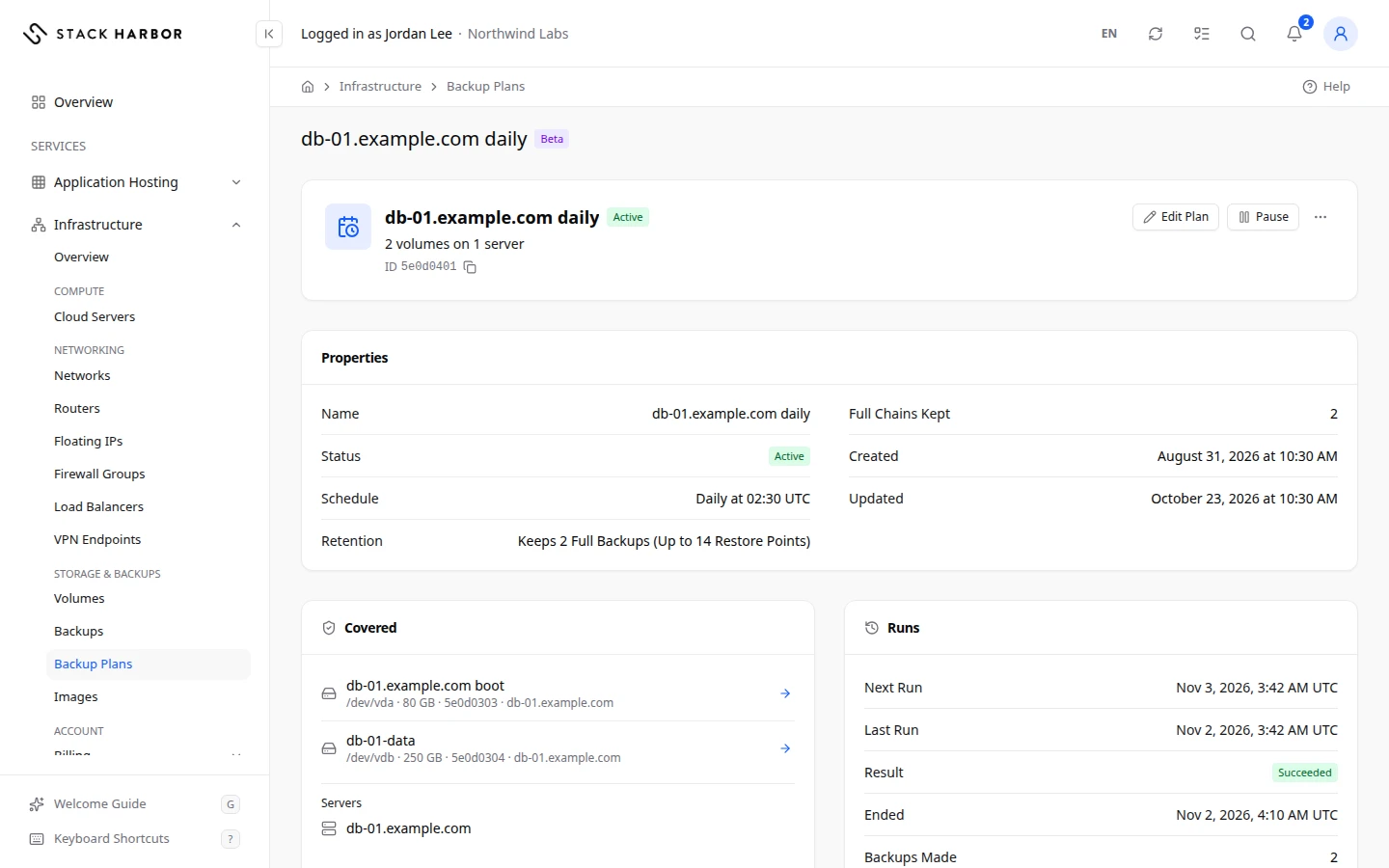
Read the top of the page
The top of the page shows the plan’s name, its status and a summary such as 2 volumes on 1 server.
The status is one of these:
- Active: the plan runs on its schedule.
- Paused: the plan takes no new backups for now. Backups already made are kept.
- Saving: a change to the plan is being saved.
- Needs Attention: the plan is missing on the platform. Save it again from the server to recreate it.
- Setup Failed: the plan couldn’t be set up. Select Retry on the server’s Backups tab. It sends the same settings again.
Read the plan’s properties
The Properties card lists:
- Name and Status.
- Schedule, when the plan runs, in your time zone. Hold the pointer over it to see the full schedule.
- Retention, how many backups the plan keeps.
- Full Chains Kept, the number of full backups kept. Each full backup starts a chain with up to 6 incremental ones. The oldest chain is deleted when a new one starts.
- Description, when it has one.
- Created and Updated.
Read what it covers
The Covered card lists each volume on the plan, with its size, its device and its server. Select a volume’s name to open its page. When the volume has backups, an arrow ends its row: select it to see them. Its name is View Backups of data-01 (with the volume’s name). A volume with no backups has no arrow. Under Servers, select a server to open it.
- No volumes are on this plan. means the plan runs but backs up nothing. Add a volume to the plan to back it up.
- If the card says volumes were attached after the plan was saved, save the plan again to include them.
Read its runs
The Runs card shows:
- Next Run, when the plan runs next.
- Last Run, when the last run started, or Not Yet before the first run.
- Result, how the last run went: Succeeded, Running, Failed or Not Confirmed. Partly Failed with a count, such as Partly Failed: 1 of 2 Volumes, means some volumes got no backup. Hold the pointer over it to see which ones.
- Ended, when the last run ended.
- Backups Made, how many backups the last run made.
Change the plan
- Select Edit Plan.
- Change the frequency, the time or the chains to keep. Every field is explained in Set the backup plan.
- Select Save Plan.
Pause or resume the plan
Select Pause to stop new backups for a while. Select Resume to start them again. Backups already made are kept either way.
Remove the plan
- Open the Backup Plan Actions menu and select Remove Plan.
- Confirm in Remove Backup Plan.
No new backups are made. The backups already made are kept. Delete them from the Backups list when you no longer need them.
Open the Server’s Backups, in the same menu, opens the server’s Backups tab.
If something goes wrong
- This plan isn’t one server’s Backup Schedule set up here, so it can be read on this page but not changed. A plan made outside Lighthouse shows no buttons.
- Backup Plans Couldn’t Be Read means we couldn’t load the plans right now. Your volumes and backups are unaffected. Select Try Again.
- Backup Plan Not Found means it may have been removed, or it belongs to a project you can’t see.
- If the last run Failed, check that the volumes still exist, then wait for the next run. Open a support ticket if it fails again.
Fields and statuses
What each item on this page means, what it does and how to read it.
- Covered Field
-
What it is. The servers and volumes on the plan.
- View Backups of data-01 Field
-
What it is. The arrow at the end of a volume’s row in the Covered card, named after the volume.
What it does. Opens the backups of that volume.
How to read it. It only shows when the volume has at least one backup.
- Backups Made Field
-
What it is. How many backups the last run made.
- Result Field
-
What it is. How the last run ended.
- Name Field
-
What it is. The plan’s name.
- Status Field
-
What it is. The plan’s state: Active, Paused, Saving, Needs Attention or Setup Failed.
How to read it. See each status for what to do.
- Schedule Field
-
What it is. When the plan runs.
How to read it. In your time zone. Hold the pointer over it to see the full schedule.
- Full Chains Kept Field
-
What it is. How many full backups the plan keeps.
What it does. When a new chain starts, the oldest one is deleted.
How to read it. Each full backup starts a chain with up to 6 incremental ones.
- Description Field
-
What it is. The plan’s description, when it has one.
- Created Field
-
What it is. When the plan was created.
How to read it. In your time zone.
- Updated Field
-
What it is. When the plan was last changed.
How to read it. In your time zone.
- Servers Field
-
What it is. The servers whose volumes the plan backs up.
What it does. Select a server to open it.
- Ended Field
-
What it is. When the last run ended.
How to read it. A dash means it hasn’t ended yet.
- Edit Plan Field
-
What it is. The action that changes the plan’s frequency, time and chains to keep.
What it does. Save Plan applies the change to the next runs.
How to read it. Only for a plan set up from a server’s Backups tab in Lighthouse.
- Pause Field
-
What it is. The action that stops new backups for a while.
What it does. The plan’s status becomes Paused. Backups already made are kept.
- Resume Field
-
What it is. The action that starts a paused plan again.
What it does. The plan runs on its schedule again.
- Remove Plan Field
-
What it is. The action that removes the plan.
What it does. No new backups are made. The backups already made are kept.
How to read it. Delete old backups from the Backups list when you no longer need them.
- Open the Server's Backups Field
-
What it is. A link to the Backups tab of the server the plan backs up.
- This plan isn't one server's Backup Schedule set up here, so it can be read on this page but not changed. Status
-
What it is. The plan was made outside Lighthouse, so this page can only show it.
How to read it. Its buttons are hidden. Contact support if you need it changed.
- 1 volume was attached after the plan was saved. Save the plan again to include it. Status
-
What it is. Volumes were attached to the server after the plan was saved, so the plan doesn’t back them up yet.
How to read it. Save the plan again to include them.
- Backup Plan Not Found Status
-
What it is. The plan can’t be shown.
How to read it. It may have been removed, or it belongs to a project you can’t see.
- Backup Plans Couldn't Be Read Status
-
What it is. The backup plans couldn’t be loaded right now.
How to read it. Your volumes and backups are unaffected. Select Try Again.