Each volume has its own Volume Details page. It shows every fact we keep about the disk: its size and type, the server it is attached to, its backups and backup plans. You also change the volume from here. To create a volume, see Create a volume.
Open a volume
- Open Infrastructure, then Volumes, under Storage & Backups.
- Select the volume’s name, or open its row menu and select Open Details.
Read the top of the page
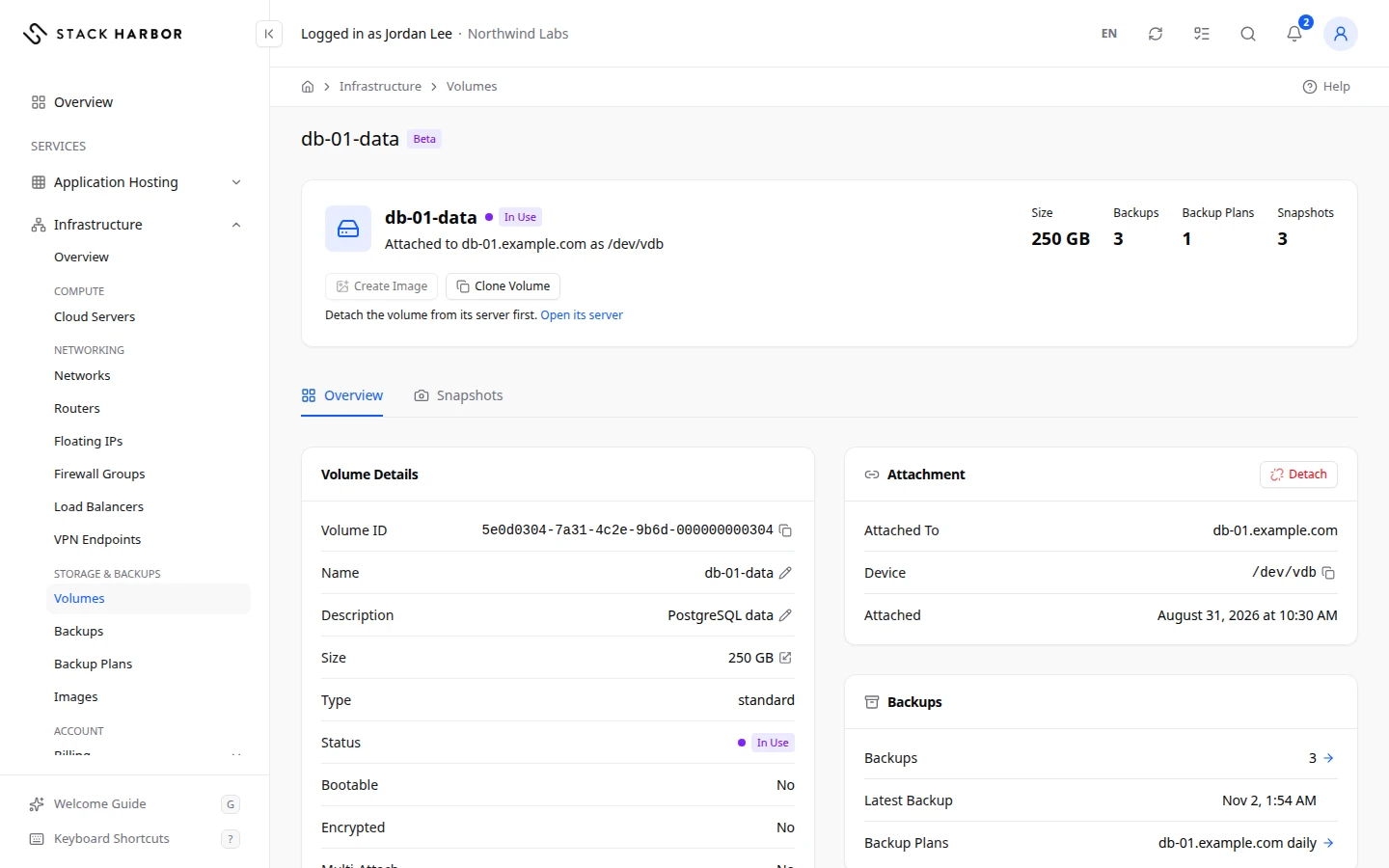
The top card shows the volume’s name and its status, such as In Use or Available. A volume with no name of its own reads, for example, Boot Disk of web-01, Disk 2 of web-01, or Volume followed by the first 8 characters of its ID. Boot marks a server’s boot volume. The line under the name says where it is attached, for example Attached to web-01 as /dev/vdb, or Not Attached.
Three figures sit on the right:
- Size is the volume’s size in GB.
- Backups counts the backups of this volume. It reads None when there are none.
- Backup Plans counts the plans that back it up on a schedule. It reads None when there are none. A dash means the plans couldn’t be read.
- Snapshots counts the volume’s snapshots. It reads None when there are none.
The buttons Attach to Server and Delete Volume sit under the figures, when you can use them.
Under the top card, two tabs: Overview, with the cards below, and Snapshots. See Take and revert snapshots below.
Read the volume’s details
The Volume Details card lists:
- Volume ID, the volume’s unique identifier. Select the copy icon to copy it.
- Name, and Description, a note for your team. A dash means it has none.
- Size and Type, the kind of storage, such as Standard.
- Status, what the volume is doing now. See Create a volume for every status.
- Bootable, Encrypted and Multi-Attach, each Yes or No. Multi-Attach means the volume can be attached to more than one server at once.
- Availability Zone, the part of the region it lives in, when the platform reports one.
- Created and Last Changed.
- Restored From, when the volume was restored from a backup, or Copied From Volume, when it was copied from another volume.
Read where it is attached
The Attachment card shows:
- Attached To, the server. Select its name to open the server’s Storage tab.
- Device, the name the server sees the disk under, such as /dev/vdb.
- Attached, when it was attached.
- Also Attached To, other servers, for a multi-attach volume.
A volume on no server shows This volume isn’t attached to a server. Attach it from a server’s Storage tab.
Read its backups
The Backups card shows how many Backups the volume has and its Latest Backup. Backup Plans names the plans that cover it. A count of zero reads None. Couldn’t be read means the plans couldn’t be loaded right now.
A row with something to open ends with an arrow. Select the arrow beside Backups to open the backups of this volume. Its name is View Backups. Select the arrow beside Backup Plans to open its plans. Its name is View Backup Plans. When a count is None, the row has no arrow.
If the volume is attached to a server and has no backups and no backup plan, the foot of the card shows Add to a Backup Plan. It opens the server’s Backups tab on its backup plans, where you add the volume to a plan. See Set up a backup plan.
To read a backup or a plan in detail, see Manage a backup and Manage a backup plan.
Read its disk activity
Disk activity is measured per server, across all of its volumes. The Disk Activity card names the server. Select Open Server Stats to see its graphs. See Read server graphs and activity. A volume on no server has no disk activity.
Rename a volume
- Select the pencil icon on the Name row (Rename Volume).
- Type the new name and confirm. You see Volume Renamed.
Nothing on the disk changes. A boot volume’s name can’t be changed.
Describe a volume
- Select the pencil icon on the Description row (Edit Description).
- Type a note for your team, up to 255 characters, then select Save Description. You see Description saved.
Leave it empty to clear it. The description also shows under the volume’s name in the Volumes list. Nothing on the disk changes.
Take and revert snapshots
A snapshot is a point-in-time copy of the volume, kept on the same storage. Take one before a risky change, such as an upgrade, so you can go back to it. A snapshot isn’t a backup: it is deleted with the volume. For a copy that outlives the volume, see Back up a volume.
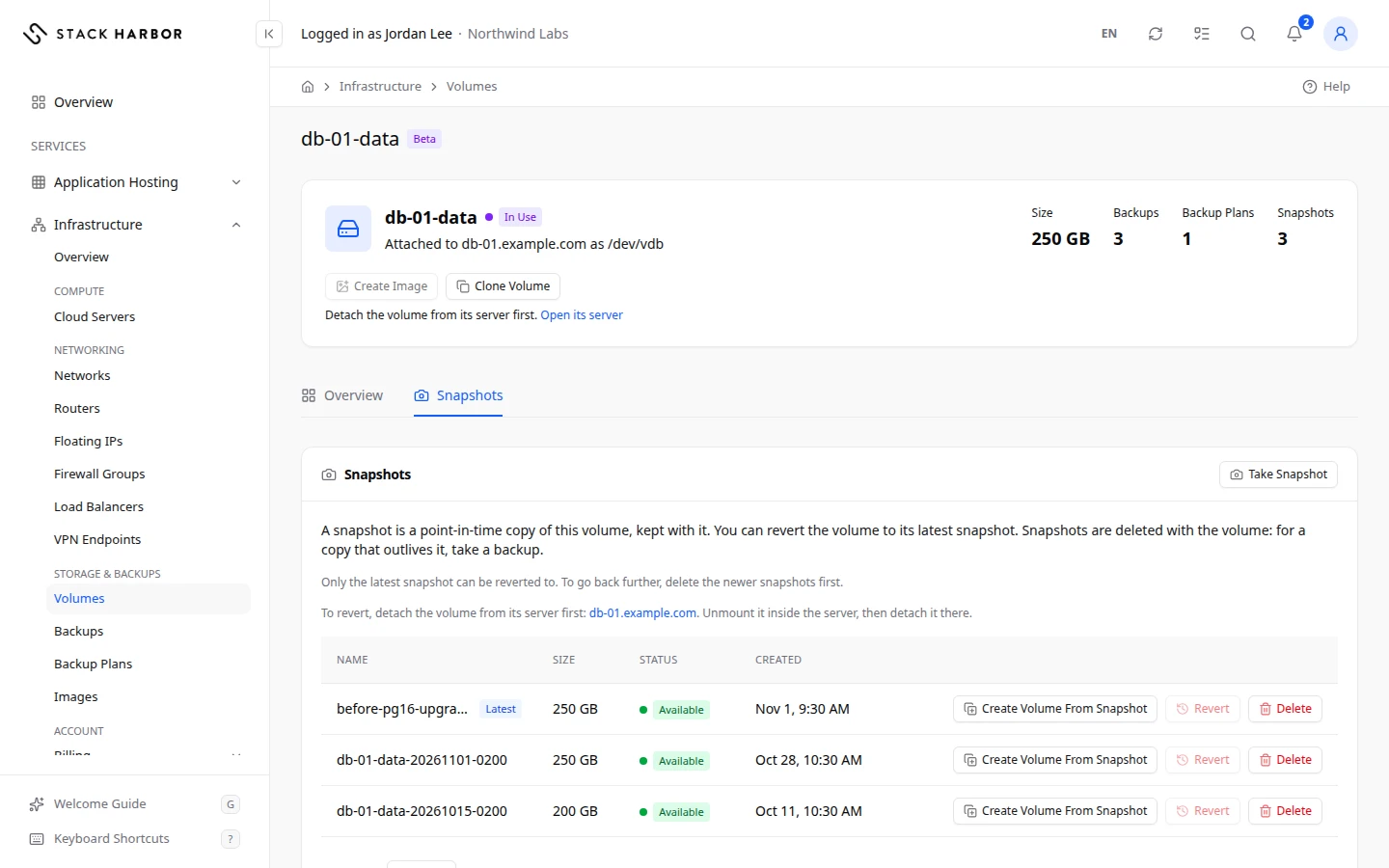
Select the Snapshots tab. Its list shows each snapshot’s Name, Size, Status and Created date. Latest marks the newest snapshot that is ready. Select a snapshot’s name to open its own page, with all its details and whether it can be reverted to.
Take a snapshot
- Select Take Snapshot.
- Type a Name, or leave it empty for the volume’s name and the date and time (UTC).
- Confirm. You see Snapshot requested. The snapshot shows Creating, then Available.
If the volume is attached to a server, the dialog warns that the snapshot is crash-consistent, like pulling the power: files the server was writing may be incomplete. For a consistent copy, stop the server first.
Revert to a snapshot
Revert puts the volume back as it was when the snapshot was taken. Everything written to the volume since then is lost, and this can’t be undone.
- Select Revert on the snapshot.
- Type the volume’s name to confirm, then select Revert to Snapshot. You see Revert requested.
Revert is greyed out when it can’t be used. Hold the pointer over it, or tap it, to see why:
- Only the latest snapshot can be reverted to. Delete the newer snapshots first: followed by their names. Delete each of them, then revert.
- Detach the volume from its server first. The note above the list names the server: unmount the volume inside it, detach it, then revert.
- The volume was extended after this snapshot was taken. It can’t be reverted to.
Lighthouse never detaches the volume or deletes snapshots for you: each step is yours to take, so nothing changes without you choosing it.
Delete a snapshot
- Select Delete on the snapshot, or on its own page.
- Confirm. You see Snapshot delete requested.
The volume itself doesn’t change.
Create a volume from a snapshot
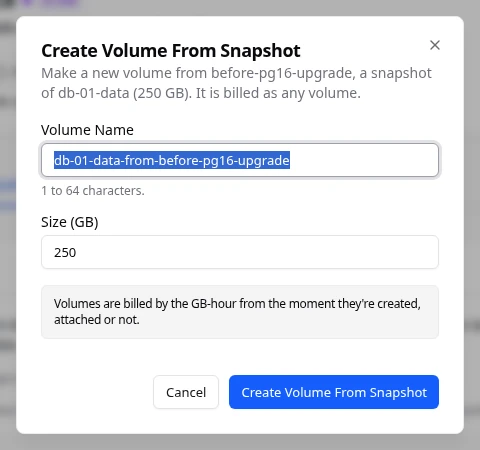
Select Create Volume From Snapshot on an available snapshot, or on its own page, to make a new volume holding the data as it was when the snapshot was taken. The name and size are filled in for you; the size can’t be smaller than the snapshot’s. Confirm, and you see Volume Create Requested. The new volume is on no server and is billed as any volume. The original volume and its snapshot don’t change.
Extend a volume
- Select the resize icon on the Size row (Extend Volume).
- Type the new size in GB and confirm. You see Volume Extend Requested.
- Grow the filesystem from inside the server. See Manage a server’s storage.
A volume can only grow.
Attach or detach a volume
- To attach it, select Attach to Server, choose the Server and confirm. You see Attach Requested. Format and mount the new disk inside the server.
- To detach it, unmount it inside the server first. Then select Detach on the Attachment card and confirm. You see Detach Requested.
Its data stays on the volume when you detach it.
Create an image of a volume
You can make a private image of a volume, then deploy new servers from it. The volume must be detached.
- Open the volume’s page and select Create Image.
- Check the Image Name and the Operating System. For a volume made from an image, Same as Its Source is chosen. For a volume that wasn’t, Linux is chosen; change it to Windows if that is what the volume holds.
- Optional: the Minimum Disk (GB), at least the volume’s size, and the Minimum Memory (MB).
- Select Create Image. Select Open Image in the message to go to its page.
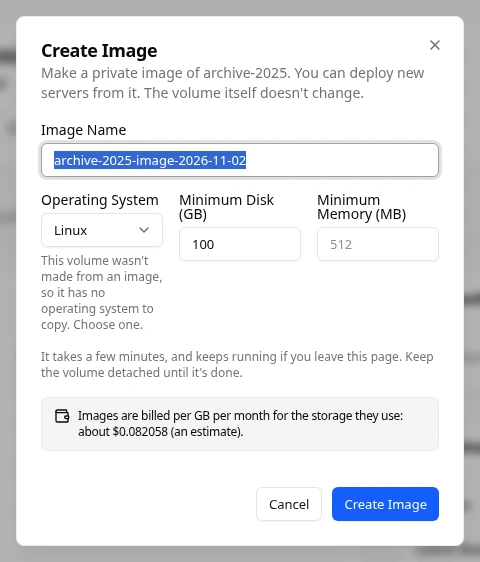
It takes a few minutes. Keep the volume detached until it’s done. The image shows Not Yet Booted until a server made from it boots. If Create Image is greyed out with Detach the volume from its server first., select Open its server and detach it there.
Clone a volume
- Select Clone Volume.
- Type the new Volume Name and its Size (GB): at least the size of the volume it copies.
- Confirm. The copy is a new volume on no server, billed as any volume.
A volume that is attached is copied while it runs, like a backup. For a clean copy, stop the server or detach the volume first.
Delete a volume
- Select Delete Volume.
- Type the volume’s name to confirm, then confirm. You see Volume Delete Requested.
Everything on the volume is deleted. Its backups are kept. Its snapshots are deleted with it: the dialog says how many, for example Its 2 snapshots are deleted with it. This can’t be undone.
If something goes wrong
- A greyed-out action means the volume is busy, or your account can’t change it right now. Hold the pointer over it to see why, for example This volume is busy. Try again when it’s finished.
- Too many changes in a short time. Wait a moment and try again.
- A copy can’t be smaller than the volume it copies (100 GB). Choose a size at least as large.
- Choose Linux or Windows: the volume wasn’t made from an image, so it has no operating system to copy.
- Volume Not Found means it may have been deleted, or you don’t have access to it.
- Your account has reached its limit of volume snapshots. Delete a snapshot first, or open a support ticket to raise the limit.
- Error as the status means the last change failed. Try again, or open a support ticket.
Fields and statuses
What each item on this page means, what it does and how to read it.
- Volume ID Field
-
What it is. The volume’s unique identifier.
- Type Field
-
What it is. The storage type of the volume.
- Bootable Field
-
What it is. Whether a server can start from this volume.
- Encrypted Field
-
What it is. Whether the volume’s data is encrypted on disk.
- Multi-Attach Field
-
What it is. Whether the volume can be attached to more than one server at once.
- Last Changed Field
-
What it is. When the volume last changed.
- Restored From Field
-
What it is. The backup this volume was restored from.
- Copied From Volume Field
-
What it is. The volume this one was copied from.
- Latest Backup Field
-
What it is. The most recent backup of this volume.
What it does. The arrow beside Backups lists them all.
- Description Field
-
What it is. The volume’s description, when it has one.
- Availability Zone Field
-
What it is. The part of the region the volume lives in.
How to read it. Shown only when the platform reports one.
- Created Field
-
What it is. When the volume was created.
How to read it. In your time zone.
- Attachment Field
-
What it is. The card that shows which server the volume is attached to.
What it does. Detach removes it from that server.
How to read it. Attached To, Device and Attached, or a note when it is on no server.
- Attached Field
-
What it is. When the volume was attached to its server.
How to read it. In your time zone.
- Also Attached To Field
-
What it is. The other servers a multi-attach volume is attached to.
How to read it. Shown only when it is on more than one server.
- Backups Metric
-
What it is. How many backups of this volume exist.
What it does. When there are backups, the arrow at the end of the row, View Backups, opens the Backups list filtered to this volume.
How to read it. A count. Zero reads None, and the row has no arrow.
- Backup Plans Metric
-
What it is. The backup plans that back this volume up on a schedule.
What it does. When there are plans, the arrow at the end of the row, View Backup Plans, opens the Backup Plans list filtered to this volume.
How to read it. A count at the top of the page, or the plan names on the Backups card. A dash means the plans couldn’t be read. Zero reads None, and the row has no arrow.
- View Backups Field
-
What it is. The arrow at the end of the Backups row.
What it does. Opens the Backups list filtered to this volume.
How to read it. It only shows when the volume has at least one backup.
- View Backup Plans Field
-
What it is. The arrow at the end of the Backup Plans row.
What it does. Opens the Backup Plans list filtered to this volume.
How to read it. It only shows when at least one plan covers the volume.
- None Status
-
What it is. The volume has no backups yet.
How to read it. Take a backup, or add the volume to a backup plan.
- Add to a Backup Plan Field
-
What it is. A link at the foot of the Backups card.
What it does. Opens the attached server’s Backups tab on its backup plans, where you add the volume to a plan.
How to read it. It shows only when the volume is attached to a server and has no backups and no backup plan.
- None Status
-
What it is. No backup plan covers this volume.
How to read it. Set up a plan from the server’s Backups tab to back it up on a schedule.
- Couldn't be read Status
-
What it is. The backup plans couldn’t be loaded right now.
How to read it. Refresh the page in a moment. The volume and its backups are unaffected.
- Disk Activity Field
-
What it is. Where to see the volume’s disk activity.
What it does. Open Server Stats opens the graphs of the server it is attached to.
How to read it. Disk activity is measured per server, across all of its volumes.
- Rename Volume Field
-
What it is. The action that gives the volume a new name.
What it does. Nothing on the disk changes.
How to read it. A boot volume’s name can’t be changed.
- Extend Volume Field
-
What it is. The action that makes the volume bigger.
What it does. The volume grows to the size you type. Grow its filesystem from the server afterwards.
How to read it. A volume can only grow.
- Attach to Server Field
-
What it is. The action that attaches the volume to one of your servers.
What it does. The volume appears on the server as a new disk.
How to read it. Format and mount it inside the server.
- Detach Field
-
What it is. The action that removes the volume from its server.
What it does. Its data stays on the volume.
How to read it. Unmount it inside the server first.
- Delete Volume Field
-
What it is. The action that deletes the volume and everything on it.
What it does. Its backups are kept. This can’t be undone.
How to read it. Type the volume’s name to confirm.
- Volume Not Found Status
-
What it is. The volume can’t be shown.
How to read it. It may have been deleted, or it belongs to a project you can’t see.
- This volume is busy. Try again when it's finished. Status
-
What it is. A change to the volume is still running, so other actions wait.
How to read it. Try again when the status is back to Available or In Use.
- Latest Field
-
What it is. Whether this is the volume's newest snapshot that is ready.
What it does. Only the latest snapshot can be reverted to.
How to read it. Yes or No.
- Can Revert Field
-
What it is. Whether the volume can be reverted to this snapshot now.
How to read it. No comes with the reason: not the latest snapshot, the volume is attached to a server, or the volume was extended after the snapshot.
- Size Field
-
What it is. The size of the volume when the snapshot was taken, in GB.
- Creating Status
-
What it is. The snapshot is being taken.
How to read it. It can't be reverted to or deleted until it's finished.
- Available Status
-
What it is. The snapshot is ready.
How to read it. You can revert to it if it's the latest, or delete it.
- Deleting Status
-
What it is. The snapshot is being deleted.
- Error Status
-
What it is. The snapshot couldn't be taken.
How to read it. Delete it and take a new one, or open a support ticket.
- Create Image Field
-
What it is. The action that makes a private image of a detached volume.
What it does. New servers can then be deployed from the image. The volume doesn't change.
How to read it. Greyed out while the volume is attached or busy, with the reason.
- Clone Volume Field
-
What it is. The action that makes a new volume as a copy of this one.
What it does. The copy is at least the same size, on no server, and billed as any volume.