The Account Settings page holds your organization’s profile, your display preferences and your sign-in security. The details you save here go on your invoices and billing records.
Only the account owner can edit the profile and the preferences. A team member can open the page and read what their permissions allow.
Open Account Settings
- Select your name or picture at the top right of the screen to open the account menu.
- Select Account Settings.
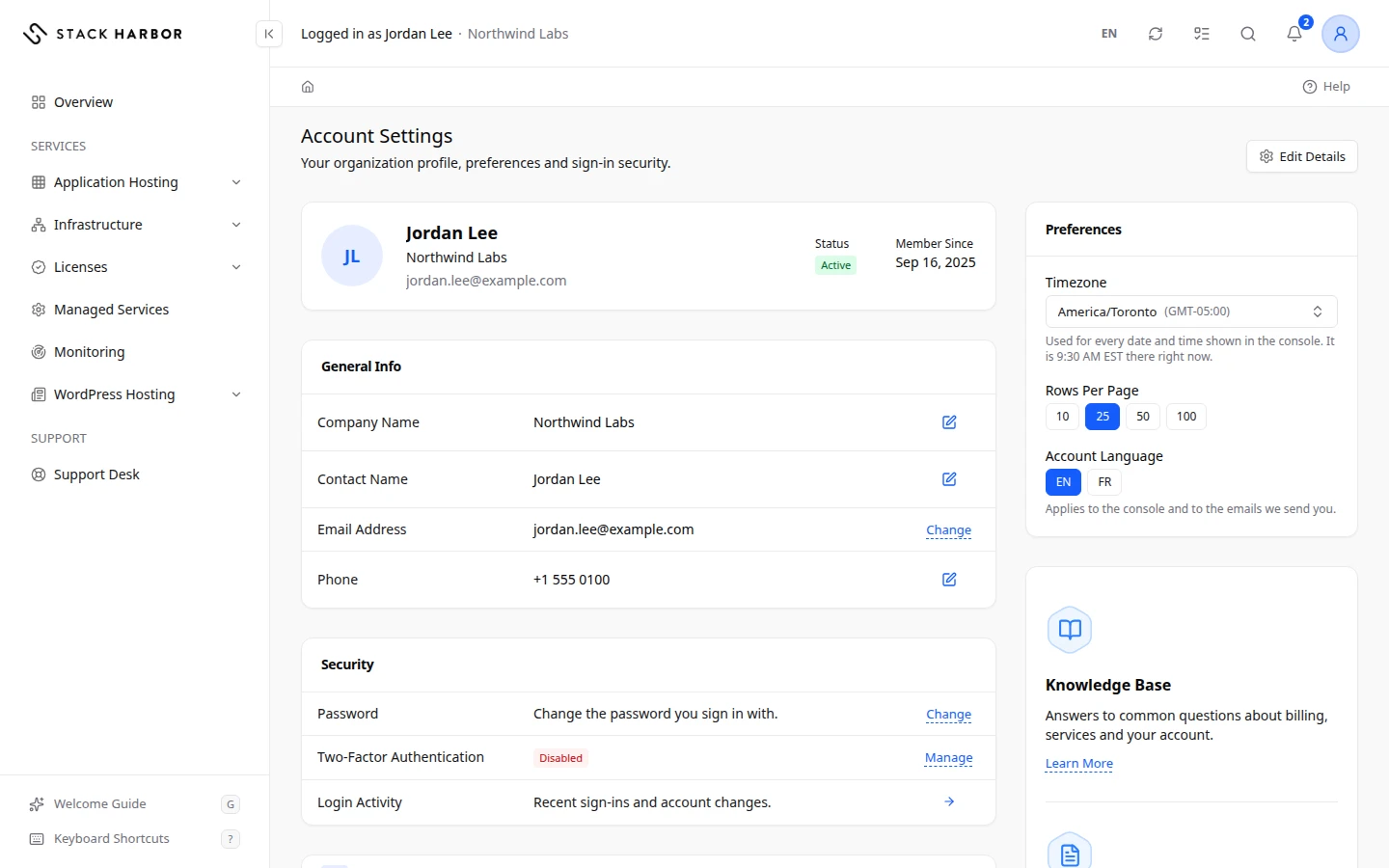
At the top you see the account name, its Status and the date it became a customer under Member Since. Below it, General Info lists Company Name, Contact Name, Email Address and Phone. An empty field shows Missing Details with an Add button.
Change your name, phone or company
- Select Edit Details at the top right of the page. You can also select the edit button at the end of one row in General Info.
- In Edit Account Details, change First Name, Last Name, Phone or Company Name.
- Select Save.
You see Account details saved. The change applies to the whole account, including invoices issued from now on.
Change your billing address
Your billing address is your tax location and the Bill-To on new invoices. It is edited from the Billing page.
- Open the account menu and select Billing.
- In the Billing Profile card, select Edit Address, or Add Billing Address if none is on file.
- In Edit Billing Address, fill in Address Line 1, Address Line 2, City, State / Region, Postal Code and Country.
- Select Save.
If you change the country or the province, Lighthouse warns you first. The taxes on future invoices change with it, for example GST/HST or QST. Invoices already issued keep the address and taxes they were issued with.
Change your sign-in email
Your email address is the address you sign in with. To change it, select Contact support to change your sign-in email on the Email Address row and open a ticket.
Set your preferences
The Preferences card is on the right of the page.
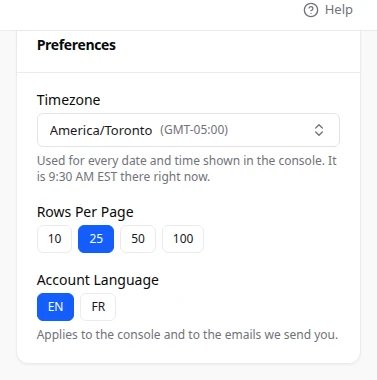
- Under Account Language, pick English or Français. It applies to Lighthouse and to the emails we send you.
- Under Timezone, search for your timezone, or select Use My Current Timezone. Every date and time in Lighthouse uses it. The card shows the current time in the zone you picked.
- Under Rows Per Page, pick how many rows each table shows.
Each change saves on its own. You see Preferences saved.
Security and notifications
The Security card shows your Password, your Two-Factor Authentication state and your Login Activity. Select the arrow at the end of Login Activity to open the Activity Log. Its name is View Activity Log. See:
Notification Preferences, below Security, sets which alerts also reach you by email. See Manage your notifications.
If something goes wrong
- Account details could not be saved. A field may be in the wrong format. Fix the field marked in red, then select Save again.
- Preferences could not be saved. Try again in a moment.
- If you see Account Details Couldn’t Be Loaded, select Try Again.
- If you don’t see Edit Details or Preferences, you are signed in as a team member. Ask the account owner to make the change.
Fields and statuses
What each item on this page means, what it does and how to read it.
- Status Field
-
What it is. The standing of your Stack Harbor account.
How to read it. Active is the normal state. Any other value limits what you can do; the badge says which.
- Active Status
-
What it is. Your account is in good standing.
How to read it. You don't need to do anything.
- Pending Status
-
What it is. Your account is being set up or reviewed.
How to read it. Some actions wait until the review is done. Contact support to find out why and what to do.
- Suspended Status
-
What it is. Your account is suspended, so some actions are blocked.
How to read it. Pay any overdue invoice, then contact support.
- Inactive Status
-
What it is. Your account has no active service and is not in use.
How to read it. Contact support to find out why and what to do.
- Closed Status
-
What it is. Your account is closed.
How to read it. Contact support to find out why and what to do.
- Cancelled Status
-
What it is. Your account was cancelled.
How to read it. Contact support to find out why and what to do.
- Rejected Status
-
What it is. Your account application was not approved.
How to read it. Contact support to find out why and what to do.
- Fraud Status
-
What it is. Your account is blocked for a security review.
How to read it. Contact support to find out why and what to do.
- Member Since Field
-
What it is. The date your Stack Harbor account was created.
- Company Name Field
-
What it is. Your organization’s name, as it appears on invoices.
What it does. Printed on every new invoice.
How to read it. Empty for a personal account.
- Contact Name Field
-
What it is. The first and last name of the account holder.
- Email Address Field
-
What it is. The account owner’s email address. It is also the address you sign in with.
What it does. We send invoices and account notices to it.
How to read it. To change it, contact support.
- Phone Field
-
What it is. A phone number where we can reach the account holder.
- Missing Details Status
-
What it is. This field is empty.
How to read it. Select Add beside it to fill it in.
- First Name Field
-
What it is. The account holder’s first name.
What it does. Used on invoices. Required before you can enable a service.
- Last Name Field
-
What it is. The account holder’s last name.
What it does. Used on invoices. Required before you can enable a service.
- Address Line 1 Field
-
What it is. The street address for invoices.
- Address Line 2 Field
-
What it is. More of the address, such as a suite or unit number.
How to read it. Optional.
- City Field
-
What it is. The city of the billing address.
- State / Region Field
-
What it is. The province, state or region of the billing address.
What it does. In Canada it decides which sales taxes apply, for example GST/HST or QST.
- Postal Code Field
-
What it is. The postal or ZIP code of the billing address.
- Country Field
-
What it is. The country of the billing address.
What it does. Decides which taxes apply to new invoices.
How to read it. Pick it from the list. Invoices already issued are not affected by a change.
- Account Language Field
-
What it is. The language Lighthouse and our emails use for this account.
What it does. Changes the screen language right away, and the language of future emails.
How to read it. English or Français.
- Timezone Field
-
What it is. The timezone every date and time in Lighthouse is shown in.
How to read it. The card shows the current time in that zone. Use My Current Timezone picks the one your device is set to.
- Rows Per Page Field
-
What it is. How many rows each table shows before it splits into pages.
- Password Field
-
What it is. The password you sign in with.
What it does. Select Change to set a new one.
How to read it. Shows when it was last changed.
- Two-Factor Authentication Field
-
What it is. A second step at sign-in: a 6-digit code after your password.
What it does. Select Manage to turn it on or off.
How to read it. Enabled with the method you use, or Disabled.
- Enabled Status
-
What it is. Two-factor authentication protects your sign-in.
How to read it. The method shows next to it: Authenticator App or Email.
- Disabled Status
-
What it is. Your sign-in uses only your password.
How to read it. We recommend turning on two-factor authentication.
- Login Activity Field
-
What it is. Recent sign-ins and account changes.
What it does. The arrow at the end of the row, View Activity Log, opens the Activity Log.
- View Activity Log Field
-
What it is. The arrow at the end of the Login Activity row.
What it does. Opens the Activity Log.